
This chapter describes how to install HaloENGINE GenNXT using the graphical installation method.
Prerequisites
Before installing HaloENGINE GenNXT, ensure that the following prerequisites are met:
-
The user performing the installation has administrator privileges.
-
The Application ID and Tenant ID of the Microsoft Entra ID application are available.
-
The Windows certificate alias name or Common Name (CN) can be used.
-
The thumbprint of the MPIP authentication certificate installed in the Local Computer certificate store is available.
-
For Microsoft SQL Server, create the database before installing HaloENGINE GenNXT. For example:
HaloENGINE_DB. Then, establish a connection to the Microsoft SQL Server instance that hosts the HaloENGINE GenNXT database. -
For MySQL, ensure that the database user has the necessary remote access permissions when connecting from another machine.
-
For SQLite, the database is stored in the installer package. No separate database server installation is required.
Procedure
-
To begin the interactive installation, double-click
HaloENGINEGenNXT_Setup.exe. Depending on your Windows security settings, you may get a warning such as "Do you want to allow the following program to make changes to this computer?". If you get this security warning, click the Yes button to continue the installation. -
When the installer starts, the Startup dialog appears, followed by the Welcome dialog.

Startup Dialog
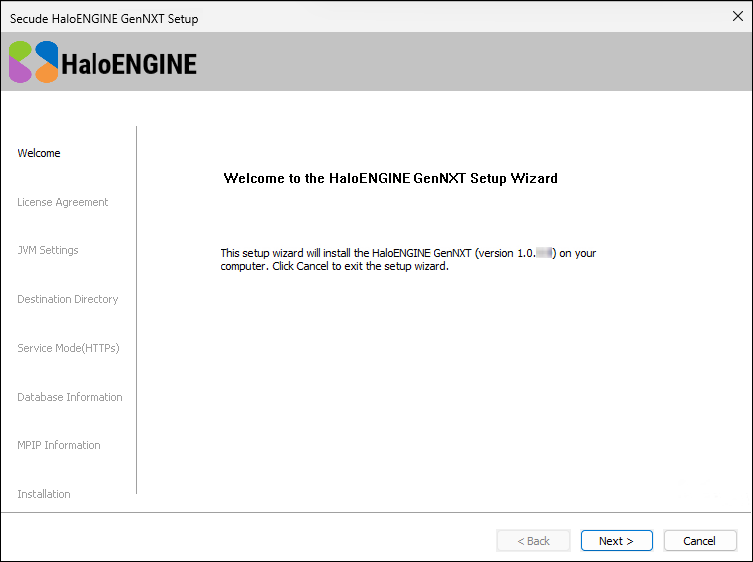
Welcome dialog
-
Click Next. The License Agreement dialog appears.
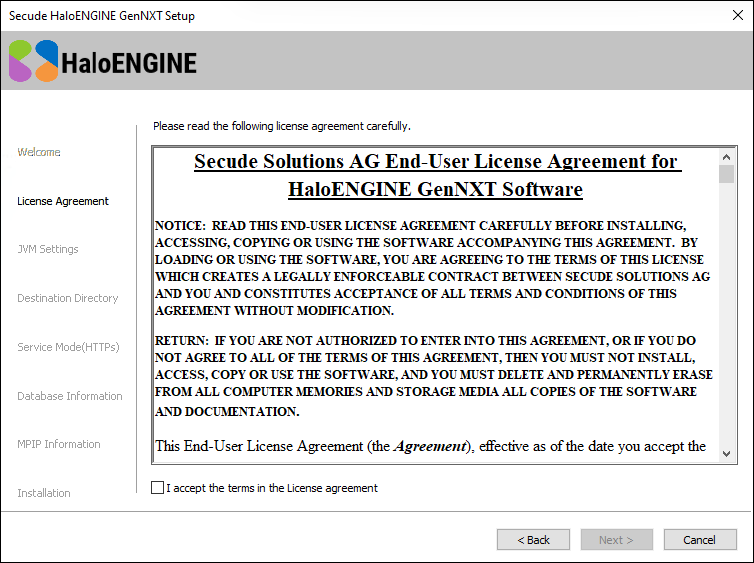
End-User License Agreement dialog
-
Read the End-User License Agreement (EULA). If you accept the terms, select I accept the terms in the License Agreement, and then click Next.
-
The JVM Settings dialog appears.
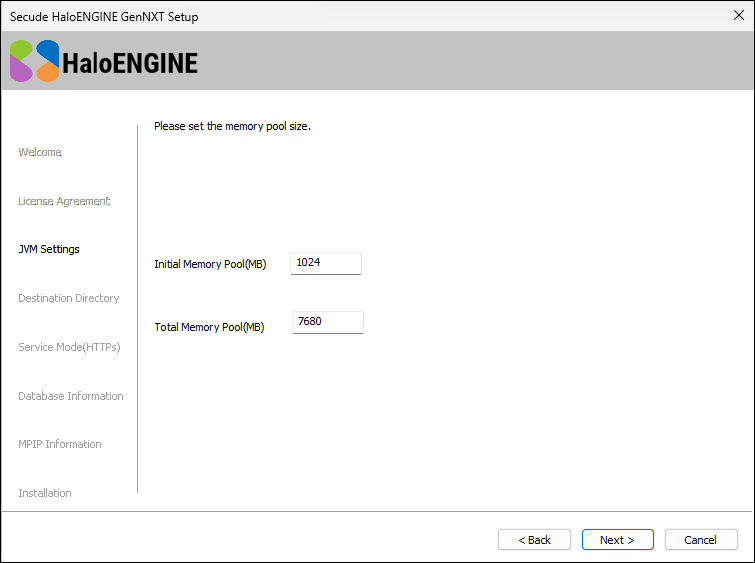
Tomcat memory pool size configuration dialog
-
If required, modify the Initial Memory Pool and Total Memory Pool values. Note: Ensure that the Total Memory Pool does not exceed 75% of the available system RAM.
-
Click Next.
-
The Destination Directory selection dialog appears.
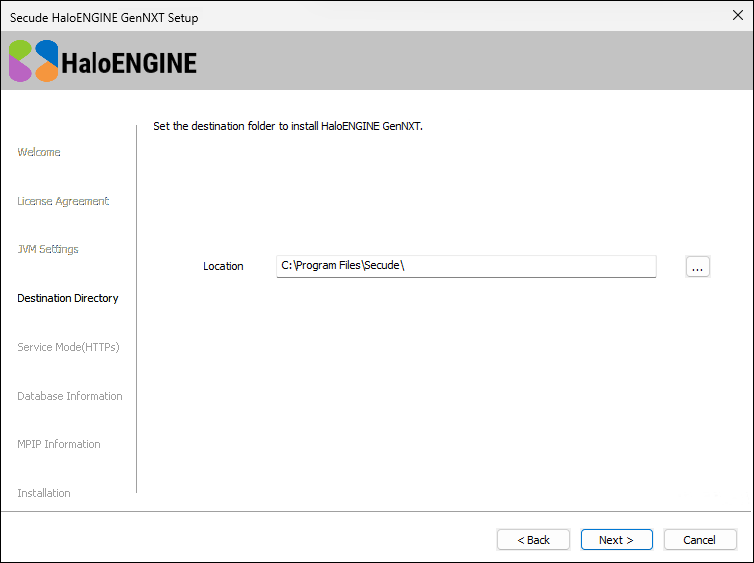
Destination folder selection dialog
-
By default, HaloENGINE GenNXT is installed in
C:\Program Files\Secude\. To install HaloENGINE GenNXT in a different location, click Browse, select the destination folder. -
Click Next.
-
The Service Mode (HTTPS) dialog appears.
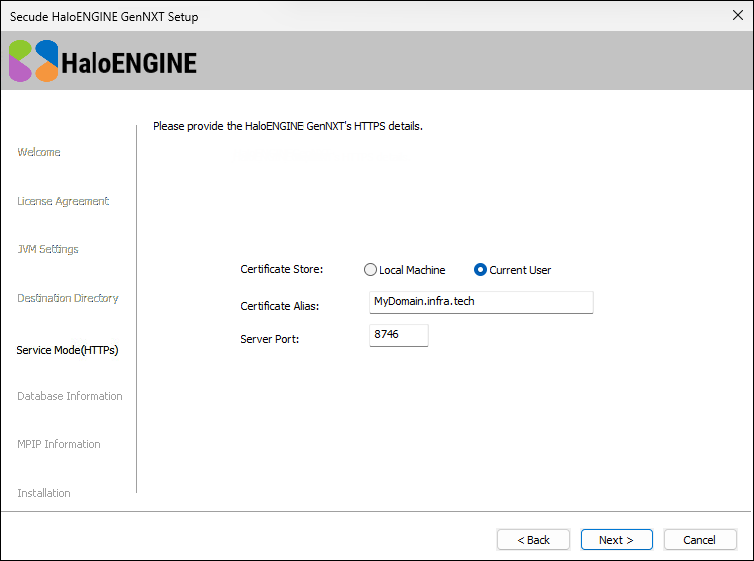
Service mode selection dialog
-
Certificate Store: Select Local Machine or Current User.
-
Certificate Alias: Enter the alias name of the certificate. If an alias is not available, enter the Common Name (CN) of the certificate.
-
Service Port: Enter the port on which you want to launch the Admin Portal.
-
-
Click Next.
-
The Database Information dialog appears.
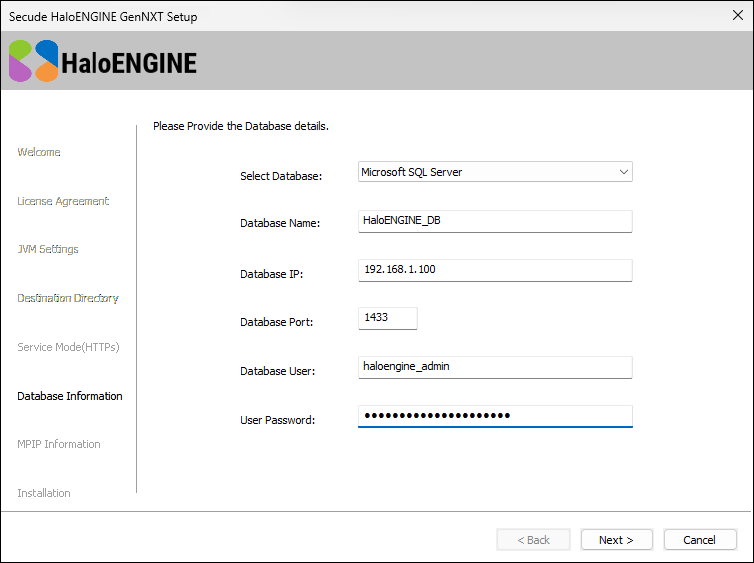
Database Information dialog
-
Database: Select the database type: Microsoft SQL Server, MySQL, or SQLite. If you select SQLite, go to Step 14.
-
Database Name: Enter the database name. For Microsoft SQL Server, enter the name of the database created earlier. For MySQL, enter a database name. The database is created during installation. For example:
HaloENGINE_DB. -
Database IP: Enter the IP address of the database server. For example:
192.168.1.100. -
Database Port: Enter the database port number. For example:
-
Microsoft SQL Server:
1433 -
MySQL:
3306
-
-
Database User: Enter the database user name. For example:
haloengine_admin. -
User Password: Enter the password for the database user. Then, go to Step 15.
-
-
SQLite Database: For SQLite, no further database configuration is required because the SQLite database is included in the installer package.
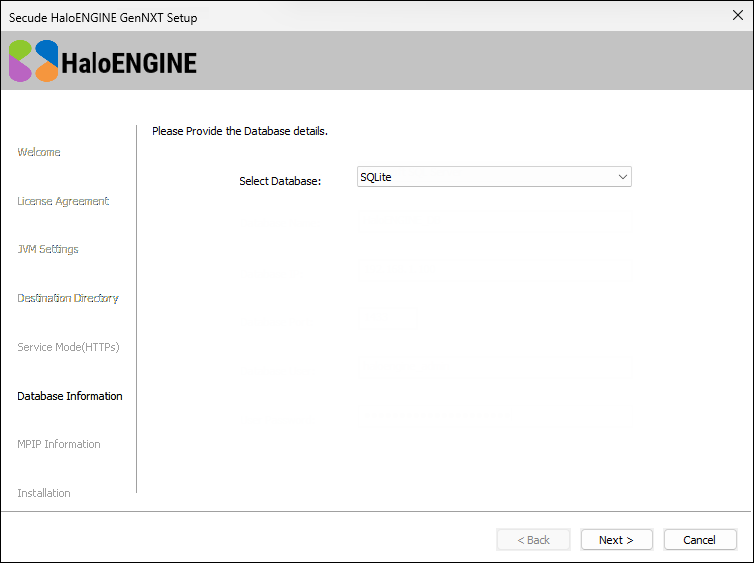
SQLite Database
-
Click Next.
-
The MPIP Information dialog appears.
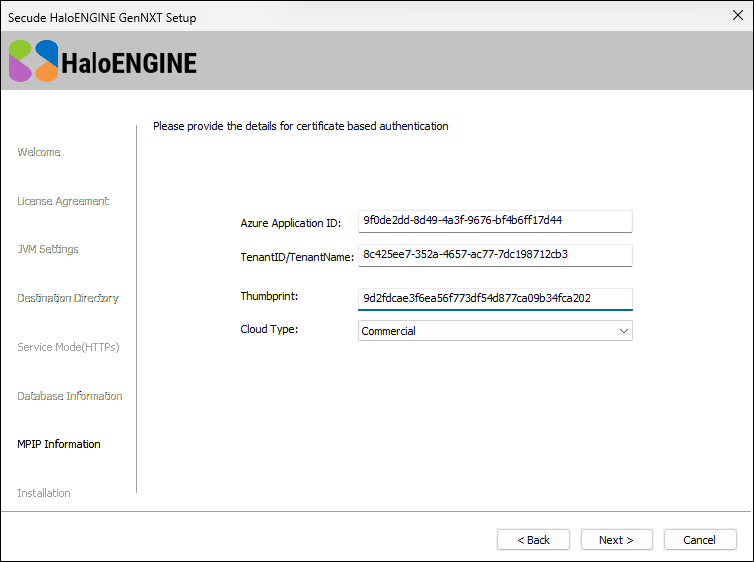
MPIP Information dialog
-
Application ID: Enter the unique identifier of the registered Microsoft Entra ID application. For example,
9f0de2dd-8d49-4a3f-9676-bf4b6ff17d44. -
Tenant ID/Tenant Name: Enter the Microsoft Entra tenant name (for example,
contoso.onmicrosoft.com) or the tenant ID (for example,8c425ee7-352a-4657-ac77-7dc198712cb3). -
Thumbprint: Enter the thumbprint of the MPIP authentication certificate installed in the Local Computer certificate store. For example,
9d2fdcae3f6ea56f773df54d877ca09b34fca202. -
Cloud Type: Commercial is selected by default. Depending on your Microsoft Entra ID cloud environment, select one of the following cloud types: Commercial, Custom, US_DoD, US_GCC, US_GCC_High, US_Sec, US_Nat, or China_01. If you select Custom, specify the following:
-
Protection Cloud URL: For example,
https://api.aadrm.com -
Policy Cloud URL: For example,
https://dataservice.protection.outlook.com
-
-
Click Next.
-
-
The Installation dialog appears, displaying the installation progress.
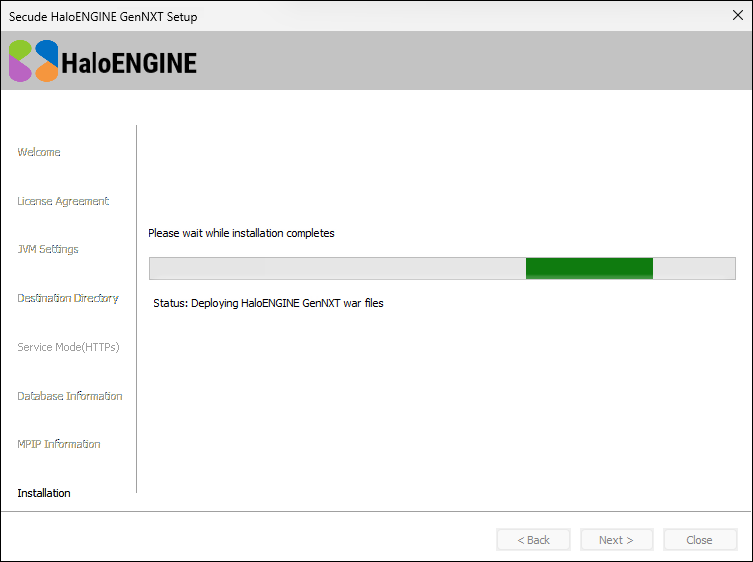
Installation progress dialog
-
When the installation is complete, a confirmation message appears. Click the link in the installer to open the HaloENGINE GenNXT Admin Portal. Alternatively, close the installation wizard and click the desktop shortcut
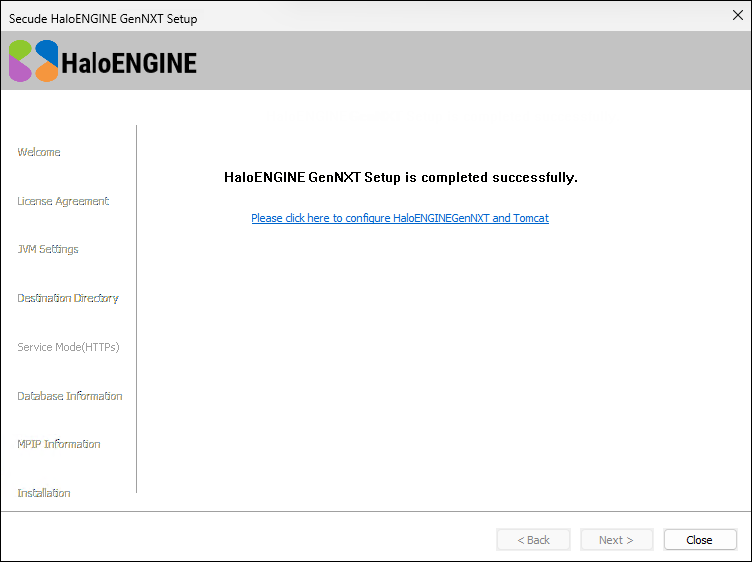
Installation completed dialog
-
The HaloENGINE GenNXT Admin Portal opens in your default web browser at
https://<localhost>:<port>/haloengine-admin/.
HaloENGINE GenNXT Tomcat service start-up delay after reboot
The HaloENGINE GenNXT Tomcat service is configured to use Automatic (Delayed Start). After the computer restarts, the service starts after approximately three minutes. The actual startup time depends on the system because Windows starts delayed services only after all Automatic services have started.
What to do next
-
Verify that the Maximum memory pool size in HaloENGINE GenNXT Tomcat (
…bin/HaloENGINE_Tomcat10.exe) does not exceed the system RAM. After setting up the HaloENGINE GenNXT certificate, verify that the maxSavePostSize (bytes) in the Connector (SSLEnabled inserver.xml) is smaller than the "Maximum memory pool size". -
If you want to send large files (2GB) forward and backward, ensure that the "Maximum memory pool size" is greater than the maxSavePostSize (2GB, as specified above).
-
For more information on initial configuration, refer to the section "Initial Configuration of HaloENGINE GenNXT Admin Portal”.