
This section describes common problems that may occur during installation and configuration.
As the first step in troubleshooting, make sure that your HaloENGINE GenNXT version is up to date. Each release of HaloENGINE GenNXT adds new features and fixes many problems. Installing the latest version may resolve any issues without further troubleshooting.
Forgot your Admin Portal Password
Symptoms
Login fails with the error message "Invalid credentials".
Background
Entered the wrong password to access the HaloENGINE GenNXT Admin Portal.
Probable Cause
You may be unable to access the Admin Portal if you forget your password.
Recommended Action
-
Run Command Prompt as an administrator.
-
Type
haloengine-password-config.bat -hto reset the password. -
Log in with the new password.
Cannot Log in to Microsoft after Configuring the Tenant
Symptoms
The user login fails with the following error message.
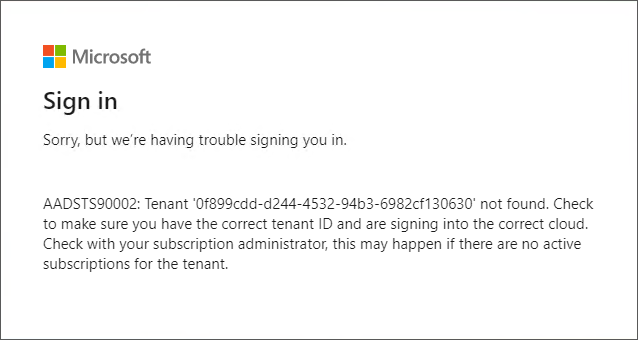
Microsoft Sign-in error message
Background
The above error occurs when a user logs in to a HaloENGINE GenNXT Admin Portal using Microsoft Sign-In.
Probable Cause
The Tenant ID/Client ID you entered on the Microsoft Entra Tenant Configuration page is either incomplete or incorrect.
Recommended Action
-
Check that the Tenant ID/Client ID given on the Microsoft Entra Tenant Configuration page is correct.
-
Log in to the Admin Portal.
Protection fails with ServiceDisabledError
Symptoms
During a protection operation, HaloCAD displays an error similar to one of the following:
HTTP operation failed Failed with: [ServiceDisabledError: 'RMS service is disabled for this tenant., ServiceDisabledError.Extent=Tenant, HttpRequest.Id]"
or
HTTP operation failed Failed with: [ServiceDisabledError: 'RMS service is disabled for this tenant., ServiceDisabledError.Extent=User, HttpRequest.Id]"
Background
This issue affects content creation (protection) only. It does not affect opening or consuming protected documents.
Some organizations deploy Microsoft Purview Information Protection in phases by using an onboarding control policy. During this phase, only designated users or groups (for example, administrators) are permitted to create protected content until the deployment is complete.
This issue can also occur in Microsoft sovereign cloud environments (for example, Microsoft 365 GCC High) if the tenant or application is not configured correctly. Sovereign cloud environments are intended for government agencies and eligible organizations that handle regulated government data. Most commercial Microsoft 365 tenants are not deployed in these environments.
Probable Cause
The error can occur if one of the following conditions is true:
-
RMS is not enabled for the Microsoft 365 tenant.
-
The onboarding control policy restricts the current user or service principal from creating protected content.
Recommended Action
-
Verify that RMS is enabled for the Microsoft 365 tenant.
-
Verify that the user or service principal has permission to create protected content under the organization's onboarding control policy.
-
If the onboarding control policy is enabled, contact your Microsoft 365 administrator to grant the required permissions or complete the onboarding process.
Microsoft Login Fails
Symptoms
When logging in to the HaloENGINE GenNXT Admin Portal using a Microsoft account, one of the following error messages is displayed:
Authentication processing fault: 401 Unauthorized or Authentication failed. Please verify that the Azure Tenant ID, Client ID, and Client Secret are correct and try again.
Background
The authentication process starts successfully, but the Admin Portal displays an authentication error after the login attempt.
Probable Cause
Incorrect Microsoft Entra ID authentication details are configured for the Domain Alias. For example, the error can occur if an incorrect Client Secret is entered.
Recommended Action
Verify the authentication details on the Microsoft Entra Tenant Configuration page. Ensure that the Tenant Name, Tenant ID, Client ID, Client Scope, Client Secret, and Client Domain Name are correct.
Error Shown on the Dashboard
An error appears on the Dashboard with the following message: “The HaloENGINE Service is not responding or is not connected. Check the HaloENGINE logs at the following location: /Secude/HaloENGINE”.
Background
When an administrator logs in to the HaloENGINE GenNXT Admin Portal, a warning appears at the top of the Dashboard. In addition, the Select Label list on the Classification Rules page is empty.
Probable Cause
One of the following conditions may have occurred:
-
The HaloENGINE MPIP module is stopped.
-
The HaloENGINE MPIP module certificate has expired.
Recommended Action
-
Check the status of the HaloENGINE MPIP module and start the service if it is stopped.
-
Check the HaloENGINE MPIP module certificate. If the certificate has expired, renew it using the
heslibconfig.exetool and restart the HaloENGINE Service. -
Log in to the HaloENGINE GenNXT Admin Portal and verify that the Select Label list displays the available labels.