
This chapter describes how to configure classification schemas, action rules, logs, and licenses in HaloENGINE GenNXT.
-
Configuration (Optional)
This step is optional. You can configure it during initial setup, later, or use the default settings. -
Rules Management (Required)
Create classification schemas based on your organization’s requirements. Create profiles for client types and add rules. Setting metadata for upload decryption is optional. -
Log Management (Optional)
This step is optional. You can configure it during initial setup, later, or use the default settings. -
Security Settings (Optional)
This step is optional. You can configure it during initial setup, later, or use the default settings.
Each of these steps is described in detail in the following sections.
Client Type
For illustration purposes, Windchill is used as the example client type throughout this chapter. If you use a different client type, select the appropriate client from the Client Type selection list (Teamcenter, Autodesk Vault, and SOLIDWORKS PDM) whenever required.
Configuration
This section describes how to configure HaloENGINE GenNXT, add custom metadata, and view or update the license.
Metadata Configuration
The Admin Portal includes built-in metadata for each PLM and PDM client. This metadata supports data classification and secure file downloads. The metadata assigned to a label determines label derivation for file encryption in HaloENGINE GenNXT. Administrators can add custom metadata based on organizational requirements. After you create custom metadata, you can use it to define file rules.
To view and add metadata, follow these steps:
-
In the left navigation bar, click Configure, and then click Metadata.
-
The Custom Metadata Configuration page appears.
-
From the Client Type list, select a client type: Windchill, Teamcenter, Autodesk Vault, or SOLIDWORKS PDM. If the license file contains only one client type, only that client appears in the list. If the license includes multiple client types, all licensed clients appear in the list.
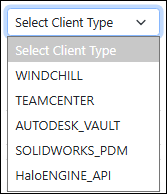
Client types
-
The built-in metadata for the selected client type appears on the page.
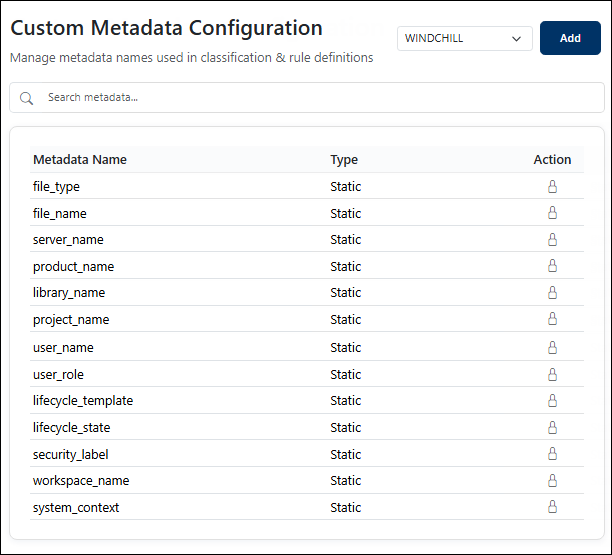
Windchill built-in metadata
-
To add custom metadata, click Add.
-
The Add Metadata dialog box appears.
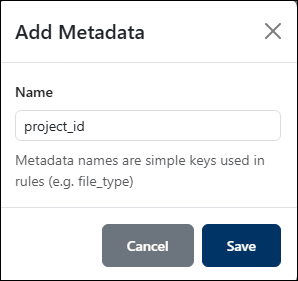
Add metadata dialog
-
Enter a name for the metadata (for example,
project_id). -
Click Save.
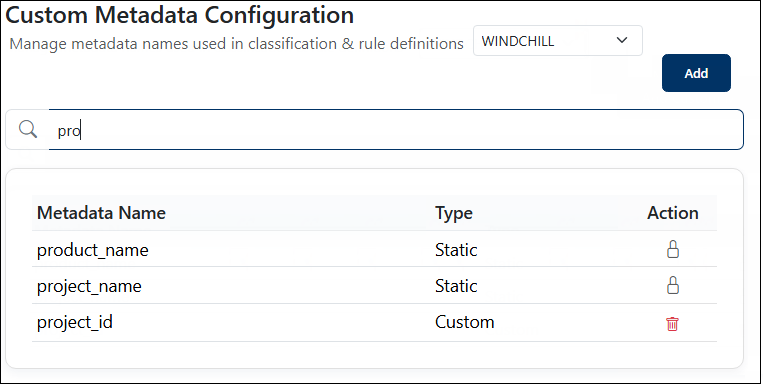
Custom metadata added for Windchill client type
Result:
-
The built-in metadata is displayed first, followed by the custom metadata. Custom metadata is added to the end of the list on the Custom Metadata Configuration page.
-
To search for metadata, enter text in the search bar. Matching results appear in the list.
-
Built-in metadata is categorized as Type: Static, and custom metadata is categorized as Type: Custom. For a description of each metadata field, see the corresponding client type section: Windchill, Teamcenter, Autodesk_Vault, or SOLIDWORKS PDM.
-
To delete custom metadata, click the Delete icon in the Action column. Static metadata cannot be deleted.
Configure Owner Rights
This feature defines how a user is identified as the owner of exported documents. Supported clients include Teamcenter, Windchill, and Autodesk_Vault. However, this configuration does not apply to the SOLIDWORKS PDM client because document protection is managed directly by HaloCAD for SOLIDWORKS PDM.
To configure owner rights, follow these steps:
-
In the left navigation pane, click Configure, and then click Owner.
-
The Document Rights Configuration page appears.
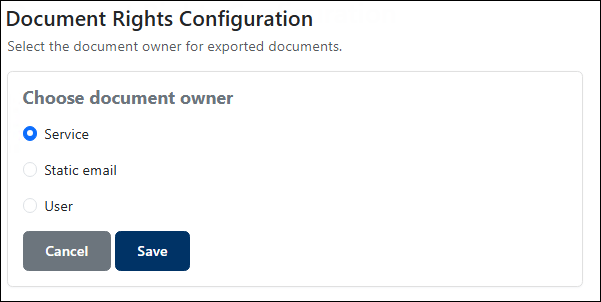
Owner Rights
-
Select one of the following options:
-
Service (default) – Uses the Application ID that initializes the HaloENGINE GenNXT Tomcat Service as the document owner.
-
Static email – Uses the email address entered in the text box as the document owner.
-
User – Derives the email address from the connected client (Windchill, Teamcenter, and Autodesk_Vault).
-
-
Click Save.
Result: A confirmation message appears, indicating that the owner rights are updated successfully.
Check License Details or Update the License
The License page allows the administrator to view the license status and update the license when a renewal is required.
-
Verify the license validity period and activated features.
-
Upload the renewed license obtained from Secude.
To view and update the license, follow these steps:
-
In the left navigation bar, click Configure, and then click License.
-
The License Details page appears and displays the license information.
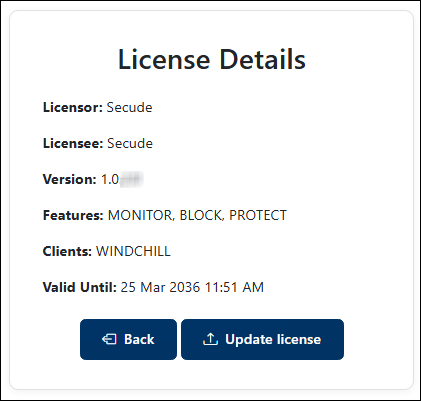
Viewing license details
-
To update the license, click Update License.
-
On the Upload New License File page, click Choose File, and then select the
license.licfile in the Open dialog box.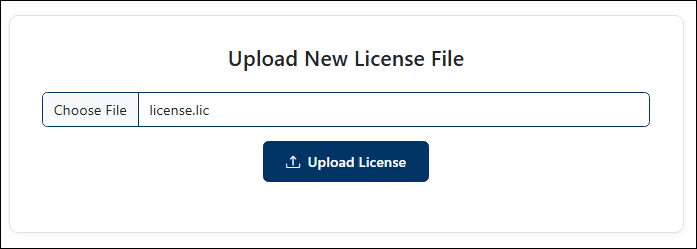
Uploading a new license
-
Click Upload License.
Result:
-
The new license file is uploaded.
-
A confirmation message appears, and the License Details page displays the updated license information with the new validity period.
-
When the license approaches its expiration date, a notification appears. Refer to the Notification section.
Microsoft Entra
The Micro Entra Tenant Configuration page enables you to configure the Microsoft Entra tenant and domain details required for user authentication and validation in HaloENGINE GenNXT.
Prerequisite: Ensure that you have configured the required details as described in Step 3 in the Configure Microsoft Entra ID for User Management section.
To configure the tenant details, follow these steps:
-
In the left navigation bar, click Configure, and then click Microsoft Entra.
-
The Microsoft Entra Configuration page appears.
-
Enter the following details.
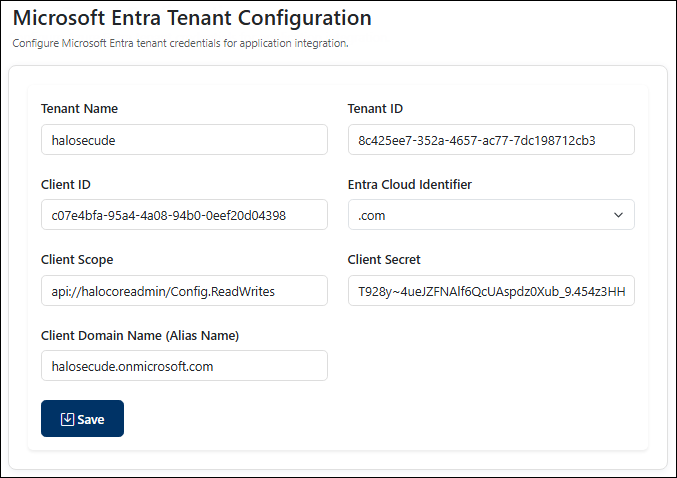
Microsoft Entra Tenant Configuration
-
Tenant Name – Enter the name of your Microsoft Entra tenant. For example, if your tenant domain is
Contoso.onmicrosoft.com, enterContoso.Note: The tenant name can contain a maximum of 30 characters. Only alphanumeric characters, hyphens, and underscores are allowed. Ensure that the tenant name specified in the Redirect URL exactly matches the Tenant Name configured in the Admin Portal. This field is case-sensitive.
-
Tenant ID – Enter the unique identifier of your Microsoft Entra ID instance. For example,
8c425ee7-352a-4657-ac77-7dc198712cb3. -
Client ID – Enter the identifier assigned when registering the application. For example,
c07e4bfa-95a4-4a08-94b0-0eef20d04398. -
Azure Cloud Identifier – Select the appropriate identifier from the list. For example,
.comor.us. -
Client Scope – Enter the scope assigned to the application. For example,
api://halocoreadmin/Config.ReadWrites. -
Client Secret – Enter the secret assigned to the application. For example,
T928y~4ueJZFNAlf6QcUAspdz0Xub_9.454z3HH1. -
Client Domain Name (Alias Name) – Enter an alias name for your domain. For example,
halosecude.onmicrosoft.com.
-
-
If any configured detail is incorrect, you cannot sign in using your Microsoft account. Verify all details carefully.
-
Click Save.
Result:
-
The Microsoft Entra tenant configuration is saved, and a confirmation message appears.
-
To update the configuration, click Edit.
What to do next:
Log out of the current Admin Portal session and follow the procedure below to log in using a Microsoft account.
Sign in using a Microsoft Account
-
The Admin Portal returns to the login page displaying the Login with Microsoft option.
-
Click Login with Microsoft.
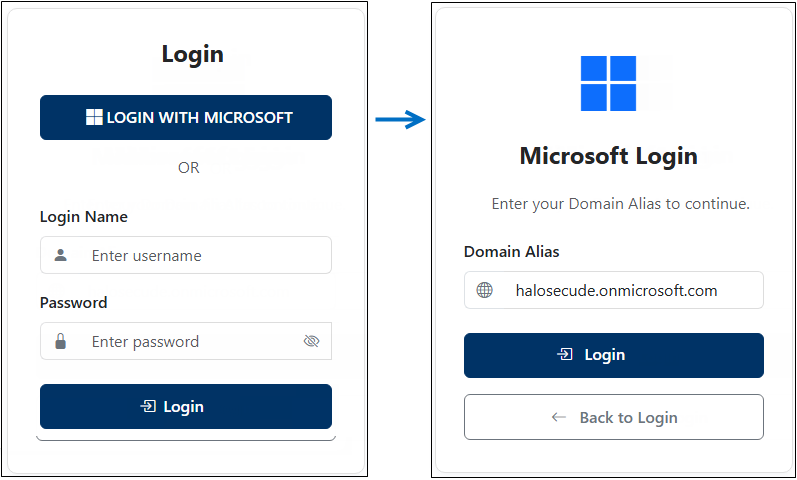
Log in with a Microsoft account
-
The Microsoft Login page appears.
-
Enter the Domain Alias. For example:
halosecude.onmicrosoft.com -
Click Login.
-
The Microsoft sign-in page appears. Enter the user account credentials and click Sign in.
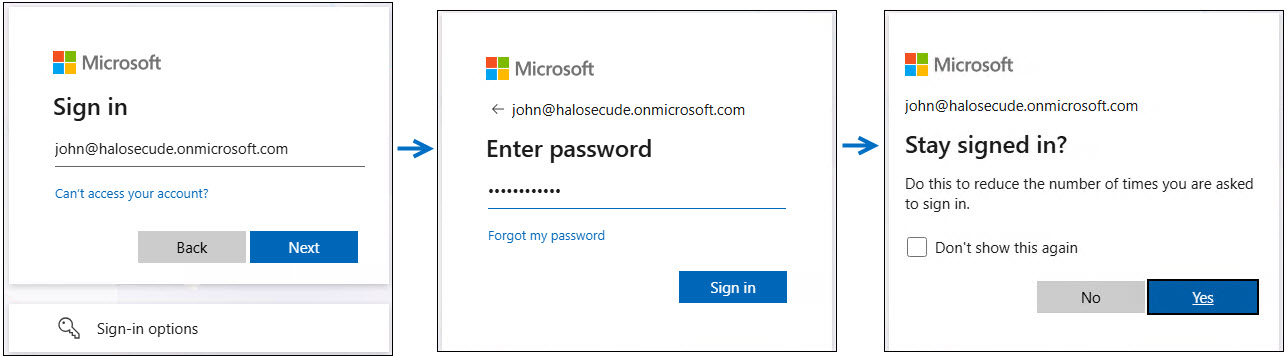
Microsoft sign-in
Note: Ensure that the user is assigned to the appropriate role, as explained in Step 7: Apply Role to Users.
Result
-
The HaloENGINE GenNXT Dashboard page is displayed.
-
The user menu displays the logged-in user's name. For example:
John Smith.
Role-Based Access
Users assigned the ROLE_CUSTOMER_USER role have read-only access to the Admin Portal. The following access limitations apply:
-
Dashboard: Available
-
Configure: Disabled
-
Rules: Available in read-only mode
-
Logs: Disabled
Replace Certificate
The server certificate used for HTTPS may need to be replaced when it expires or is renewed. Use the Replace Certificate page to update the certificate alias.
To update the certificate alias, follow these steps:
-
In the left navigation pane, select Configure, and then select Replace Certificate.
-
The Current Alias field displays the current certificate alias. For example:
MyDomain.infra.tech.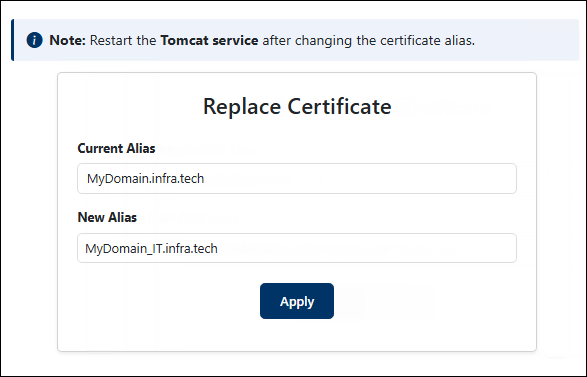
Replace certificate
-
In New Alias, enter the alias of the new certificate. If an alias is not available, enter the Common Name of the certificate. For example:
MyDomain_IT.infra.tech. -
Click Apply.
-
A confirmation message appears. Click Yes to update the certificate details.
-
Restart the HaloENGINE GenNXT Tomcat Service to apply the new certificate alias.
Result:
-
The new certificate alias is saved and used by the HaloENGINE GenNXT Tomcat Service.
-
Log in to the Admin Portal again to continue configuring HaloENGINE GenNXT.
Rules Configuration
This section describes how to configure classification schemas, rules, and metadata rules for download and upload actions.
Classification Schema
Defines the classification properties and their values used to categorize an organization’s data. Once a classification property is created, it becomes available for all client types when creating classification rules. The values, such as Public, Internal, Confidential, and Secret, represent different classification levels. Classification rules use these values with defined conditions to determine how files are classified, labeled, and protected according to the organization’s requirements. For more information about rules, refer to the next section, Classification Rules.
Property Name
Specifies the name of a classification property used to categorize an organization’s data. This manual uses Secret, Confidential, Internal, and Public as examples of classification levels. You can define property names that align with your organization’s classification requirements.
Follow these steps to create a classification schema:
-
In the left navigation bar, select Rules, and then select Classification Schema.
-
The Classification Schema page appears.
-
Click Add.
-
The Add Property dialog appears.
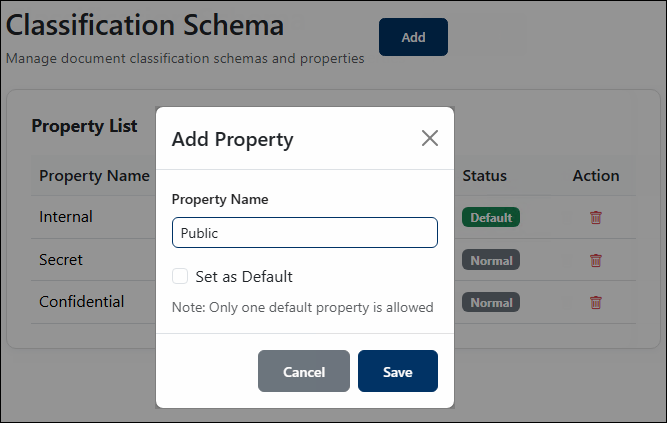
Add property dialog
-
Enter a name for the property you want to define.
-
To set the property as the default, select the Set as Default checkbox. The first property is selected as the default automatically.
Note: Only one property can be set as the default at a time.
-
Click Save.
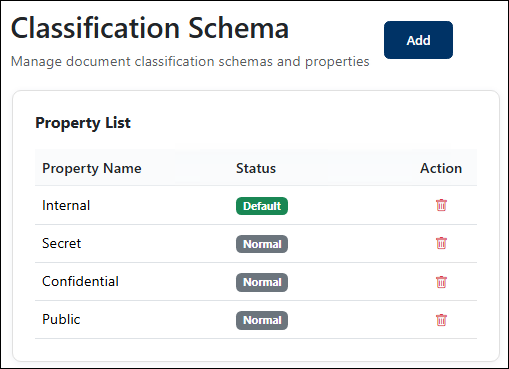
Classification Schema list
Result:
-
The new property is added to the list and displayed on the page with a Status value:
-
Default – Indicates that the property is set as the default.
-
Normal – Indicates that the property is not set as the default.
-
-
To change a property status from Default to Normal, or vice versa, click the Status value. When prompted, confirm the change by clicking OK.
-
To delete a property, click the Delete icon under the Action column. Note: You cannot delete the Default property directly when it is associated with one or more rules. To delete the Default property, first delete all the associated rules, and then delete the Default property.
-
In this example, Secret, Confidential, Internal, and Public are defined as sample property names, with Internal configured as the default property.
Default Property
If no classification rule matches the file, HaloENGINE GenNXT uses the default property configured in the classification schema.
For example, if Internal is configured as the default property, HaloENGINE GenNXT applies Internal when no classification rule matches the file.
For file downloads, HaloENGINE GenNXT handles the request according to the Fail-Safe Mode configured in the PLM client:
-
In Strict mode, HaloENGINE GenNXT blocks the file download if an error occurs.
-
In Tolerant mode, HaloENGINE GenNXT allows the file download even if an error occurs.
Classification Rules
Classification rules define the conditions used to determine how a file is processed. Each rule consists of a Pre-Expression, metadata, condition, value, and action.
-
Pre-Expression: Defines a group of metadata values used to evaluate the rule.
-
Metadata: Specifies information or properties associated with a file that can be used to evaluate the rule.
-
Condition: Specifies how HaloENGINE GenNXT compares the selected metadata with the specified value. The available conditions are equal to and not equal to.
-
Value: Specifies the information that HaloENGINE GenNXT uses to evaluate the selected metadata against the specified condition.
-
Action: Specifies how HaloENGINE GenNXT processes the file when the rule conditions are met. You can select Block or Label. If you select Label, you must also select an MPIP label. If you select Block, an MPIP label is not required.
Creating classification rules involves two steps: first, create a profile for the required teams in the organization, and then add rules to the profile.
Create or Update Profile
A profile stores the classification settings, rules, and metadata for a specific PLM or PDM client. You can create a new profile or update an existing profile to manage its rules and metadata. A client type can have multiple profiles, and each profile can contain multiple classification schemas.
Follow these steps to create a profile:
-
In the left navigation bar, select Rules, and then select Rules.
-
The Rules Management page appears.
-
From the Client Type list, select a client type: Windchill, Teamcenter, Autodesk Vault, or SOLIDWORKS PDM. If the license file contains only one client type, only that client appears in the list. If the license includes multiple client types, all licensed clients appear in the list.
-
Click Add.
-
The Create/Update Profile dialog appears.
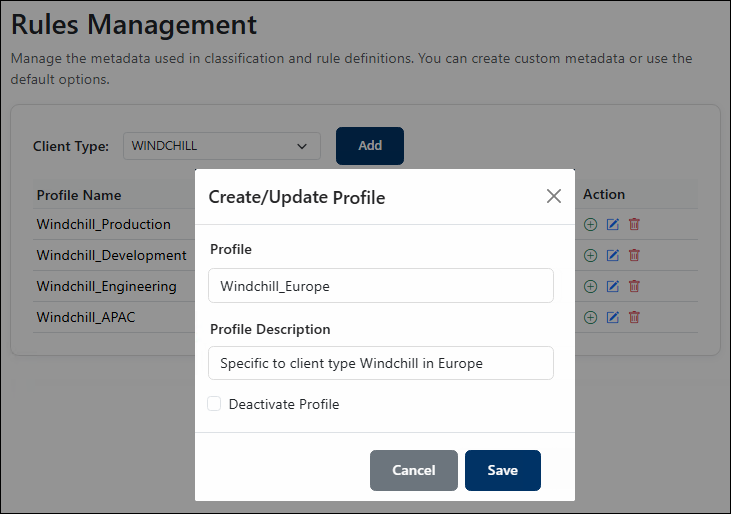
Create/update Profile dialog
-
In Profile, enter a name for the profile.
-
In Profile Description, enter a description for the profile.
-
Click Save.
-
Repeat the preceding steps to create additional profiles.
Result: The new profiles are added to the list with the following information:
-
Profile Name – Name of the profile.
-
Rule Count – Indicates the number of rules associated with the profile. Initially, it displays 0. After you add rules, it updates to show the actual number of rules.
-
Status – Indicates whether the profile is active or inactive.
-
Action – Indicates the actions available for the profile

Next step: The profiles are created. To complete the configuration, add rules to the profiles.
Add Rules to Profile
The following rule actions are supported when configuring rules for a profile. All file upload and download events are monitored by default.
Rule Action Definitions
-
Block: Blocks file upload and download operations based on the rule configuration.
-
Label: Classifies files during upload and download operations. Applies the appropriate MPIP label and embeds the classification label in the file metadata based on the rule configuration.
-
Exclude: Prevents Block and Label actions from being applied during file upload and download operations.
Prerequisites:
-
Ensure that at least one classification schema is configured.
-
If you want to add a rule using a pre-expression, ensure that a pre-expression is configured.
Applying the Default Property
In this manual, Internal is configured as the default property. Secret, Confidential, and Public are configured as normal property.
-
For the Label action with a default property selected, a classification rule is not required and is therefore not displayed.
-
For the Label action with a non-default property selected, classification rules are displayed.
-
For the Block action with the default property selected, classification rules are displayed.
Follow these steps to configure action rules for the default property:
-
Select the profile for which you want to add rules, and click the Add Rule (+) icon under the Action column.
-
The Create/Update Rules dialog appears.
-
From the Property Name list, select the default property. For example, select Internal.
-
To block a file download, select Block, then continue with step 5.
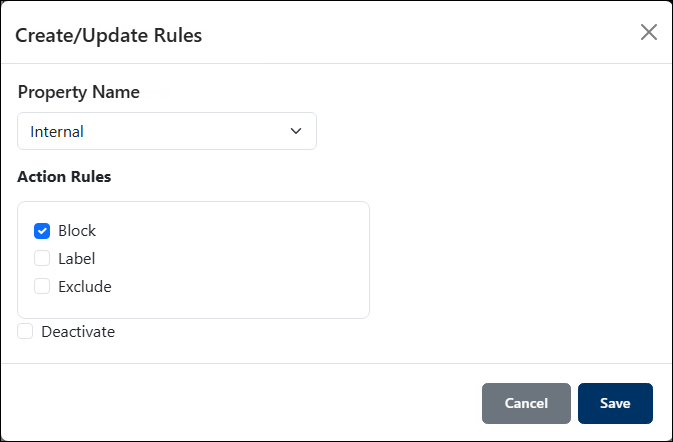
Default schema with block action
-
To protect the file, select Label, and then select an MPIP label. Move to step 5.
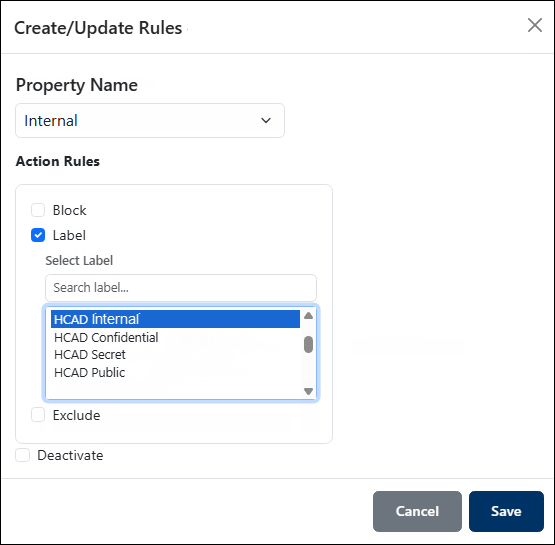
Default schema with label action
-
-
To prevent any classification action from being applied to a file, select the Exclude option. When selected, all other action options are disabled, and the file is downloaded without classification, labeling, or protection.
-
Click Save.
Block and Label Rules
Use Block and Label rules to define how HaloENGINE GenNXT processes files when a non-default property is selected.
Follow these steps to configure the Block and Label action rules:
-
Select the profile for which you want to add rules, and then click the Add Rule (+) icon in the Action column.
-
The Create/Update Rules dialog box appears.
-
From the Property Name list, select a property. For example, select Secret.
-
Under Classification Rules, define the classification conditions.
-
If you want to add a pre-expression, select the Pre-Expression option, and then select a group from the Value list. Note: The Value field displays a selection list only when you select the Pre-Expression option. Otherwise, enter the required value manually.
-
In the Metadata column, select the metadata. For example:
user_role. For detailed information about the metadata available for each client type, refer to the Metadata Definition section. -
In the Condition column, select a condition. For example:
equal to -
In the Value field, enter a value. For example:
designer -
To add another condition to the rule, click the Add (+) icon in the Action column. The additional condition is combined with the existing condition by using the AND operator. For example, configure the following condition: Rule 1
-
Metadata:
system_context -
Condition:
equal to -
Value:
Domain*
-
-
-
Click Add.
-
The rule is added to the Rules list.
-
To add additional rules, repeat steps 4 and 5 with different combinations of metadata, conditions, and values. For example, you can configure the following rules:
Rule 2
-
Metadata:
project_id(custom metadata) -
Condition:
equal to -
Value:
Plant_701
-
-
Rule 3
-
Metadata:
file_type -
Condition:
equal to -
Value:
Group:3-File Group(a Pre-Expression group)
-
-
Under Action Rules, select the action to apply when the classification conditions are met:
-
To protect the file, select Label, and then select an MPIP label from the Select Label list.
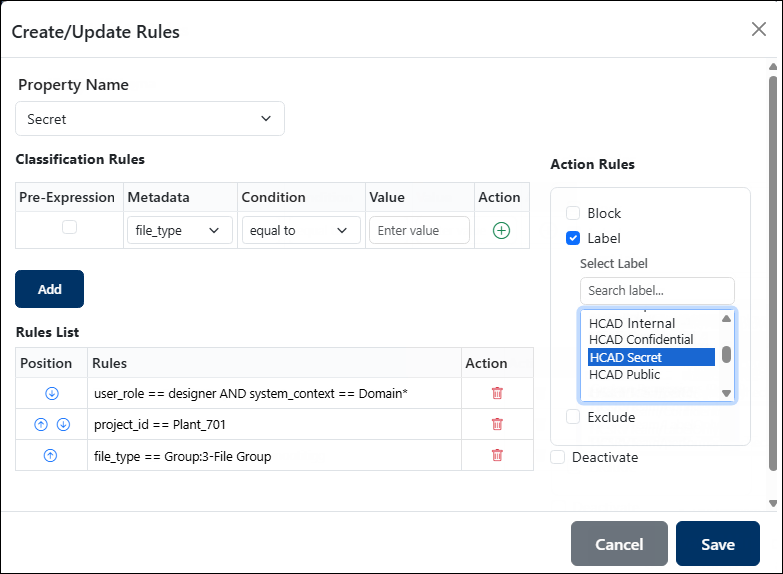
Adding classification rules for Label action
-
To block the file download, select Block. The Select Label list is not displayed when you select Block.
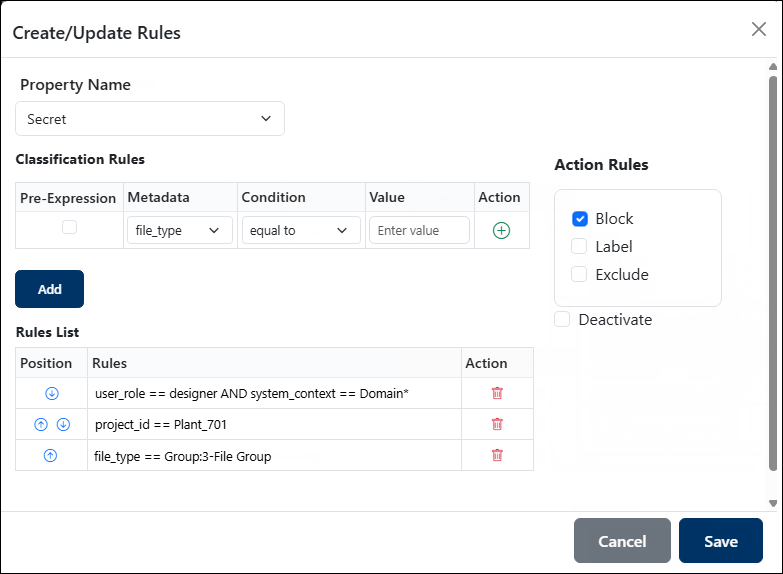
Adding classification rules for Block action
-
-
Click Save.
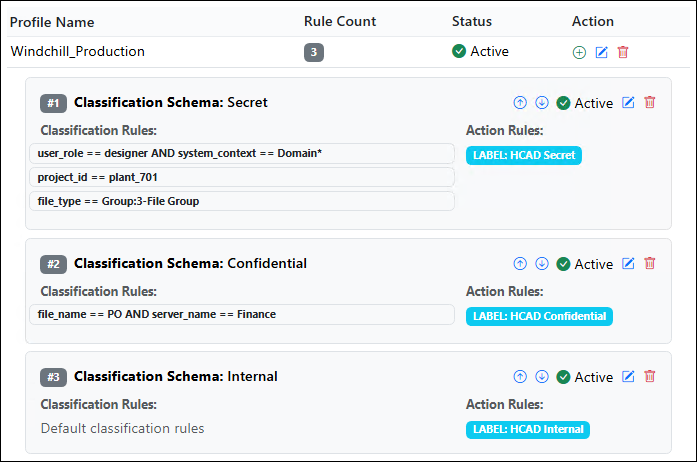
Action rules
-
Repeat the same steps using different combinations of metadata, conditions, and values to create multiple rules within multiple profiles.
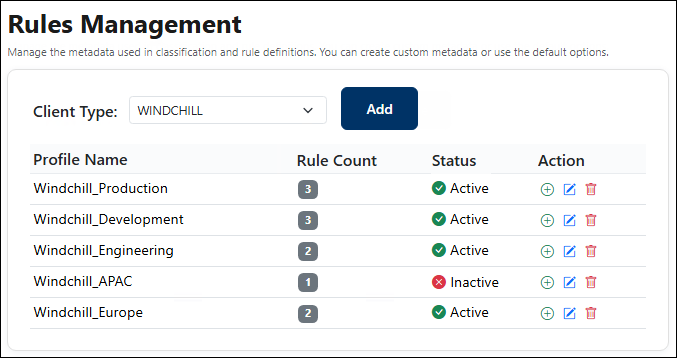
Rule List
Result:
-
The rule count updates from 0 to reflect the number of rules added.
-
To view a profile, click the profile name. The profile details are displayed.
-
To edit a profile, click the Edit Profile icon in the Action column next to the profile name, and make the required changes, such as updating the description or deactivating the profile.
-
To delete a profile, click the Delete Profile icon in the Action column next to the profile name.
-
To deactivate a profile, click the Profile Name with the Active status. The status changes to Inactive. To reactivate the profile, use the same toggle to change the status to Active. Alternatively, deactivate the profile from the Create/Update Profile dialog box.
-
To update a rule, click the profile name, select the classification rule you want to edit, click the Edit Rule icon, and make the required changes.
-
To delete a rule, click the profile name, select the classification rule you want to delete, and click the Delete Rule icon.
-
To deactivate a classification rule, select a profile, select the classification schema that contains the rule, and click the Active status. The status changes to Inactive. To reactivate the rule, use the same toggle to change the status to Active. Alternatively, deactivate the rule from the Create/Update Rules dialog box.
-
To change the priority of a rule or classification property within the profile, click the Move Up or Move Down arrow icon.
How HaloENGINE GenNXT Evaluates Rules
For example, consider the Windchill_Production property configured with Rule 1, Rule 2, and Rule 3, as shown in the previous section.
During a file download, HaloENGINE GenNXT evaluates the rules as follows:
-
HaloENGINE GenNXT identifies the applicable Client Type and Property Name.
-
HaloENGINE GenNXT evaluates the classification rules in the order in which they are listed, from top to bottom.
-
HaloENGINE GenNXT evaluates Rule 1 first. If all classification conditions are satisfied, HaloENGINE GenNXT applies the configured action.
-
If the conditions in Rule 1 are not satisfied, HaloENGINE GenNXT evaluates Rule 2. This process continues until a matching rule is found.
-
If no classification rule matches, HaloENGINE GenNXT applies the default property, if one is configured.
-
If no default property is configured, no classification action is applied.
-
When the default property is applied, the file is downloaded according to the Fail-Safe Mode configured in the PLM client.
Using Rules for Whitelisting
You can use classification rules to exclude specific users, groups of users, files, or groups of files from file protection or blocking based on your business requirements. To use a group of items in a rule, first create the group as a Pre-Expression. You can then use the Pre-Expression when creating rules for any client type.
In the following illustration, the first rule excludes a specific user, and the second rule excludes a group of users. You can create additional rules to meet your business requirements.
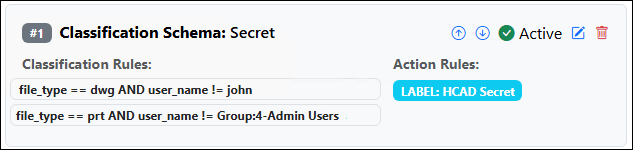
Using rules for whitelisting
-
First rule: All DWG files are protected except files associated with the user
john. -
Second rule: All PRT files are protected except files associated with the
Group:4-Admin Usersgroup.
When the conditions are met, HaloENGINE GenNXT applies the configured MPIP label, HCAD Secret, to protect the file according to the rule, while excluding the specified users or groups.
Retain Label
The Retain Label feature is available only for Teamcenter PLM. During a file upload event in Teamcenter PLM, HaloENGINE GenNXT uses file-related metadata, such as ip_classification, gov_classification, and Custom metadata, together with the configured label. When a protected file is uploaded, HaloENGINE GenNXT decrypts the file and sets the configured metadata value based on the applicable label.
When the same file is subsequently downloaded, HaloENGINE GenNXT can retain the label applied to the file during the upload. To retain the same label during the download, configure the corresponding metadata and value for the label on the Retain Label page. HaloENGINE GenNXT uses this configuration to apply the same label during the download event.
For example, if the HCAD Secret label is configured with the following classification rule:
-
Metadata:
gov_classification -
Condition:
equal to -
Value:
secret
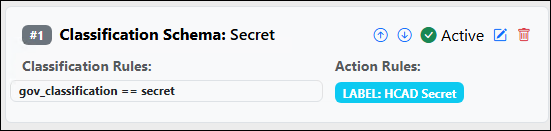
Retain label classification rule
Configure the corresponding entry on the Retain Label page as follows:
-
Label Name:
HCAD Secret -
Metadata:
gov_classification -
Value:
secret
The Label Name, Metadata, and Value configured on the Retain Label page must match the corresponding classification rule.
Follow these steps to retain the label:
-
In the left navigation bar, select Rules, and then select Retain Label.
-
The Retain Label page appears.
-
By default, Client Type shows Teamcenter.
-
Click Add.
-
The Create Metadata Rule page appears.
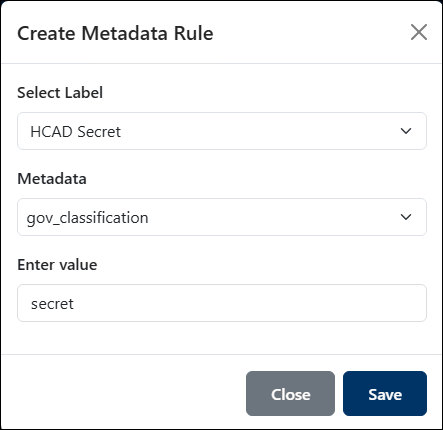
Creating metadata rules
-
In Select Label, select an equivalent MPIP label from the list. For example:
HCAD Secret -
In Metadata, select the required metadata from the list. For example:
gov_classification -
In Enter Value, enter the value associated with the selected metadata. For example: secret
-
Click Save.
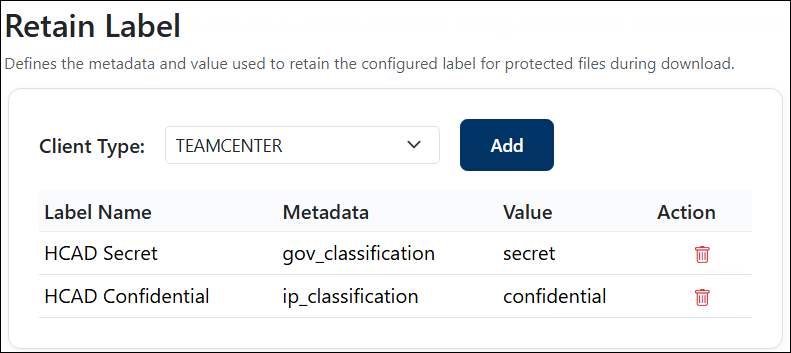
Retain label
Result:
-
The metadata and value associated with the selected label are saved and listed on the Retain Label page.
-
To delete an entry, click the Delete icon in the Action column.
Pre-Expression
A Pre-Expression is a group of related values associated with existing metadata that helps evaluate classification rules. You can create Pre-Expressions based on your business requirements and use them across all client types. The grouped values, such as file extensions, servers, users, or files, are based on the available metadata.
For example:
-
To group multiple file types, create a Pre-Expression containing the required file types.
-
To group multiple users, create a Pre-Expression containing the required users.
You can then select the Pre-Expression when creating a classification rule instead of specifying each value individually.
Follow these steps to add a pre-expression:
-
In the left navigation bar, select Rules, and then select Pre-Expression.
-
The Pre-Expression page appears.
-
From the Client Type list, select the client type: Windchill, Teamcenter, Autodesk_Vault, or SOLIDWORKS_PDM.
-
If the license file contains only one client type, only that client is displayed.
-
If two or more client types are licensed, all licensed clients are displayed in the list.
-
-
Click Add.
-
The Create/Update Pre-Expression dialog appears.
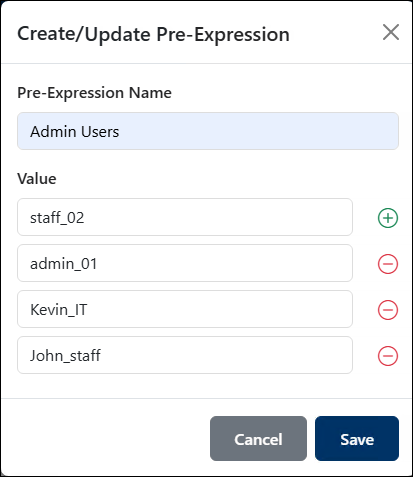
Adding a new pre-expression
-
In Pre-Expression Name, enter a name.
-
In Value, enter a value and click the Edit icon.
-
Repeat the same procedure to add one or more values to the pre-expression group.
-
Click Save.
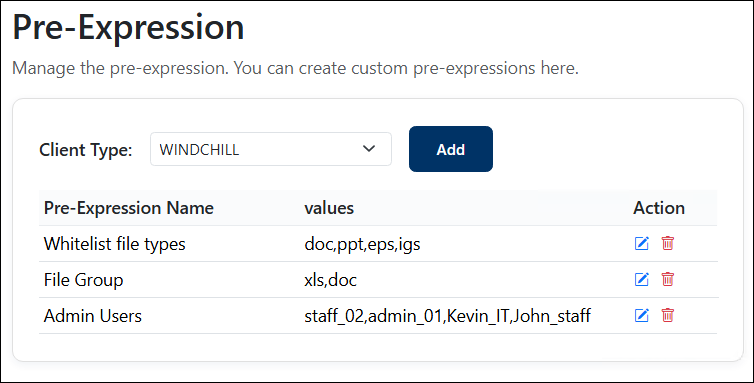
Pre-expression list
Result:
-
A confirmation message appears when the values are saved.
-
The Pre-Expression groups and their values are available on the Classification Rules page.
-
To update a Pre-Expression, click the Edit icon next to it in the Action column, and make the required changes.
-
To delete a Pre-Expression, click the Delete icon next to it in the Action column. Note: You cannot delete a Pre-Expression that is associated with one or more rules. To delete the Pre-Expression, first delete all associated rules, and then delete the Pre-Expression.
Points to Remember
-
Classification Rules define how HaloENGINE GenNXT processes files based on configured metadata, conditions, values, and actions.
-
All file upload and download events are monitored by default.
-
The available classification actions are Block and Label. When Label is selected, you must also select an MPIP label.
-
The Exclude option prevents Block and Label actions from being applied to files based on the configured rule.
-
Pre-Expression allows you to group related metadata values and reuse the group when configuring classification rules.
-
When multiple classification rules are configured, HaloENGINE GenNXT evaluates them from top to bottom. Use the Move Up and Move Down arrows to change the rule priority.
-
If no classification rule matches, HaloENGINE GenNXT applies the configured Default property, if available.
-
For the Label action, a classification rule is not required when the Default property is selected.
-
For the Label action with a non-default property selected, classification rules are displayed.
-
For the Block action with the default property selected, classification rules are displayed.
-
A client type can have multiple profiles, and each profile can contain multiple classification schemas.
-
A profile can contain multiple properties, and you can configure multiple classification rules for each property.
-
A Default property used in a classification rule cannot be deleted until all rules associated with that Default property are deleted.
-
At least one Default classification schema must exist. Set another schema as Default before deleting the current Default schema.
-
A Pre-Expression used in a classification rule cannot be deleted until all rules associated with that Pre-Expression are deleted.
-
Use rule conditions carefully when configuring exclusions for users, groups, files, or other metadata values. You can configure an exclusion by using a condition such as not equal to (!=).
-
Duplicate metadata is not allowed within a single classification rule. For example, if
file_typeis already added to a rule, you cannot addfile_typeagain. The Admin Portal does not allow duplicate metadata within the same rule. -
The Retain Label feature is available only for Teamcenter PLM. It uses the configured metadata and value to retain the applicable label during subsequent file downloads.
-
The Select Label list may appear empty when the HaloENGINE GenNXT Tomcat Service is not responding, or its certificate has expired.
-
Any changes to labels in the Microsoft Entra admin center require you to restart the HaloENGINE GenNXT Tomcat Service.
-
The Notifications icon displays a message when the license is approaching expiration. Renew the license before it expires to avoid service interruption.
-
An inactive Admin Portal session is automatically locked after an extended period. Click Login Again to authenticate and continue using the Admin Portal.
Log Management
This section describes how to configure and view logged administrative activities and monitor logs.
Log Configuration
The Log Configuration page displays options for configuring the general settings of HaloENGINE GenNXT.
To configure the general settings, follow these steps:
-
In the left navigation bar, click Logs, and then click Log Configuration.
-
The Log Configuration page appears.
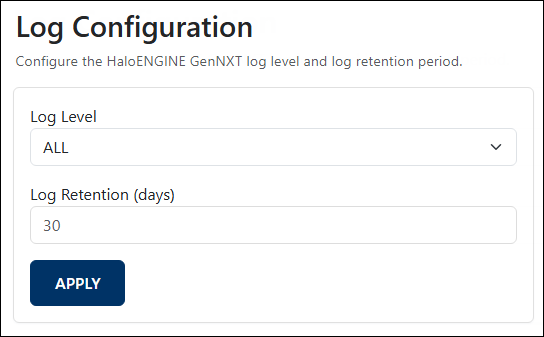
Log Configuration
-
In the Log Level list, select the required log level:
-
ERROR – Logs only error messages.
-
WARN – Logs warning and error messages.
-
INFO – Logs informational, warning, and error messages.
-
DEBUG – Logs detailed debugging information along with all other log messages.
-
ALL – Logs all messages. This is the default value.
-
-
In Log Retention (days), specify the number of days to retain log files. Log files older than the specified retention period are automatically deleted. The default value is
30.For example, if the value is set to 10, log files older than 10 days are deleted. The valid range is
0to90days. -
Click Apply.
Result:
-
On successful configuration, a confirmation message appears.
-
The configuration file is created with the updated details.
Admin Activity Log
The Admin Activities Log page displays all logged administrative activities. It shows the page where the activity occurred, the action performed, the user who performed the action, and the start and end dates, which can be used to filter and refine the displayed activities.
Follow these steps to view the admin activities:
-
In the left navigation bar, select Logs, and then select Admin Activities.
-
The Admin Activity Log page appears.
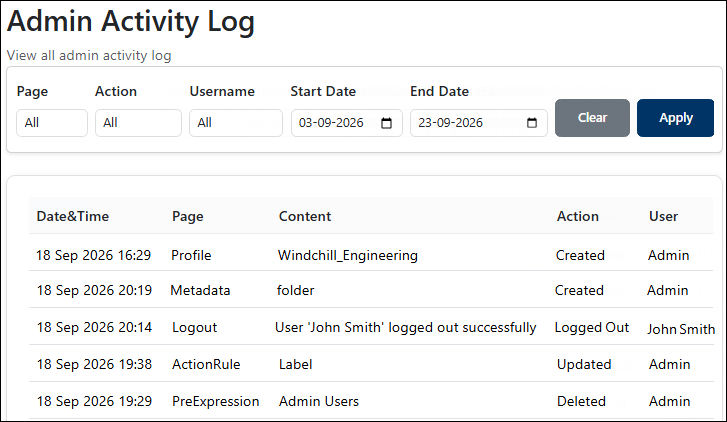
Admin activities log
-
The page displays real-time data.
-
Date & Time – The date and time when the action was performed.
-
Page – The page on which the action was performed. For example, Profile.
-
Content – Displays the exact content that was modified or acted upon. For example,
Windchill_Engineeringprofile was created on the Rules Management page. -
Action – The action that was performed. For example, Created indicates that a metadata named
folderwas created. -
User – The person who performed the action. For example, Admin and John Smith.
-
-
To filter the results, specify the Page, Action, Username, Start Date, and End Date, and then click Apply.
Result
-
The filtered results are displayed based on the selected criteria.
-
To clear the filters, click Clear.
Monitor Logs
Monitor is a key feature of HaloENGINE GenNXT that tracks user upload and download activities when integrated with PLM clients. It records the date and time of each activity and displays the activity log in JSON format. During the first login or after a fresh HaloENGINE GenNXT installation, the Monitor Logs page is empty because no operational data is available. Once HaloENGINE GenNXT begins processing events, the page displays the corresponding log information.
Follow these steps to view the monitor logs:
-
In the left navigation bar, select Logs, and then select Monitor.
-
The Monitor Logs page appears.
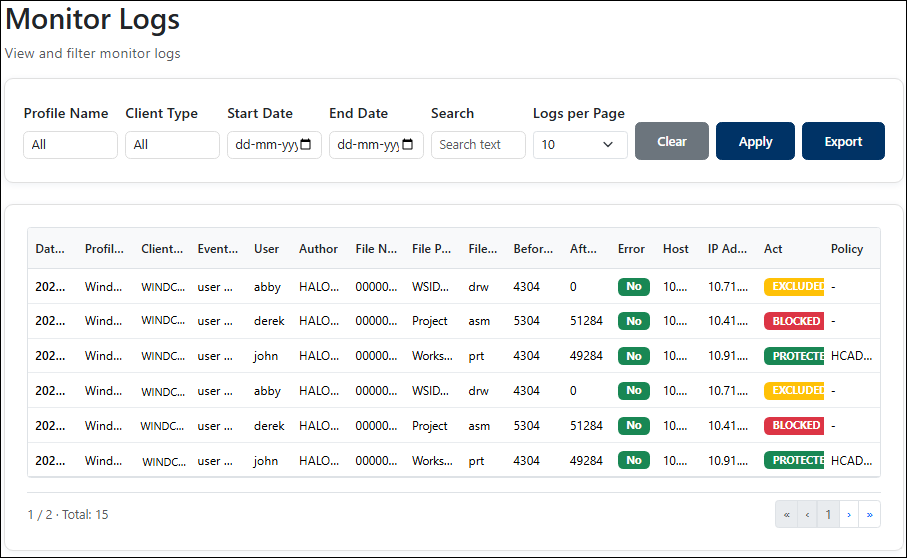
Monitor logs page
-
The page displays the following details:
-
Date/Time
-
Profile Name
-
Client Type
-
Event Type
-
User
-
Author
-
File Name
-
File Path
-
File Type
-
Before Size
-
After Size
-
Error
-
Host
-
IP Address
-
Act - Excluded, Blocked, and Protected
Note: Excluded appears when a rule is not applied, does not match, an upload event occurs, or no decryption takes place.
-
Policy
-
-
To filter the results, specify values for fields such as Profile Name, Client Type, Start Date, and End Date. Additionally, use the search bar to filter the displayed records.
-
To control the number of displayed records, enter a value from
10to100in the Logs per Page field -
Click Apply.
Result
-
The filtered results are displayed based on the selected criteria.
-
To clear the filters, click Clear.
Exporting Monitor Logs
Use the Export button to download the Monitor logs.
Follow these steps to export the Monitor logs:
-
Click Export.
-
The Export Monitor Logs dialog appears.
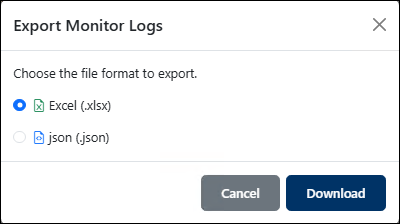
Export Monitor Logs
-
Select the required file format:
-
Excel (.xlsx)
-
JSON (.json)
-
-
Click Download.
Result:
-
The Monitor logs are downloaded to your default download location in the selected file format.
-
For example, Excel files are downloaded as
monitor_logs_<yyyy>-<MM>-<dd>.xlsx, and JSON files are downloaded asmonitor_logs_<yyyy>-<MM>-<dd>.json.
SIEM/Syslog Configuration
The SIEM/Syslog Configuration page enables you to configure a SIEM/Syslog server to receive HaloENGINE GenNXT Monitor logs.
To configure SIEM/Syslog:
-
In the left navigation bar, click Logs, and then click SIEM/Syslog.
-
The SIEM/Syslog Configuration page appears.
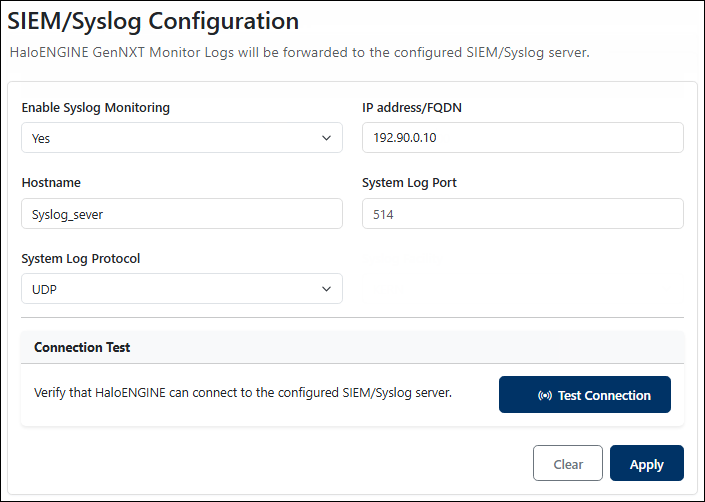
SIEM/Syslog Configuration
-
Configure the following fields.
-
Enable Syslog Monitoring – Select Yes to enable forwarding of HaloENGINE GenNXT Monitor logs to the configured SIEM/Syslog server.
-
IP Address/FQDN – Enter the IP address or fully qualified domain name (FQDN) of the SIEM/Syslog server. For example,
192.90.0.10. -
Hostname – Enter the hostname of the Syslog server. For example,
Syslog_server. -
System Log Port – Enter the port number used by the SIEM/Syslog server. For example,
514. -
System Log Protocol – Select the protocol (UDP or TCP) used to send the logs.
-
-
To verify the connection to the configured SIEM/Syslog server, click Test Connection. If the connection is successful, a confirmation message appears.
-
Click Apply.
Result:
-
The SIEM/Syslog configuration is saved, and HaloENGINE GenNXT Monitor logs are forwarded to the configured SIEM/Syslog server.
-
To reset the SIEM/Syslog configuration fields, click Clear.
Security Settings
The user icon in the top-right corner provides quick access to user account options, such as viewing profile information, changing the account password, and logging out of the application. Click the user icon to open the User menu.
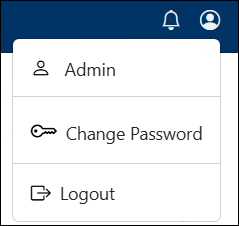
User menu
User (Profile)
When you hover over this menu, it displays the name of the currently logged-in user. This menu lets you view and update your account information, such as your login name and email address.
Note: Only the Super Administrator account details can be edited. User accounts authenticated through Microsoft Entra ID cannot be edited.
-
Select the User icon in the upper-right corner.
-
Click User.
-
The page displays the current profile details.
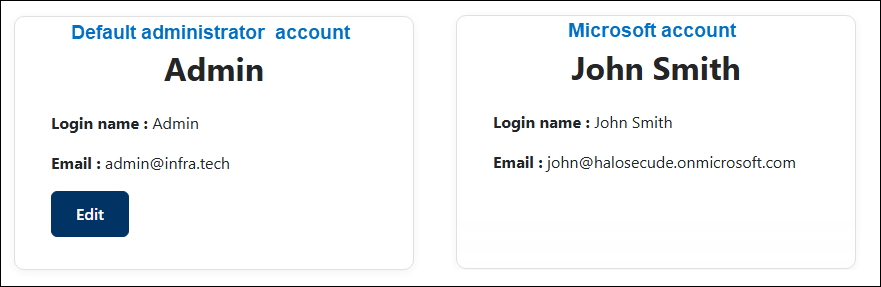
Profile - Admin User and Microsoft User accounts
-
Click Edit.
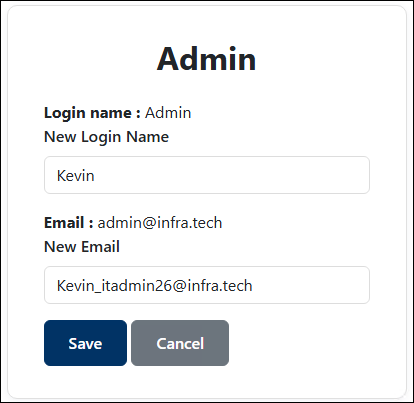
Admin User Profile
-
In New Login Name, enter the new login name. For example: Kevin.
-
In New Email, enter the new email address. For example:
Kevin_itadmin26@infra.tech.
-
Click Save to apply the changes, or click Cancel to discard them.
Result
-
An error message appears if the new username is the same as the existing username.
-
A confirmation message appears after the details are successfully updated.
-
The updated details are displayed on the User page.
Change Your Password
You can change your password for security reasons by following the steps below:
-
Select the User icon in the upper-right corner.
-
Click Change Password.
-
The Change Password page appears.
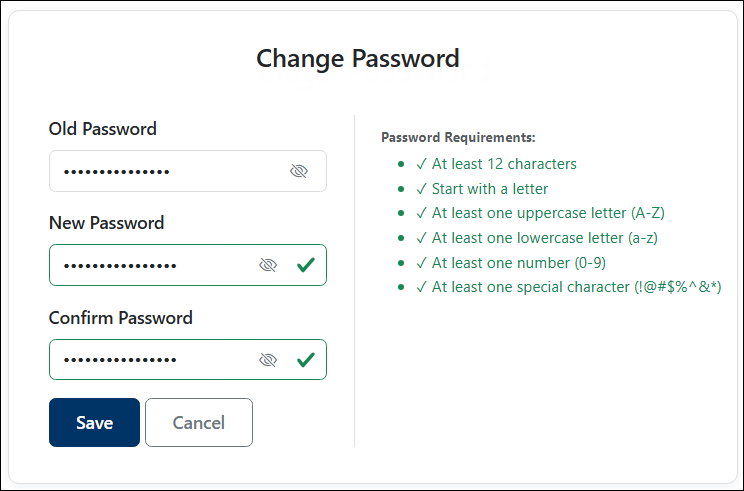
Changing password
-
In Old Password, enter your current password.
-
In New Password, enter a new password that meets all of the following requirements:
-
At least 12 characters
-
Starts with a letter
-
Includes at least one uppercase letter (
A–Z) -
Includes at least one lowercase letter (
a–z) -
Includes at least one number (
0–9) -
Includes at least one symbol (
! @ # $ % ^ & *) -
New password cannot be the same as the current password
For example:
Admin@User0123
Note
As you type the password, each requirement is validated in real time. A green check mark indicates that a requirement is met. A cross indicates that a requirement is not met. -
-
In Confirm Password, re-enter the password.
-
To display the credentials, click the Show/Hide (eye) icon.
-
Select Save.
Result
-
The Admin Portal updates your password, displays a success message, and redirects you to the Login page.
-
Log in using the new password.
Log Out
Logging out ends your current session in the portal. When you select Log Out, the portal closes your active session and removes your access until you sign in again.
-
Select the User icon in the upper-right corner.
-
Click Log Out.
-
When the portal asks you to confirm, click OK.
Result
-
A success message appears. To return to the portal, click Back to login.
-
The Login page opens.
Notification
License Expiration
HaloENGINE GenNXT displays a notification when the license is nearing expiration. The notification appears on the Notifications icon and shows the remaining validity period.
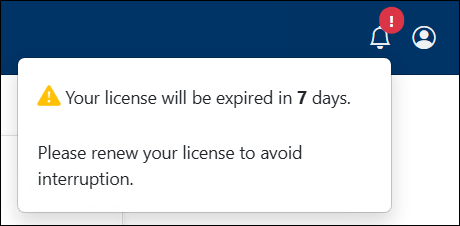
License Notification
If the license expires before you upload a new license, you are directed to the License page when you log in. Upload a valid license to continue using HaloENGINE GenNXT.
Session Timeout
If the Admin Portal session remains inactive for an extended period, the session is automatically locked to protect your account and data. Click Login Again to authenticate and continue using the Admin Portal.
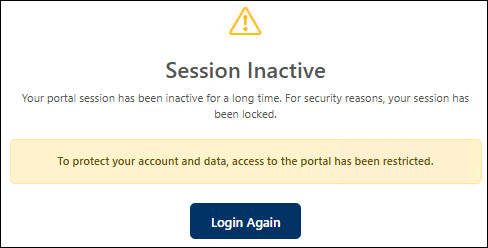
Session inactive dialog
Dashboard
After the HaloENGINE GenNXT setup is complete and the service is operational, the HaloENGINE GenNXT Dashboard provides a centralized information management interface for monitoring and visualizing key performance indicators and metrics. It offers an overview of company data upload and download events and helps users track client activities effectively.
You can filter the Dashboard data by Profile Name, Client Type, User, Event, Action, Start Date, and End Date. Click Apply to display data based on the selected filters, or click Clear to reset the filters.
The Dashboard displays the following summary metrics:
-
Total Users – Displays the total number of users associated with the recorded activities.
-
Total Events – Displays the total number of recorded events.
-
Total Actions – Displays the total number of actions performed.
-
Total Systems – Displays the total number of systems associated with the recorded activities.
The Dashboard also provides graphical views of download activities, including classification by User Type, Client, IP Address, Event Type, and Policy Name. These charts provide a visual overview of file processing and classification activities.
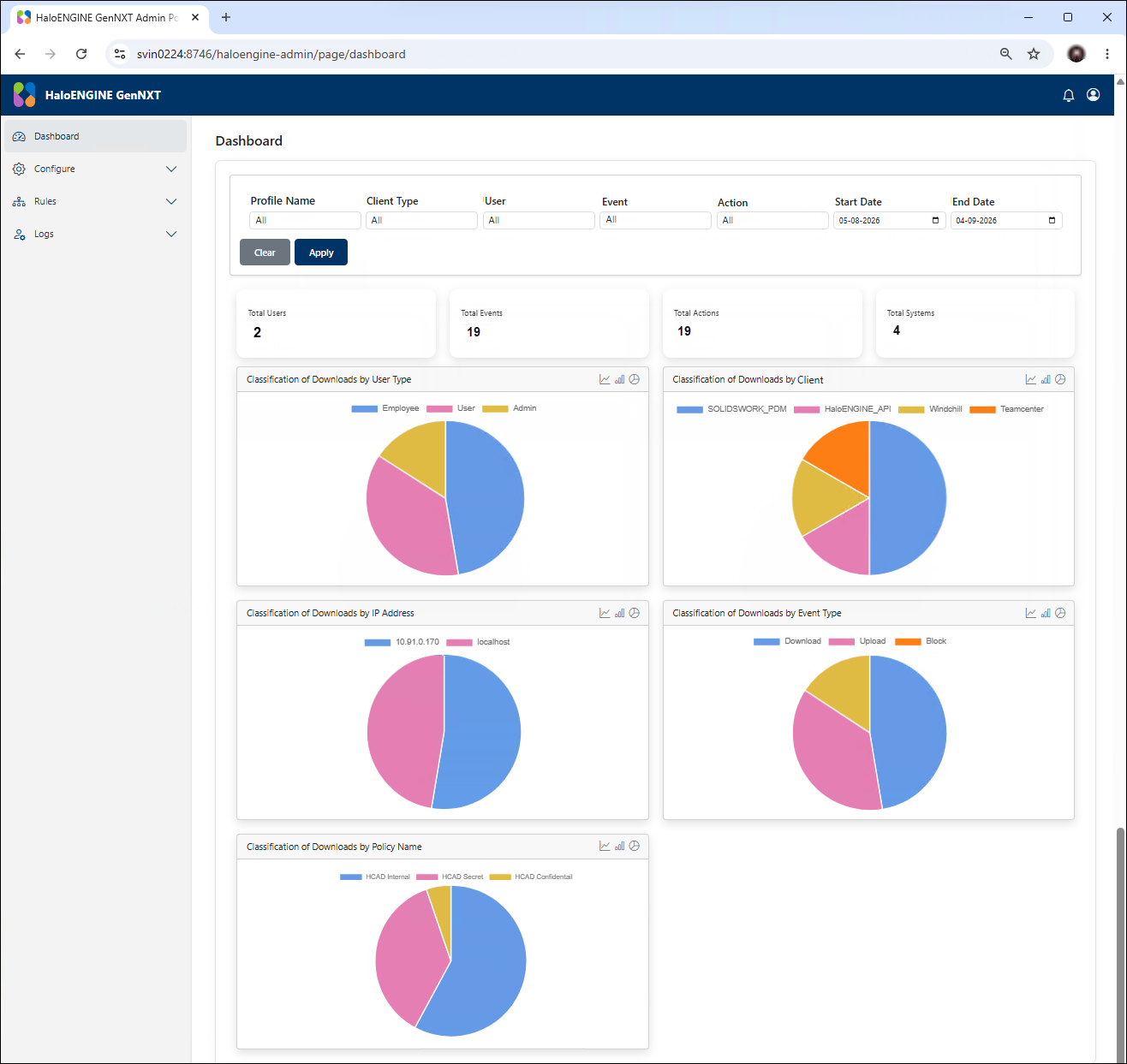
Dashboard with activities