
This section describes how to get started with the HaloENGINE GenNXT Admin Portal. Complete the following tasks when you access the Admin Portal for the first time:
-
Create an administrator account – Create the default administrator account.
-
Log in – Log in using the administrator account.
-
Activate the license – Upload the license file to access the Admin Portal. The license defines the available features and supported client systems. Only the client systems included in the license are available for configuration.
Welcome Page
The first time you access the HaloENGINE GenNXT Admin Portal, the Welcome page appears. Click Proceed to begin the initial configuration.
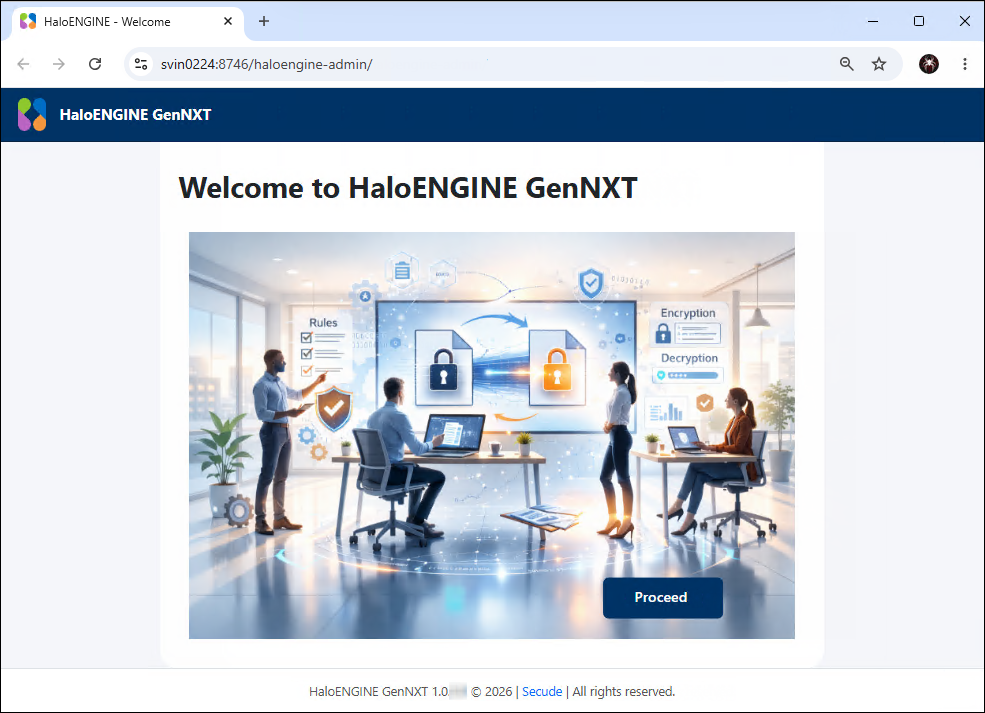
Welcome page
Create an Administrator Account
When you open the Admin Portal for the first time, you must create the default super administrator account. This account has Super Admin privileges and unrestricted access to all features in the Admin Portal.
To create the administrator account, follow these steps:
-
In Login Name, enter a user name. Example:
Admin -
In Display Name, enter the administrator's full name. Example:
Administrator -
In Email ID, enter a valid email address. Example:
admin@infra.tech -
In Password, enter a password that meets the following requirements:
-
At least 12 characters
-
Starts with a letter
-
Includes at least one uppercase letter (A–Z)
-
Includes at least one lowercase letter (a–z)
-
Includes at least one number (0–9)
-
Includes at least one special character (
! @ # $ % ^ & *)Example:
Admin@Portal123
Note: As you enter the password, each requirement is validated in real time. A green check mark indicates that the requirement is met. A red cross indicates that the requirement is not met.
-
-
In Confirm Password, re-enter the password.
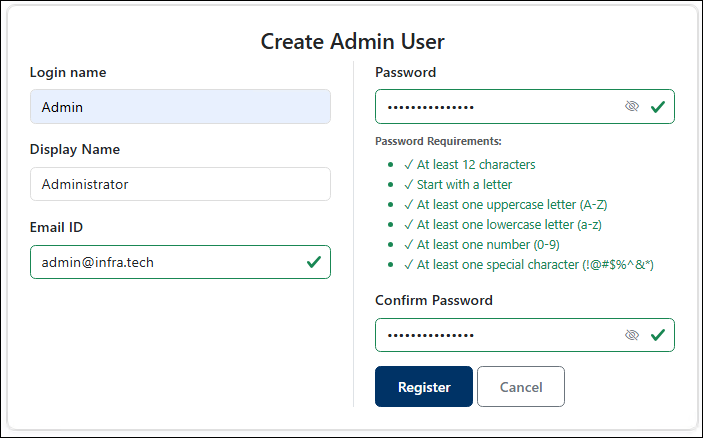
New user creation
-
To display the credentials, click the Show/Hide (eye) icon.
-
Click Register.
Result: The Admin Portal creates the administrator account, displays a confirmation message, and redirects you to the Login page.
Log in to the Admin Portal
After you create the administrator account, the system redirects you to the Login page.
-
In Login Name, enter your username.
-
In Password, enter your password.
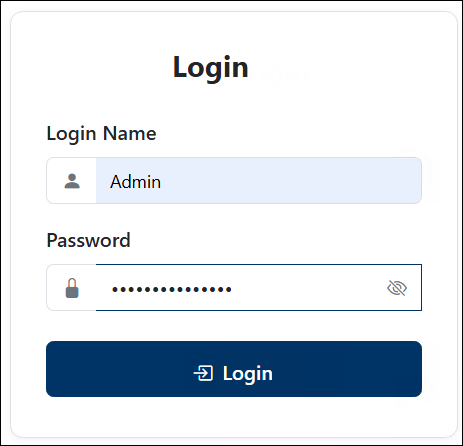
Login page
-
To display the credentials, click the Show/Hide (eye) icon.
-
Click Login.
Result: On your first login, the Upload License File page appears.
Next step: Activate the license provided by Secude, as described in the next section.
Activate the License
To access all HaloENGINE GenNXT features, upload a valid license file.
Prerequisite: Ensure that you have a valid license.lic file obtained from Secude.
To upload the license file, follow these steps:
-
On the Upload License File page, click Choose File.
-
In the Open dialog box, select the
license.licfile. If you do not have a license file or do not want to upload it at this time, click Logout. -
Click Upload License.
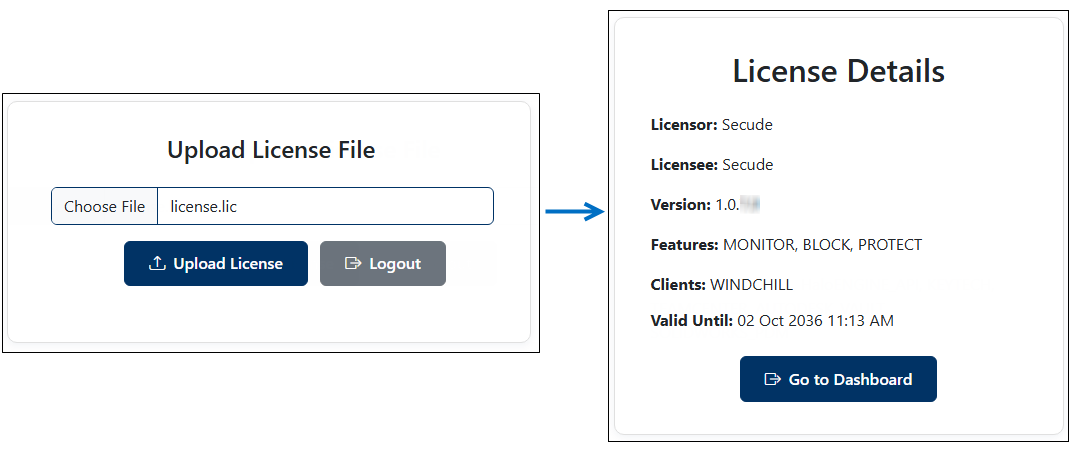
License page
-
For illustration purposes, the license shown in this example is associated with Windchill.
Result: The License Details page displays the product version, available features, supported client systems, and the license validity period.
Next step: Click Go to Dashboard to open the Dashboard. The Dashboard appears automatically on all subsequent logins.
Related task: To renew an expired license, refer to the section “Check License Details or Update the License”.
Initial Dashboard View
The HaloENGINE GenNXT Dashboard provides an overview of system information, metrics, and file processing activities. During the first login or after a fresh HaloENGINE GenNXT installation, the Dashboard may appear empty because no operational data is available. Once HaloENGINE GenNXT begins processing events, the Dashboard displays the corresponding information.
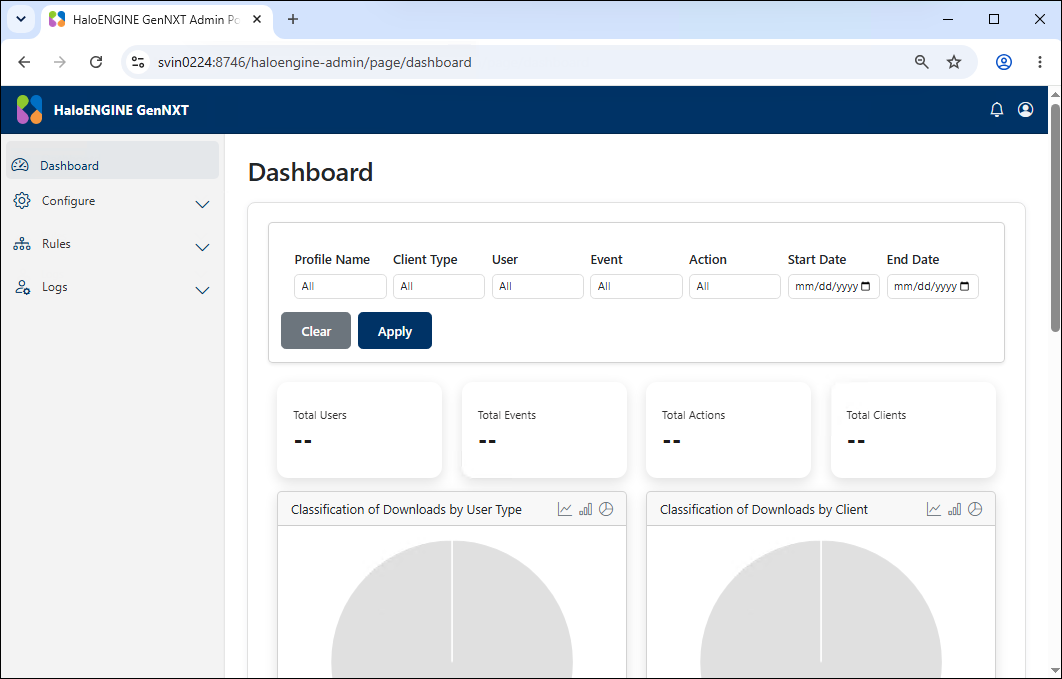
Initial Dashboard View
Understand the Admin Portal UI Elements
This section describes the user interface elements available in the Admin Portal.
|
S.No |
Elements |
Description |
|---|---|---|
|
1 |

|
Displays system notifications and alerts. |
|
2 |

|
Provides access to account details, password change, and logout options. |
|
3 |
|
Filters and displays results based on the specified search criteria. |
|
4 |

|
Indicates that the metadata is locked and cannot be deleted. |
|
5 |


|
Indicates that the selected item can be deleted. |
|
6 |

|
Creates a new item. |
|
7 |

|
Edits the selected item. |
|
9 |
|
Moves the selected item up or down in the list. |
|
10 |

|
Allows you to select a date from the calendar. |
|
11 |
|
Opens a list of available options for selection. |
|
12 |
|
Indicates the default sensitivity level.
|
|
13 |
|
Indicates a non-default sensitivity level. |
|
14 |
|
Indicates that the profile or rule is active. |
|
15 |
|
Indicates that the profile or rule is inactive. |
Elements Description