
Complete the following prerequisites before installing HaloSHARE.
MPIP Protection
This section describes the prerequisites required to configure Microsoft Purview Information Protection.
Register an Application in Microsoft Entra ID
This section describes how to register an application in Microsoft Entra ID, obtain the Application (client) ID and Directory (tenant) ID, assign the required API permissions, and upload the certificate required for MPIP authentication.
Microsoft documentation
Registering an application in Microsoft Entra ID establishes a trust connection between your application and the identity provider, the Microsoft identity platform. Microsoft documentation takes precedence over this section. Refer to the latest Microsoft documentation for updates.
Prerequisite: You must have sufficient administrative privileges to register an application in your Microsoft Entra ID tenant.
Create an Application
Follow these steps to register an application:
-
Log in to the Microsoft Entra admin center using an account that has administrator privileges.
-
If you have access to multiple tenants, click the Settings icon in the top menu. From Directories + subscriptions, select the tenant in which you want to register the application.
-
The application homepage opens.
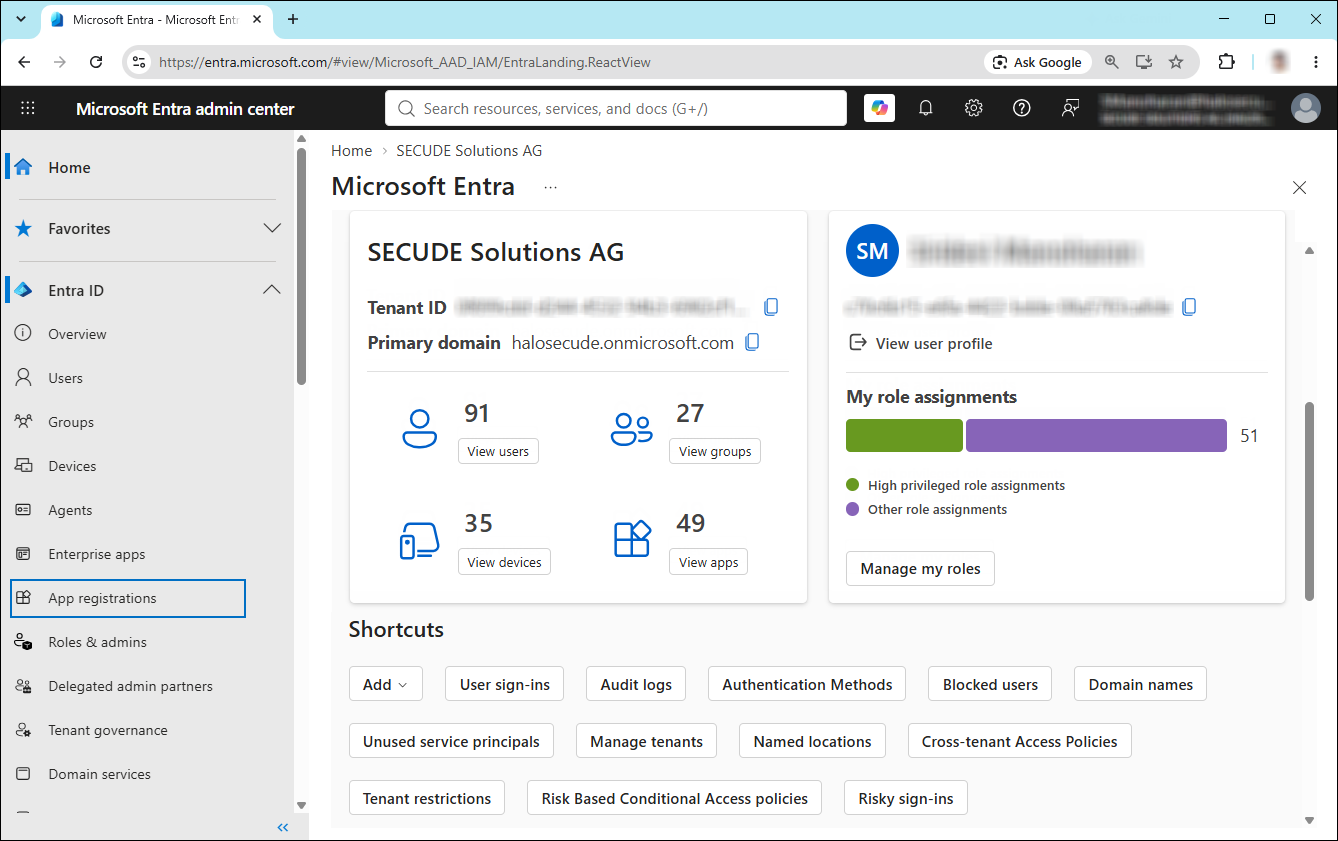
Selecting Microsoft Entra ID
-
In the left navigation pane, select Entra ID > App registrations.
-
On the App registrations page, click New registration or Register an Application. The Register an Application button appears only if no applications have already been created.
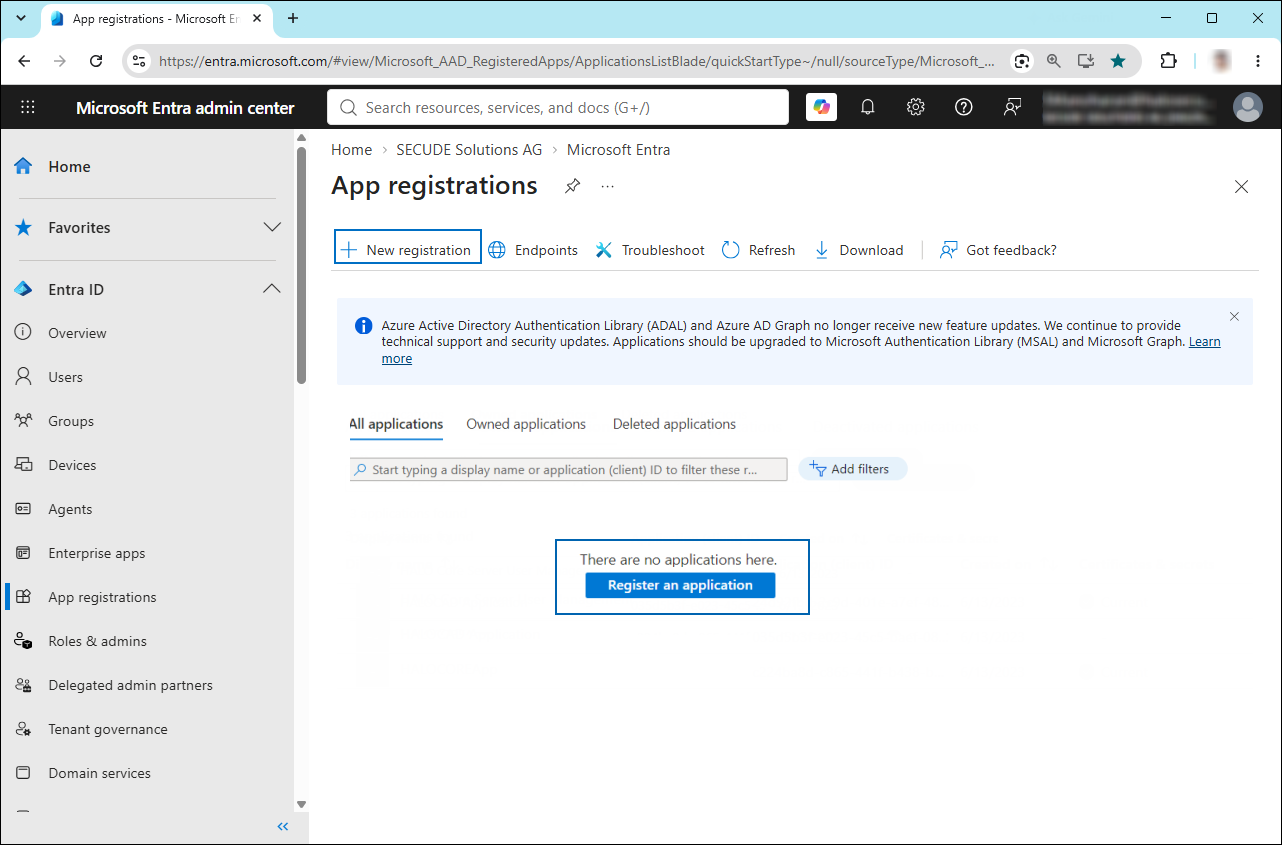
New application registration
-
On the Register an application page, configure the following:
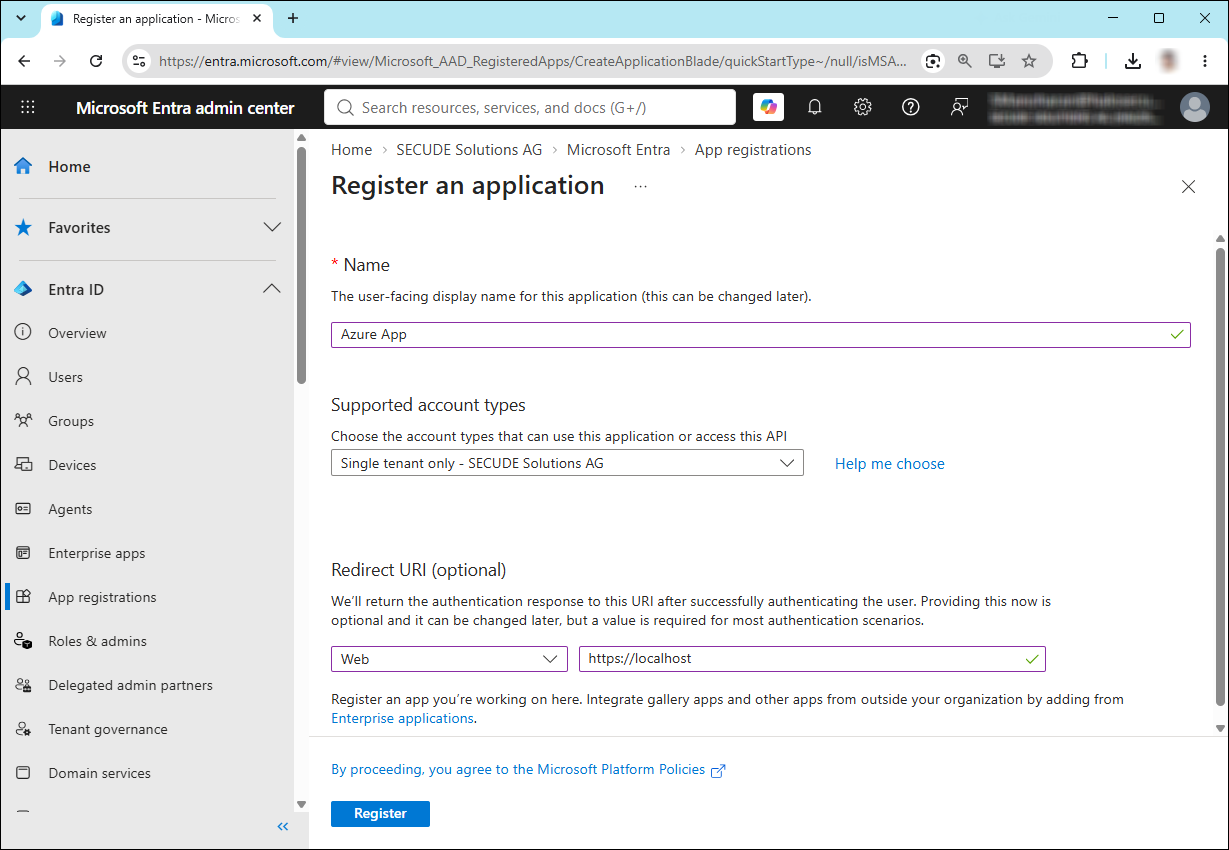
Application details
-
Name: Enter an appropriate name for the application.
-
Supported account types: Select Single tenant only from the list. HaloSHARE GenNXT currently supports only single-tenant applications.
-
Redirect URI: Select Web and enter a valid redirect URI. For example,
https://localhost.
-
-
Click Register.
-
The Overview page of the newly registered application opens.
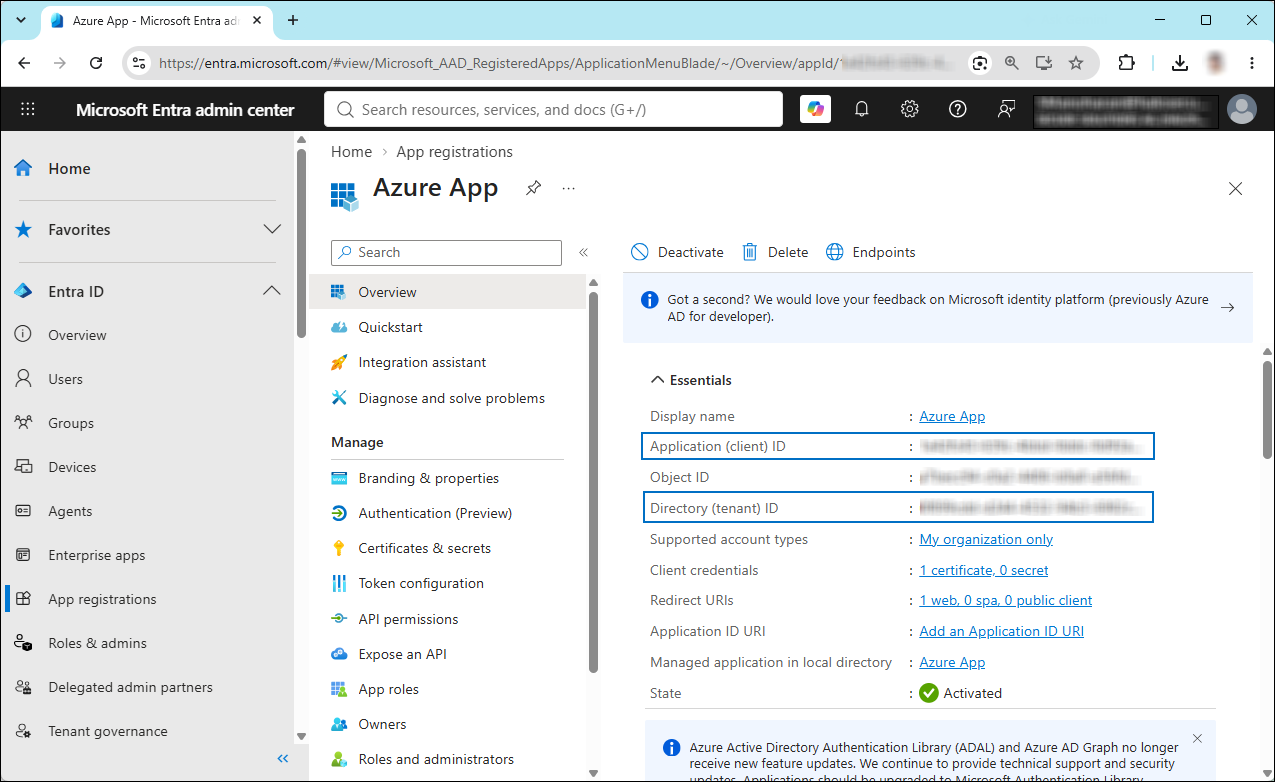
Application ID and Tenant ID
-
Once registration is complete, the portal displays the following values. To copy and save the ID value in a text editor, hover your cursor over it and click the Copy to clipboard icon.
-
Application ID – also known as Client ID.
-
Directory ID – also known as Tenant ID.
-
Save the authentication parameters
In a text editor (such as Notepad), copy the value of Application (client) ID and Directory (tenant) ID, and save it for initializing the HaloSHARE.
Add Required Permissions
To protect content with MIP SDK, you must provide the necessary API permissions to the application created in the previous section.
-
In the left navigation pane of the application, select API permissions.
-
Click Add a permission. The Request API permissions page appears.
-
Under the Select an API setting, select APIs my organization uses. A list appears containing the applications in your directory that expose APIs.
-
In the search box, type in the name of the permission indicated in the "Required Permissions" table below. Alternatively, you could scroll to find the API.
-
For example, type Microsoft Information Protection Sync Service into the search box. The following figure shows how the API is listed:
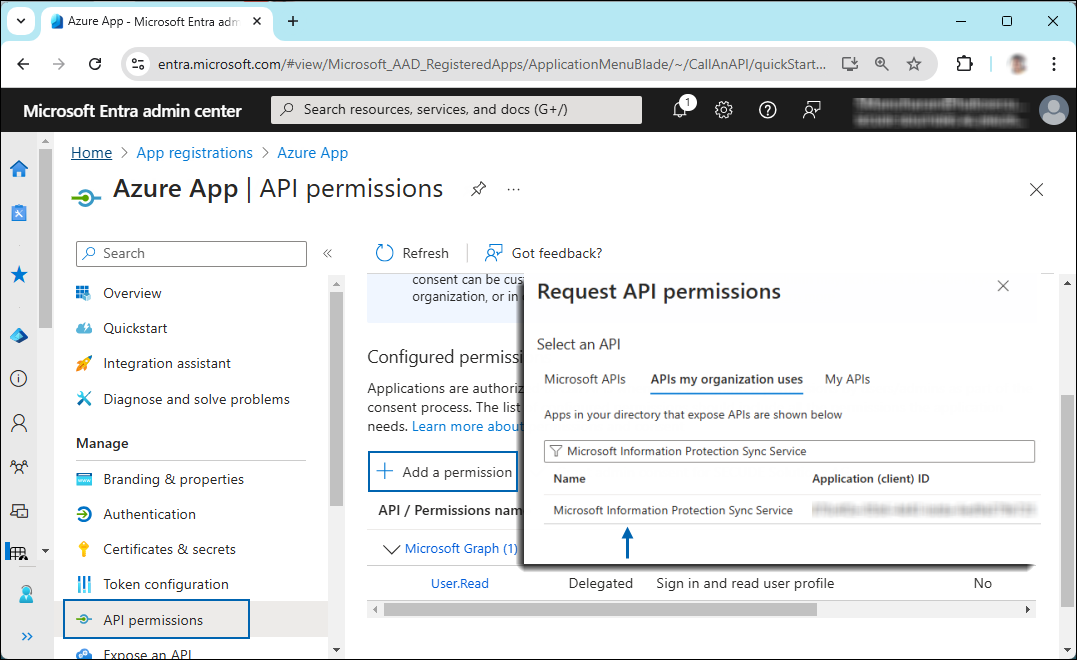
API selection
-
Now, click on the displayed API. You can see two permission types on the page: Delegated permissions and Application permissions.
-
Click Application permissions and then, under the Permission section, select the checkbox near Read all unified policies of the tenant.
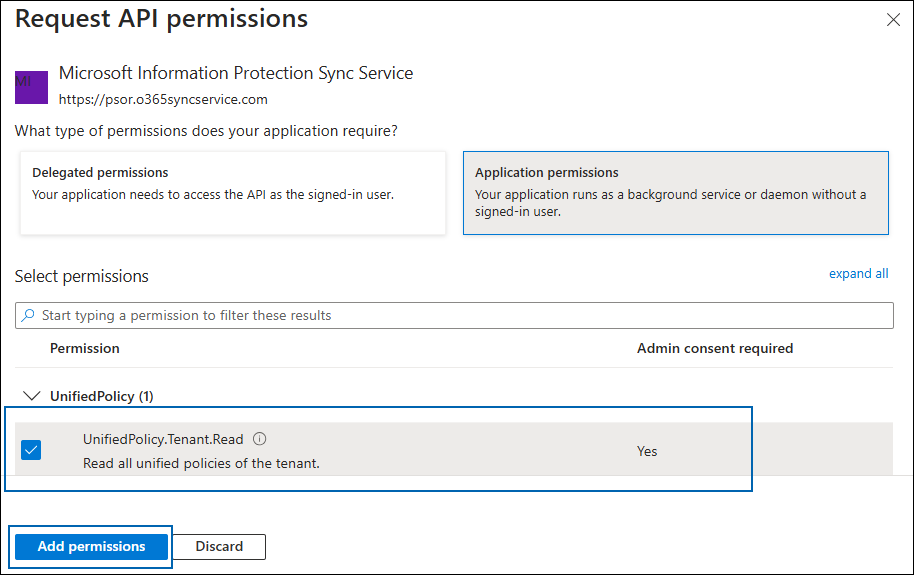
Adding permission
-
Click Add permissions.
-
Repeat the steps above to add the other required permissions listed in the “Required permissions” table below.
-
The API permissions page opens, and the added permissions appear in the table with the status Not granted.
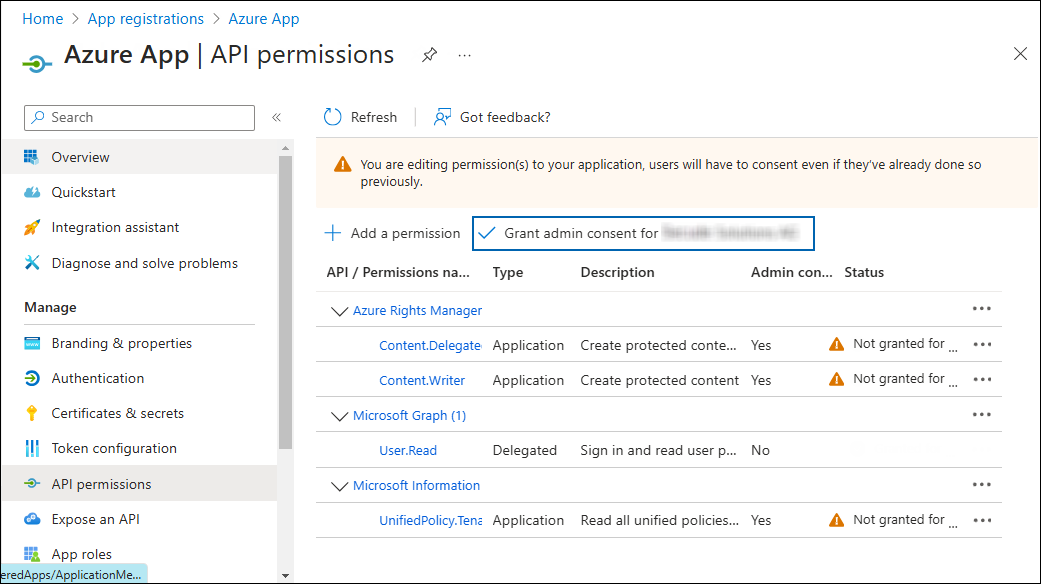
Required API Permissions
-
Click Grant admin consent for your company. When prompted to confirm the consent request, click Yes.
-
After the admin consent is accepted, the status changes to Granted.
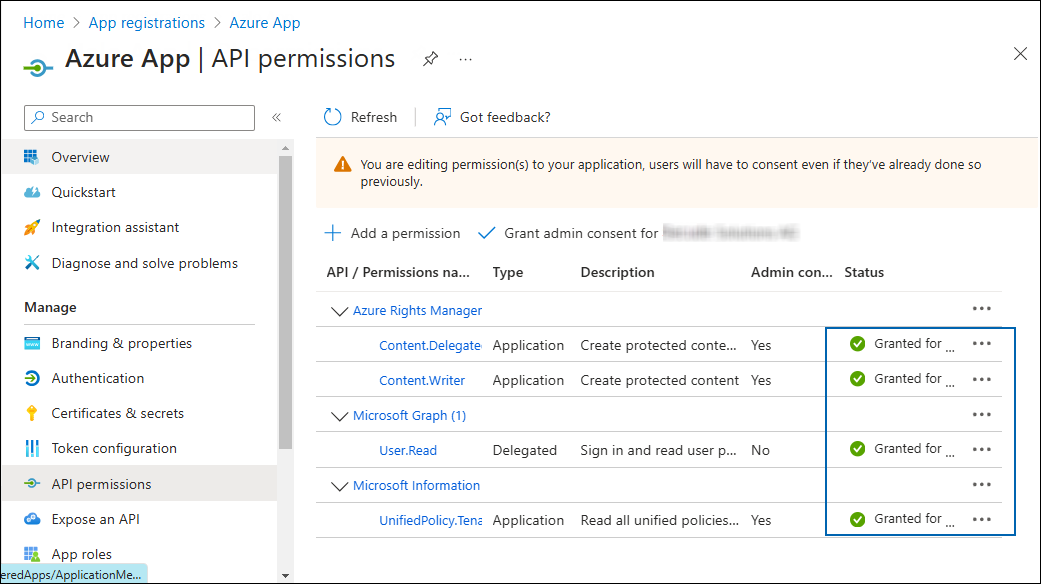
API Permissions with admin consent
-
The following table lists the required permissions.
|
API / Permission Name |
Display Name |
Type |
Description |
|---|---|---|---|
|
Microsoft Graph |
|
Delegated |
Sign in and read the user profile. This API permission is added by default, but HaloSHARE does not use it. |
|
Azure Rights Management Services (Microsoft Rights Management Services) |
|
Application |
Create protected content on behalf of a user. |
|
|
Application |
Create protected content. |
|
|
Microsoft Information Protection Sync Service |
|
Application |
Read all unified policies of the tenant. |
Required permissions #1
Additional Permission (Only for Relabeling)
The above permissions are sufficient to apply the MPIP label to a file. In addition, HaloSHARE requires the following superuser privilege to relabel a file if the service is not the owner of the file.
|
API / Permission Name |
Display Name |
Type |
Description |
|---|---|---|---|
|
Azure Rights Management Services (Microsoft Rights Management Services) |
|
Application |
Read all protected content in this tenant. |
Required permissions #2
Upload the Certificate
HaloSHARE uses certificate-based authentication, so you must enter your certificate information in the registered application.
Prerequisites:
-
Certificate:
-
Ensure that you have a valid certificate containing the following key properties:
-KeyExportPolicy Exportableand-KeySpec Signature. -
The certificate can also be self-signed. As a best practice, use a self-signed certificate only in a test environment.
-
-
Install the certificate:
-
Ensure that this certificate is installed on the Windows Server machine where HaloSHARE is installed.
-
The Certificate Store can be either Current User or Local Computer.
-
If it is a self-signed certificate, it should also be installed in the Trusted Root Certification Authorities store.
-
If the certificate is signed, the root CA and any intermediate CA (if applicable) should also be installed in the appropriate trusted store.
-
To upload the public key of the certificate, follow the steps below:
-
In the sidebar of the new application page, select Certificate & secrets.
-
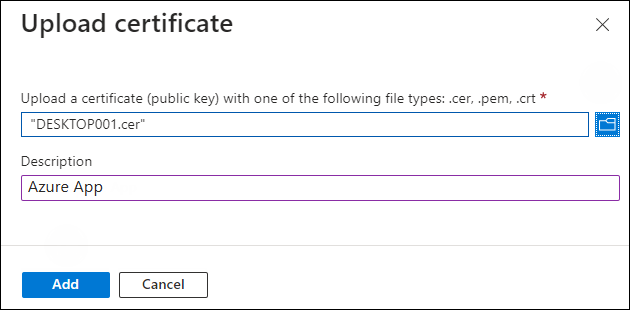
Under the Certificate section, click Upload certificate. The Upload certificate dialog appears as shown in the figure below:
Upload certificate #1
-
Click the folder icon to select the certificate, then click Open. For illustration purposes, the file
DESKTOP001.ceris used. -
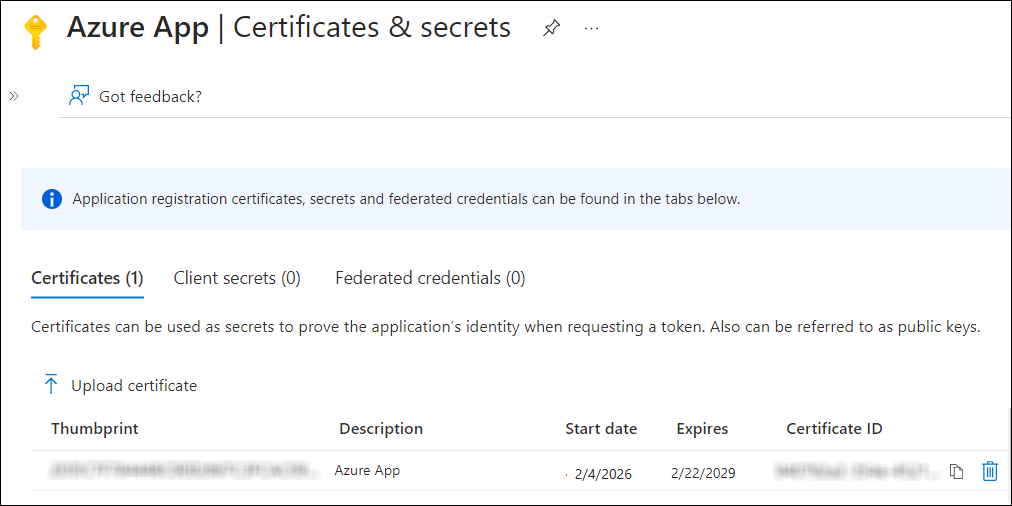
Click Add. The certificate is uploaded, and its thumbprint appears on the page, as shown in the following figure:
Upload certificate #2
-
You are now ready to install HaloSHARE.
Create and Configure the Sensitivity Labels
As an administrator, create, configure, and publish sensitivity labels based on your organization's classification taxonomy. Use label names that are familiar to your users. If your organization does not already have a classification taxonomy, consider using labels such as Public, General, Confidential, and Highly Confidential. For more information, refer to the Microsoft documentation on configuring sensitivity labels.
Enable TLS 1.2 for Microsoft Entra ID Authentication
To improve tenant security and comply with industry standards, Microsoft Entra ID stopped supporting the following Transport Layer Security (TLS) protocols and ciphers:
-
TLS 1.1
-
TLS 1.0
-
3DES cipher suite (TLS_RSA_WITH_3DES_EDE_CBC_SHA)
To authenticate with Microsoft Entra ID, TLS 1.2 must be enabled on the client workstation. For instructions, refer to the Microsoft documentation on enabling TLS 1.2 in the following link: Microsoft article to enable TLS 1.2.
Microsoft documentation
The Microsoft documentation takes precedence over the information in this section. Because Microsoft may update its guidance, always refer to the latest Microsoft documentation before making configuration changes.
Complete the following steps:
-
Update the Windows Operating System
-
Update .NET Framework
-
Set the following registry settings:
|
S.No |
Windows Registry |
Values |
|---|---|---|
|
1 |
|
|
|
2 |
|
|
Registry entries
Register an application in Autodesk Platform Services
This section describes how to register an application in Autodesk Platform Services (APS), obtain the Client ID and Client Secret, and configure the required API access.
Prerequisites:
Before you begin, ensure that the following requirements are met:
-
Allow the required Autodesk subscription licensing URLs and protocols through the firewall or proxy server.
-
If the computer connects to the internet via a firewall or proxy server, configure the proxy to allow unrestricted and anonymous access to the required domains.
-
Allow access to the URL
developer.api.autodesk.comover port 443 (HTTPS).
The default ports used are 80 (HTTP) and 443 (HTTPS). -
Allow access to the required Certificate Authority (CA) endpoints (for example,
http://digicert.com) over port 80 for Certificate Revocation List (CRL) validation.
To complete the configuration, you need:
-
An Autodesk Platform Services (APS) account.
-
An APS Developer Hub.
If you do not have an APS account, complete Create an APS account. If you already have an account, continue with Set up a developer hub.
Create an APS Account
If you do not have an Autodesk account, create one as follows:
-
Go to the Autodesk Platform Services website.
-
Click Sign in in the upper-right corner.
-
Click Create account.
-
Follow the on-screen instructions to complete account setup.
Set up a Developer Hub
A developer hub is used to create and manage APS applications.
-
If you are part of a team, your team might already have a developer hub. Ask your team administrator to add you, and then continue with Create an application.
-
If your team has an Autodesk Platform Services plan but has not created a developer hub, see Create a developer hub.
Create a Developer Hub
Prerequisites
-
An Autodesk account (created in the previous step)
-
An Autodesk team with an APS subscription (Free tier or Paid)
Procedure
-
Log in to https://manage.autodesk.com using your Autodesk Account.
-
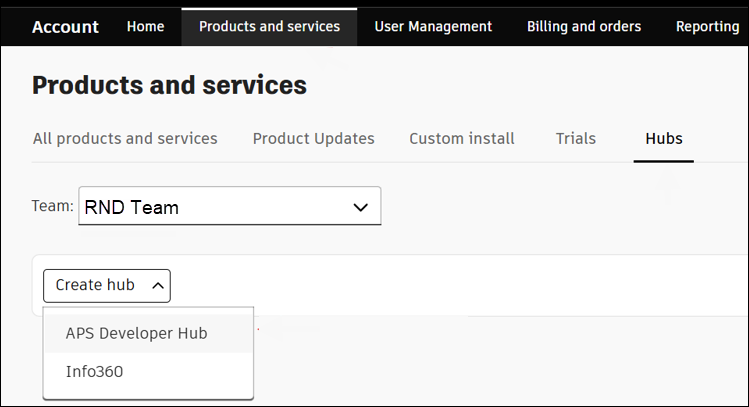
Click Products and Services, and then select the Hubs tab.
Products and Services
-
Choose the Team where the APS offering is assigned.
-
From the Create hub list, select APS Developer Hub as the product.
-
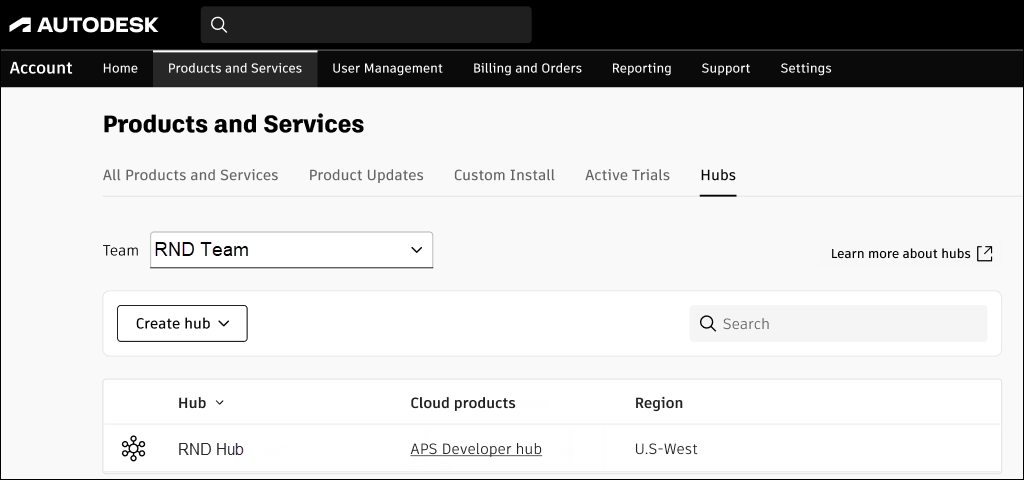
Enter a hub name and, optionally, provide a description. (for example, RND Hub)
-
Click Create & Activate.
-
Refresh the page, and then click the hub name to open the developer portal.
New hub
Create Application Credentials
To authenticate with APS APIs, you must create an application to obtain the client ID and client secret.
-
Click the APS Developer Hub created in the previous section.
-
On the Applications page, click Create application in the top right corner.
-
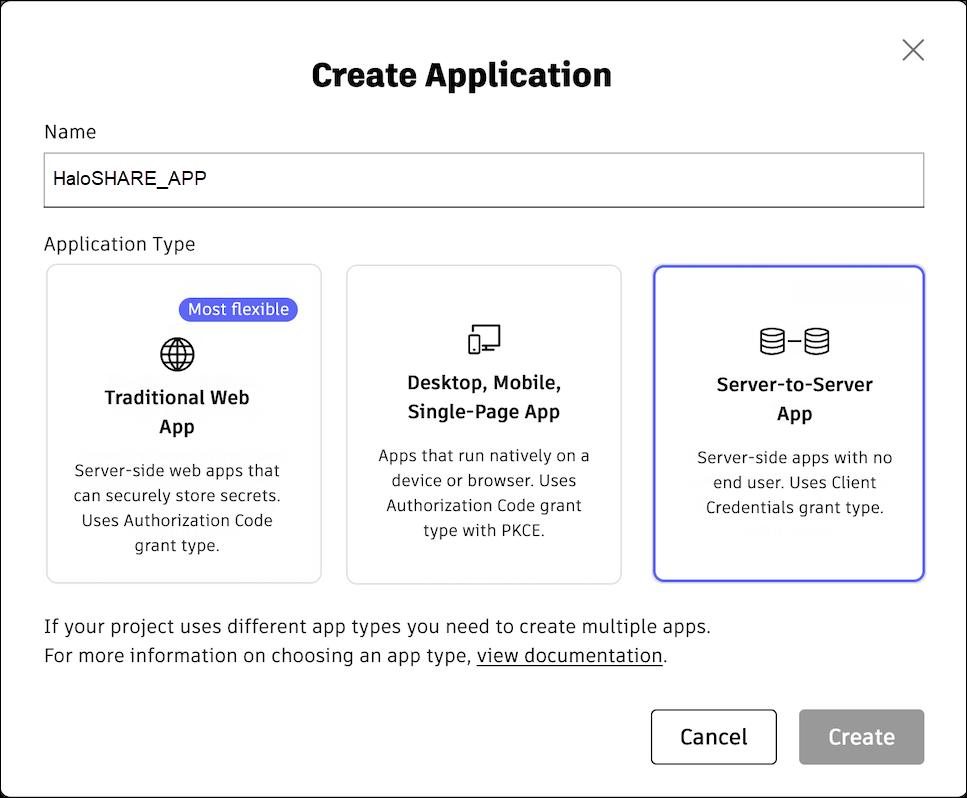
The Create Applications window opens.
-
Enter a name for the application (for example, HaloSHARE_App).
Application name
-
The following application types are available. For HaloSHARE, select Server-to-Server App.
-
Traditional Web App – For applications that run on a server (for example, a web app with a backend server).
-
Desktop, Mobile, Single-Page App – For applications that run on a user’s device (for example, mobile apps, desktop apps, or browser-based apps).
-
Server-to-Server App – For server-side applications that do not require user authentication (for example, background services or daemons).
-
-
Click Create.
-
A confirmation message appears after the settings are successfully saved.
-
Copy the Client ID and Client Secret from the App Settings and use them when configuring HaloSHARE.
-
Under General Settings, enter the redirect URI in the JWKS URI. For local development, you can use
https://localhost:8080 -
Under API Access, select the Data Management API from the list.
-
Click Save changes.
Provide access to Autodesk Forma
Some Autodesk products require you to provision access for your application using its Client ID before integration.
Prerequisite: Ensure that you have administrator access to a Forma hub.
-
Log in to your Autodesk Forma hub.
-
Navigate to Hub Admin.
-
Select the required project.
-
On the Hub Admin page, go to Custom Integrations.
-
Click Add Custom Integration.
-
In the Add custom integration dialog box, enter the following details:
-
Client ID
-
Custom integration name
-
Description
-
-
Click Next and complete the process.
Watermarking CAD files
Before configuring watermarking, ensure that the following prerequisites are met:
-
Install a supported CAD application, such as Autodesk Revit or AutoCAD, on the server where HaloSHARE is installed. HaloSHARE installs the required watermarking components only when it detects a supported CAD application during installation.
-
Ensure that the SharePoint folder is synchronized with the mapped local drive. Files configured as Always keep on this device

-
Ensure that the user who is running the service, or the specific group the user belongs to, is not assigned to the Deny log on as a service policy (Local Security Policy > Security Settings > Local Policies > User Rights Assignment). If the user exists, the error message “Error 1069: The service did not start due to a logon failure” appears while running HaloSHARE.
-
Revit only: Install the RevitLookup tool to view custom properties (metadata) in Revit. After watermarking is applied, navigate to:
RevitLookup > Dashboard > Schemas > HaloMetadataInfo > GetElements > GetEntity (Schema) > Get().
File Signing Task
When configuring a file signing task, you can select either the Local Computer or Current User certificate store. Each option has the following requirements:
-
If you select Local Computer, the service running user must have access to the Local Computer certificates or to the specific certificate in the Local Computer store. If the service-running user is a local non-admin user, promote the service-running user to a local admin user or grant the service-running user access to the private key.
-
If you select Current User, the selected certificate must be installed in the certificate store of the service running user.
General
Before installing and running HaloSHARE, ensure that the following requirements are met:
-
To install the service, you must have local administrator privileges.
-
To run the service, you can use a user account with administrative privilege or non-administrative privilege.
-
The user who initializes the service should have appropriate permissions on the source and destination folders. In addition, the user running the service should have access to that network location as an IP address. For example,
\\10.0.0.138\foldername