
This chapter describes how to configure HaloSHARE GenNXT by using the HaloSHARE GenNXT Configuration tool.
Administration
HaloSHARE GenNXT uses a key-based license to control application features. Obtain a license key from Secude Support before installing HaloSHARE GenNXT. After installation, enter the license key in the configuration tool to activate HaloSHARE GenNXT and enable all features.
This manual does not describe the license purchasing process. To obtain or renew a license, contact your Secude representative.
License Activation
Perform the following steps to activate the HaloSHARE GenNXT license:
-
Navigate to the installation directory. The default location is
C:\Program Files\Secude\HaloSHARE. -
Right-click
HaloSHAREConfiguration.exeand select Run as administrator. -
In the HaloSHARE GenNXT Configuration screen, click Administration.
-
The Administration screen appears.
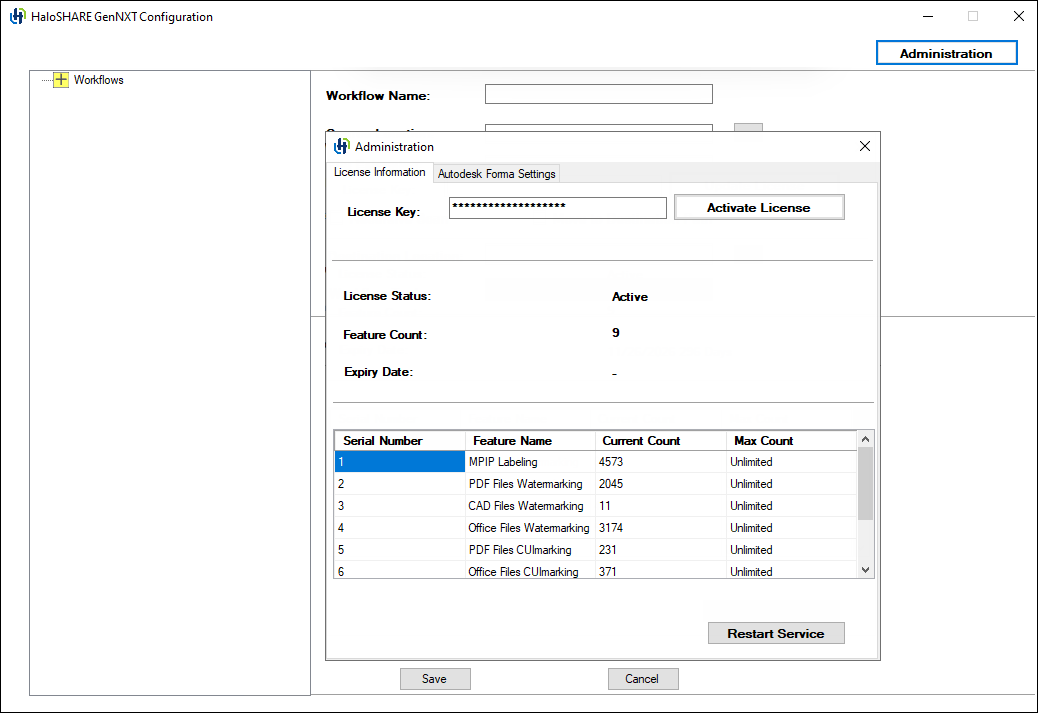
License activation screen
-
Enter the license key.
-
Click Activate License.
-
Wait until the activation is complete.
Result:
-
After the license is activated successfully, a confirmation message displays the license details, including License Status, Feature Count, and Expiry Date. Additional information is available in the Feature Name, Current Count, and Max Count fields.
-
If the license key is invalid, License Status displays LicenseNotFound.
-
If the license key is valid, License Status displays Active.
Related tasks:
-
If your license expires, enter a new license key and click Activate License. Alternatively, activate the license by using
hsadm.exe, and then restart the HaloSHARE service. For more information, refer to “Configure the Service by Using the Admin Tool”. -
When HaloSHARE GenNXT is uninstalled, the license is automatically deactivated.
-
License and service information is recorded in the log files located at:
C:\Users\UserName\AppData\Local\Secude\HaloSHARE\log.
Autodesk Forma Settings
Autodesk Forma integration ensures seamless data flow and collaboration across platforms. HaloSHARE GenNXT enhances this ecosystem with MPIP protection, watermarking, CUI marking, digital signing, password protection, and metadata tagging to enable secure and efficient file sharing.
Before you begin, ensure that the following requirements are met:
-
A valid license with the Autodesk Forma feature enabled. If the Autodesk Forma feature is not enabled in the license, the Autodesk Forma tab is disabled. When you select the tab, the following message appears: “Autodesk Forma Settings are disabled. Please verify your license for more details.”
-
The Client ID and Client Secret for your Autodesk Platform Services application.
To configure HaloSHARE GenNXT with Autodesk Forma, follow these steps:
-
In the HaloSHARE GenNXT Configuration screen, click Administration.
-
In the Administration window, click the Autodesk Forma Settings tab.
-
Enter the following credentials:
-
Client id
-
Client secret
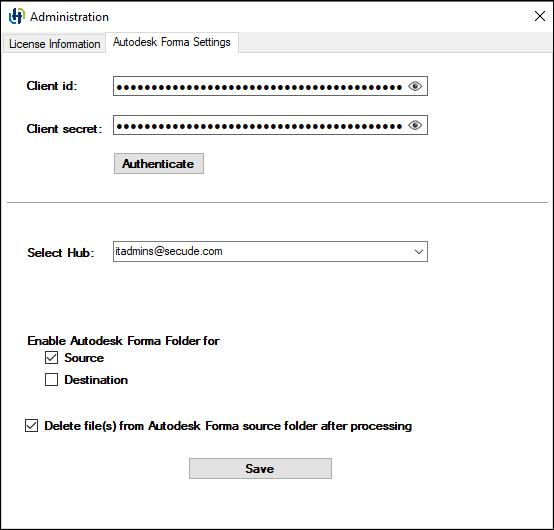
Autodesk Forma Settings
-
-
To display the credentials, click the Show/Hide (eye) icon.
-
Click Authenticate. A confirmation message is displayed upon successful authentication.
-
From the Hub list, select the Autodesk Forma hub.
-
Configure the Source and Destination locations. Depending on your workflow, select one or both options.
-
If Autodesk Forma is selected, the folder selection dialog box displays Autodesk Forma folders.
-
Otherwise, the folder selection dialog box displays local or network folders.
-
-
To delete processed source files from configured source folder, select Delete file(s) from Autodesk Forma source folder after processing.
-
Click Save.
Result
A confirmation message appears after the settings are successfully saved.
Quick Start for Workflows
A workflow defines how HaloSHARE GenNXT processes files from a source location and transfers them to a destination location. Each workflow consists of one or more tasks that run sequentially when HaloSHARE GenNXT detects a new file in the source folder.
Each workflow can include one or more of the following tasks. The execution order is shown below.
-
Metadata Task – Embeds metadata into files.
-
Watermark Task – Adds watermarks to files.
-
Compliance Mark Task – Applies compliance markings to files.
-
Password Protection Task – Applies password protection to files.
-
File Signing Task – Digitally signs files.
-
MPIP Task – Applies Microsoft Purview Information Protection sensitivity labels to classify and protect files.
Workflow task execution order (combined configuration)
-
Metadata task
-
Watermark task
-
File Signing task
In a workflow, you cannot combine the Password Protection or File Signing subtasks with the MPIP task because they are mutually exclusive. The MIP SDK does not support digitally signed or password-protected files.
In the Workflow pane, expanding a top-level workflow displays the associated workflow tasks and source locations. For example, designers at Prestin Engineering may store sensitive files in the source folder location C:\PrestinEng\Source1 within the organization. To securely share these files with external users, they configure a destination location such as C:\SharePoint\PrestinEng_DestUser1. The same approach can be used to configure additional workflows.
Workflow Behavior
-
File handling behavior occurs when the same file is repeatedly added or moved to the same source folder.
Case 1: Move to Destination is not selected
-
MPIP Task: Suppose the source location is configured for text files (
.txt). When you copy a text file, such assample.txt, to the source folder, the file is encrypted and renamed tosample.ptxt.If the same fresh or unprocessed
sample.txtfile is copied to the source folder again, the existingsample.ptxtfile is overwritten. -
Watermark Task: Suppose the source location is configured for PDF files (
.pdf). When you copy a PDF file to the source folder, the file is watermarked.If the same fresh or unprocessed PDF file is copied to the source folder again, the existing processed file is overwritten.
Case 2: Move to Destination is selected
-
MPIP Task: When a file is placed in the source location, it is encrypted and moved to the destination folder.
If the same fresh or unprocessed file is added to the source folder again, it is treated as a new file, encrypted, and moved to the destination folder, overwriting the existing file with the same name.
-
Watermark Task: When a file is placed in the source location, it is watermarked and moved to the destination folder.
-
If an already processed file is added to the source folder again, the existing file in the destination folder is replaced without processing the file again.
-
If a fresh or unprocessed file with the same name is added to the source folder, it is treated as a new file, watermarked, and moved to the destination folder, overwriting the existing file with the same name.
-
Note: The same behavior applies when a file is digitally signed, password-protected, CUI-marked, or metadata-tagged.
For PDF, Excel, and DOCX files, if processing fails because of a library error, the failed file is cached and is not processed again during subsequent HaloSHARE GenNXT operations.
-
-
The OneDrive and HaloSHARE services cannot access the same file simultaneously. Similarly, the HaloSHARE GenNXT and SharePoint services cannot access the same file at the same time. Simultaneous access results in an access violation or access denied error.
-
Unconfigured file types: Files that are not configured in the HaloSHARE GenNXT Configuration tool are not moved to the destination folder. HaloSHARE GenNXT identifies such unconfigured file types and leaves them unchanged.
-
A top-level workflow cannot be deleted if it contains configured tasks. Delete all tasks before deleting the top-level workflow.
-
The same location cannot be configured more than once, and existing workflow names cannot be reused.
-
The workflow name cannot be changed after it is created. To rename a workflow, delete the existing workflow and create a new workflow with the desired name.
-
The source and destination paths can be swapped only within the same workflow. Configured paths cannot be swapped or used in another workflow.
File Processing in Forma
HaloSHARE GenNXT identifies each file in Forma using the Item ID and Version ID, ensuring that the source folder is not processed repeatedly.
-
When a new file is added to the source folder, HaloSHARE GenNXT processes and tracks it. If a file (for example, V1) is already processed by HaloSHARE GenNXT and added again without changes, HaloSHARE GenNXT skips processing. Processed files are tagged with Processed by HaloSHARE to prevent duplicate processing.
-
HaloSHARE GenNXT creates a new version when a file with the same name exists in the destination folder.
-
Unlike local folder configuration, when the Move to Destination option is selected in Autodesk Forma, files in the source folder remain unchanged, and the processed files are sent to the destination folder.
-
HaloSHARE GenNXT tracks the version of each file in the source (Autodesk Forma) folder and the destination folder. This ensures that if a user configures a folder in Autodesk Forma that already contains processed files, HaloSHARE GenNXT identifies them and does not process them again. File tracking details are stored in
TrackVersions.jsonunderC:\Users\Public\Secude\HaloSHARE\adfcache. -
If a HaloSHARE GenNXT-protected file is uploaded and relabeling is required, HaloSHARE GenNXT does not process the file if it has already been processed.
To decrypt or relabel the file and process it again, either delete the tracking version file or download the file and place it in a different folder. This approach prevents repeated processing of the same file when Autodesk Forma folders are configured by tracking item versions.
Configure Workflows
This section describes how to create and configure a HaloSHARE GenNXT workflow.
Prerequisite:
By default, the HaloSHARE GenNXT file extension is available for selection. To add additional extensions, update the hs_extension_list.json file. Newly added entries automatically appear in the extension list in the configuration tool.
To configure the workflow, follow the steps below:
-
Navigate to the HaloSHARE GenNXT installation directory. The default folder is
C:\Program Files\Secude\HaloSHARE. -
Double-click
HaloSHAREConfiguration.exe. -
The HaloSHARE GenNXT Configuration screen appears.
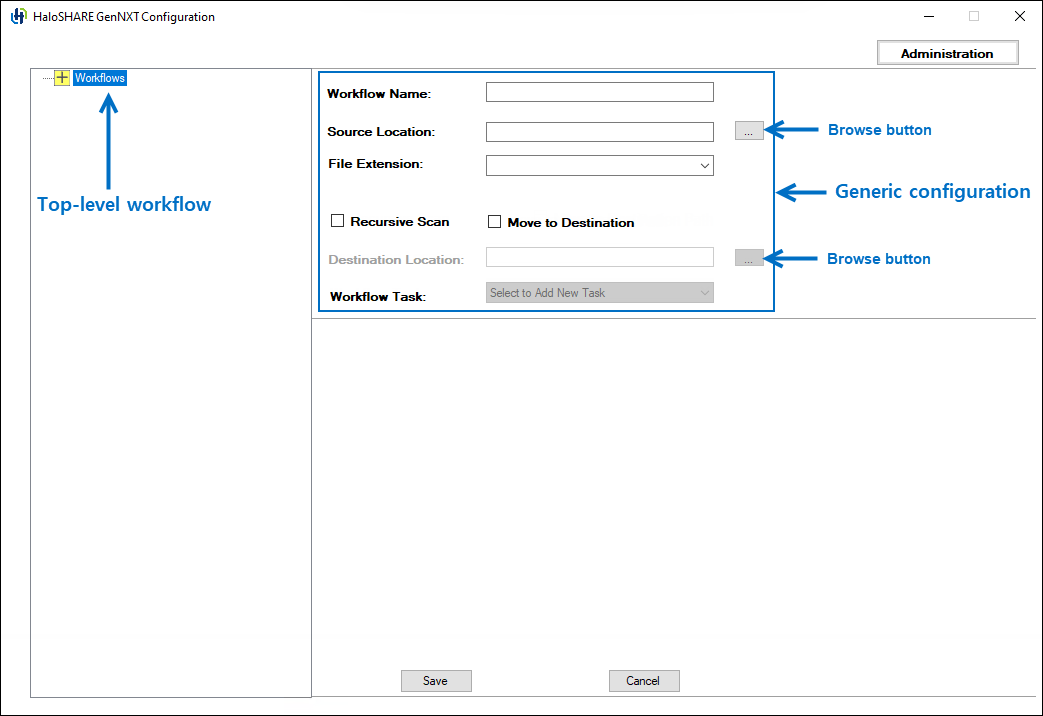
Generic Workflow configuration fields
-
In Workflow Name, enter a name for the workflow. Example: Prestin Engineering
-
In Source Location, enter the path to the source folder that HaloSHARE GenNXT monitors, or click Browse to select the folder. The folders available in the dialog box depend on your configuration.
-
If Autodesk Forma is integrated and the Source and Destination options are enabled, Autodesk Forma folders are displayed. Example:
RND_Test:\Project Files\Lib\Assembly. -
If Autodesk Forma is not integrated, local network folders are displayed. Example:
C:\PrestinEng\Source1.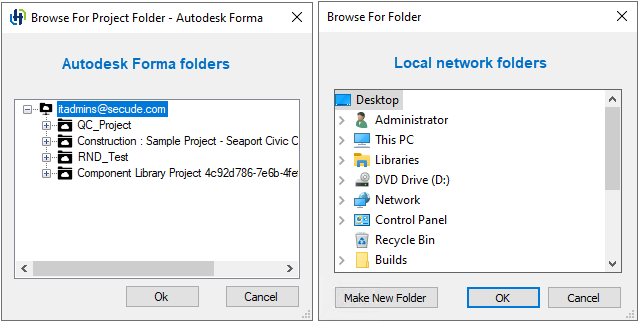
Folder dialogs
-
-
Select one or more file extensions from the File Extensions list. You can also search for a file type and then select it from the results. Files with extensions that are not configured are ignored.
-
To process files in all subfolders, select Recursive Scan. If this option is not selected, HaloSHARE GenNXT processes only files in the source folder.
-
To move processed files to another location, select Move to Destination.
-
In Destination Location, specify the destination folder where HaloSHARE GenNXT transfers the processed files. The destination folder can be a shared location, such as:
-
Microsoft SharePoint
-
Microsoft OneDrive
-
Autodesk Forma
-
Network folder
Example: Files from
C:\PrestinEng\Source1are moved toC:\SharePoint\PrestinEng_DestUser1. -
-
Click Save.
Result:
-
After you successfully add the workflow, a confirmation message appears. The workflow name appears in the left pane under the top-level workflow. Select the workflow name to view its details in the right pane.
-
The Workflow Task list is enabled after you save the workflow successfully. Note: To add a workflow task, the user must have a valid license and a proper installation.
-
To create a new workflow, select top-level Workflow in the left pane. The empty fields appear. Enter the required details to create a new sub-level workflow.
Configure Metadata Task Attributes
This task configures HaloSHARE GenNXT to add metadata to files for classification, identification, and ownership.
To configure the Metadata Task, perform the following steps:
-
As described in the Configure Workflows section, configure your workflow task.
-
From the Workflow Task list, select the Metadata Task.
-
On the HaloSHARE GenNXT Configuration screen, the metadata task options appear.
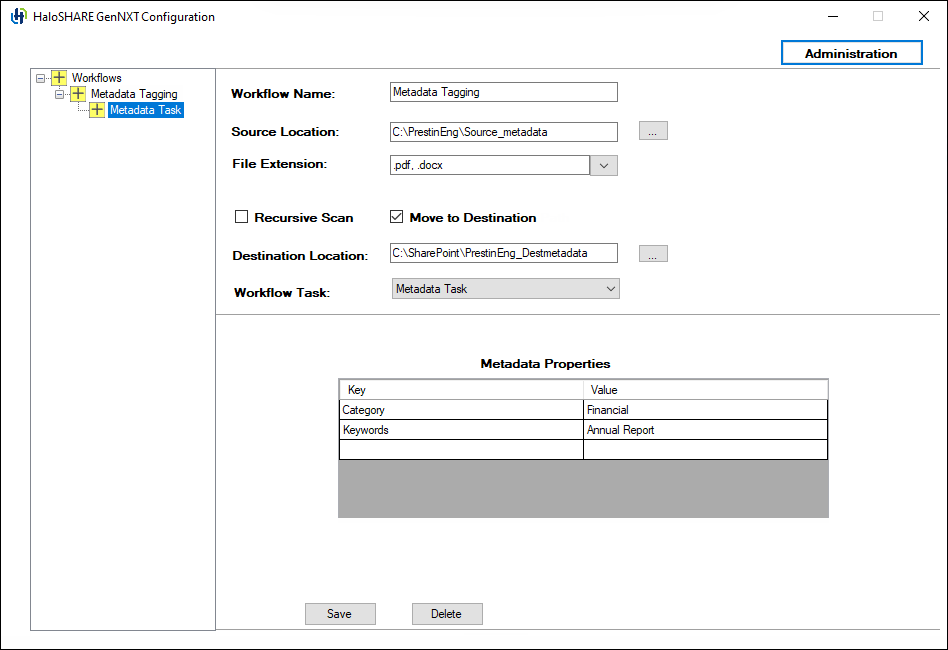
Metadata Task configuration
-
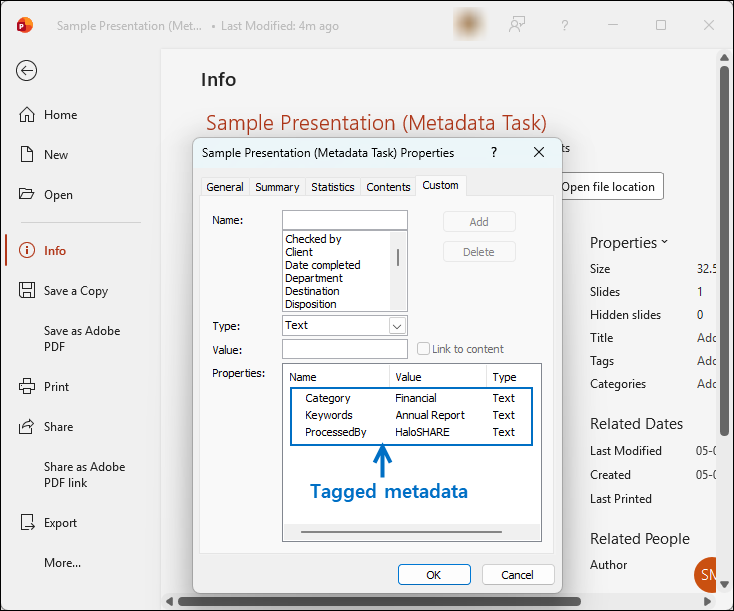
Under Metadata Properties, enter the metadata values in the designated fields.
Example:
-
Category: Financial
-
Keywords: Annual Report
-
-
To remove the metadata properties, select the row, right-click, and choose Delete.
-
Click Save, and then click Restart Service in the Administration UI. Repeat these steps to add additional workflows.
Result:
-
After you successfully add the workflow, a confirmation message appears. The workflow name appears in the left pane under the top-level workflow. Select the workflow name to view its details in the right pane at any time.
-
The files are tagged with the specified metadata values.
-
To delete a workflow, click Delete, and then confirm the action when prompted. The workflow is removed.
-
For examples of configuration output, see the Sample Results section.
Configure Watermark Task Attributes
This task configures HaloSHARE GenNXT to apply watermarks to files to indicate ownership, classification, or usage restrictions.
Prerequisite: Before configuring the watermark workflow task for files in Microsoft Excel and PowerPoint, configure the settings below.
Configure the Watermark Display in Microsoft Office Applications
By default, HaloSHARE GenNXT applies watermarks in the foreground in Microsoft PowerPoint and in the center of worksheets in Microsoft Excel. In Microsoft Excel, users cannot edit cells covered by the watermark, although the watermark can be repositioned within the worksheet. In these display modes, the watermark may interfere with content editing. To allow users to edit content while the watermark is displayed, manually configure the appropriate registry value.
|
Application |
Name |
Type |
Value |
|---|---|---|---|
|
Microsoft PowerPoint |
|
|
|
|
Microsoft Excel |
|
|
|
Registry keys
Registry Value Descriptions
-
true(Microsoft PowerPoint) – Displays the watermark in the background, allowing users to add and edit content in the presentation. -
header(Microsoft Excel) – Displays the watermark in the worksheet header. The watermark is visible only in Page Layout view and on printed pages, while allowing users to edit worksheet content. -
bkground(Microsoft Excel) – Displays the watermark as the worksheet background. The watermark is visible throughout the worksheet while allowing users to edit worksheet content.
To configure the Watermark Task, perform the following steps:
-
As described in the Configure Workflows section, configure your workflow task.
-
From the Workflow Task list, select the Watermark Task.
-
On the HaloSHARE GenNXT Configuration screen, the watermark-related UI field appears.
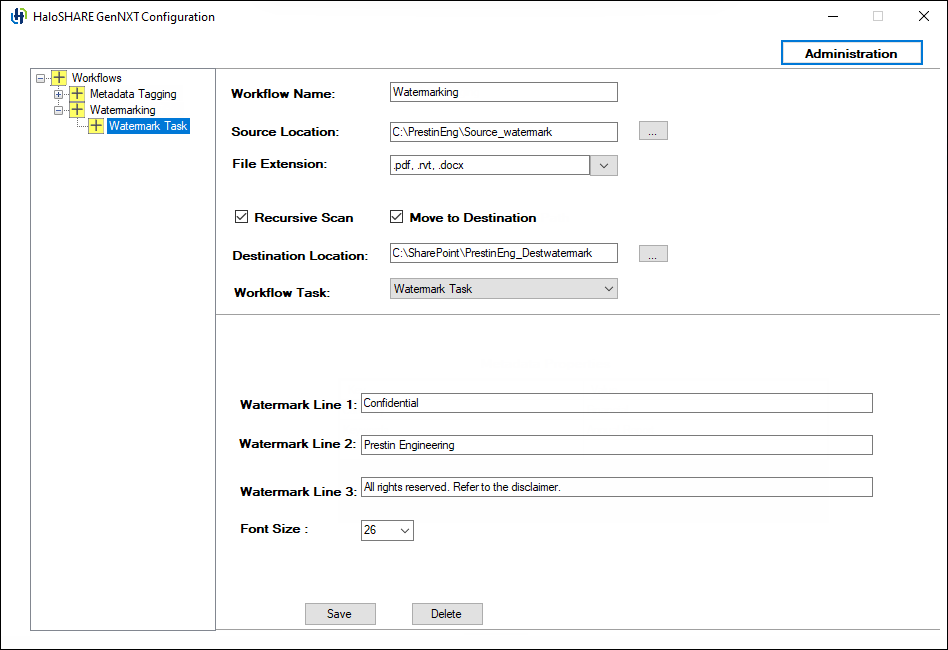
Watermark Task configuration
-
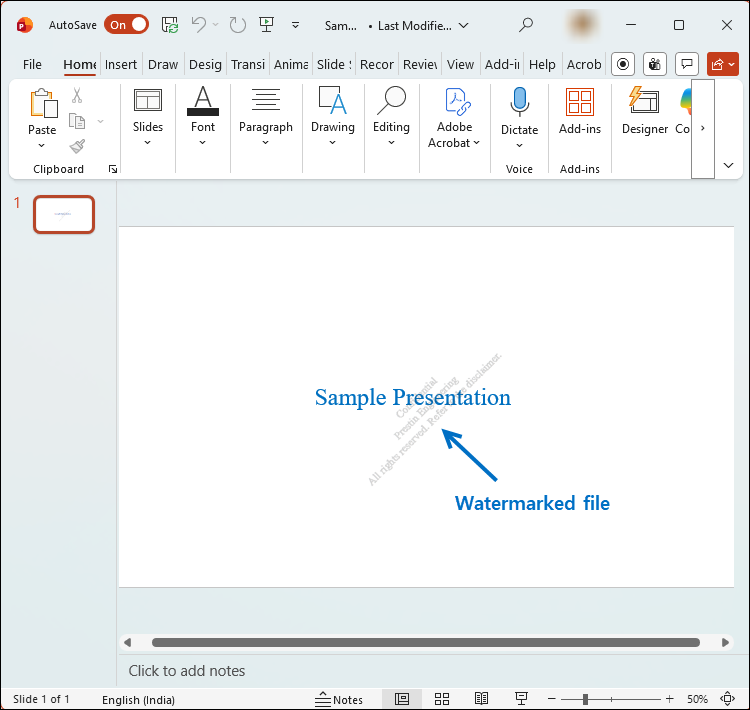
Enter the text to be embedded in the files. Enter text that matches the sensitivity level of the document on watermark lines 1, 2, and 3. Example:
-
Watermark Line 1: Confidential
-
Watermark Line 2: Prestin Engineering
-
Watermark Line 3: All rights reserved. Refer to the disclaimer.
-
Font Size: Select a font size between 8 and 72. HaloSHARE GenNXT uses the Times New Roman font for watermarking across all supported file types.
-
-
Click Save.
-
Restart the HaloSHARE service from the Administration UI. Repeat these steps to add additional workflows.
Result:
-
After you successfully add the workflow, a confirmation message appears. The workflow name appears in the left pane under the top-level workflow. Select the workflow name to view its details in the right pane at any time.
-
The files are watermarked with the specified text. By default, the watermark is applied diagonally.
-
For examples of configuration output, see the Sample Results section.
-
To delete a workflow, click Delete, and then confirm the action when prompted. The workflow is removed.
Watermarking Revit Files Using HaloSHARE GenNXT
This feature enables HaloSHARE GenNXT to apply watermarks to Revit files without requiring the HaloCAD Add-on for Revit.
Prerequisites
Before you begin, ensure that the following requirements are met:
-
AutoCAD and Revit are not running during the installation or uninstallation of HaloSHARE GenNXT.
-
The HaloCAD Add-on for Revit and HaloCAD Add-on for AutoCAD are not installed on the watermarking server.
-
HaloSHARE GenNXT is installed and running.
-
Restart the HaloSHARE service before proceeding.
-
Ensure that
hsmetadataMessageProcessor.exeis running in the background. After a fresh installation, log off and log on again to start the process automatically, or start the process manually. -
Ensure that Revit and AutoCAD do not display any pop-ups or errors when started manually. Watermarking automation must not be interrupted by pop-ups or errors; otherwise, the application may become unresponsive.
To add a watermark to Revit files, follow these steps:
-
Open Task Manager, and then select the Details tab.
-
Verify that
hsmetadataMessageProcessor.exeis running. -
If the process is not running, navigate to the HaloSHARE GenNXT installation path
(C:\Program Files\Secude\common\<version>) and double-clickhsmetadataMessageProcessor.exeto start it. -
Configure a workflow to process Revit (
.rvt) files by specifying the source and destination folders. -
Copy the Revit file to the configured source folder.
Result
-
HaloSHARE applies the configured watermark to the Revit file.
-
The processed file is moved to the configured destination folder.
-
To view the watermark text in Revit, refer to the section “Watermark in RevitLookup”.
Configure Compliance Mark Task Attributes
This task configures HaloSHARE GenNXT to apply Controlled Unclassified Information markings to files.
To configure the CUI marking, follow these steps:
-
As described in the Configure Workflows section, configure your workflow task.
-
From the Workflow Task list, select Compliance Mark Task.
-
On the HaloSHARE GenNXT Configuration screen, the compliance marking options appear.
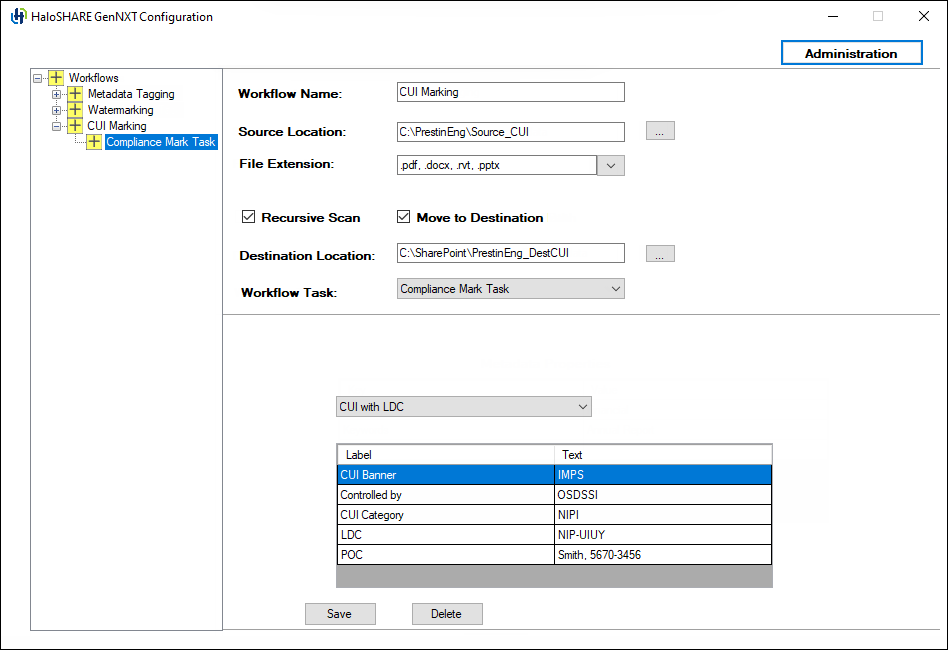
CUI with LDC configuration
-
Select one of the following compliance marking options:
-
CUI with LDC (Limited Dissemination Control)
-
CUI with DS (Distribution Statement)
-
-
Specify the required CUI values in the corresponding fields.
Example:
-
CUI Banner: IMPS
-
Controlled by: OSDSSI
-
CUI Category: NIPI
-
LDC: NIP-UIUY
-
POC: Smith, 5670-3456
-
-
To remove custom properties, select the row, right-click, and choose Delete.
-
Click Save.
-
Restart the HaloSHARE service from the Administration UI. Repeat these steps to add additional workflows.
Result:
-
After you successfully add the workflow, a confirmation message appears. The workflow name appears in the left pane under the top-level workflow. Select the workflow name to view its details in the right pane at any time.
-
The first page of the document displays the CUI values as defined in the configuration.
-
To delete a workflow, click Delete, and then confirm the action when prompted. The workflow is removed.
-
For examples of configuration output, see the Sample Results section.
Configure Password Protection Task Attributes
This task configures HaloSHARE GenNXT to protect files using a user-defined password. HaloSHARE GenNXT applies only the password; all other behavior is determined by the native functionality of Microsoft Office and PDF applications.
To protect files using a password, follow these steps:
-
As described in the Configure Workflows section, configure your workflow task.
-
From the Workflow Task list, select the Password Protection Task.
-
On the HaloSHARE GenNXT Configuration screen, the password protection field appears.
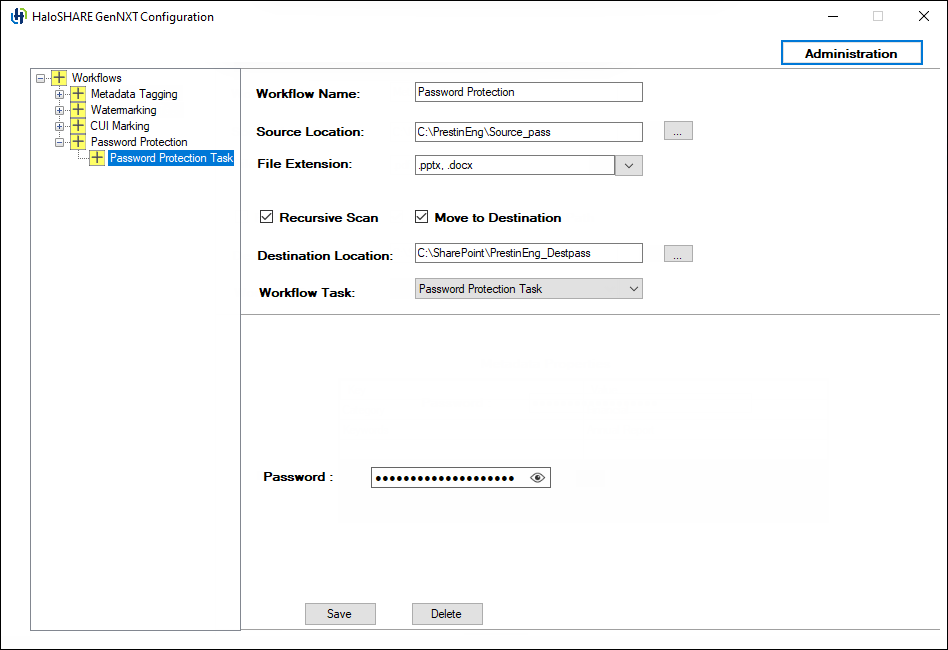
Password Protection Task configuration
-
Enter a password and keep a record of it, as it is required to edit the file later. The password must be 8–15 characters long and can contain letters, numbers, or a combination of both. Spaces and special characters are not allowed.
-
To view the password, click the eye icon next to it.
-
Click Save.
-
Restart the HaloSHARE service from the Administration UI. Repeat these steps to add additional workflows.
Result:
-
After you successfully add the workflow, a confirmation message appears. The workflow name appears in the left pane under the top-level workflow. Select the workflow name to view its details in the right pane at any time.
-
Files in the source folder are protected by a user-defined password and moved to the destination folder.
-
For examples of configuration output, see the Sample Results section.
-
To delete a workflow, click Delete, and then confirm the action when prompted. The workflow is removed.
Configure File Signing Task Attributes
This task configures HaloSHARE GenNXT to automatically apply a digital signature to files in the background to help ensure file integrity and authenticity.
You can select either Local Computer or Current User. However, both options have certain restrictions.
-
If you select Local Computer, the service-running user must have access to the Local Computer certificates or to the specific certificate in the Local Computer store. If the service-running user is a local non-admin user, promote the service-running user to a local admin user or grant the service-running user access to the private key.
-
If you select Current User, the selected certificate must be installed in the certificate store of the service running user.
To sign files, follow these steps:
-
As described in the Configure Workflows section, configure your workflow task.
-
From the Workflow Task list, select File Signing Task.
-
On the HaloSHARE GenNXT Configuration screen, the file signing options appear.
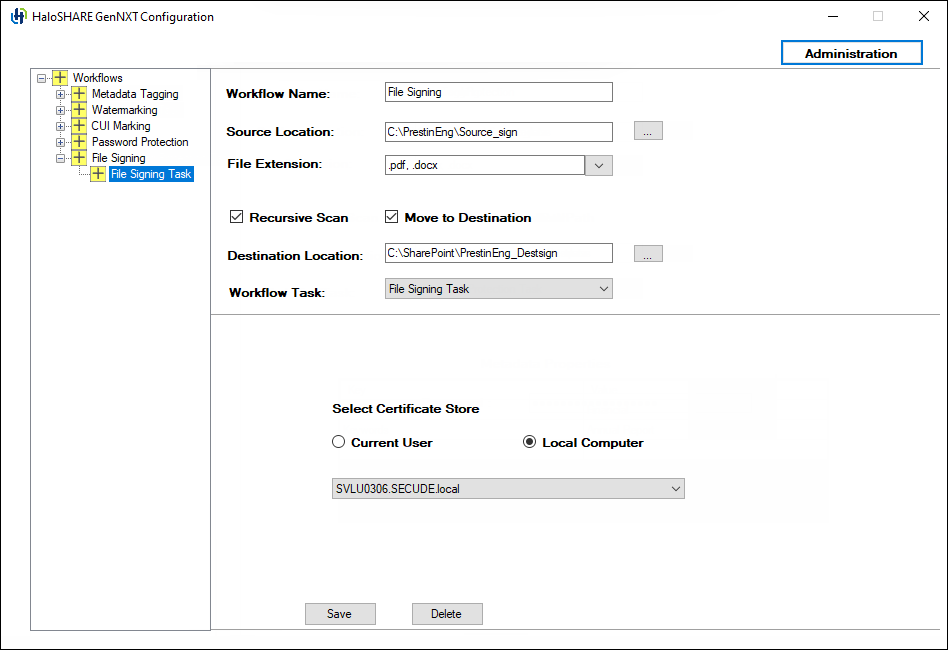
File Signing Task configuration
-
Under Select Certificate Store, select Current User or Local Computer.
-
From the list, select the appropriate certificate.
-
Click Save.
-
Restart the HaloSHARE service from the Administration UI. Repeat these steps to add additional workflows.
Result:
-
After you successfully add the workflow, a confirmation message appears. The workflow name appears in the left pane under the top-level workflow. Select the workflow name to view its details in the right pane at any time.
-
Files in the source folder are digitally signed and moved to the destination folder.
-
For examples of configuration output, see the Sample Results section.
-
To delete a workflow, click Delete, and then confirm the action when prompted. The workflow is removed.
Configure MPIP Task Attributes
This task configures HaloSHARE GenNXT to protect files by applying Microsoft Purview Information Protection sensitivity labels or custom permissions. Files protected with sensitivity labels can be relabeled by using custom permissions. Likewise, files protected with custom permissions can be relabeled by using sensitivity labels. Note: You cannot configure File Signing, Metadata, or Password Protection tasks together with the MPIP task. Compliance Mark and Watermark tasks can be configured if your license supports these features.
Relabeling prerequisites
Before relabeling files, ensure that one of the following conditions is met:
-
The user is the document owner.
-
The user has superuser privileges.
-
The user has export permissions assigned to the applied label.
-
The API permission for relabeling is configured in the application. Refer to section “Additional Permission (Only for Relabeling)”.
Difference between sensitivity labels and custom permissions
Sensitivity Labels
Sensitivity labels are defined and managed by administrators in the Microsoft Entra admin center. Each sensitivity label includes a predefined set of permissions and is referred to as an administrator-defined permission.
Custom Permissions
Custom permissions allow users to define permission settings when applying protection to a file. These permissions are referred to as user-defined permissions.
To apply file protection, follow these steps:
-
As described in the Configure Workflows section, configure your workflow task.
-
From the Workflow Task list, select MPIP Task.
-
On the HaloSHARE GenNXT Configuration screen, the following MPIP task options appear:
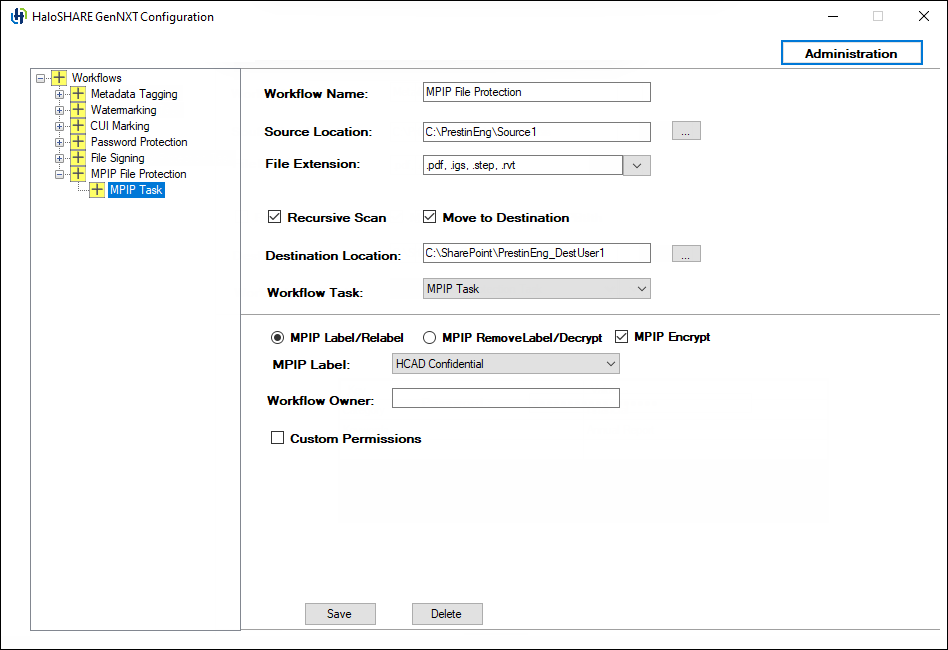
MPIP Task configuration
-
MPIP Encrypt is selected by default, but you can clear it. When selected, the MPIP Label list shows both protection and non-protection labels. When cleared, the MPIP Label list shows only non-protection labels.
-
To apply MPIP labels to files, select MPIP Label/Relabel. This option acts as a toggle between labeling and relabeling.
-
Select a sensitivity label from the MPIP Label list.
-
You may also choose a label without encryption settings. In that case, the following message appears “The selected MPIP label has no encryption settings and can only be applied to MIP SDK–supported file types.” To apply such a label, specify the supported file types, for example,
.txt,.docx, and.pdf. -
Skip to step 8.
-
-
To apply user-defined permissions, select Custom Permissions. The author can then assign permissions to users, groups, or organizations based on the selected permission level.
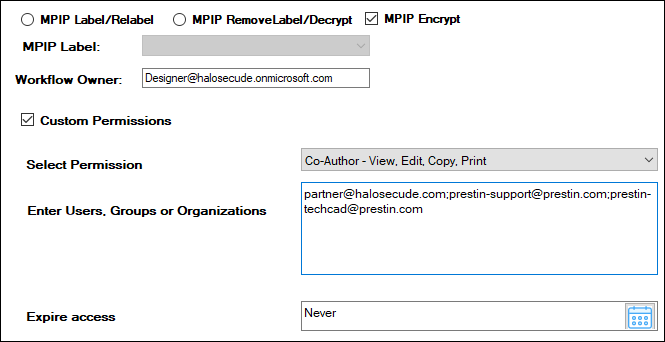
Custom permissions
-
From the Select Permission list, choose the required permission level:
-
Viewer – View only
-
Reviewer – View and Edit
-
Co-Author – View, Edit, Copy, and Print
-
Co-Owner – Full permissions
-
Only for me – Grants access only to the file author. To know the usage rights of the permissions, please refer to the section "Permissions Level and Usage Rights".
-
In Enter Users, Groups, or Organizations, specify the users, groups, or organization domains that can access the file. Separate multiple entries with commas, spaces, or semicolons. For example
partner@halosecude.com;prestin-support@prestin.com;prestin-techcad@prestin.com -
In Expire Access, specify how long users can access the protected file.
-
Select Never to allow unlimited access.
-
Specify an expiration date to restrict access after the selected date.
-
-
To remove the selected expiration date, click Clear date selection.
-
-
To decrypt a file, select MPIP RemoveLabel/Decrypt.
-
To make a user the file owner and grant full access, enter the user’s email ID in the Workflow Owner field. For example,
Designer@halosecude.onmicrosoft.com. -
Click Save.
-
Restart the HaloSHARE service from the Administration UI. Repeat these steps to add additional workflows.
Result:
-
After you successfully add the workflow, a confirmation message appears. The workflow name appears in the left pane under the top-level workflow. Select the workflow name to view its details in the right pane at any time.
-
MPIP protection: Files are protected based on the selected label.
-
Relabeling: Files in the workflow folder are updated with the new label.
-
Remove protection: Files in the workflow folder are decrypted successfully.
-
For examples of configuration output, see the Sample Results section.
-
To delete a workflow, click Delete, and then confirm the action when prompted. The workflow is removed.
Configure Combined Workflows
A combined workflow enables HaloSHARE GenNXT to execute multiple workflow tasks sequentially on the same file.
Workflow Task Execution Order (Combined Configuration):
-
Metadata task
-
Watermark task
-
File Signing task
In a workflow, you cannot combine the Password Protection or File Signing subtasks with the MPIP task because they are mutually exclusive. The MIP SDK does not support digitally signed or password-protected files. Attempting to combine them results in the following error message.
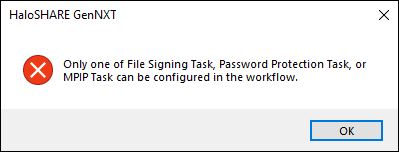
Mutually exclusive error message
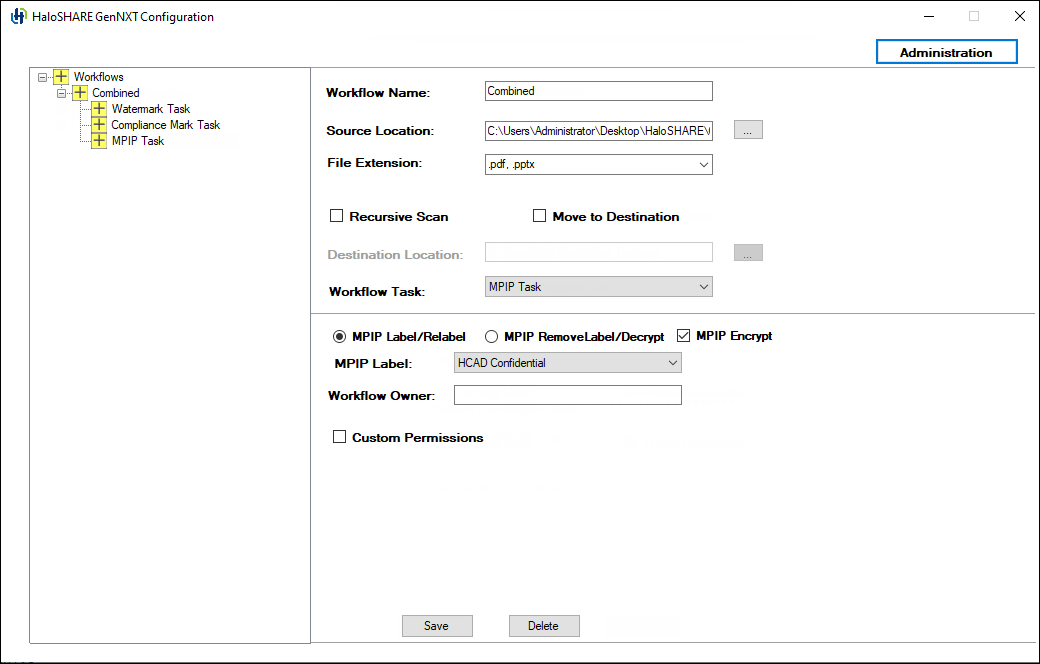
Follow the procedure for a combined Workflow:
-
Select an existing workflow. Example: Combined.
-
Under the selected workflow, add the required subworkflow tasks.
-
From the Workflow Task list, select a task. Example: Select the Watermark Task.
-
Enter the required details.
-
Click Save.
-
-
From the Workflow Task list, select another task. Example: Select the Compliance Mark Task.
-
Enter the required details.
-
Click Save.
-
-
From the Workflow Task list, select another task. Example: Select the MPIP Task.
-
Enter the required details.
-
Click Save.
Combined workflow
-
-
Restart the HaloSHARE service from the Administration UI.
Result
-
A confirmation message appears after the workflow is saved successfully.
-
HaloSHARE GenNXT processes each file by executing the configured tasks in sequence.
-
The processed file is then moved to the configured destination folder if Move to Destination is enabled.
-
For examples of configuration output, see the Sample Results section.
Configure the Service by Using the Admin Tool
After installing HaloSHARE GenNXT, you may want to change the configuration. To do so, run the tool ...\Secude\HaloSHARE\hsadm.exe to view the commands. Please note that the admin tool does not support uppercase.
How to update MPIP labels in HaloSHARE GenNXT?
If an MPIP label is added, removed, or updated in the Microsoft Entra admin center, the administrator should restart the HaloSHARE Service for the changes to take effect.
When is it necessary to restart the HaloSHARE service?
Whenever you modify the HaloSHARE GenNXT registry settings, you need to restart the HaloSHARE Service.
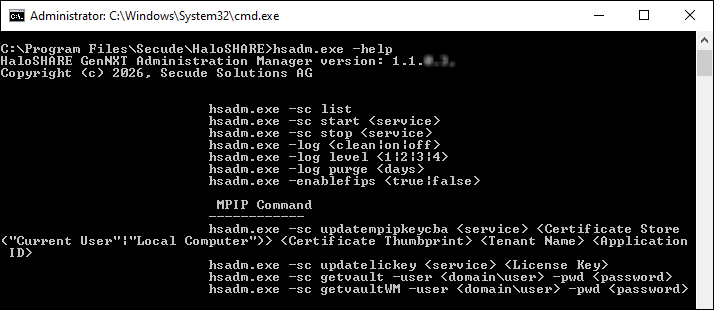
hsadm.exe commands
|
Service Control Commands |
|
Use this command to view the service. Output For a Domain User
For a Non-Domain local user:
|
|
Use this command to start HaloSHARE GenNXT. Note: This can be used only after setting user credentials to run HaloSHARE GenNXT. For example,
Output
|
|
Use this command to stop HaloSHARE GenNXT. For example,
Output
|
|
Log Command |
|
For example,
Output
|
|
For example,
Output
|
|
Use this command to configure the log purge duration, which defines the number of days after which log files are deleted. For example,
Output
|
|
FIPS |
|
Use this command to enable/disable the FIPS mode. For example,
Output
|
|
MPIP Commands |
|
Update MPIP Certificate
Use this command to update the new MPIP CBA (Certificate-Based Authentication) Keys. For example,
Output
|
|
Update MPIP License Key
Use this command to update the License Key For example,
Output Spring License Key updated successfully |
|
Display MPIP key
Use this command to know your MPIP key information. For example,
Output
|
|
Watermark details |
|
Display Watermark key
Use this command to get your watermark licensing key information. For example,
Output
|
Help Commands
Registry Settings
The following section explains how the registry is used to store service settings. To modify the registry value, open Registry Editor, navigate to this path Registry Root Directory = HKEY_LOCAL_MACHINE\SOFTWARE\Secude\HaloSHARE, and modify the Reg Key as you want. Any changes to the registry require a restart of HaloSHARE GenNXT to take effect.
|
Name |
Default value |
Type |
Description |
|---|---|---|---|
|
dir_common |
common |
REG_SZ |
The path to the directory where all the dependent DLL files are stored for the execution of HaloSHARE GenNXT. |
|
dir_log |
log |
REG_SZ |
Log files are generated in the service running user's local profile, i.e., in the following location |
|
dir_tmp |
tmp |
REG_SZ |
It stores the temporary files located at |
|
dir_vendor |
C:\Program Files\Secude\ |
REG_SZ |
This is Secude’s vendor directory under which Secude components are installed. For example, |
|
enable_fips |
false |
REG_SZ |
|
|
enable_relabeling |
on |
REG_SZ |
Defines the status of the relabeling.
|
|
haloshare_config_file |
haloshare_config.enc |
REG_SZ |
Name of the configuration file that includes information about the folders and other essential parameters. |
|
log_enable |
on |
REG_SZ |
Defines the status of the log.
|
|
log_level |
3 |
REG_SZ |
|
|
log_purge |
7 |
REG_SZ |
It indicates the removal of files older than a defined time frame. By default, log files older than 7 days are deleted. |
|
ls_proxy |
|
REG_SZ |
Allows you to use a proxy server to access Secude’s License Manager. This is an optional feature that should only be used if your firewall is blocking License Manager. Enter proxy server settings in the format Please make sure to restart the service. |
|
scan_wait_time |
5 |
REG_SZ |
Specifies the service wait time. For any modification in the local source folder, the service scans every 5 seconds. For the Autodesk Forma folder, the service scans for changes every 30 seconds. If a rate limiter issue is expected, then you can increase the scan time. Example: 2 minutes (120 seconds). |
|
version |
|
REG_SZ |
The version number of the installed service. |
Configuration in the Registry
Endpoint Description
Registry path of endpoint = HKEY_LOCAL_MACHINE\SOFTWARE\Secude\HaloSHARE\ep\HaloSHARE
|
Name |
Default value |
Type |
Description |
|---|---|---|---|
|
block_pii |
|
REG_SZ |
Enable or disable the visibility of Personally Identifiable Information (PII) in the MIP SDK logs. The MIP SDK logs are located at
|
|
cachetype |
|
REG_SZ |
MPIP cache storage type used by the service.
|
|
cacheuserlicense |
|
REG_SZ |
|
|
cloudtype |
|
REG_SZ |
User's Azure Cloud Type. For example: Commercial. |
|
credential |
|
REG_SZ |
Domain or computer name, name of the user under which the HaloSHARE service runs |
|
databoundary |
Default |
REG_SZ |
Audit and telemetry events are sent to the nearest collector, where these events are stored and processed. |
|
domain |
|
REG_SZ |
Name of the domain. |
|
enableCUI |
false |
REG_SZ |
|
|
enabledke |
0 |
REG_SZ |
Double Key Encryption
Please be aware that DKE labels are only visible when DKE functionality is enabled. |
|
enablefiletracking |
0 |
REG_SZ |
Obtain the protected file's content ID to track the file.
|
|
enableMIP |
false |
REG_SZ |
|
|
enableWM |
false |
REG_SZ |
|
|
IterationLimit |
10 |
REG_SZ |
Iteration limit for Creo file types. The default value is 10, however, you can modify and set your limit. Example: |
|
MIPAuthType |
|
REG_SZ |
Type of authentication method. MSALCBA for MPIP mode. |
|
mode |
|
REG_SZ |
Type of HaloSHARE GenNXT features. MPIP, Watermarking, or Combined. |
|
policycloudurl |
|
REG_SZ |
Policy Cloud URL. For example: |
|
protectioncloudurl |
|
REG_SZ |
Protection Cloud URL. For example: |
|
service |
|
REG_SZ |
Name of the service. By default, it is HaloSHARE GenNXT. |
|
streambuffersize |
|
REG_SZ |
It is a buffer size used for memory-based encryption with the MIP SDK. When the allotted buffer size is exceeded, an additional memory of stream buffer size is allocated, and this process is repeated until the encryption/decryption operation is completed. The default setting is 10 MB. |
Configuring Endpoint
Proxy Configuration
Many enterprises enforce a Group Policy Objects (GPO) that requires all outbound internet traffic routed through a proxy server. These proxy settings must be used by both the MIP SDK and the MSAL library for MPIP authentication and functionality. To use proxy settings for the MSAL library, we need to set the msal_proxy_address in HKEY_LOCAL_MACHINE\SOFTWARE\Secude\HaloSHARE.
|
Name |
Type |
Data |
|
msal_proxy_address |
REG_SZ |
|
Configuring MSAL proxy
If the above steps do not work for the service running user, set the ProxyServer and ProxyEnable registry keys under HKEY_CURRENT_USER\Software\Microsoft\Windows\CurrentVersion\Internet Settings for the service running user.
|
Name |
Type |
Data |
|
ProxyServer |
REG_SZ |
|
|
ProxyEnable |
REG_SZ |
|
Configuring proxy
To allow MIP SDK to use the proxy settings set up in your environment, follow the steps below:
Determine whether the proxy server has been properly set up by running the following command.
C:\Windows\system32>netsh winhttp show proxy
Current WinHTTP proxy settings:
Direct access (no proxy server).
If the response to the command is as shown above, it indicates that the proxy server has not been configured in the registry for WinHTTP.
To configure the proxy server for WinHTTP, use the following command:
Syntax: C:\Windows\system32>netsh winhttp set proxy <proxyservername>:<portnumber>
Example: C:\Windows\system32>netsh winhttp set proxy 190.160.166.191:8080
In this case, the proxy server has been set up with 190.160.166.191:8080. Once this command is executed successfully, the registry is updated with the proxy server URL, and the HaloENGINE Tomcat Service ensures that the configured proxy settings are applied.
Access Protected Files
After setting HaloSHARE GenNXT in your environment, you may start sharing business files in folders. Once the files have been protected, you should know how to open MPIP-protected files with HaloCAD Add-ons. For information on how to open a protected file, refer to the corresponding HaloCAD Add-on documentation.
Sample Results
To view the HaloSHARE GenNXT watermarked CAD files, the HaloCAD Add-on is required for the CAD application. For information on how to view a HaloSHARE GenNXT watermarked CAD file, refer to the HaloCAD Add-on documentation.
Viewing Watermark metadata in CAD files:
-
RVT: Install the RevitLookup tool to view the metadata. For more details, please refer to “Watermark in RevitLookup”.
-
DWG: Go to the file's Custom Properties to view the metadata.
-
IFC: Open the file in any text editor and scroll to the end to view the metadata.
Metadata Task
Sample - Metadata Task
Watermark Task
Sample - Watermark Task
Compliance Task
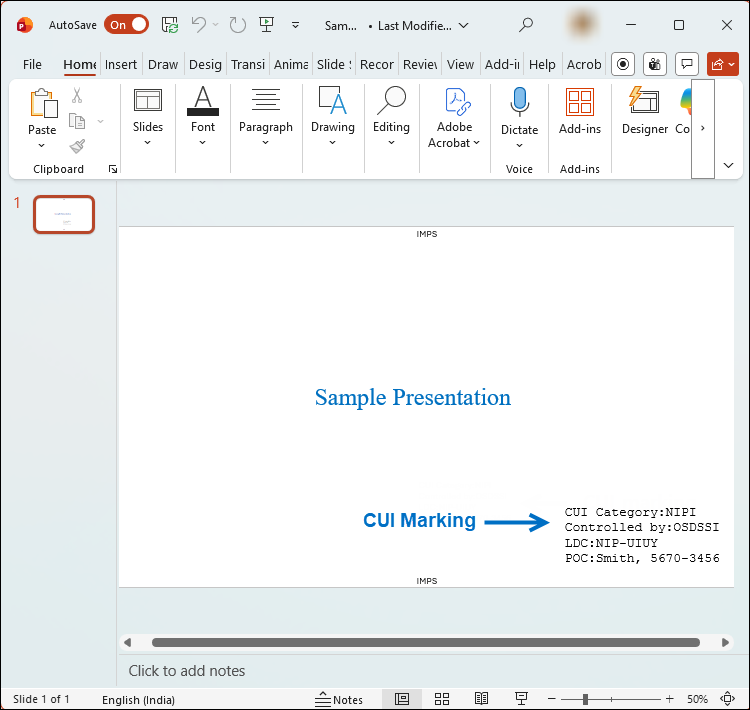
Sample - Compliance Task
Password Protection Task
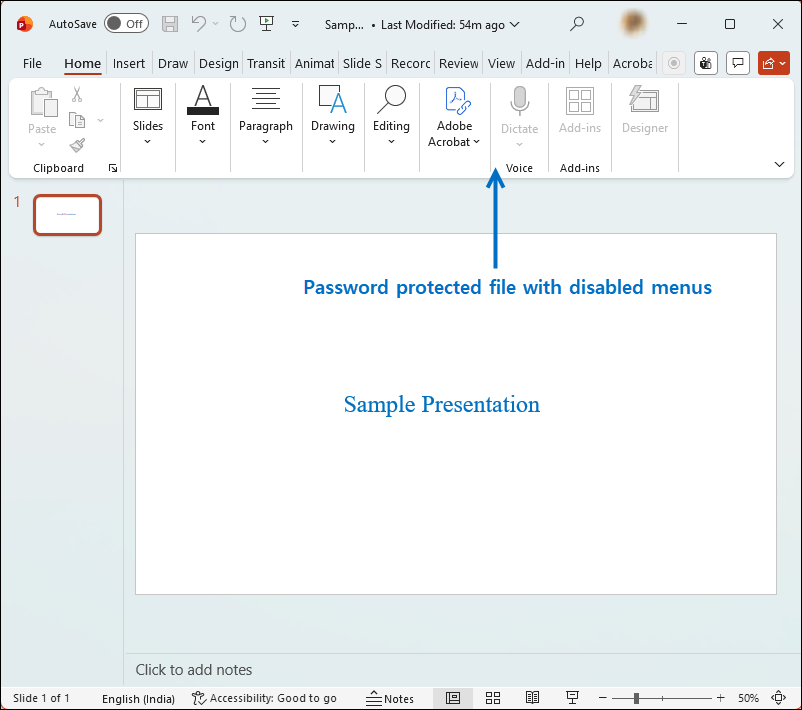
Sample - Password Protection Task
File Signing Task
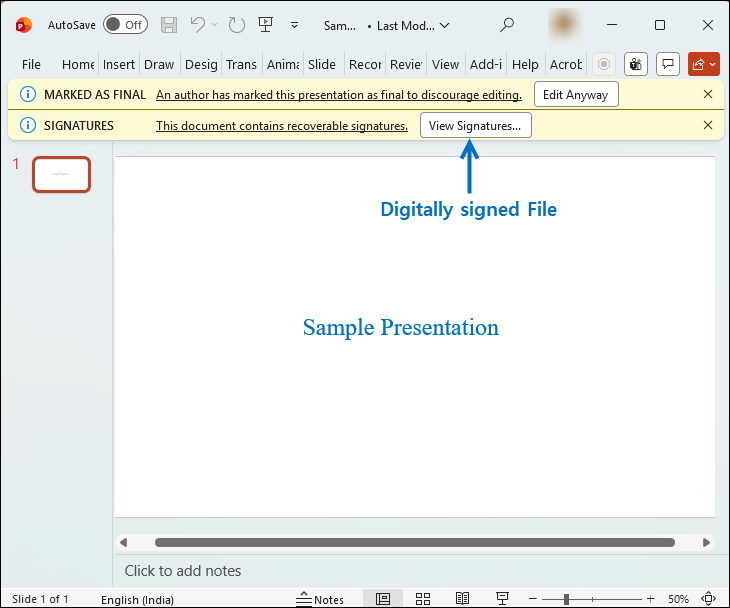
Sample - File Signing Task
MPIP Task
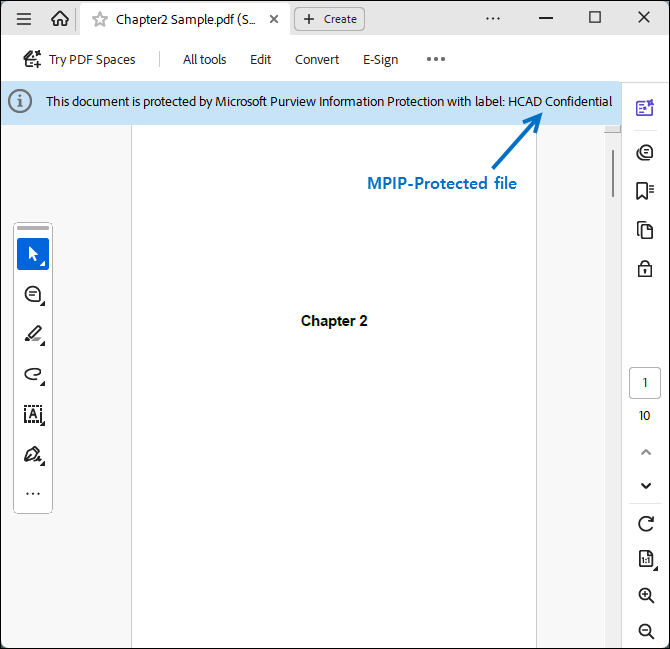
Sample - MPIP Task
Combined Workflow
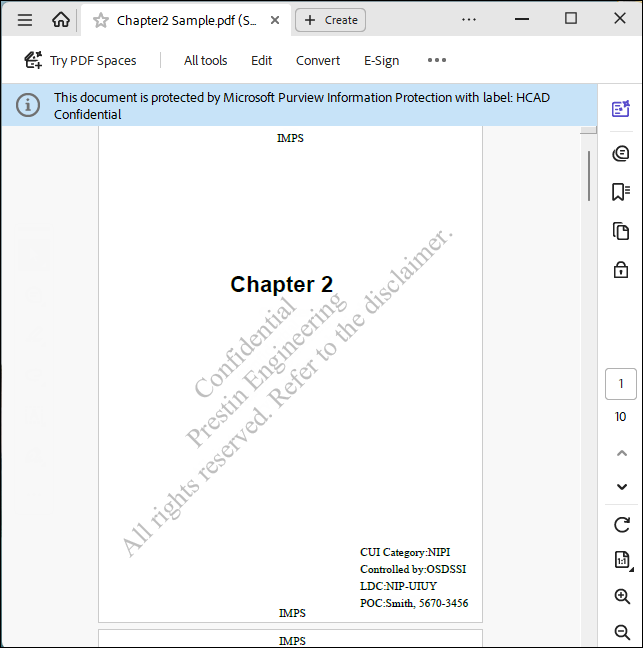
Sample - Combined Workflow