
Introduction
HaloSHARE GenNXT secures internal and external business workflows by providing centralized bulk file protection. It supports classification, sensitivity labeling, encryption, password-based access control, digital signing, Controlled Unclassified Information (CUI) marking, and watermarking.
HaloSHARE GenNXT extends Microsoft Purview Information Protection (MPIP) to CAD, Microsoft Office, PDF, text, and other non-Office file formats stored in shared folders. It protects sensitive data by applying customizable sensitivity labels that support tracking, revocation, and expiration.
What distinguishes HaloSHARE GenNXT?
Digital transformation improves supply chain efficiency but also increases the risk of data exposure. Sharing unprotected files can lead to data breaches, operational disruption, and financial loss. In collaborative environments, unauthorized access and accidental file sharing are common risks. To protect business operations without disrupting workflows, organizations must secure project files by default.
HaloSHARE GenNXT automatically protects files placed in a predefined local folder (the HaloSHARE GenNXT radius) on systems where it is installed, such as Microsoft OneDrive or Microsoft SharePoint. When a file enters the radius, the application automatically encrypts it to prevent unauthorized access and accidental sharing, both inside and outside the organization.
HaloSHARE GenNXT also supports watermarking, CUI marking, digital signing, password protection, and metadata tagging. These capabilities help organizations securely share, track, and manage files while maintaining user productivity.
By implementing HaloSHARE GenNXT, organizations can reduce the risk of data breaches, support compliance with data protection regulations, and eliminate manual file protection tasks.
About this Manual
This manual provides step-by-step instructions for installing and configuring HaloSHARE GenNXT. It is intended for system administrators and IT professionals responsible for deploying HaloSHARE GenNXT in enterprise environments.
This manual covers the following tasks:
-
Installing HaloSHARE GenNXT
-
Configuring core features and security settings
-
Troubleshooting common issues
Terminology
The following table defines the terms used throughout this manual.
|
Term |
Description |
|---|---|
|
HaloSHARE GenNXT radius |
A predefined folder monitored by HaloSHARE GenNXT. Files placed in this folder are automatically processed based on the configured workflow. |
|
Workflow |
A configured sequence of tasks that processes files, such as applying protection, watermarking, or metadata, before moving them to a destination folder. |
|
Source folder |
The folder that HaloSHARE GenNXT monitors to apply the configured workflow tasks. |
|
Destination folder |
The folder where processed files are copied or moved after workflow execution. |
|
Sensitivity label |
A Microsoft Purview Information Protection label that classifies and protects files based on organizational policies. |
|
Custom permissions |
User-defined protection settings that can be applied without using Microsoft Purview sensitivity labels. |
|
Metadata |
Additional information embedded in a file to support classification, tracking, or identification. |
|
Watermark |
Visible text or graphics added to a document to indicate ownership or classification. |
|
CUI marking |
Controlled Unclassified Information markings applied to documents to meet compliance requirements. |
Terminology used
Acronyms
The following table lists the acronyms used throughout this manual.
|
Acronym |
Description |
|---|---|
|
APS |
Autodesk Platform Services |
|
CAD |
Computer-Aided Design |
|
CA |
Certificate Authority |
|
CUI |
Controlled Unclassified Information |
|
HTTPS |
Hypertext Transfer Protocol Secure |
|
MPIP |
Microsoft Purview Information Protection |
|
SDK |
Software Development Kit |
|
TLS |
Transport Layer Security |
|
URI |
Uniform Resource Identifier |
|
URL |
Uniform Resource Locator |
Acronyms
Features
HaloSHARE GenNXT provides the following capabilities:
-
Protects multiple files in folders in bulk.
-
Applies label-based protection by using Microsoft Purview Information Protection or user-defined custom permissions.
-
Lets you customize protection settings.
-
Enables you to remove protection from files.
-
Enables you to relabel files by using existing sensitivity labels.
-
Applies bulk watermarks with unique, date-stamped sharing information to improve content security and ownership visibility.
-
Adds custom metadata to improve file classification, security, and contextual awareness.
Feature Availability and License Requirements
|
Feature |
Description |
License Requirement |
|---|---|---|
|
MPIP Protection |
Applies Microsoft Purview sensitivity labels and encrypts or decrypts files. Supports relabeling. |
Requires a license with the MPIP Protection feature enabled. |
|
Watermarking |
Adds user-defined watermarks to PDF, CAD, and Microsoft Office files. |
Requires a license with the Watermark feature enabled. |
|
Compliance Marking (CUI) |
Applies Controlled Unclassified Information markings to PDF and Microsoft Office files. |
Requires a license with the CUI feature enabled. |
|
Password Protection |
Protects files by using a user-defined password. |
Requires a license with the Password Protection feature enabled. |
|
File Signing |
Protects files by using a digital signature. |
Requires a license with the File Signing feature enabled. |
|
Metadata Marking |
Embeds user-defined metadata for classification and tracking. |
Requires a license with the Metadata Marking feature enabled. |
Feature set up
License Combinations in HaloSHARE GenNXT
The table lists the base license options available for HaloSHARE GenNXT. Depending on your requirements, you can combine multiple licensed features. For example, you can combine MPIP protection with watermarking for PDF files or watermarking for Microsoft Office files with CUI marking for PDF files.
General FAQs
This section answers frequently asked questions about HaloSHARE GenNXT. If you need additional assistance, contact your Secude sales representative or the Secude Support team.
-
What does HaloSHARE GenNXT provide for an organization?
This labeling solution protects your files and enforces security throughout their full life cycle. -
Does it protect all native Computer-Aided Design (CAD) file types?
Yes, HaloSHARE GenNXT supports all CAD native file types. -
What happens if an unauthorized person attempts to open a HaloSHARE GenNXT-labeled file?
HaloSHARE GenNXT first authenticates the user by verifying their identity. If authentication fails, access to the file is denied, and an error message is displayed. -
Who decides what labels should be used for various supplier folders and how they are managed in the background?
In an organization, an MPIP administrator is responsible for creating and managing labels (user rights) in the Microsoft Entra admin center. The choice of label can be made by engineers or designers who create drawings for a specific supplier. -
What if I don't want a certain file type to be protected?
HaloSHARE GenNXT encrypts any file based on the extension specified in the configuration. As a result, you can whitelist file types to be encrypted and blacklist file types by not defining them in the configuration. -
Is it possible to apply custom permissions to protect a file?
Yes. HaloSHARE GenNXT allows you to protect files by using user-defined custom permissions without applying MPIP sensitivity labels. -
How to open a protected CAD file?
You can open protected CAD files by using the HaloCAD Add-on for supported CAD applications.
-
How to open a protected PDF file?
You can open protected PDF files by using Adobe Acrobat Reader DC, Adobe Acrobat DC, Microsoft Edge, or the Microsoft Purview Information Protection Viewer. -
How do I view the watermark on a CAD file?
To view watermarks in a HaloSHARE GenNXT-protected CAD file, install the HaloCAD Add-on for your supported CAD application.
Quick Start Installation Overview
The following figure provides a high-level overview of the HaloSHARE GenNXT installation process.
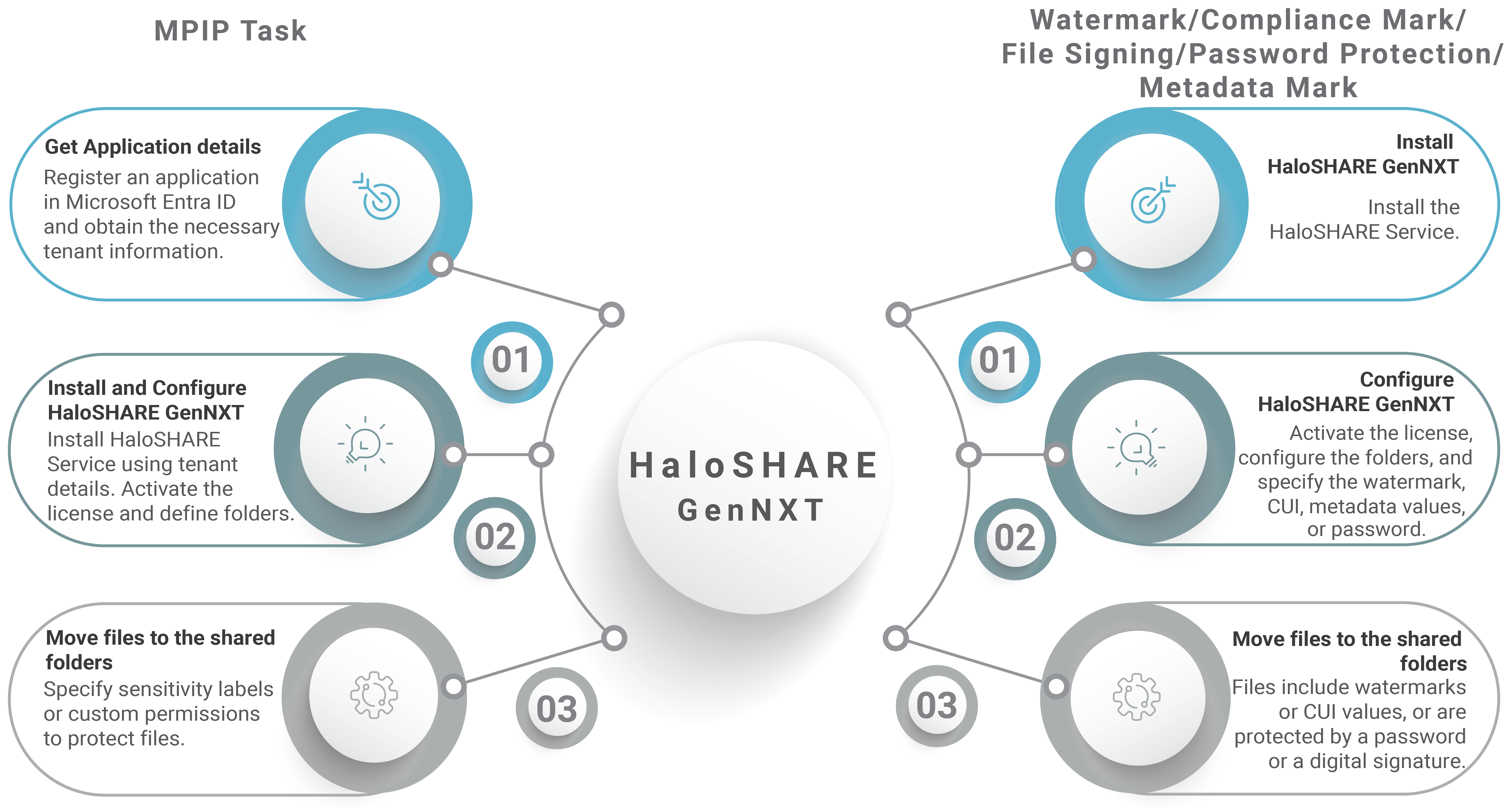
Quick start implementation steps
Architecture
In a typical deployment, designers share project files with external partners. HaloSHARE GenNXT enables administrators to configure workflows by assigning source and destination folders for each partner. Based on the configured workflow, HaloSHARE GenNXT automatically processes files and moves them from the source folder to the corresponding destination folder, as shown in the following figure.
|
Workflow Name |
Workflow Source Folder (from designer) |
Workflow Destination Folder (to external partner) |
|---|---|---|
|
Workflow 1 |
|
|
|
Workflow 2 |
|
|
Source and destination Folders
At a high level, the HaloSHARE GenNXT workflow consists of these steps:
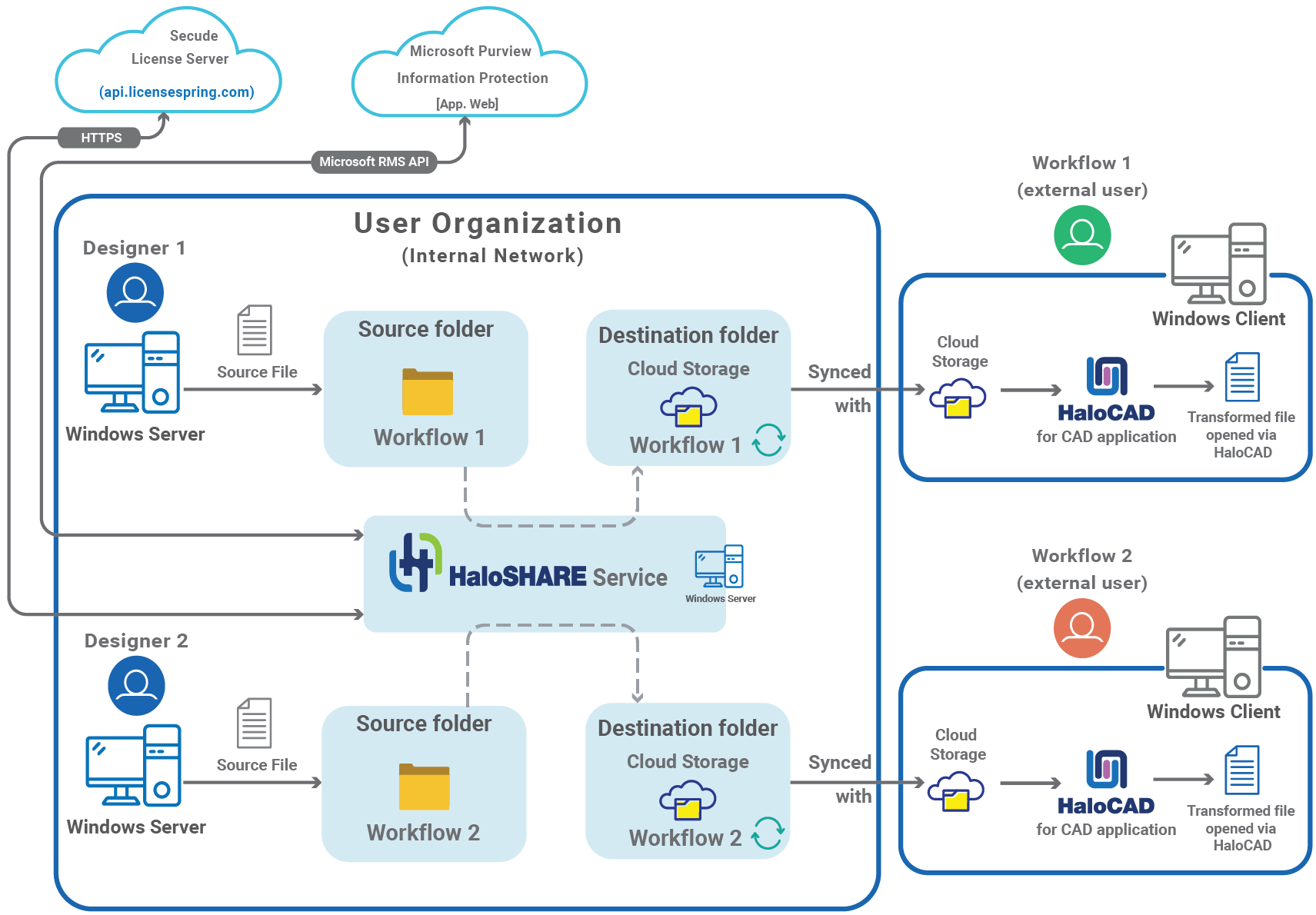
Architecture
Shared folder location
The destination folder for external users can be located on Microsoft OneDrive, Microsoft SharePoint, or Autodesk Forma (formerly Autodesk Construction Cloud Docs), depending on your workflow configuration.
HaloSHARE GenNXT monitors the configured source folder and its subfolders for new files. Depending on the tasks configured in the workflow, it performs one of the following actions:
-
MPIP Task: Applies the configured MPIP sensitivity label or custom permissions.
-
Watermark Task: Applies the configured watermark.
-
Compliance Mark Task: Applies the configured CUI markings.
-
File Signing Task: Applies the configured digital signature.
-
Password Protection Task: Applies the configured password protection.
-
Metadata Mark Task: Embeds the configured metadata.
If Move to Destination is configured in the workflow, the processed file is moved to the configured destination folder, where external users, including suppliers, vendors, and consultants, can access HaloSHARE GenNXT-protected and watermarked CAD files only by using the HaloCAD Add-on. For more information, refer to the HaloCAD User Manual.
System Requirements
The following table outlines the minimum and recommended technical specifications, including software and network requirements, required to run the product.
|
Components |
Details |
|---|---|
|
Operating System |
|
|
MPIP task label protection-specific requirements |
|
|
Office 365 Subscription |
|
|
Supported file types |
|
|
Autodesk Forma specific requirements |
|
|
Autodesk Platform Services |
Register an application in Autodesk Platform Services to obtain the Client ID and Client Secret. |
|
Watermark task specific requirements |
|
|
Supported file types |
|
|
Supported CAD applications |
|
|
Application for viewing protected and watermarked files |
|
|
File Signing task specific requirements |
|
|
Supported file types |
Microsoft Office and PDF file types |
|
Metadata task specific requirements |
|
|
Supported file types |
Microsoft Office and PDF file types |
|
Password Protection task specific requirements |
|
|
Supported file types |
|
|
Compliance Mark (Controlled Unclassified Information) task specific requirements |
|
|
Supported file types |
|
Requirements