
This section provides supplemental information.
Third-Party Libraries
Third-party software/code is included or bundled with Secude's products according to its appropriate license. Secude conducts testing to make sure the third-party products are compatible with and perform as intended with Secude applications.
The third-party libraries and dependencies used by HaloSHARE GenNXT are shown in the table below.
Third-party libraries
Permission Levels and Usage Rights
Basic Permissions
The following table describes the basic permissions and the actions allowed for each permission level.
|
S.No |
Permission Level |
Usage Rights (Allowed Recipient Actions) |
|---|---|---|
|
1 |
View |
Open and read the data (read-only access). It includes zooming and viewing from different angles (for CAD file types). |
|
2 |
Edit |
Edit the file and save it |
|
3 |
Copy |
Extract data (including screen captures) from the file into the same or another file. |
|
4 |
|
Print the content |
|
5 |
Export |
Save the content under a different file name (Save As). Also includes Export to PDF. |
|
6 |
Change Rights |
Change the label applied to a file, remove protection, or save the file in an unprotected format. |
|
7 |
Owner (Full Control rights) |
Grants full access to the file and allows all available actions. This permission also includes the following rights:
|
Basic Permissions
Author (creator) of a file
The author of a file has all the rights and actions mentioned in the above table. Also includes the following permissions:
-
Open file after the expiry date
-
Revoke access
Custom Permissions
The following table describes the available custom permission levels.
|
S.No |
Permission Level |
Usage Rights (Allowed Recipient Actions) |
|---|---|---|
|
1 |
Viewer |
Open and read the data (read-only access). It includes zooming and viewing from different angles. |
|
2 |
Reviewer |
Viewer’s allowed permissions plus:
|
|
3 |
Co-Author |
Reviewer’s allowed permissions plus:
|
|
4 |
Co-Owner |
Co-Author’s allowed permissions plus:
|
|
5 |
Only for me |
Grants all rights to the file and allows all available actions to be performed only by the file author. |
Custom Permissions
Uninstallation
When you no longer use the service, you may uninstall the application. Uninstalling removes all files and registry settings that were added to your computer during the initial installation.
-
Click Start menu > go to Control Panel > Programs > Programs and Features > Uninstall a Program > select HaloSHARE from the list > right-click and select Uninstall option.
-
Depending on your Windows security settings, you may get a security warning as "Do you want to allow the following program to make changes to this computer?". If you get this security warning, click the Yes button to confirm that you want to uninstall the application.
-
The following confirmation message appears.
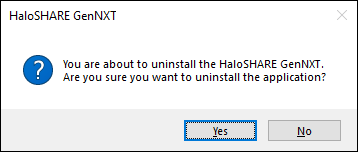
Uninstall message #1
-
Click Yes to confirm that you want to remove it from the computer.
-
The service is uninstalled successfully. Click OK to close the dialog.
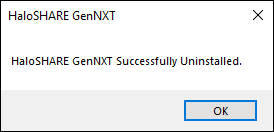
Uninstall message #2