
This chapter describes how to install HaloSHARE GenNXT.
Interactive Installation
Install HaloSHARE GenNXT by using the GUI-based setup program included in the installation package.
Prerequisites
Before installing HaloSHARE GenNXT, ensure that the following prerequisites are met:
-
The user performing the installation has administrator privileges.
-
The Application ID and Tenant ID of the Microsoft Entra ID application are available.
-
A certificate required for MPIP authentication is available. The certificate can be installed in either the Current User or Local Computer certificate store during installation. If the Local Computer store is used, ensure that the user account running HaloSHARE GenNXT has access to the certificate and its private key.
During installation, MPIP, Watermarking, and CUI Marking are listed as the main features. Selecting Watermarking or CUI Marking automatically includes Metadata, File Signing, and Password Protection capabilities. No additional selections are required.
-
Double-click
HaloSHAREGenNXT_Setup.exe. Depending on your Windows security settings, a prompt may appear stating, "Do you want to allow the following program to make changes to this computer?" If this warning appears, click Yes. -
The Startup dialog box appears, followed by the Welcome dialog box.

Startup dialog
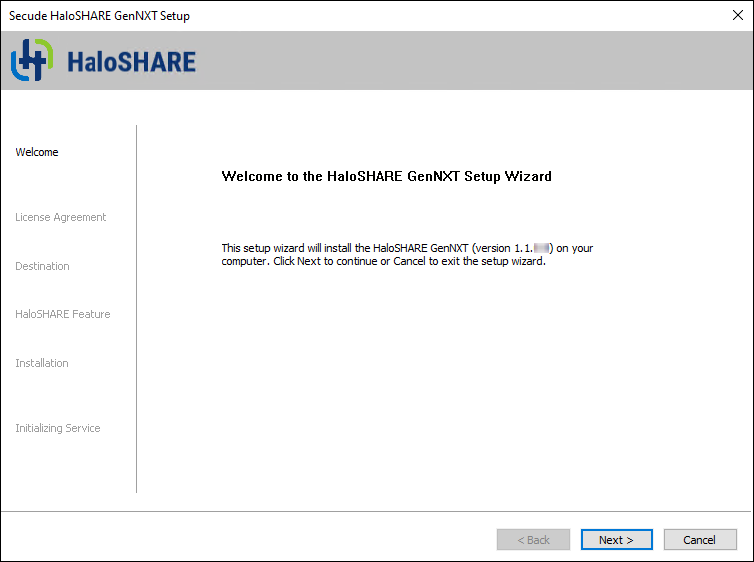
Welcome dialog
-
Click Next to continue the installation.
-
The License Agreement dialog appears.
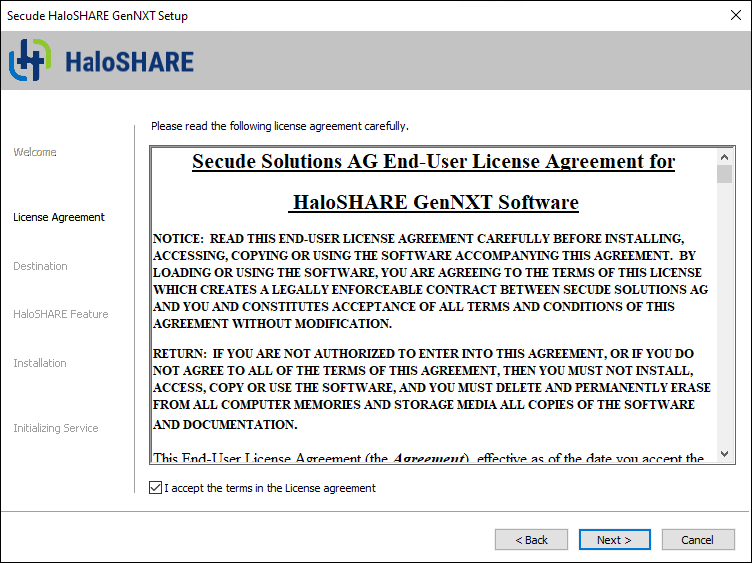
End-user License Agreement dialog
-
Read the End-User License Agreement. If you agree, select I accept the terms in the License Agreement, and click Next to continue.
-
The Destination dialog appears.
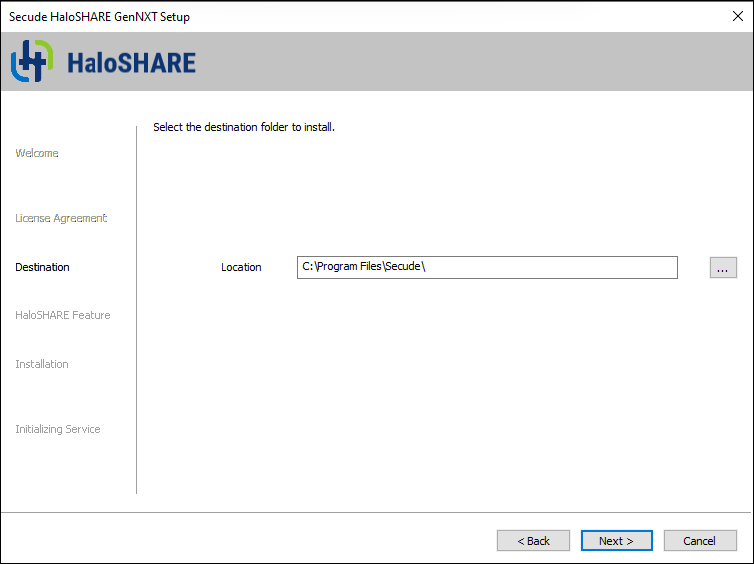
Destination folder selection dialog
-
By default, HaloSHARE GenNXT is installed in:
C:\Program Files\Secude\. To install HaloSHARE GenNXT in a different location, click Browse, select the installation folder, and then click Next. -
The HaloSHARE Feature selection dialog appears.
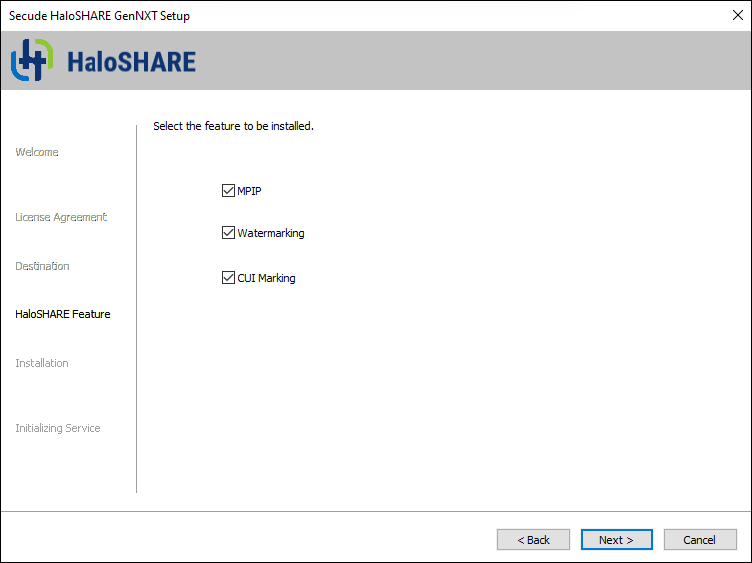
HaloSHARE GenNXT feature selection dialog
-
Select one or more installation features.
-
MPIP – Installs Microsoft Purview Information Protection support.
-
Watermarking – Installs watermarking support.
-
CUI Marking – Installs Controlled Unclassified Information marking support.
-
To modify the installation settings, click Back. Otherwise, click Next.
-
-
The installation begins, and the progress is displayed in the dialog.
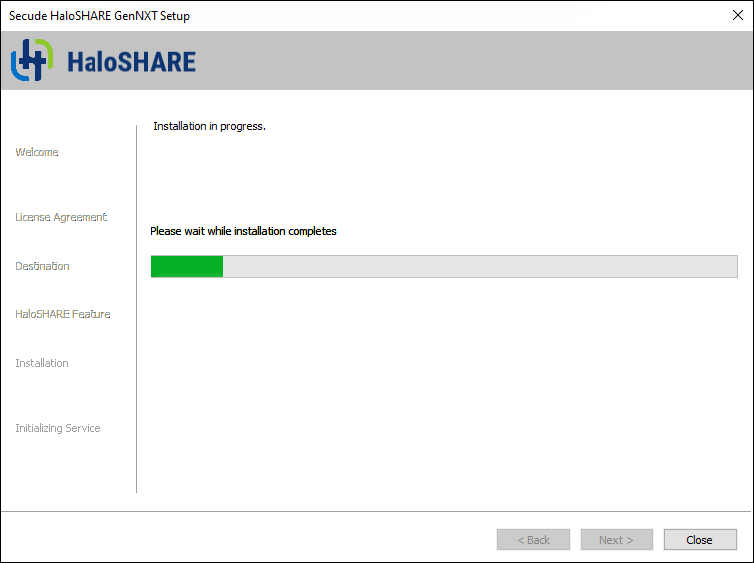
Installation progress dialog
-
When the installation is complete, a confirmation message appears.
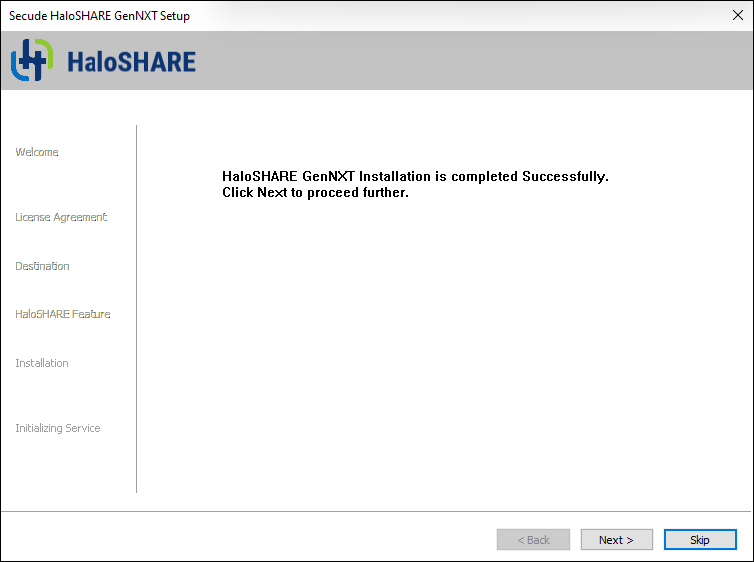
Installation completed dialog
-
Click Next.
-
The Initializing Service dialog appears.
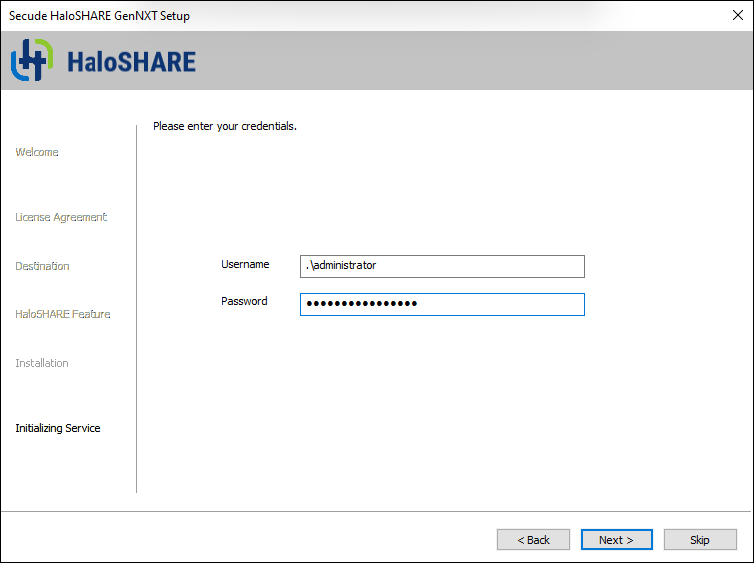
User credential dialog
-
If the computer is connected to a domain and you want to run HaloSHARE GenNXT on it, you must enter a domain user account and password. For example,
[domain]\[user],hc.test\john. -
On a non-domain-joined computer, you need to enter the username and password of a user. For example,
.\[user],.\john. This format can also be used when a local user account is created on the computer.
-
-
Click Next to proceed.
-
If you selected Watermarking, CUI Marking, or both, proceed to Step 17.
-
If you selected MPIP, either alone or together with Watermarking or CUI Marking, the Certificate-based Authentication dialog box appears. To avoid errors, ensure that you enter the correct Azure application registration details in the installation wizard.
-
Azure Application ID: Enter the Application ID of the registered application in the Microsoft Entra admin center. For example,
9f0de2dd-8d49-4a3f-9676-bf4b6ff17d44 -
Tenant ID/Tenant Name: Enter your Microsoft Entra tenant name (for example,
halosecude.onmicrosoft.com) or its tenant ID (for example,8c425ee7-352a-4657-ac77-7dc198712cb3). -
Certificate Store: Select a certificate store (Current User or Local Computer). When selecting Local Computer, ensure that the user running the service has at least local administrator rights.
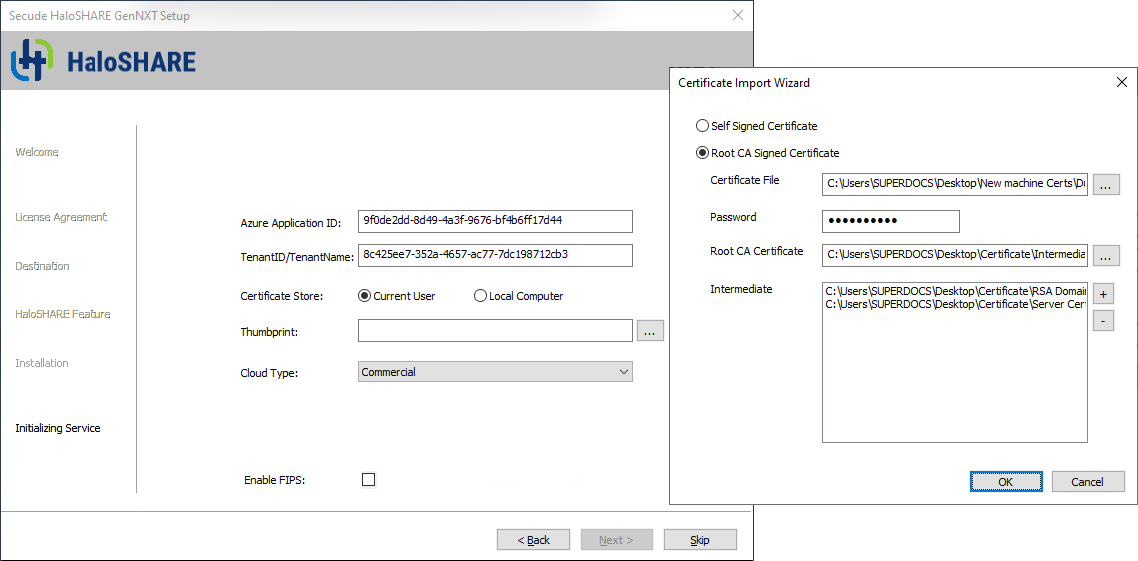
Certificate-based authentication dialog
-
Thumbprint: If the certificate is already installed, enter the thumbprint manually. If the certificate is not installed, click Browse to select the required certificate, as described in Option 1 or Option 2.
-
Option 1: Self-Signed Certificate—Select this option if you have a self-signed certificate registered in the Azure portal. Click Browse to select the certificate (
.pfxor.p12) and enter the password. -
Option 2: Root CA Signed Certificate—Select this option if you have a certificate signed by a CA. Click Browse to select the signed certificate and verify that the certificate path appears in the Certificate File field. Enter the password in the Password field. Click Browse in the Root CA Certificate field to select the Root CA certificate (
.ceror.crt). Click (+) Add in the Intermediate CA field to add intermediate CA certificates. Click (-) Delete to remove a certificate from the Certificate Import Wizard, and then click OK to populate the thumbprint automatically. -
Cloud Type: Commercial is selected by default. Based on your Azure subscription and configuration, select the required cloud type from the list: Commercial, Custom, US_DoD, US_GCC, US_GCC_High, US_Sec, US_Nat, or China_01. If you select Custom, enter the appropriate URLs in the Protection Cloud URL (for example,
https://api.aadrm.com) and Policy Cloud URL (for example,https://dataservice.protection.outlook.com) fields. -
Enable Federal Information Processing Standards (FIPS): If you want to utilize encryption algorithms that comply with FIPS standards, enable this option. By enabling the option, MPIP uses only FIPS-compliant encryption algorithms. If not, MPIP uses standard encryption algorithms. However, FIPS mode can be enabled at any moment using the Administration Manager Tool (
hsadm.exe). For more details, please refer to the MIP SDK Documentation “MIP SDK FIPS Compliance Statement”. -
Click Next.
-
-
Once the initialization is complete, a success message appears as shown below.
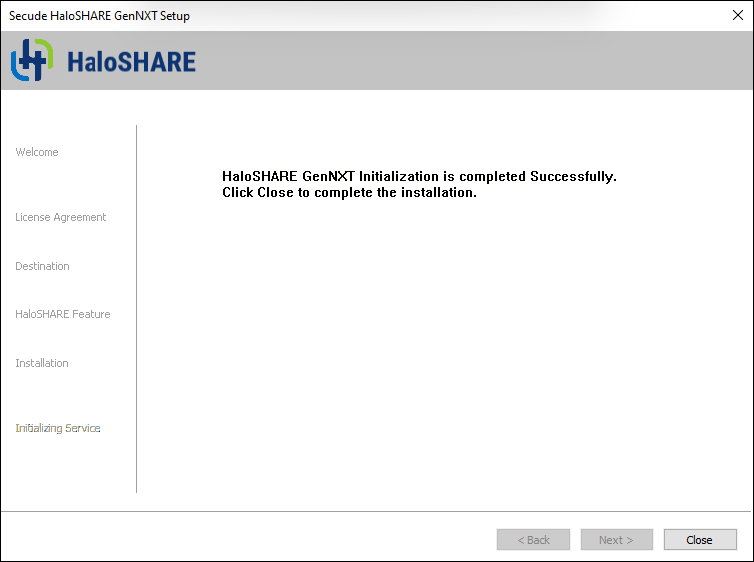
Initialization completed dialog
-
Click Close to complete the installation.
Post-installation checks:
-
You can view the log files in the
<YEAR_MM_DD>.hs.logformat (for example,2026_Feb_25.hs.log) atC:\Users\Username(user running service)\AppData\Local\Secude\HaloSHARE\log. -
You can view the configuration information in the registry path
HKEY_LOCAL_MACHINE\SOFTWARE\Secude\HaloSHARE. -
In MPIP mode, a protected policy XML file is stored at the following location:
C:\Users\Public\Secude\HaloSHARE.
Update from Old to New Version
This section describes how to upgrade HaloSHARE GenNXT while preserving the existing configuration.
Prerequisite:
Before you begin, back up the haloshare_config.enc file from the HaloSHARE GenNXT installation directory. This file contains the HaloSHARE GenNXT configuration and is required to preserve your existing settings during the upgrade.
-
Uninstall the current version of HaloSHARE GenNXT.
-
Install the new version of HaloSHARE GenNXT.
-
Replace the
haloshare_config.encfile in the HaloSHARE GenNXT installation directory. The default path isC:\Program Files\Secude\HaloSHARE. -
Run
HaloSHAREConfiguration.exeas an administrator. -
Select the existing workflow.
-
Click Save.
This updates the existing configuration so that it is compatible with the current HaloSHARE GenNXT version.
To ensure compatibility across versions, after replacing the haloshare_config.enc file, select any workflow name or task and click Save in the new configuration tool. This step is required to enable the continued use of existing configuration files (supplier-based version) with workflow-based versions.
What to do next
After installing HaloSHARE GenNXT, you need to configure it according to your company’s requirements. For instructions, refer to the following chapter.