
Before you install the HaloSHARE, there are a few things that you need.
MPIP Protection
This section is specific to the MPIP feature.
Register an Application in Microsoft Entra ID
This section will guide you through the steps of registering an application, obtaining the Client ID and Directory ID, and assigning permissions to the application.
Microsoft documentation
Registering an application in Microsoft Entra ID establishes a trust connection between your application and the identity provider, the Microsoft identity platform.
The information in the Microsoft documentation overrides any information published in this section. For a comprehensive description, refer to Microsoft documentation.
Prerequisite: You must have sufficient permissions to register an application with your Microsoft Entra ID tenant.
Create an Application
Follow these steps to register the application:
-
Log in to the Microsoft Entra admin center using an account that has administrator privileges.
-
If you have access to multiple tenants, click the Settings icon in the top menu and select the tenant for which you want to register the application from the Directories + subscriptions menu.
-
You will be directed to the homepage.
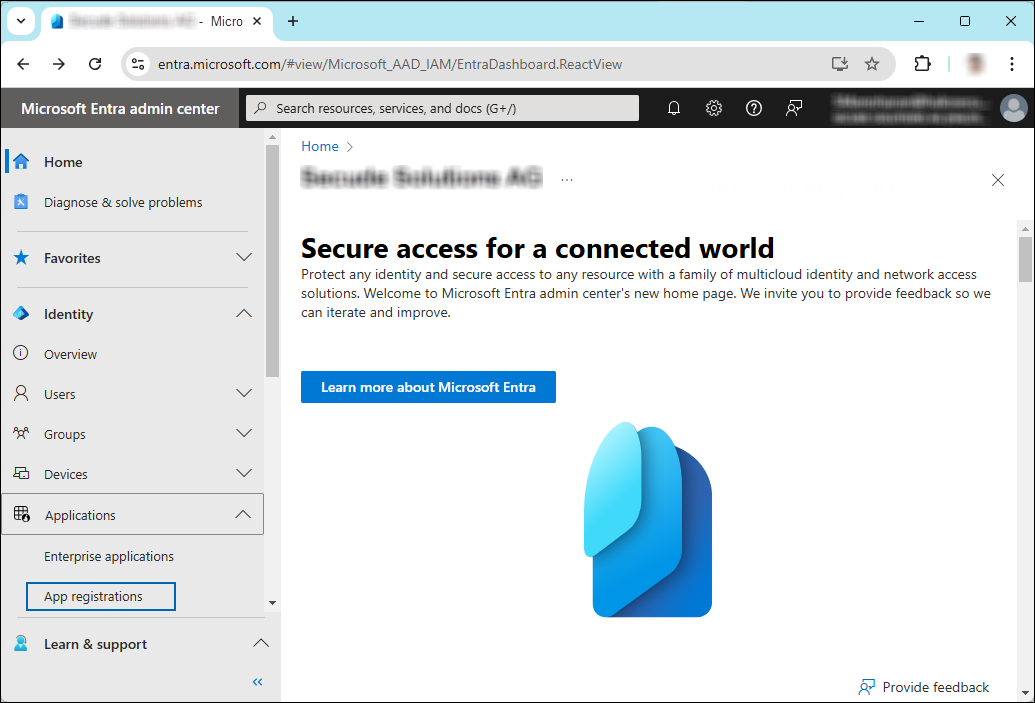
Selecting Microsoft Entra ID
-
On the left side of the navigation pane, click Identity > Applications > App registrations.
-
On the App registrations page, click the New registration page or Register an Application button (this button appears only if no applications have already been created).
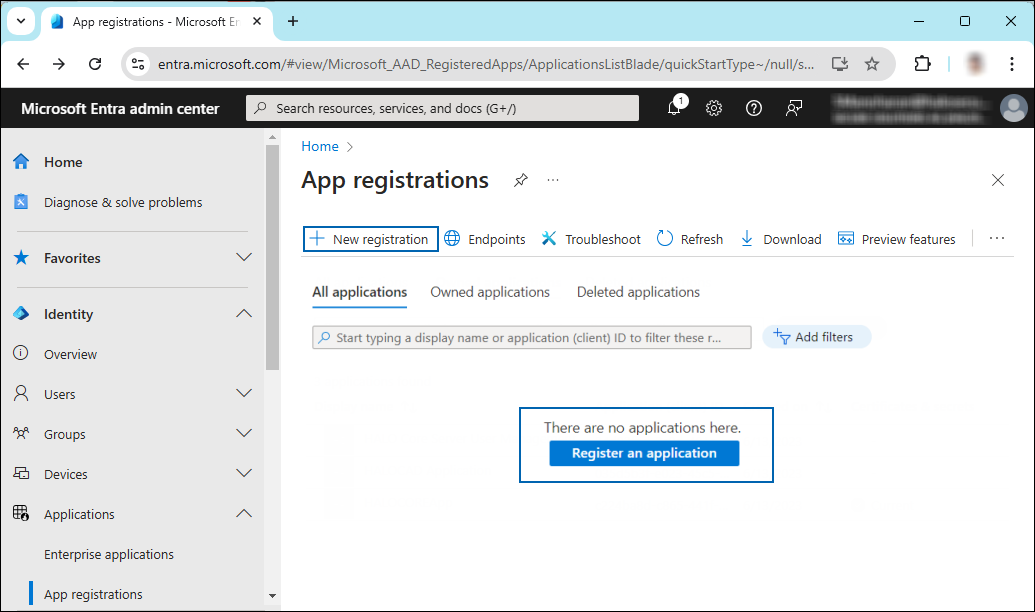
New application registration
-
On the Register an application page, enter the registration details for your application.
Application details
-
In the Name field, enter an appropriate application name.
-
Under Supported account types, select the option Accounts in this organizational directory only (single tenant). As of now, the HaloSHARE Service supports only a single tenant.
-
Under Redirect URI: Select Web, and then type a valid redirect URI for your application. For example,
https://localhost. -
When finished, click Register.
-
-
The home page of the new application is created and displayed.
Application ID and Tenant ID
-
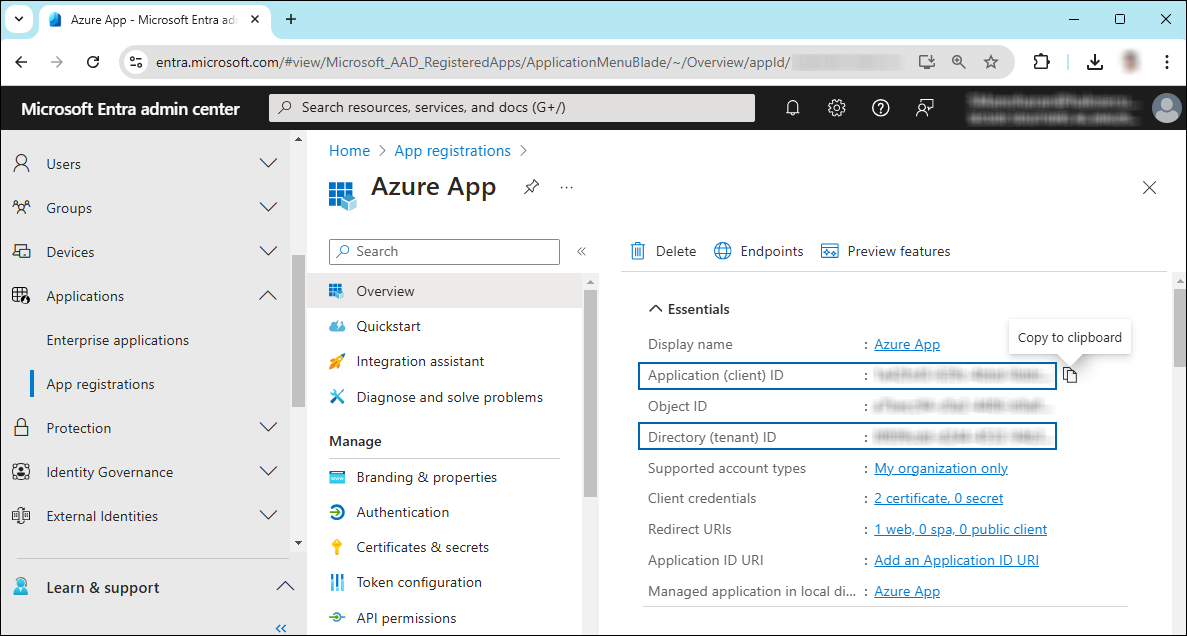
The following values are shown on the portal once registration is complete. To copy and save the ID value in a text editor, hover your cursor over it and click the Copy to clipboard icon.
-
Application ID – also known as Client ID.
-
Directory ID – also known as Tenant ID.
-
Save the authentication parameters
In a text editor (such as Notepad), copy the value of Application (client) ID and Directory (tenant) ID, and save it for initializing the HaloSHARE.
Add Required Permissions
To protect content with MIP SDK, you must provide the necessary API permissions to the application created in the previous section.
-
In the application page sidebar, select API permissions. The API permissions page for the new application registration page appears.
-
Click Add a permission button. The Request API permissions page appears.
-
Under the Select an API setting, select APIs my organization uses. A list appears containing the applications in your directory that expose APIs.
-
In the search box, type in the name of the permission indicated in the "Required Permissions" table below. Alternatively, you could scroll to find the API.
-
For example, type Microsoft Information Protection Sync Service into the search box. The following figure shows how the API is listed:

API selection
-
Now, click on the displayed API. You can see two permission types on the page: Delegated permissions and Application permissions.
-
Click Application permissions button and then under the Permission section, select the check box near Read all unified policies of the tenant.
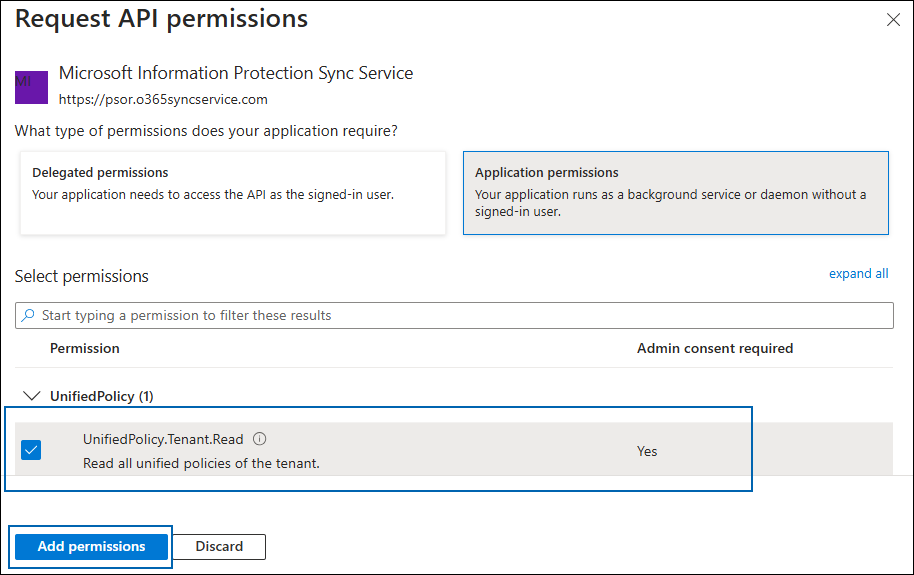
Adding permission
-
Click Add permissions.
-
Repeat the steps above to add the other required permissions listed in the “Required permissions” table below.
-
You will be taken back to the API permissions page, where the permissions have been saved and added to the table with the status Not granted.
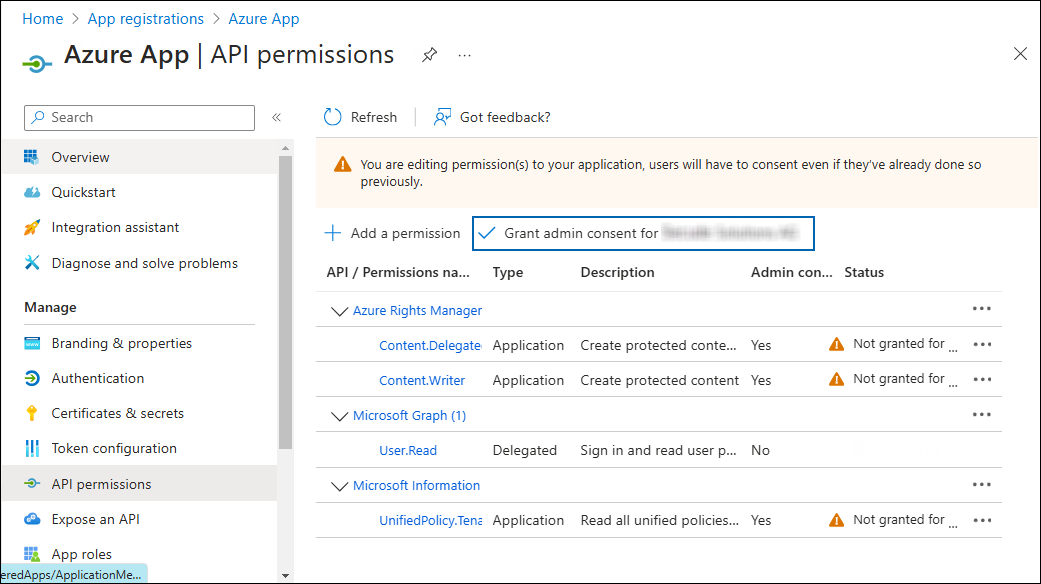
Required API Permissions
-
Click Grant admin consent for your company button. You will be prompted to accept the consent confirmation; click Yes to the question.
-
After accepting the admin consent, the Status will change to Granted.
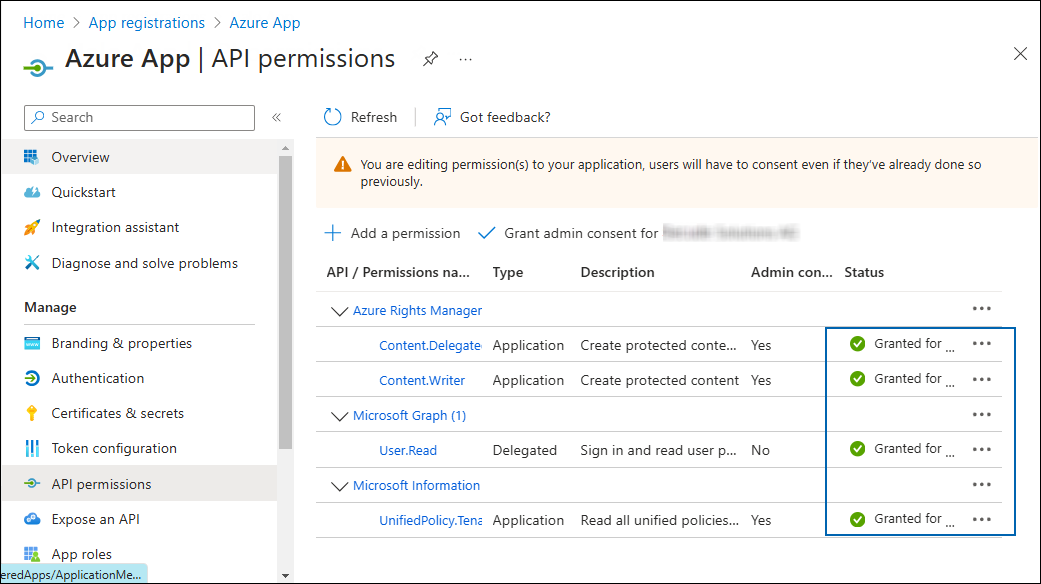
API Permissions with admin consent
-
The following table lists the required permissions.
|
API / Permission Name |
Display Name |
Type |
Description |
|---|---|---|---|
|
Microsoft Graph |
|
Delegated |
Sign in and read the user profile. This API permission is added by default, but HaloSHARE does not use it. |
|
Azure Rights Management Services (Microsoft Rights Management Services) |
|
Application |
Create protected content on behalf of a user |
|
|
Application |
Create protected content |
|
|
Microsoft Information Protection Sync Service |
|
Application |
Read all unified policies of the tenant |
Required permissions #1
Additional Permission (Only for Relabeling)
The above permissions are sufficient to apply the MPIP label to a file. In addition, HaloSHARE requires the following superuser privilege to relabel a file if the service is not the owner of the file.
|
API / Permission Name |
Display Name |
Type |
Description |
|---|---|---|---|
|
Azure Rights Management Services (Microsoft Rights Management Services) |
|
Application |
Read all protected content for this tenant in the Azure portal |
Required permissions #2
Upload the Certificate in the Azure Portal
HaloSHARE uses certificate-based authentication, so you must enter your certificate information in the registered application.
Prerequisites:
-
Certificate:
-
Make sure to have a valid certificate that contains keys such as
-KeyExportPolicy Exportableand-KeySpec Signature. -
And that can also be a self-signed certificate. Note: As a best practice and for security reasons, we recommend using a self-signed certificate in a test environment, and NOT recommended for a production environment.
-
-
Install the certificate:
-
Make sure to install this certificate on a Windows Server machine where HaloSHARE will be installed.
-
The Certificate Store can be either Current User or Local Computer.
-
If it is a self-signed certificate, it should also be installed in the Trusted Root Certification Authorities store.
-
If the certificate is signed, the root CA and any intermediate CA (if applicable) should also be installed in the appropriate trusted store.
-
To upload the public key of the certificate, follow the steps below:
-
In the sidebar of the new application page, select Certificate & secrets.
-
Under the Certificate section, click Upload certificate. The Upload certificate dialog appears as shown in the figure below:
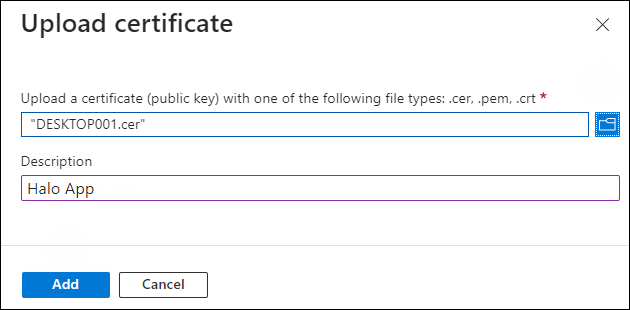
Upload certificate #1
-
Click on the folder icon to select the certificate and click Open. For illustration purposes, the file
DESKTOP001.ceris used. -
Now, click Add. The certificate will get uploaded, and its thumbprint will be displayed on the page as shown in the figure below:
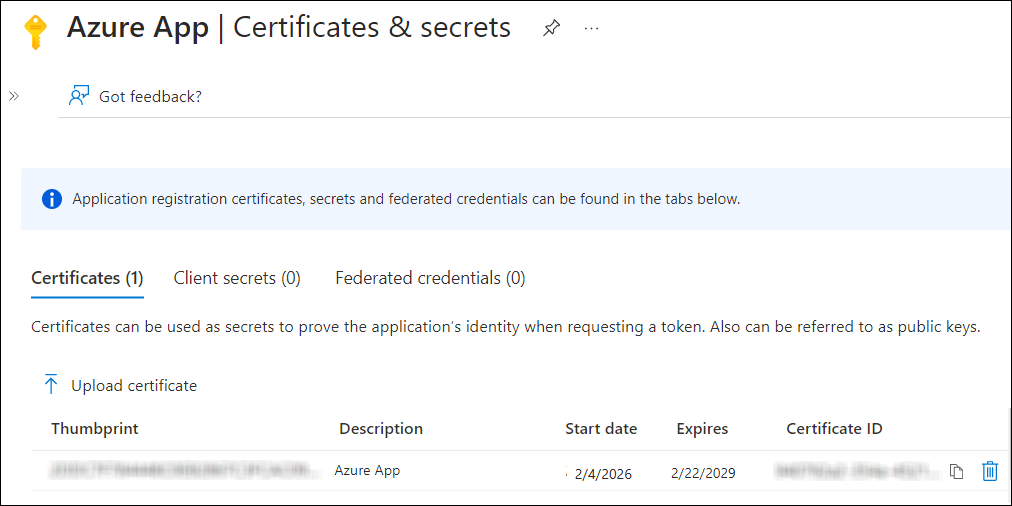
Upload certificate #2
-
You are now ready to install the HaloSHARE.
Create and Configure the Sensitivity Labels
As an administrator, you can create, configure, and publish sensitivity labels for various levels of content sensitivity based on your organization's classification taxonomy. Use names or terms that are familiar to your users. Consider starting with label names like Personal, Public, General, Confidential, and Highly Confidential if you don't already have a taxonomy in place. For more details, please refer to Microsoft online documentation.
Enable Support for TLS 1.2 at the Client Workstation for Microsoft Entra ID
To improve the security posture of the tenant and to remain in compliance with industry standards, Microsoft Entra ID stopped supporting the following Transport Layer Security (TLS) protocols and ciphers:
-
TLS 1.1
-
TLS 1.0
-
3DES cipher suite (TLS_RSA_WITH_3DES_EDE_CBC_SHA)
In order for the HaloCAD for CAD add-on to be able to authenticate to Microsoft Entra ID, TLS 1.2 must be activated on the respective client workstation. Please see this Microsoft article to enable TLS 1.2.
Microsoft documentation
The information in the Microsoft documentation overrides any information published in this section.
Secude is not liable for changes to the content of this section because it was extracted from the Microsoft article at the time when the HaloCAD manual was prepared. Do check the most recent updates in this regard from the Microsoft documentation.
In summary, the following steps must be performed:
-
Update the Windows Operating System
-
Update .NET Framework
-
Set the following registry settings:
|
S.No |
Windows Registry |
Values |
|---|---|---|
|
1 |
|
|
|
2 |
|
|
Registry entries
Register an application in Autodesk Platform Services
This section describes how to register an application, obtain the Client ID and Client Secret, and assign access permissions.
Prerequisites:
-
Ensure that specific URLs and protocols required for Autodesk subscription licensing are allowed through the firewall or proxy system.
-
If the computer connects to the internet via a firewall or proxy server, configure the proxy to allow unrestricted and anonymous access to the required domains.
-
Allow access to the URL
developer.api.autodesk.comover port 443 (HTTPS).
The default ports used are 80 (HTTP) and 443 (HTTPS). -
Ensure access to relevant Certificate Authority (CA) endpoints (for example,
digicert.com) over port 80 for CRL (Certificate Revocation List) verification.
To complete this setup, you need:
-
An APS account
-
A developer hub
If you do not have an APS account, start with the section Create an APS account. If you already have an account, continue with Set up a developer hub.
Create an APS Account
If you do not have an Autodesk account, create one as follows:
-
Go to the Autodesk Platform Services website.
-
Click Sign in in the upper-right corner.
-
Click Create account.
-
Follow the on-screen instructions to complete account setup.
Set up a Developer Hub
A developer hub is used to create and manage APS applications.
-
If you are part of a team, your team might already have a developer hub. Ask your team administrator to add you, and then continue with Create an application.
-
If your team has an Autodesk Platform Services plan but has not created a developer hub, see Create a developer hub.
Create a Developer Hub
Prerequisites
-
An Autodesk account (created in the previous step)
-
An Autodesk team with an APS subscription (Free tier or Paid)
Procedure
-
Log in to https://manage.autodesk.com using your Autodesk Account.
-
Click Products and Services, and then select the Hubs tab.
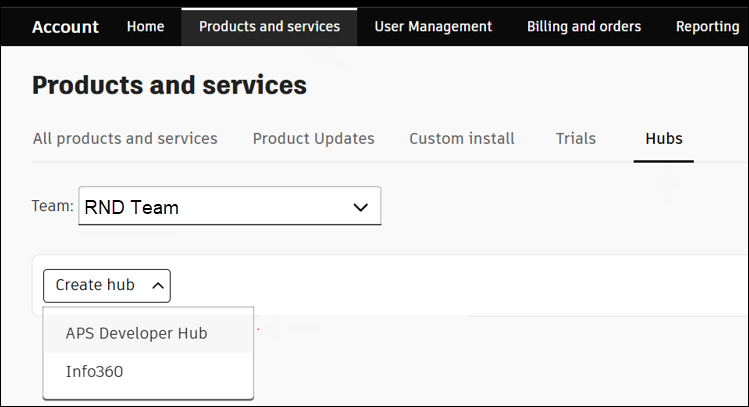
Products and Services
-
Choose the Team where the APS offering is assigned.
-
From the Create hub list, select APS Developer Hub as the product.
-
Enter a hub name and, optionally, provide a description. (for example, RND Hub)
-
Click Create & Activate.
-
Refresh the page, and then click the hub name to open the developer portal.
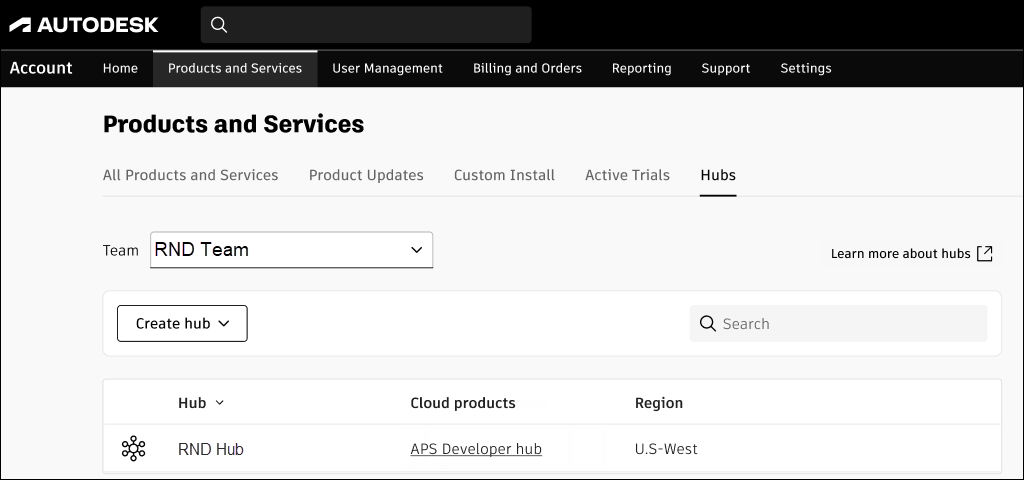
New hub
Create an Application Credentials
To authenticate with APS APIs, you must create an application to obtain the client ID and client secret.
-
Click the APS Developer Hub created in the previous section.
-
On the Applications page, click Create application in the top right corner.
-
The Create Applications window opens.
-
Enter a name for the application (for example, HaloSHARE_App).
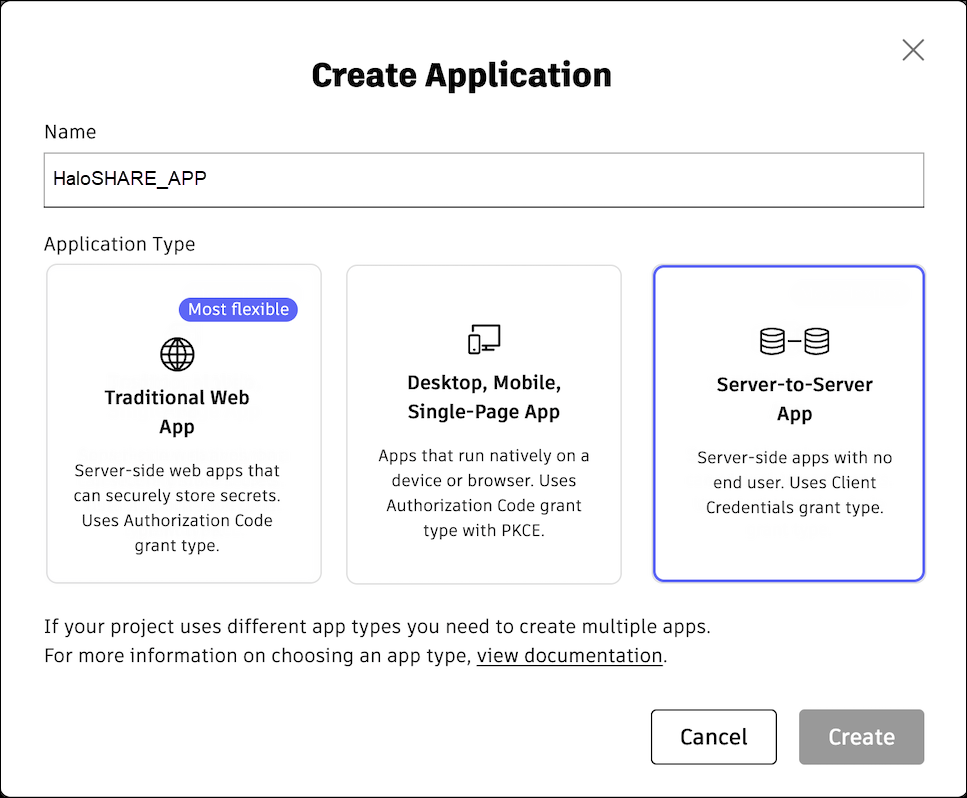
Application name
-
The following application types are available. For HaloSHARE, select Server-to-Server App.
-
Traditional Web App – For applications that run on a server (for example, a web app with a backend server).
-
Desktop, Mobile, Single-Page App – For applications that run on a user’s device (for example, mobile apps, desktop apps, or browser-based apps).
-
Server-to-Server App – For server-side applications that do not require user authentication (for example, background services or daemons).
-
-
Click Create.
-
A confirmation message appears after the settings are successfully saved.
-
Copy the Client ID and Client Secret from the App Settings and use them when configuring HaloSHARE.
-
Under General Settings, enter the redirect URI in the JWKS URI. For local development, you can use
https://localhost:8080 -
Under API Access, select the Data Management API from the list.
-
Click Save changes.
Provide access to Autodesk Forma
Some Autodesk products require you to provision access for your application using its Client ID before integration.
Prerequisite: Ensure that you have administrator access to a Forma hub.
-
Log in to your Autodesk Forma hub.
-
Navigate to Hub Admin.
-
Select the required project.
-
On the Hub Admin page, go to Custom Integrations.
-
Click Add Custom Integration.
-
In the Add custom integration dialog box, enter the following details:
-
Client ID
-
Custom integration name
-
Description
-
-
Click Next and complete the process.
Watermarking CAD files
-
Ensure CAD applications such as Revit or AutoCAD are installed on the system where HaloSHARE will be installed. This check is necessary because the HaloSHARE installer installs the required watermarking files only if the relevant CAD application files are present.
-
Make sure the SharePoint folder is configured to sync with the mapped local drive. Files marked Always keep on this device have a green circle with a white checkmark

-
Before you begin, ensure that the user who is running the service, or the specific group the user belongs to, is not assigned to the Deny log on as a service policy (Local Security Policy > Security Settings > Local Policies > User Rights Assignment). If the user(s) exist, the Error 1069: The Service did not start due to a logon failure message will appear while running the HaloSHARE.
-
Watermark in Revit: The RevitLookup tool is required to view custom properties (metadata) in Revit. After applying the watermark, navigate to Revit Lookup > Dashboard > Schemas > HaloMetadataInfo > GetElements > GetEntity (Schema) > Get ().
File Signing Task
For file signing tasks, you can select either Local Computer or Current User during configuration. Both options have certain restrictions, as described below.
-
If you select Local Computer, the service running user must have access to the Local Computer certificates or to the specific certificate in the Local Computer store. If the service running user is a local non-admin user, promote the service running user to a local admin user or grant the service running user access to the private key.
-
If you select Current User, the selected certificate must be installed in the certificate store of the service running user.
General
-
To install the service, you must have local administrator privileges.
-
To run the service, you can use a user account with administrative privilege or non-administrative privilege.
-
The user who initializes the service should have appropriate permissions on the source and destination folders. In addition, the user running the service should have access to that network location as an IP address. For example,
\\10.0.0.138\foldername