
This chapter walks through the process of installing and configuring the HaloSHARE.
Interactive Installation
Install HaloSHARE using the GUI-based setup program provided in the installation package. Make sure the user who installs the HaloSHARE has administrator rights.
During installation, MPIP, Watermarking, and CUI Marking are listed as the main features. Selecting Watermarking or CUI Marking automatically includes Metadata, File Signing, and Password Protection capabilities. No separate check boxes are required.
-
To begin the interactive installation, double-click the installer
HaloSHAREGenNXT_Setup.exefile. Depending on your Windows security settings, a prompt may appear stating, "Do you want to allow the following program to make changes to this computer?" If this warning appears, click Yes to continue with the installation. -
When the installer starts, you will see the startup dialog followed by the welcome dialog:

Startup dialog
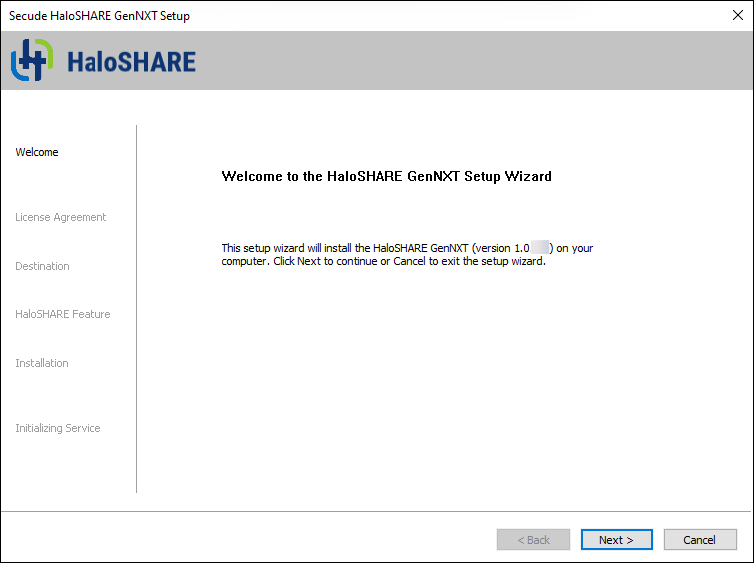
Welcome dialog
-
Click Next to continue the installation.
-
The End-User License Agreement (EULA) dialog appears.
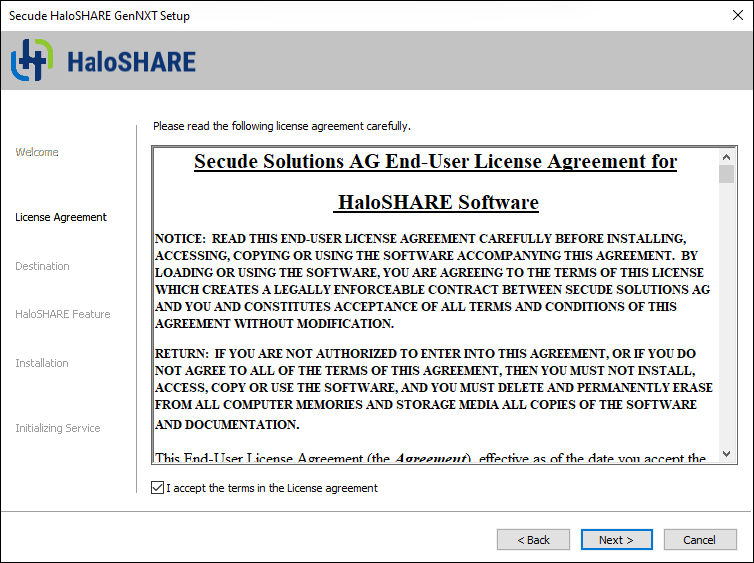
End-user License Agreement dialog
-
Read the End-User License Agreement. If you agree, select I accept the terms in the License Agreement, and click Next to continue.
-
The destination folder selection dialog appears:
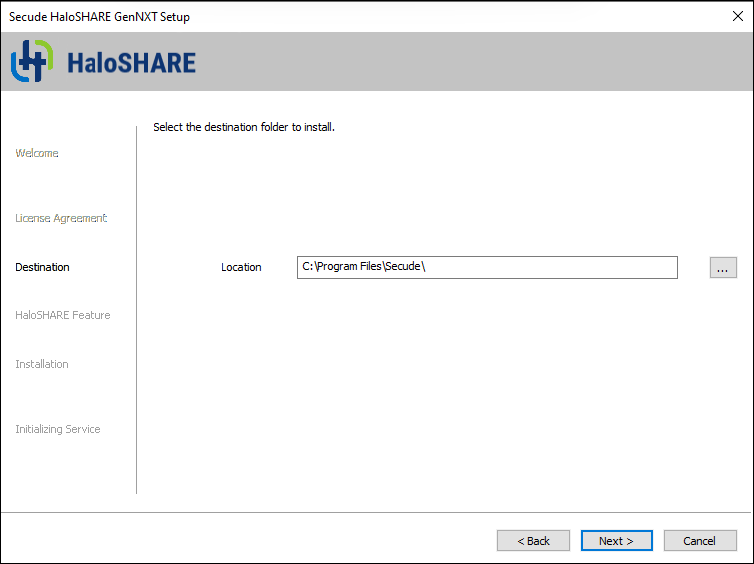
Destination folder selection dialog
-
By default, application files are stored in the program files directory (
C:\Program Files\Secude\). If you would like to choose an alternate location, click the Browse button and select your location preference. When you are finished, click Next. -
The HaloSHARE feature selection dialog appears.
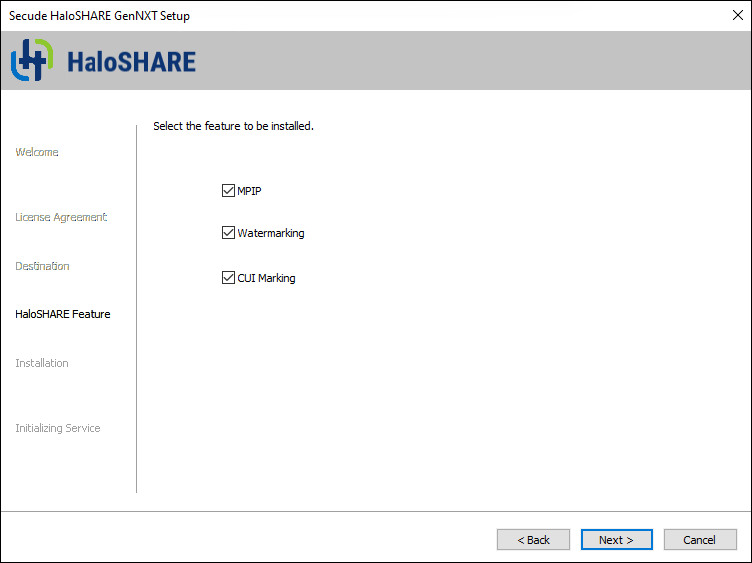
HaloSHARE feature selection dialog
-
You can choose one or more or all of the following options, depending on your requirements.
-
To apply MPIP labels for file protection, select MPIP.
-
To add a watermark to files, select Watermarking.
-
To add CUI to the files, select CUI Marking.
-
To review or modify the installation settings, click Back to return to the previous screens. Click Next to continue.
-
-
The installation begins, and the progress is displayed in the dialog.
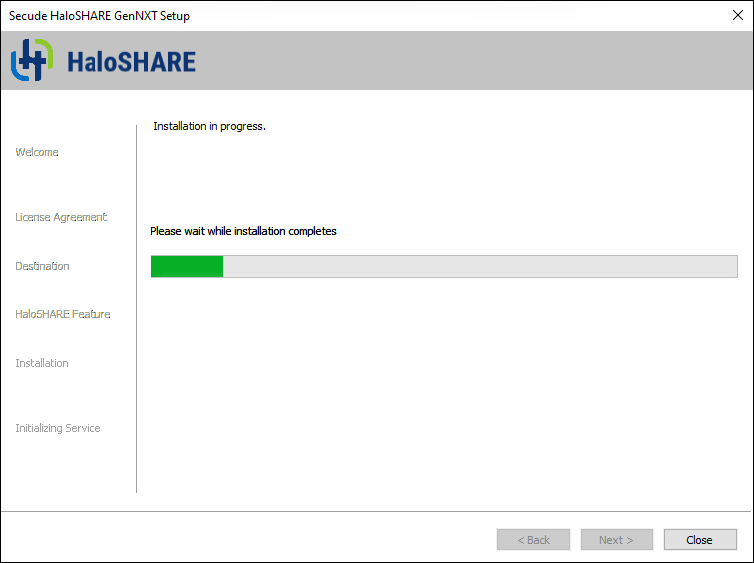
Installation progress dialog
-
Please wait until the installation completes. After the installation finishes, a confirmation message appears indicating that HaloSHARE was installed successfully.
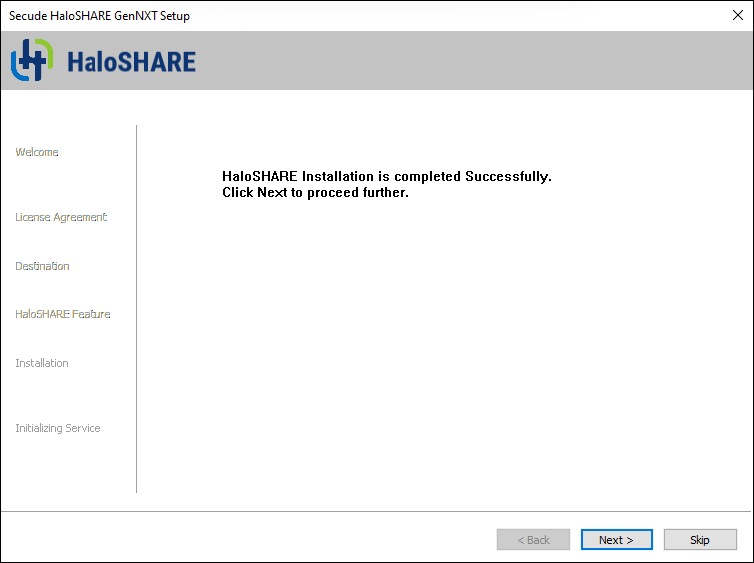
Installation completed dialog
-
Click Next. The user credential dialog will appear:
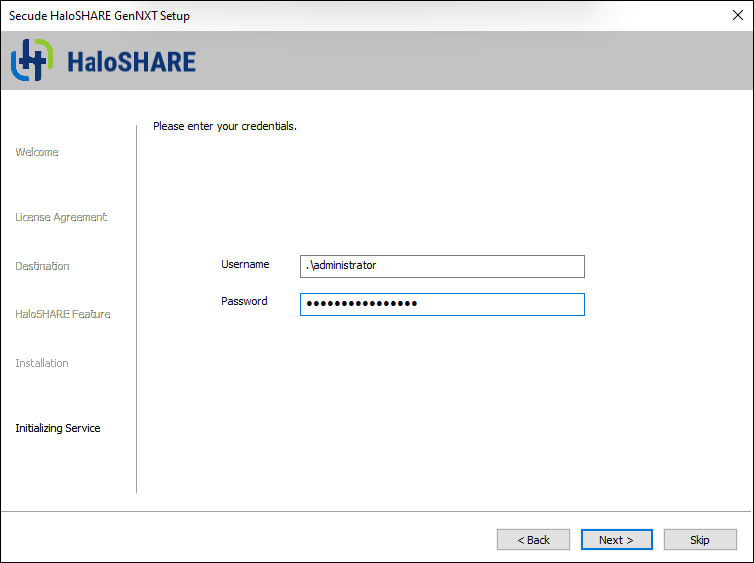
User credential dialog
-
If the computer is connected to a domain and you want to run HaloSHARE on it, you must enter a domain user account and password. For example,
[domain]\[user],hc.test\john. -
On a non-domain-joined computer, you need to enter the username and password of a user. For example,
.\[user],.\john.
-
-
Click Next to proceed.
-
If you selected Watermarking, CUI Marking, or both, proceed to Step 16.
-
The following authentication dialog appears when you select MPIP alone or with the Watermarking or CUI Marking options. To avoid errors, ensure that you enter the correct Azure application registration details in the installation wizard.
-
Azure Application ID: Enter your application ID. For example,
9f0de2dd-8d49-4a3f-9676-bf4b6ff17d44 -
Tenant ID/Tenant Name: Enter your Microsoft Entra tenant name (for example,
halosecude.onmicrosoft.com) or its tenant ID (for example,8c425ee7-352a-4657-ac77-7dc198712cb3). -
Certificate Store: Select a certificate store (Current User or Local Computer). When selecting Local Computer, ensure that the user running the service has at least local administrator rights.
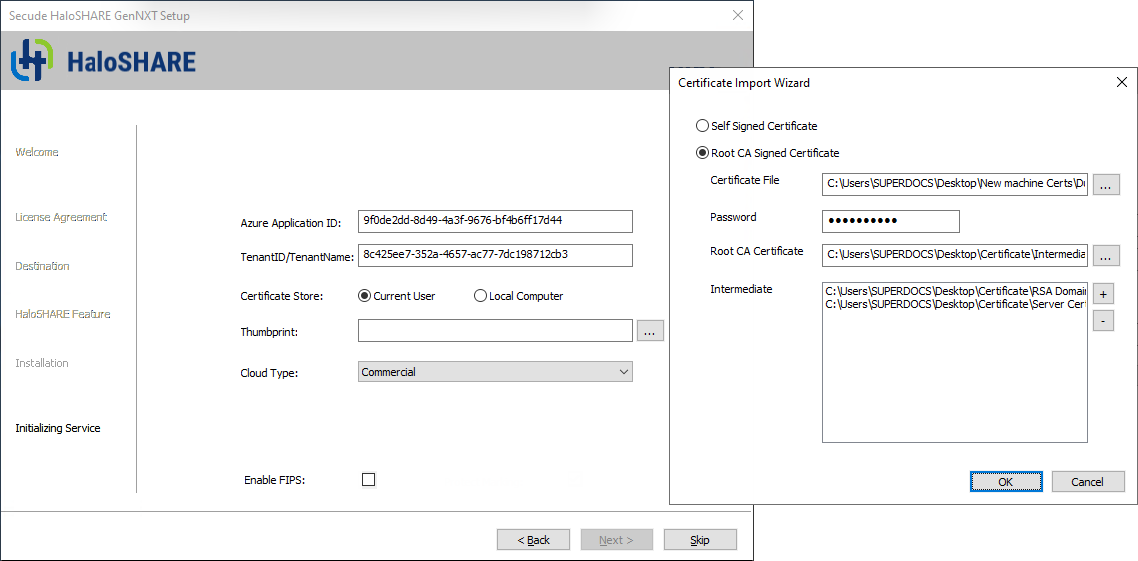
Certificate-based authentication dialog
-
Thumbprint: If the certificate is already installed, enter the thumbprint manually. If the certificate is not installed, click Browse to select the required certificate, as described in Option 1 or Option 2.
-
Option 1: Self-Signed Certificate—Select this option if you have a self-signed certificate registered in the Azure portal. Click Browse to select the certificate (
.pfxor.p12) and enter the password. -
Option 2: Root CA Signed Certificate—Select this option if you have a certificate signed by a CA. Click Browse to select the signed certificate and verify that the certificate path appears in the Certificate File field. Enter the password in the Password field. Click Browse in the Root CA Certificate field to select the Root CA certificate (
.ceror.crt). Click (+) Add in the Intermediate CA field to add intermediate CA certificates. Click (-) Delete to remove a certificate from the Certificate Import Wizard, and then click OK to populate the thumbprint automatically. -
Cloud Type: Commercial is selected by default. Based on your Azure subscription and configuration, select the required cloud type from the list: Commercial, Custom, Germany, US_DoD, US_GCC, US_GCC_High, US_Sec, US_Nat, or China_01. If you select Custom, enter the appropriate URLs in the Protection Cloud URL (for example,
https://api.aadrm.com) and Policy Cloud URL (for example,https://dataservice.protection.outlook.com) fields. -
Enable Federal Information Processing Standards (FIPS): If you want to utilize encryption algorithms that comply with FIPS standards, enable this option. By enabling the option, MPIP uses only FIPS-compliant encryption algorithms. If not, MPIP uses standard encryption algorithms. However, FIPS mode can be enabled at any moment using the Administration Manager Tool (
hsadm.exe). For more details, please refer to the MIP SDK Documentation “MIP SDK FIPS Compliance Statement”. -
Click Next.
-
-
Once the initialization is complete, a success message appears as shown below.
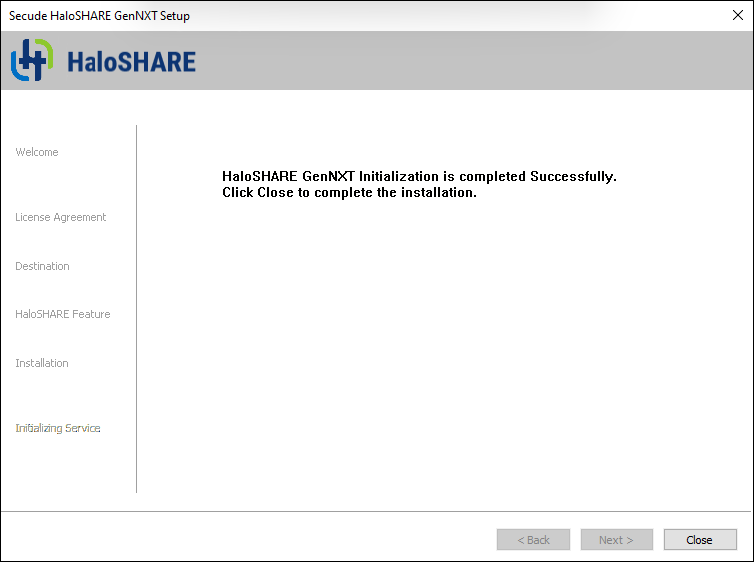
Initialization completed dialog
-
Click Close to complete the installation.
Post-installation checks:
-
You can view the log files in the
<YEAR_MM_DD>.hs.logformat (for example,2026_Feb_25.hs.log) atC:\Users\Username(user running service)\AppData\Local\Secude\HaloSHARE\log. -
You can view the configuration information in the registry path
HKEY_LOCAL_MACHINE\SOFTWARE\Secude\HaloSHARE. -
In MPIP mode, a protected policy XML file will be located at
C:\Users\Public\Secude\HaloSHARE
Update from Old to New Version
Prerequisite:
From the installed location, back up the current haloshare_config.enc file. It provides the HaloSHARE configuration properties, which will be essential to retain current settings.
-
Uninstall the current version
-
Install the new version
-
Replace the
haloshare_config.encfile in the folder where HaloSHARE is installed. The default path isC:\Program Files\Secude\HaloSHARE. -
Run
HaloSHAREConfiguration.exe, select the existing Workflow Task, and click Save.
To ensure compatibility across versions, after replacing the haloshare_config.enc file, select any workflow name or task and click Save in the new configuration tool. This step is required to enable continued use of existing configuration files (supplier-based version) with workflow-based versions.
What to do next
After installing HaloSHARE, you need to configure it according to your company’s requirements. For instructions, refer to the following chapter.