
Introduction
HaloSHARE secures internal and external business workflows by providing centralized bulk file protection, including classification, sensitivity labeling, encryption, password-based access control, digital signing, Controlled Unclassified Information (CUI) marking, and watermarking.
HaloSHARE extends Microsoft Purview Information Protection (MPIP) to CAD, Microsoft Office, and non-Office file formats, including text and PDF files stored in shared folders. It protects sensitive data by applying customizable sensitivity labels that support tracking, revocation, and expiration.
What distinguishes HaloSHARE?
Digital transformation improves supply-chain efficiency, but it also increases the risk of data exposure. When users share unprotected files, organizations face potential data leaks, operational disruption, and financial loss. In shared environments, unauthorized access and accidental file sharing are common risks. To protect business operations without interrupting workflows, project files must be secured by default.
HaloSHARE automatically protects files placed in a predefined local folder (the HaloSHARE radius) on systems where HaloSHARE is installed, such as OneDrive or SharePoint. When a file enters the HaloSHARE radius, HaloSHARE automatically encrypts it to prevent unauthorized access and accidental sharing, both inside and outside the organization.
HaloSHARE also supports watermarking, CUI marking, digital signing, password protection, and metadata tagging. These capabilities enable secure file sharing and tracking while preserving user productivity.
By implementing HaloSHARE, organizations can reduce the risk of data breaches, support compliance with data protection regulations, and eliminate manual file-security processes.
About this Manual
This guide provides step-by-step instructions for installing and configuring HaloSHARE. It is intended for system administrators and IT professionals responsible for deploying HaloSHARE in an enterprise environment.
The guide covers the following tasks:
-
Installing HaloSHARE
-
Configuring core features and security settings
-
Troubleshooting common issues
Features
HaloSHARE provides the following capabilities:
-
Protects multiple files in folders in bulk.
-
Applies label-based protection using Microsoft Purview Information Protection (MPIP) and user-defined custom permissions.
-
Lets you customize protection settings for specific file types.
-
Enables easy removal of protection and re-labeling of files using existing labels.
-
Applies bulk watermarking to sensitive content, with visible, unique, date-stamped sharing indicators to improve security and visibility of ownership.
-
Adds custom properties to enhance file security and provide contextual awareness.
Feature Availability and Setup Requirements
|
Feature name |
Description |
Setup requirements |
|---|---|---|
|
HaloSHARE with MPIP protection |
Applies sensitivity labels, supports re-labeling, and performs file encryption and decryption. |
Requires a valid license key with MPIP protection enabled. |
|
HaloSHARE with watermark |
Adds watermark text as a visual indicator. Supports watermarking for PDF, CAD, and Microsoft Office files. |
Requires a valid license key with the watermark feature enabled. |
|
HaloSHARE with compliance marking |
Applies CUI markings to PDF and Microsoft Office files. |
Requires a valid license key with the CUI feature enabled. |
|
HaloSHARE with password protection |
Protects files using a user-defined password. |
Requires a valid license key with the Password Protection feature enabled. |
|
HaloSHARE with file signing |
Protects files using a digital signature. |
Requires a valid license key with the File Signing feature enabled. |
|
HaloSHARE with metadata marking |
Embeds user-defined tags into files for classification and tracking. |
Requires a valid license key with the Metadata Marking feature enabled. |
Feature set up
License Combinations in HaloSHARE
The list above outlines the basic licenses available with HaloSHARE. Depending on user requirements, license combinations are also offered. For example, HaloSHARE protection with watermarking for PDF files, or HaloSHARE watermarking for Office files combined with CUI marking for PDF files.
General FAQs
This section provides answers to the most frequently asked questions (FAQ). If you have any further inquiries, don't hesitate to get in touch with our sales representative or support team.
-
What does HaloSHARE provide for an organization?
This labeling solution protects your files and enforces security throughout their full life cycle. -
Does it protect all native Computer-Aided Design (CAD) file types?
Yes, HaloSHARE supports all CAD native file types. -
What happens if an unauthorized person attempts to open a HaloSHARE-labeled file?
Initially, user authentication occurs. It is a process of verifying a user's identity. If the user fails authentication, they will be prompted with an error message and denied access. -
Who decides what labels should be used for various supplier folders and how they are managed in the background?
In an organization, an MPIP administrator is responsible for creating and managing labels (user rights) in the Microsoft Purview portal. The choice of label can be made by engineers or designers who create drawings for a specific supplier. -
What if I don't want a certain file type to be protected?
HaloSHARE encrypts any file based on the extension specified in the configuration. As a result, you can whitelist file types to be encrypted and blacklist file types by not defining them in the configuration. -
Is it possible to apply custom permissions to protect a file?
Yes, HaloSHARE allows users to apply custom permissions without using MPIP labels. -
How to open a protected CAD file?
You can view a Protected CAD file using a HaloCAD Add-on for CAD applications.
-
How to open a protected PDF file?
You can view a protected PDF file using Adobe Acrobat Reader DC/Acrobat DC or the Microsoft Edge browser. Additionally, it can be opened with the Microsoft Purview Information Protection viewer. -
How do I view the watermark on a CAD file?
When a HaloSHARE-watermarked CAD file is shared with external partners, they can view it by installing the HaloCAD Add-on for CAD applications.
Quick Start Installation Summary
The following image shows a high-level overview of installing the HaloSHARE service.
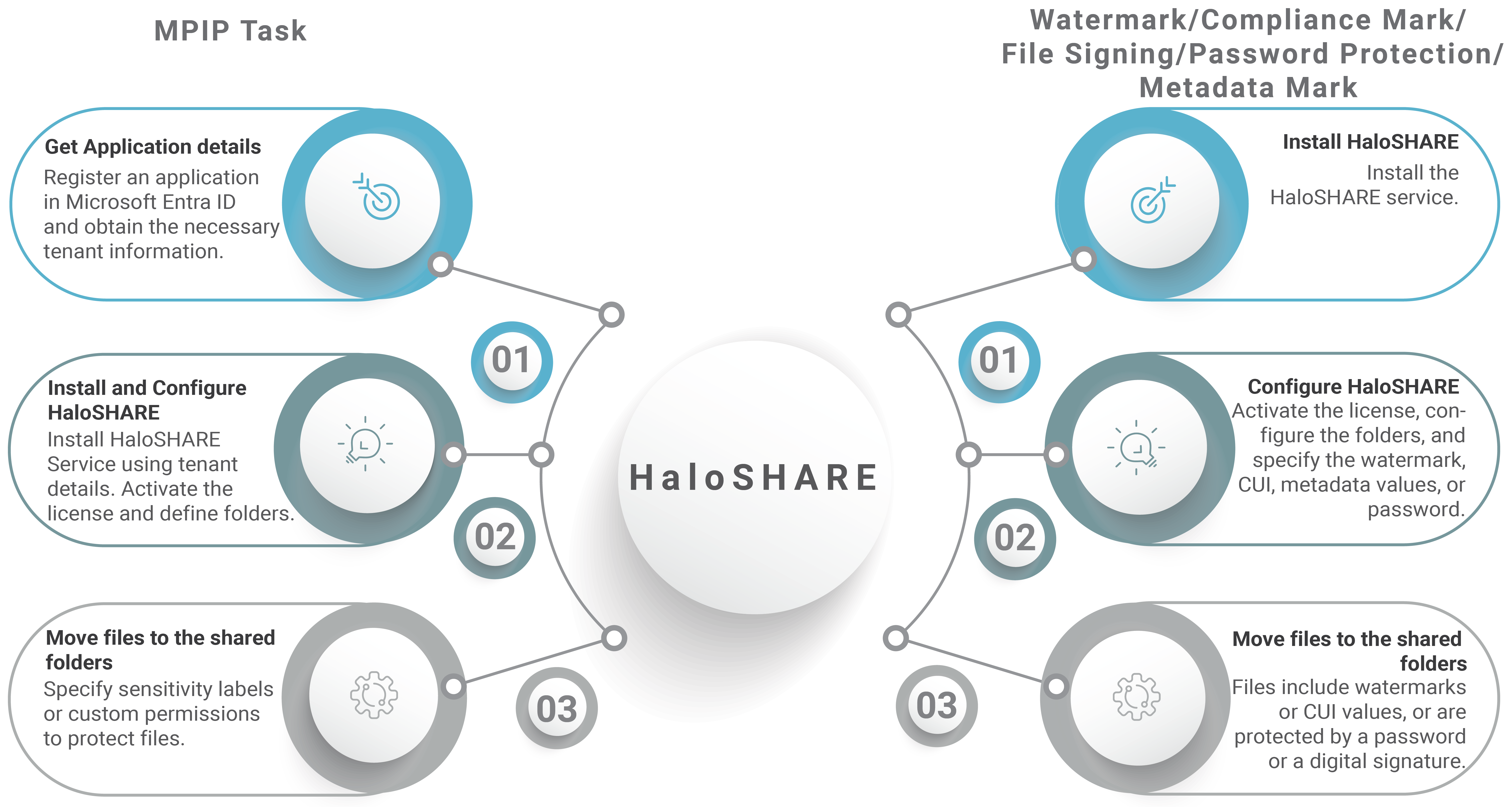
Quick start implementation steps
Architecture
In the following scenario, designers from an organization share their work with partners. To facilitate this, the HaloSHARE configuration screen allows your administrator to assign source and destination folders for the designer's external partners. The configuration can be set to move files from a source folder to a destination folder, as illustrated below.
|
Workflow Source Folder (from designer) |
Workflow Destination Folder (to external partner) |
|---|---|
|
|
|
|
|
|
Source and destination Folders
At a high level, the HaloSHARE workflow consists of these steps:
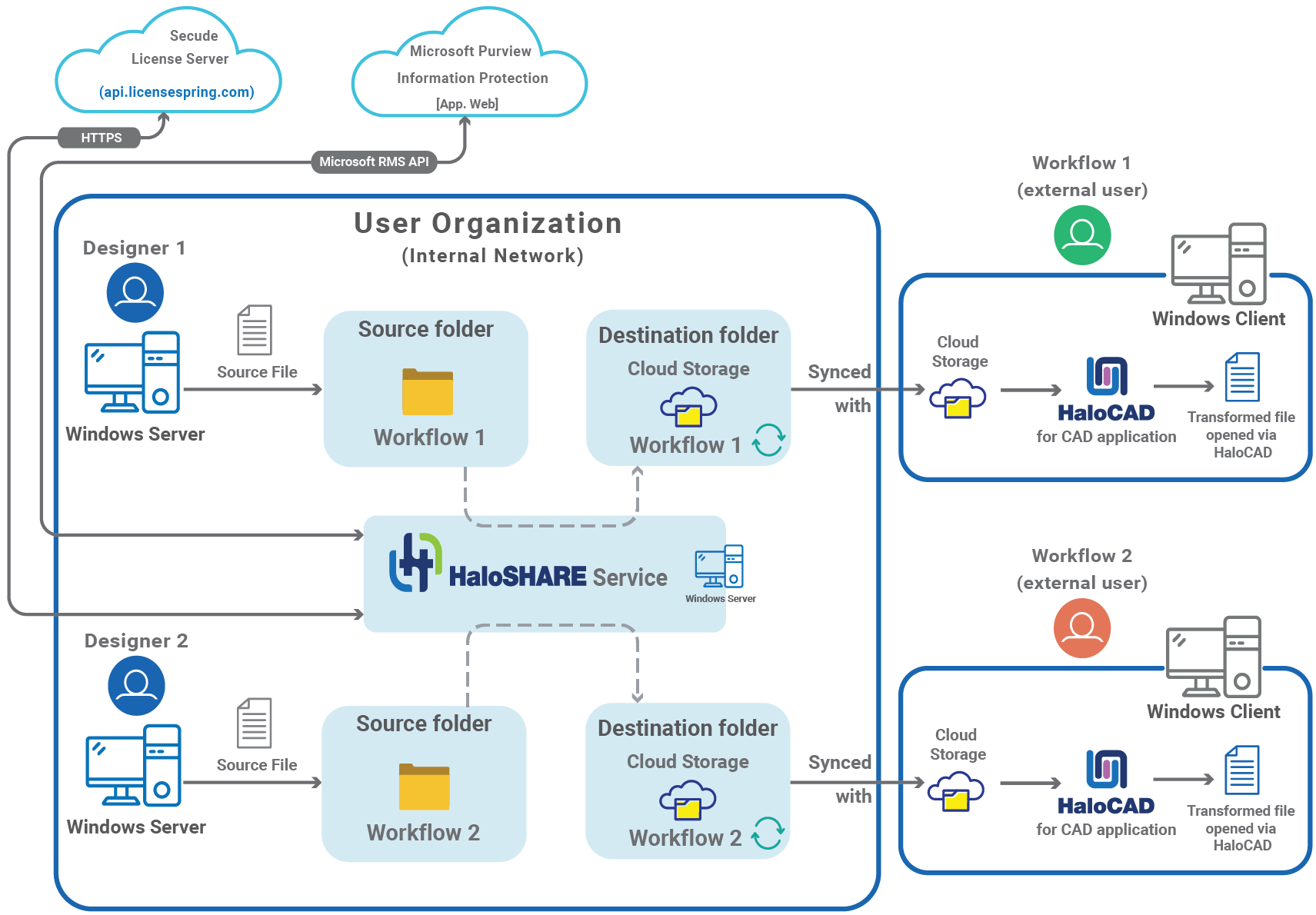
Architecture
Shared folder location
An external, user-specific shared folder may be located on OneDrive, SharePoint, or Autodesk Forma (formerly ACC Docs).
Based on the workflow configuration, the following tasks take place:
-
HaloSHARE with MPIP Task
HaloSHARE scans the folder and its subfolders for new files, determines whether they need encryption, and applies the appropriate MPIP label or custom permission. The labeled files are then moved to destination folders, typically external user–specific shared folders. -
HaloSHARE with Watermark Task
HaloSHARE scans the folder and its subfolders for new files. When a new file is detected, it is automatically watermarked with user-specified text. The watermarked files are then moved to destination folders, typically external user–specific shared folders. -
HaloSHARE with Compliance Mark Task
HaloSHARE supports Controlled Unclassified Information (CUI) Marking with the Limited Dissemination Control (LDC) or Distribution Statement options. However, neither option can be applied simultaneously to the same file. The first page of the document displays the values for the CUI designation indicator block, as configured.HaloSHARE scans the folder and its subfolders for new files. When a new file is detected, it automatically embeds the user-specified CUI values. The CUI-embedded files are then moved to destination folders, typically external, user-specific shared folders.
-
HaloSHARE with File Signing Task
HaloSHARE scans the folder and its subfolders for new files. When a new file is detected, HaloSHARE automatically applies a digital signature. The signed files are then moved to the destination folders, typically external user–specific shared folders. -
HaloSHARE with Password Protection Task
HaloSHARE scans the folder and its subfolders for new files. When a new file is detected, HaloSHARE automatically applies a user-defined password. The protected files are then moved to the destination folders, typically external user–specific shared folders.
-
HaloSHARE with Metadata Mark Task
HaloSHARE scans the folder and its subfolders for new files. When a new file is detected, it automatically embeds the user-specified metadata values. The embedded metadata files are then moved to destination folders, typically external, user-specific shared folders.
External users, including suppliers, vendors, and external consultants, can access HaloSHARE-protected and watermarked files only through the HaloCAD Add-on. For more details, refer to the HaloCAD manuals.
System Requirements
The following table outlines the minimum and recommended technical specifications, including software and network requirements, required to run the product.
|
Components |
Details |
|---|---|
|
Operating System |
|
|
MPIP task label protection-specific requirements |
|
|
Office 365 Subscription |
|
|
Supported file types |
|
|
Autodesk Forma specific requirements |
|
|
Autodesk Platform Services |
Register an application in Autodesk Platform Services to obtain the Client ID and Client Secret. |
|
Watermark task specific requirements |
|
|
Supported file types |
|
|
Supported CAD application for watermark |
|
|
Application for viewing protected and watermarked files |
|
|
File Signing task specific requirements |
|
|
Supported file types |
Microsoft Office and PDF file types |
|
Metadata task specific requirements |
|
|
Supported file types |
Microsoft Office and PDF file types |
|
Password Protection task specific requirements |
|
|
Supported file types |
Microsoft Office file types |
|
Compliance Mark(Controlled Unclassified Information) task specific requirements |
|
|
Supported file types |
|
Requirements