
This chapter explains the requirements, prerequisites, and how to install HaloCAD for Teamcenter.
System Requirements
The following table lists the system requirements for installing and running HaloCAD for Teamcenter.
|
Components |
Details |
|---|---|
|
Supported Operating System |
Windows Server 2022 and above with updates installed. |
|
Supported file types |
|
|
Other requirements |
Install HaloENGINE GenNXT and HaloCAD for Teamcenter separately on Windows servers. |
Requirements
Prerequisites
Before installing HaloCAD for Teamcenter, ensure that the following prerequisites are met.
-
Ensure that you have administrative access to install HaloCAD for Teamcenter.
-
Ensure that the client computer running the HaloCAD Add-on for Designcenter can connect to the Teamcenter Server.
-
Ensure that your HaloENGINE GenNXT meets the requirements listed below:
-
License file (enabled with the Teamcenter client type).
-
Proper action rules
-
-
Ensure that the following system variables are set:
-
Default_Transient_Server − The default location of the transient file server.
-
Default_Transient_Server=http://<host>:<proxy port>/tc/fms -
For example,
Default_Transient_Server=http://tclu0310.secude.local:8080/tc/fms
-
-
Fms_BootStrap_Urls – The FMS server that manages file downloads.
-
Fms_BootStrap_Urls=http://<host>:<proxy port>/tc/fms -
For example,
Fms_BootStrap_Urls=http://tclu0310.secude.local:8080/tc/fms
-
-
-
Ensure that your Microsoft Entra ID application information is available. Refer to the Technical Reference Manual for more information.
-
Ensure that the certificate required for MPIP authentication is installed in the Local Computer certificate store, along with the Root CA and Intermediate CA certificates.
-
If the certificate is CA-signed, install all related certificates in their respective stores (Root, Intermediate, and Personal).
-
If the certificate is self-signed, install it in both the Trusted Root Certification Authorities and Personal stores of the Local Computer.
-
-
Ensure that an authentication approach is selected for HaloENGINE GenNXT and HaloCAD for SOLIDWORKS PDM: Self-Signed Certificate or CA-Signed Certificate.
-
For a Self-Signed Certificate, export the public key of the HaloENGINE GenNXT server's self-signed certificate and install it in Trusted Root Certification Authorities on the system where HaloCAD for Teamcenter is installed.
-
For a CA-signed certificate, install the Root CA certificate in Trusted Root Certification Authorities on the system where HaloCAD for Teamcenter is installed. If an intermediate CA is used, ensure that the intermediate CA certificate is also available on the client system to validate the certificate chain.
-
-
For SSO-based SOA authentication,
-
Ensure that the SSO Application ID and SSO SOA Login URL are available.
-
Ensure that HaloCAD for Teamcenter is installed with a valid Windows user account instead of the Local System account.
-
Ensure that the user running the service has the required permissions to access the Teamcenter/HaloCAD resources and configuration. Note: Running Tomcat under the Local System account may cause SSO issues. If SSO-related errors are observed, verify the account configured for the Tomcat Windows service. After changing the Tomcat service account, restart the Tomcat service.
-
-
AWC SSO Proxy URL Redirection Configuration
-
Navigate to the Teamcenter Security Services configuration and open the
IdentityService.xmlfile. For example:
C:\Siemens\Teamcenter2512\teamcenter_root\security_services\config\identity -
Back up the
IdentityService.xmlfile before modifying it. -
Identify the SSO App ID where the AWC Gateway URL is configured and replace the AWC Gateway URL with the HaloCAD Proxy URL. In the context entry, update the
tcsso.applicationRegistry_RootURLvalue with the HaloCAD Proxy URL as shown in the following example:HTML<context-param> <param-name>tcsso.applicationRegistry_RootURL_2</param-name> <param-value>https://SVLU0381:8095</param-value> </context-param> -
Restart the Teamcenter Security Services for the configuration changes to take effect.
-
-
If you want to implement a failover mechanism in HaloENGINE GenNXT, please refer to the section “Failover Mechanism for HaloENGINE GenNXT in HaloCAD for PLM”.
-
Ensure that HaloCAD for Teamcenter and HaloENGINE GenNXT are installed using the same Azure tenant details. A mismatch in tenant details causes configuration errors.
-
To improve performance, configure MPIP labels to allow offline access. In the Microsoft Entra admin center, navigate to Information Protection > Sensitivity labels > select a label > Items > Access control > Allow offline access, and select Always. Note: Allowing offline access can affect revocation. Consider this impact when configuring the offline access setting. For more information, see the Microsoft documentation, Restrict access to content by using sensitivity labels to apply encryption.
Conditions for Running the HaloENGINE GenNXT Tomcat Service
Before running the HaloENGINE GenNXT Tomcat Service, ensure that the following prerequisites are met.
Deny log on as a service policy
If the service runs under a specific user account or group, ensure that the user is not restricted by the Deny log on as a service policy (Local Security Policy > Security Settings > Local Policies > User Rights Assignment).
If the user is restricted by this policy, the following error message appears when starting the HaloENGINE GenNXT Tomcat Service: “Error 1069: The service did not start due to a logon failure.”
Allow non-admin users to access a private key (without full administrator rights)
During installation, HaloENGINE GenNXT retrieves the required Microsoft Entra ID application details and certificate thumbprint. When the HaloENGINE GenNXT Tomcat Service starts, it connects to the MPIP services by using the details provided during installation. As part of this process, it validates the certificate thumbprint against the certificate installed in the Local Computer certificate store. The thumbprint entered during installation must match the thumbprint of the certificate installed in the Local Computer certificate store.
If the service runs under a non-administrative user account, the user might not have sufficient permissions to access the certificate's private key when the certificate is installed in the Local Computer certificate store. This restriction prevents successful authentication with MPIP services. To resolve this issue, grant the user Read permission to access the certificate's private key by following the procedure below. Any errors encountered during this process are recorded in the log file. If the verification succeeds, the service continues with initialization.
Prerequisites
-
The required certificates (certificate used by MPIP service, root CA, and intermediate CA) are installed.
-
The private key is stored in the Windows Certificate Store under Local Computer.
-
You have administrator privileges to perform the configuration.
Follow the procedure below to grant read access:
-
Open Certificate Manager as Administrator.
-
Press Win + R, type mmc, and press Enter.
-
In the console, go to File and select Add/Remove Snap-in.
-
Select Certificates from the list and click Add.
-
Select Computer account, click Next, select Finish, and then click OK.
-
In the left navigation pane, expand Certificates (Local Computer), expand Personal, and select Certificates.
-
Identify the certificate that contains the private key.
-
Right-click the certificate, select All Tasks, and then select Manage Private Keys.
-
In the Permissions window, click Add and enter the non-administrator username (for example, TESTIL) and click OK.
-
Select the Read permission, click Apply, and then click OK.
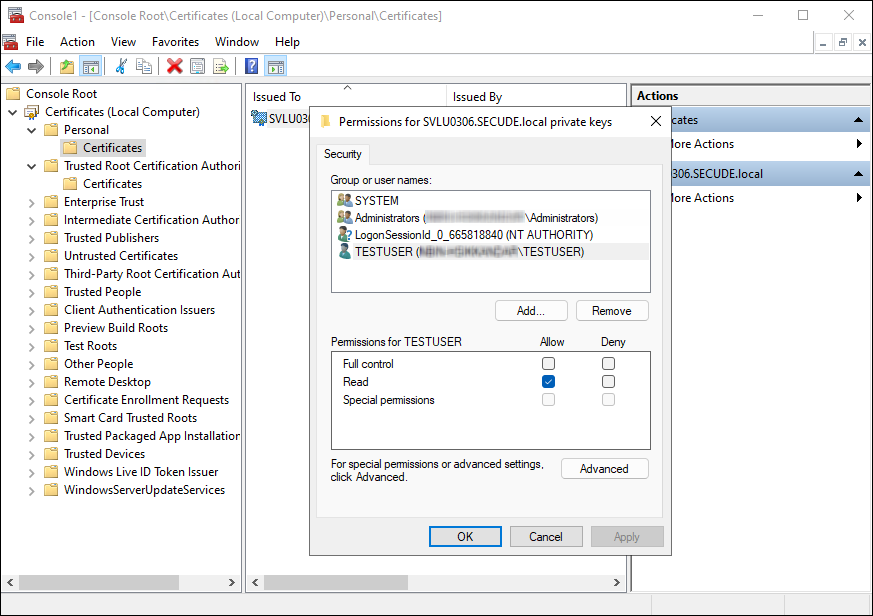
Granting private key access to a non-admin user
Result
The specified non-administrative user can access the certificate's private key, allowing the HaloENGINE GenNXT Tomcat Service to authenticate successfully with MPIP services.
Installation Modes
HaloCAD for Teamcenter supports the following installation modes:
-
Graphical Mode
Graphical mode is an interactive installation method that uses a wizard-based graphical user interface.
-
Silent Mode
Silent mode is a non-interactive installation method that installs HaloCAD for Teamcenter by using command-line options.
Graphical Mode
Install the HaloCAD component using the GUI-based setup program provided in the installation package.
-
To begin the interactive installation, double-click the
HaloCAD_Teamcenter_Setup.exeinstaller.Depending on your Windows security settings, a security warning similar to "Do you want to allow the following program to make changes to this computer?" may appear. If prompted, click Yes to continue the installation.
-
When the installer starts, the Startup dialog appears, followed by the Welcome dialog.

Startup Dialog
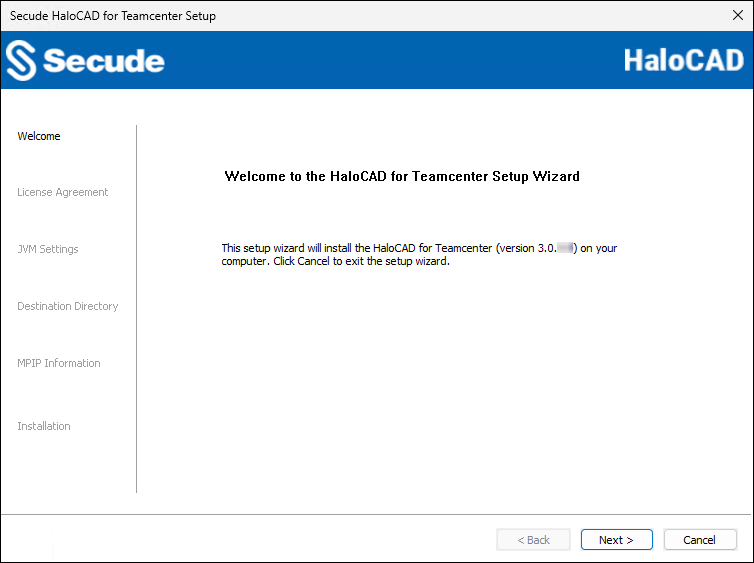
Welcome Dialog
-
Click Next to continue.
-
The License Agreement dialog appears.
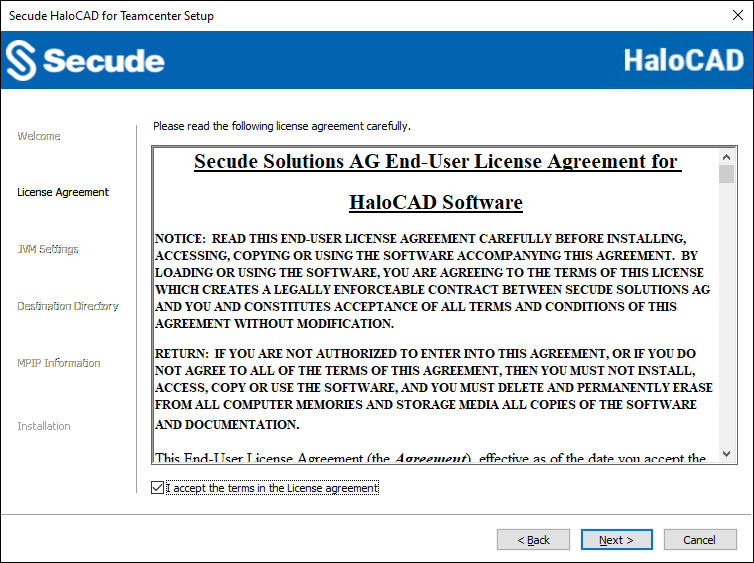
End-User License Agreement Dialog
-
Read the End-User License Agreement. If you agree to the terms, select I accept the terms in the License Agreement, and then click Next.
-
The JVM Settings dialog appears.
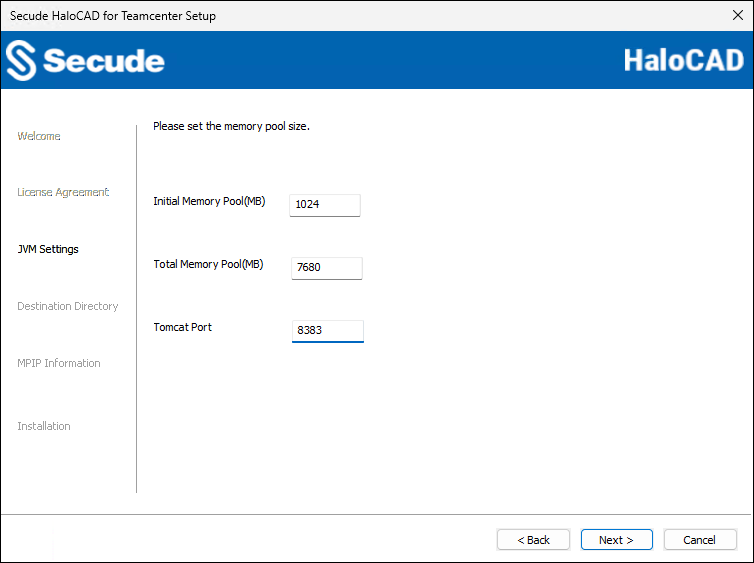
Tomcat pool size configuration dialog
-
Specify the amount of memory to modify the preset values for the Initial Memory Pool, Total Memory Pool, and Tomcat Port. The default port is 8383; however, you can change the port number. The port value must be greater than 999 and less than or equal to 65535. Note: Ensure that the Total Memory Pool does not exceed three-fourths (3/4) of the system’s available RAM.
-
Click Next.
-
The Destination Folder dialog appears.
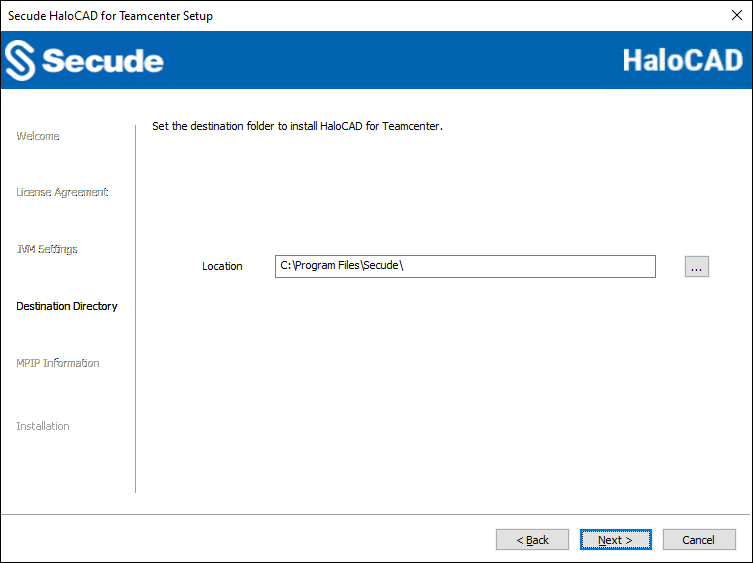
Destination folder selection dialog
-
By default, the application files are installed in the following directory:
C:\Program Files\Secude\. To install HaloCAD for Teamcenter in a different location, click Browse and select the required directory. -
Click Next.
-
The MPIP Information dialog appears. To avoid errors, ensure that you enter the correct Microsoft Entra ID application details in the installation wizard.
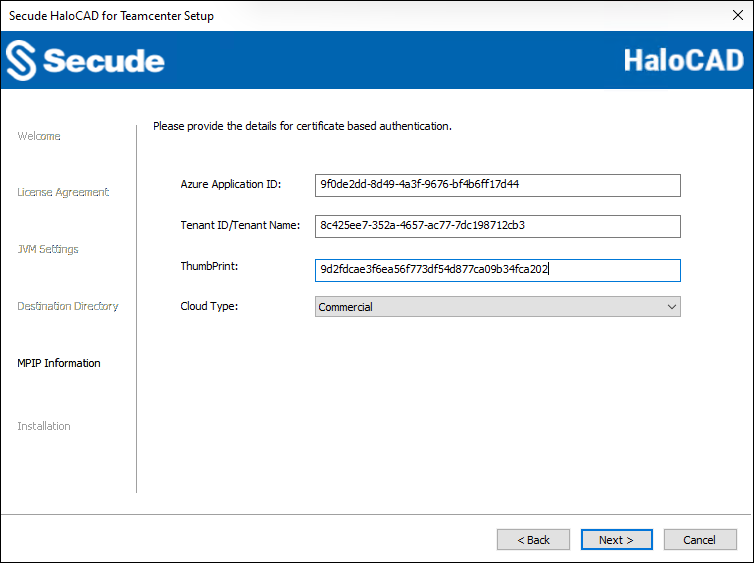
Certificate-based authentication dialog
-
Azure Application ID: Enter the Application ID of the registered application in the Microsoft Entra admin center. For example,
9f0de2dd-8d49-4a3f-9676-bf4b6ff17d44 -
Tenant ID/Tenant Name: Enter your Microsoft Entra tenant name (for example,
contoso.onmicrosoft.com) or its tenant ID (for example,8c425ee7-352a-4657-ac77-7dc198712cb3). -
Thumbprint: Enter the thumbprint of the MPIP authentication certificate installed in the Local Computer certificate store. For example,
9d2fdcae3f6ea56f773df54d877ca09b34fca202. -
Cloud Type: Commercial is selected by default. Based on your Azure subscription and configuration, select the required cloud type from the list: Commercial, Custom, Germany, US_DoD, US_GCC, US_GCC_High, US_Sec, US_Nat, or China_01.
If you select Custom, enter the appropriate URLs in the Protection Cloud URL (for example,https://api.aadrm.com) and Policy Cloud URL (for example,https://dataservice.protection.outlook.com) fields. -
To return to a previous step in the installation, click Back (optional).
-
Click Next.
-
-
The installation begins, and the progress is displayed in the Installation dialog.
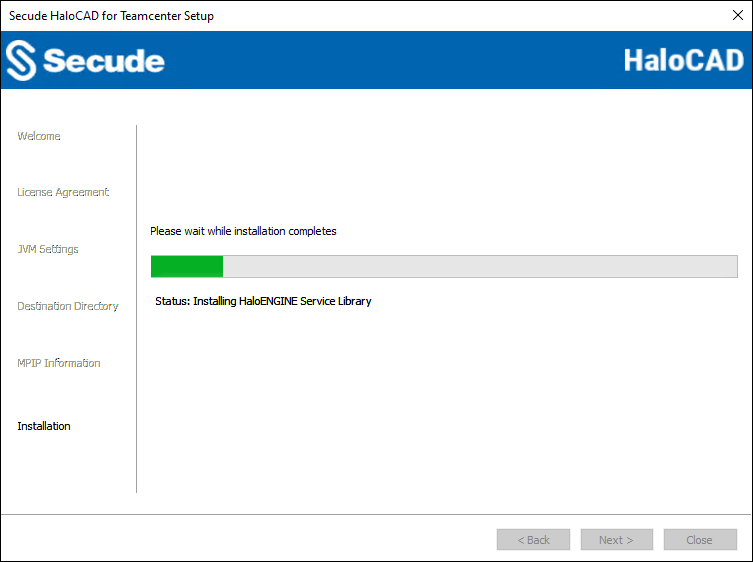
Installation dialog
-
When the installation is complete, a confirmation message appears indicating that the HaloCAD for Teamcenter component has been successfully installed.
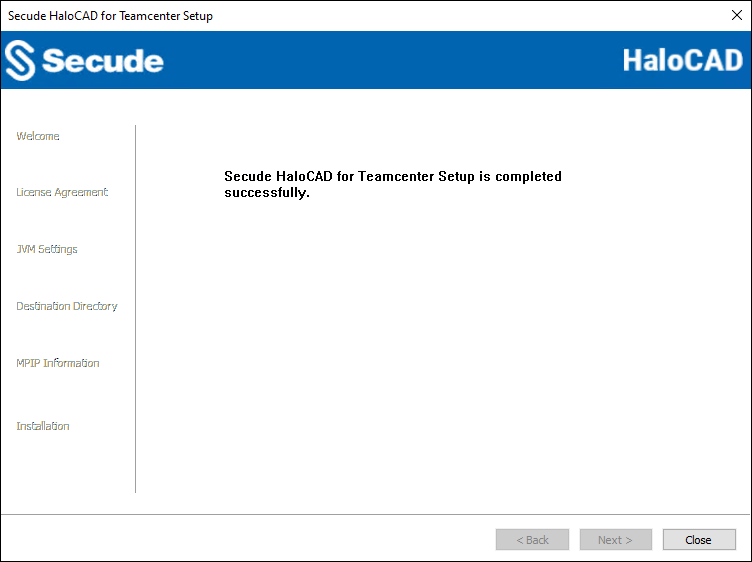
Installation completed dialog
-
Click Close to exit the installation wizard.
Silent Mode
In addition to Graphical Mode, you can install the HaloCAD for Teamcenter component in Silent Mode. Silent Mode does not require user interaction or display a user interface. It enables you to install using command-line options.
-
Open the Command Prompt with elevated rights (Run as Administrator).
-
Navigate to the directory that contains the HaloCAD for Teamcenter installer.
-
To view the available Silent Mode options, run the following command:
TypeHaloCAD_Teamcenter_Setup.exe -help
PressEnter
Output
...
HaloCAD_Teamcenter_Setup.exe -install -initmempool <Initial memory pool size in MB(s).
Minimum size is 128 MB> -totalmempool <Total memory pool size in MB(s).
Maximum size is 3/4 of total RAM size.> -dir <destination_directory> -port <range_1_to_65535> -applicationid <application_id> -tenantid <tenant_id> -thumbprint <thumb_print> -cloudtype <(Commercial|Custom|Germany|US_DoD|US_GCC|US_GCC_HIGH|US_Sec|US_Nat|China_01)> (if cloudtype is Custom) <protectioncloudurl> <policycloudurl>
HaloCAD_Teamcenter_Setup.exe -uninstall -
The following command shows how to install and initialize HaloCAD.
HaloCAD_Teamcenter_Setup.exe -install -initmempool 1024 -totalmempool 2048 -dir "C:\Program Files\Secude" -port 8383 -applicationid "9f0de2dd-8d49-4a3f-9676-bf4b6ff17d44" -tenantid "8c425ee7-352a-4657-ac77-7dc198712cb3" -thumbprint "961602617275c2ab538cf28bb3648c0c6d97edab" -cloudtype "Commercial" -
Press
Enter.Result
The installation is complete.
Certificate update
If you update or renew the client certificate, restart the HaloENGINE GenNXT Tomcat service for the changes to take effect.