
This section describes how to configure HaloCAD and HaloENGINE GenNXT parameters using the GUI and command-line methods. It also explains how to configure the Dataset and TCCS settings.
Configuration Using Tool (GUI)
Prerequisites:
-
Ensure that HaloCAD for Teamcenter is installed before proceeding.
-
If the SOA URL uses HTTPS, ensure that the CA certificate is added to the Java trust store.
Follow these steps to configure the settings through the GUI:
Step 1. Run the HaloCAD Config tool.
-
Navigate to the installation directory. By default, the directory is:
C:\Program Files\Secude\HaloCADTeamcenter\config. -
Do one of the following:
-
Double-click the JAR file
halocad-teamcenter-config-<version>.jar -
Open Command Prompt as an administrator, type the following command, and then press Enter.
Syntax:<pathtojar>java -jar halocad-teamcenter-config-<version>.jar
For example:C:\Program Files\Secude\HaloCADTeamcenter\config>java -jar halocad-teamcenter-config-<version>.jar
-
Result: The HaloCAD for Teamcenter Config Tool window is displayed.
Step 2. Enter the Teamcenter Configuration Settings.
Select the Teamcenter Configuration tab, and then enter the following information.
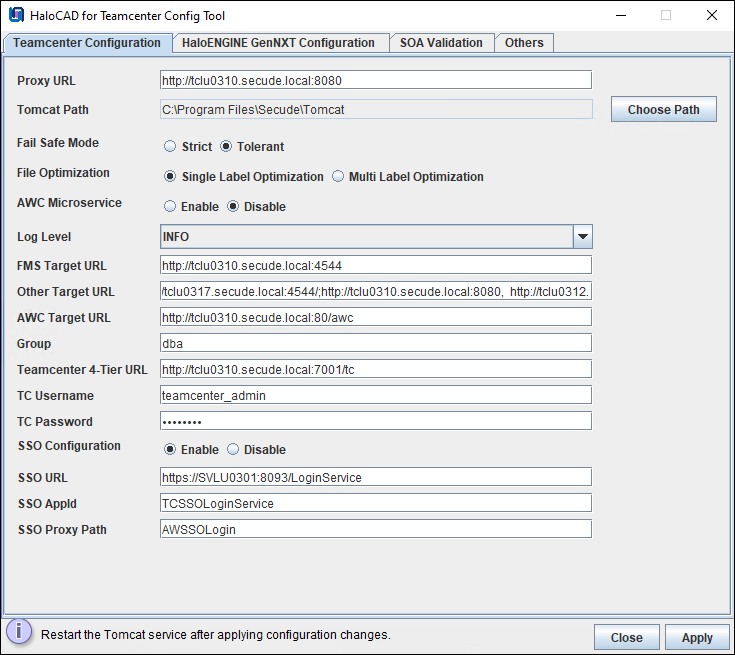
Teamcenter Configuration tab
-
Proxy URL: Enter the URL of the proxy (HaloCAD component) installation. For example,
http://tclu0310.secude.local:8080 -
Tomcat Path: Click Choose Path to browse and select the Tomcat home directory path. For example,
C:\Program Files\Secude\Tomcat -
Fail-Safe Mode: The Fail Safe Mode controls the system behavior when inconsistencies prevent the specified protection from being applied (for example, conflicting configurations, unreachable server components, or returned error messages). Select one of the following options:
-
Strict: Blocks file uploads and downloads whenever an error occurs.
-
Tolerant (default): Allows file uploads and downloads even when an error occurs.
-
-
File Optimization: Choose one of the following options for file optimization. By default, Single Label Optimization is set.
-
Single Label Optimization: The top-level file label is considered and applied to all dependent files.
-
Multi-Label Optimization: Each file type group label defined in the Classification Engine is considered and applied to the corresponding group during ASM optimization.
-
-
AWC Micro Service: To communicate with Teamcenter via Microservices, enable this option.
AWC 5.x with Microservice:
-
If you use Microservices for AWC, enable the option AWC Micro Service and provide the port number in AWC Proxy Port. Please use a different port number for the Proxy URL and AWC Proxy Port.
-
For Example, if your Proxy URL is 8080, you may use a different port for the AWC Proxy Port, such as 8081.
-
To access AWC, use
http://hostname:awcproxyport. For example,http://svlu0309:8081
-
-
AWC 4.x without Microservice:
-
Here, to use AWC without Microservice, disable the AWC Microservice option.
-
To access AWC, use
http://hostname:proxyport/awc. For example,http://svlu0309:8080/awc
-
-
Log Level: Select the required log level.
-
INFO (default): Logs standard application events that indicate the progress of the application.
-
ERROR: Logs error events that prevent the application from functioning correctly.
-
DEBUG: Logs detailed diagnostic information for troubleshooting. The log level is set to "DEBUG" by default. The log rollover period is configured to 24 hours, which means that every 24 hours, a new log file with the file format
haloproxy.<yyyy-MM-dd>.logis generated.
-
-
FMS Target URL: Enter the URL of the Teamcenter Server where the file download needs to be protected. For more details, please refer to the section "Appendix". For example,
http://tclu0310.secude.local:4544 -
Other Target URL: In case of multiple FSC configurations, enter other URLs as given in the following format
http://<fmstarget url_1>;http://<proxy url_1>,http://<fmstarget url_2>; http://<proxy url_1>. For more details, please refer to the section "Appendix".
Example,http://tclu0317.secude.local:4544/;http://tclu0310.secude.local:8080, http://tclu0312.secude.local:4544;http://tclu0313.secude.local:8080AWC Target URL: Enter AWC’s URL.
-
Without Microservice:
http://tclu0310.secude.local:80/awc -
With Microservice:
http://tclu0310.secude.local:3000
-
-
Group: Enter the name of the group. For example,
dba. -
Teamcenter 4-Tier URL: Enter your Teamcenter URL. For example,
http://tclu0310.secude.local:80/tcorhttp://tclu0310.secude.local:7001/tc. -
TC Username: Enter the Teamcenter username. For example,
teamcenter_admin. -
TC Password: Enter the Teamcenter password.
-
SSO Configuration: Select one of the following options for SSO-based SOA authentication:
-
SSO URL: Enter the SSO URL. For example,
https://SVLU0301:8093/LoginService. -
SSO AppID: Enter the application ID. For example,
TCSSOLoginService. -
SSO Proxy Path: Enter the URL path used to access AWC SSO through the proxy. For example,
AWSSOLogin.
-
-
Click Apply. If required values are missing, a red tooltip message appears. Enter the missing information and click Apply to continue.
Result:
-
A confirmation message dialog box appears.
-
Click OK to close the confirmation dialog box.
Step 3. HaloENGINE GenNXT Configuration
Select the HaloENGINE GenNXT Configuration tab, and then enter the following information.
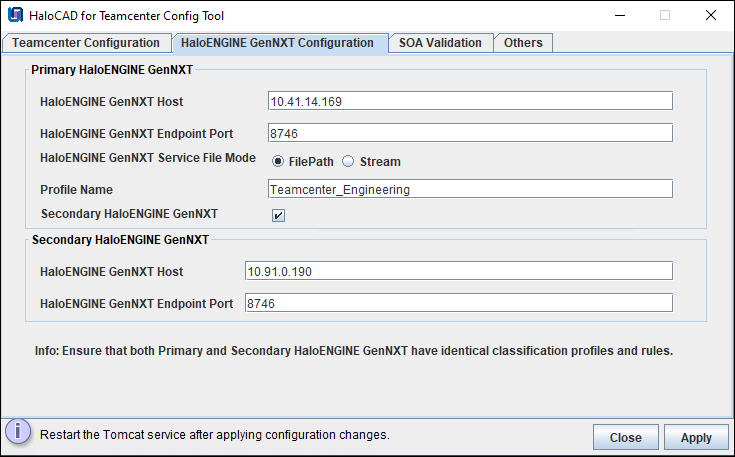
HaloENGINE GenNXT Configuration tab
Primary HaloENGINE GenNXT Configuration
-
HaloENGINE GenNXT Host: Enter the IP address or fully qualified domain name (FQDN) of the HaloENGINE GenNXT server. For example,
10.41.14.169 -
HaloENGINE GenNXT Endpoint Port: Enter the endpoint port used to access HaloENGINE GenNXT. For example,
8746 -
HaloENGINE GenNXT Service File Mode: Select the file transmission method.
-
FilePath (default): Stores the file in a local temporary location for the encryption and decryption process. The file path is used for file transfer.
-
Stream: Transfers the file as a sequence of bytes.
-
-
Profile Name: Enter the profile name configured in the Admin Portal. For example,
Teamcenter_Engineering. -
Secondary HaloENGINE GenNXT: To configure a failover mechanism, select the Secondary HaloENGINE GenNXT check box. HaloCAD supports connection failover between two HaloENGINE GenNXT instances. For more information, please refer to the section “Failover Mechanism for HaloENGINE GenNXT in HaloCAD for PLM”.
Secondary HaloENGINE GenNXT Configuration
Skip this step if you are not configuring a secondary HaloENGINE GenNXT. This step is required only if you want to use the failover mechanism.
Prerequisite: Ensure that the secondary HaloENGINE GenNXT uses the same configuration profiles and rules as the primary HaloENGINE GenNXT. This ensures that, if the primary HaloENGINE GenNXT becomes unavailable, the secondary HaloENGINE GenNXT can immediately take over and maintain uninterrupted operation.
-
HaloENGINE GenNXT Host: Enter the IP address or fully qualified domain name (FQDN) of the HaloENGINE GenNXT server. For example,
10.91.0.190 -
HaloENGINE GenNXT Endpoint Port: Enter the endpoint port used to access HaloENGINE GenNXT. For example,
8746 -
Click Apply. If required values are missing, a red tooltip message appears. Enter the missing information and click Apply to continue.
Result:
-
A confirmation message dialog box appears.
-
Click OK to close the confirmation dialog box.
Step 4. SOA Validation
Select the SOA Validation tab and check the connection status.
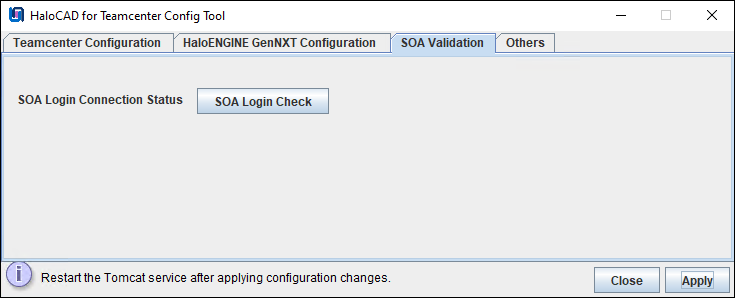
SOA Validation tab
-
Click SOA Login Check to confirm the SOA credential configuration.
-
Click Apply. If required values are missing, a red tooltip message appears. Enter the required information and click Apply to continue.
Result:
-
A progress bar indicates that “Checking SOA Login connection status” is in progress.
-
If the connection is successful, a confirmation message dialog box appears. Click OK to close the dialog box.
-
If the connection fails, an appropriate warning message appears. Follow the on-screen instructions and try again.
Step 5. Other Configuration Settings
Select the Others tab, and then enter the following information.
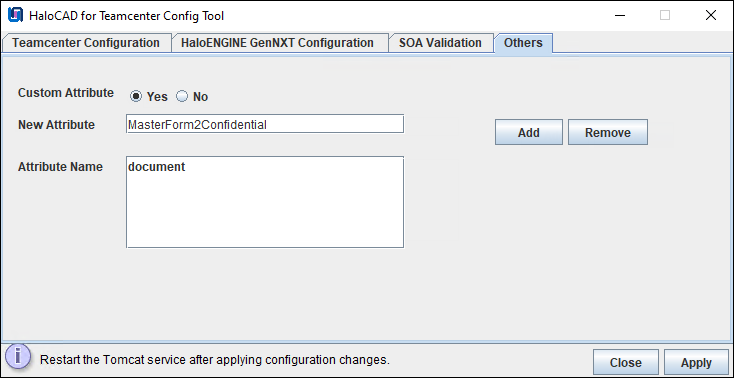
Others tab
-
Custom Attribute
-
If you do not want to use custom attributes, click Apply, and then close the Configuration Tool.
-
If you want to use custom attributes, select Yes for Custom Attribute, and then enter the following information
-
-
New Attribute: Enter the name of an attribute and then click Add. Enter the exact custom property name that was provided during the custom property configuration. For example, document is added as a new attribute.
-
The attribute is added to the Attribute Name list.
-
Click Apply. If required values are missing, a red tooltip message appears. Enter the required information and click Apply to continue.
Result:
-
Click OK to close the dialog box.
-
To remove an attribute, select the attribute from the list, click Remove, and then click Apply to save the configuration.
Step 6. Restart the Tomcat Service.
Restart the HaloENGINE GenNXT Tomcat Service after making any configuration changes.
Dataset Configuration - DatasetFromIman
The following steps are to be carried out by a user with DBA privileges on the Teamcenter server. This example uses the Infodba account.
-
Click the Query Builder icon in the navigation pane.
-
Click on Saved Queries. A new query page appears, where you must enter the following details.
-
Enter DatasetFromIman in the Name text box.
-
In Search Type, select Dataset from the list.
-
In Modifiable Query Types, select Local Query from the list.
-
Under the Properties Selection section, double-click on the property ref_list. The Business Type Selection dialog appears.
-
Search for ImanFile and double-click it. It is added to the property.
-
The property name appears as ref_list [File].
-
Under ref_list [File], double-click on file_name. You can see the attributes being displayed in the Search Criteria section.
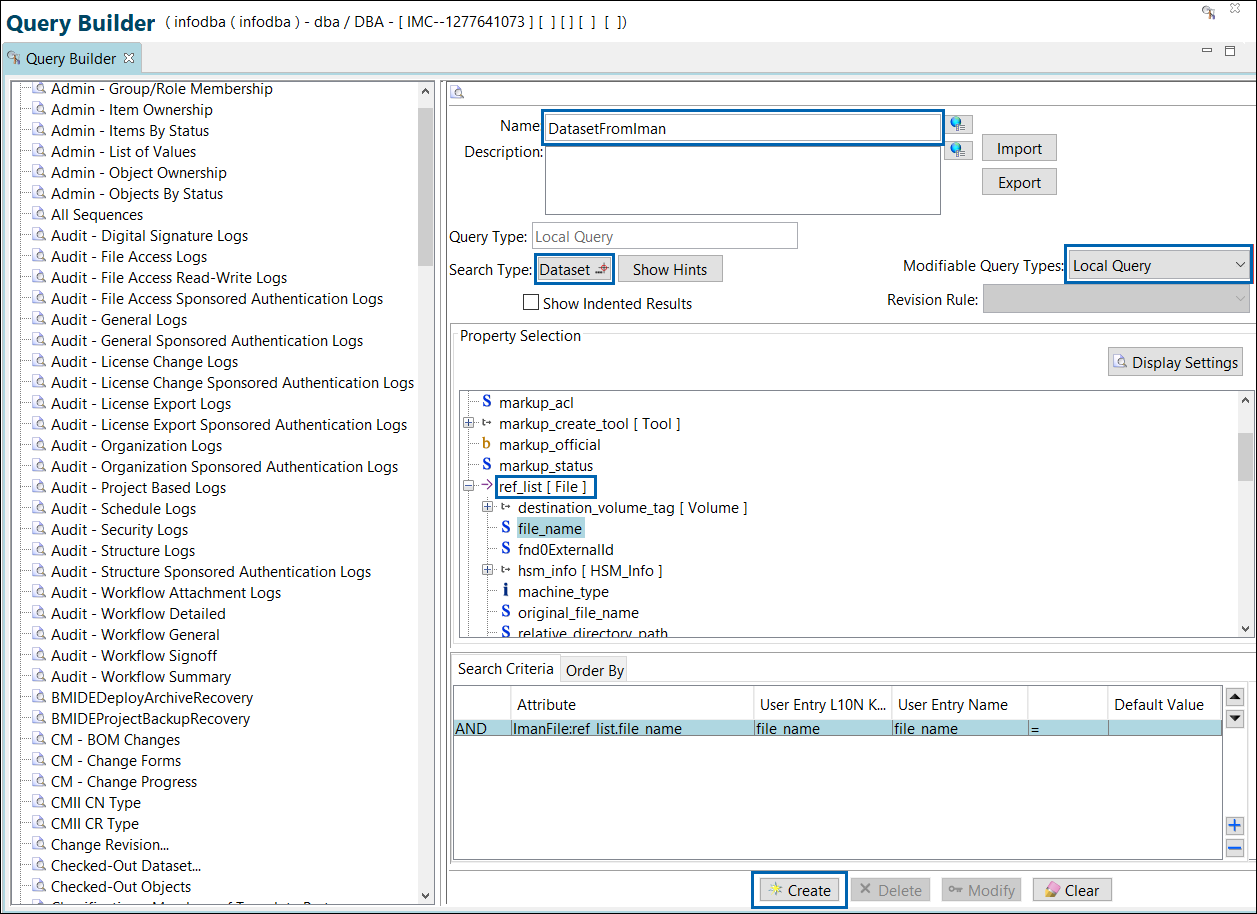
Adding a new query - DatasetFromIman
-
-
Click Create.
Result: The DatasetFromIman query is created and appears in the Query Builder list.
TCCS Configuration
The following procedure explains how to change the File Management System (FMS) master file and FMS client cache (FCC) file in the Teamcenter client communication system (TCCS). We recommend that you make a backup of the current two XML files.
-
Step 1. Modify the FMS master file.
-
Navigate to:
<Installed_Path>\Siemens\Teamcenter12\fsc\fmsmaster_FSC_<ComputerName>_Teamcenter.xml>.
For example,C:\Program Files\Siemens\Teamceter12\fsc\fmsmaster_FSC_tclu0310_Teamcenter.xml -
Open the XML file with administrator privileges and add the following line after
<fscgroup id="mygroup"> tag, along with the port number as shown in the example below:
Line format:<loadbalancer id="ReverseProxy" address="<host>:<port>/tc/fms/" />
For Example,<loadbalancer id="ReverseProxy" address="http://tclu0310.Secude.local:8080/tc/fms/" /> -
Save the file.
-
-
Step 2. Modify the FCC file.
-
Navigate to:
<Installed_Path>\Siemens\Teamcenter12\tccs\fcc.xml>.
For example,C:\Program Files\Siemens\Teamceter12\tccs\fcc.xml -
Open the XML file with administrator privileges and add the following line along with the port number as shown in the example below:
Line format:<parentfsc address="http://<host>:<port>/tc/fms" priority="0" transport="lan"/> <assignment address="parentfsc address">For Example,
<parentfsc address="http://tclu0310.Secude.local:8080/tc/fms" priority="0" transport="lan"/> <assignment mode = "parentfsc"> -
Save the file.
-
-
Step 3. Restart the Siemens service.
-
Restart the Teamcenter FSC Service (FSC_<serverhostname>_Teamcenter) via the Windows Services Manager.
-
Please note that whenever XML files are modified, the FSC service should be restarted.
-
Configuration Using the Command Line
This section describes an alternative method for configuring HaloCAD for Teamcenter and HaloENGINE GenNXT parameters by using the command line.
Prerequisite: Ensure that HaloCAD for Teamcenter is installed.
Follow the command-line instructions. A sample is provided below:
-
Open a command prompt, navigate to the destination folder, then type
java -jar halocad-teamcenter-config-<version>.jar -shelland press Enter.C:\Program Files\Secude\HaloCADTeamcenter\config>java -jar halocad-teamcenter-config-<version>.jar -shell ------------------------------------------------------------------------------- -------------------------------------------------------------------------------- HaloCAD for Teamcenter Config Path: C:\Program Files\Secude\HaloCADTeamcenter\config 1. Teamcenter Configuration 2. Primary HaloENGINE GenNXT Configuration 3. SOA Validation 4. Others 0. Exit Note: If an invalid value is entered, the default value will be applied. Please choose an option:1 -------------------------------------------------------------------------------- -------------------------------------------------------------------------------- Teamcenter Configuration: -------------------------------------------------------------------------------- Enter the Proxy URL: http://tclu0310.secude.local:8080 Enter the Tomcat path: C:\Program Files\Secude\Tomcat Fail Safe Mode: (Default:Tolerant) 1. Tolerant 2. Strict Please choose an option: 1 File Optimization: (Default:Single Label Optimization) 1. Multi Label Optimization 2. Single Label Optimization Please choose an option:1 AWC Microservice: (Default:AWC Disable) 1. AWC Enable 2. AWC Disable Please choose an option: 2 Log Level: (Default:INFO) 1. INFO 2. DEBUG 3. ERROR Please choose an option: 2 Enter the FMS Target URL: http://tclu0310.secude.local:4544 Enter the AWC Target URL: http://tclu0310.secude.local:80/awc Enter the Group Name: dba Enter the Teamcenter 4-Tier URL: http://tclu0310.secude.local:80/tc Enter the TC Username: teamcenter_admin Enter the TC Password: SSO Configuration: (Default:SSO Disable) 1. SSO Enable 2. SSO Disable Please choose an option: 2 -------------------------------------------------------------------------------- Teamcenter Configuration: Proxy URL :http://tclu0310.secude.local:8080 Tomcat Path :C:\Program Files\Secude\Tomcat Fail Safe Mode :Tolerant File Optimization :Multi Label Optimization AWC Microservice :AWC Disable Log Level :DEBUG FMS Target URL :http://tclu0310.secude.local:4544 AWC Target URL :http://tclu0310.secude.local:80/awc Group Name :dba Teamcenter 4-Tier URL :http://tclu0310.secude.local:80/tc TC UserName :teamcenter_admin SSO Configuration :SSO Disable 1. Modify all configuration 2. Modify the particular configuration 3. Back to main menu 0. Exit Please choose an option: 3 -------------------------------------------------------------------------------- 1. Teamcenter Configuration 2. Primary HaloENGINE GenNXT Configuration 3. SOA Validation 4. Others 0. Exit Note: If an invalid value is entered, the default value will be applied. Please choose an option:2 -------------------------------------------------------------------------------- -------------------------------------------------------------------------------- Primary HaloENGINE GenNXT Configuration: -------------------------------------------------------------------------------- Enter the Primary HaloENGINE GenNXT Host: 10.41.14.169 Enter the Primary HaloENGINE GenNXT Endpoint Port: (Default:8746) 8746 Enter the Profile Name: Teamcenter_Engineering Secondary HaloENGINE GenNXT: (Default:Disable Secondary HaloENGINE GenNXT) 1. Disable Secondary HaloENGINE GenNXT 2. Enable Secondary HaloENGINE GenNXT Please choose an option: 1 Saved Successfully. -------------------------------------------------------------------------------- Primary HaloENGINE GenNXT Configuration: Primary HaloENGINE GenNXT Host :10.41.14.169 Primary HaloENGINE GenNXT Endpoint Port :8746 HaloENGINE GenNXT Service File Mode :File Path Profile Name :Teamcenter_Engineering Secondary HaloENGINE GenNXT :Disable Secondary HaloENGINE GenNXT 1. Modify all configuration 2. Modify the particular configuration 3. Back to main menu 0. Exit Please choose an option: 3 -------------------------------------------------------------------------------- 1. Teamcenter Configuration 2. Primary HaloENGINE GenNXT Configuration 3. SOA Validation 4. Others 0. Exit Note: If an invalid value is entered, the default value will be applied. Please choose an option:3 -------------------------------------------------------------------------------- -------------------------------------------------------------------------------- SOA Login connection status: -------------------------------------------------------------------------------- 1. Check SOA connection status 0. Exit Please choose a valid option:1 Checking Teamcenter Login status, Please wait. INFO: ================ Normal SOA Login ================ Oct 07, 2026 11:38:35 PM com.secude.halocad.tcproxy.clientx.AppXSession login INFO: TC--> Login successful SOA login is successful 1. Check Status again 2. Back to main menu 0. Exit Please choose an option: 2 -------------------------------------------------------------------------------- 1. Teamcenter Configuration 2. Primary HaloENGINE GenNXT Configuration 3. SOA Validation 4. Others 0. Exit Note: If an invalid value is entered, the default value will be applied. Please choose an option:4 -------------------------------------------------------------------------------- Others... Custom Attribute :No 1. Custom Attribute 2. Back to main menu 0. Exit Please choose an option: 1 -------------------------------------------------------------------------------- Custom Attribute: (Default:No) 1. No 2. Yes Please choose an option: 1 Custom Attribute Disabled Successfully. -------------------------------------------------------------------------------- Others... Custom Attribute :No 1. Custom Attribute 2. Back to main menu 0. Exit -
Click Close to close the command prompt.
-
Restart the Tomcat Service. Note: Whenever changes are made, restart the HaloENGINE GenNXT Tomcat service.