
This chapter explains the requirements, prerequisites, and how to install HaloCAD for Windchill.
System Requirements
The following table lists the system requirements for installing and running HaloCAD for Windchill.
|
Components |
Details |
|---|---|
|
Supported Operating Systems |
Windows Server 2022 and above with updates installed. |
|
Supported file types |
|
|
Other requirements |
Install HaloENGINE GenNXT and HaloCAD for Windchill separately on Windows servers. |
Requirements
Prerequisites
Before installing HaloCAD for Windchill, ensure that the following prerequisites are met.
-
Ensure that you have administrative access to install HaloCAD for Windchill.
-
Ensure that the client computer running the HaloCAD Add-on for Creo can connect to the Windchill Server.
-
If you download your files from a Replication Server, install HaloCAD for Windchill on the Replication Server.
-
If you want to use custom attributes as metadata while protecting files, ensure that the Type and Attribute Management Utility page is configured.
-
Ensure that HaloENGINE GenNXT meets the following requirements:
-
License file enabled with the Windchill client type
-
Proper action rules
-
-
Ensure that your Microsoft Entra ID application information is available. Refer to the Technical Reference Manual for more information.
-
Ensure that the certificate required for MPIP authentication is installed in the Local Computer certificate store, along with the Root CA and Intermediate CA certificates.
-
If the certificate is CA-signed, install all related certificates in their respective stores (Root, Intermediate, and Personal).
-
If the certificate is self-signed, install it in both the Trusted Root Certification Authorities and Personal stores of the Local Computer.
-
-
Ensure that an authentication approach is selected for HaloENGINE GenNXT and HaloCAD for Windchill PLM: Self-Signed Certificate or CA-Signed Certificate.
-
For a Self-Signed Certificate, export the public key of the HaloENGINE GenNXT server's self-signed certificate and install it in Trusted Root Certification Authorities on the system where HaloCAD for Windchill is installed.
-
For a CA-signed certificate, install the Root CA certificate in Trusted Root Certification Authorities on the system where HaloCAD for Windchill is installed. If an intermediate CA is used, ensure that the intermediate CA certificate is also available on the client system to validate the certificate chain.
-
-
Ensure that PATH is added to the system environment variable to run the HaloCAD Configuration Tool. For example,
PATH=C:\WINDOWS\system32;C:\WINDOWS;C:\Program Files\Java\jdk1.8.0_241\bin -
In a Windchill setup with Single Sign On (SSO) implemented on the master/main server and a replica server connected to it, HaloCAD has a limitation when obtaining metadata from the replica server using SSO-based authentication. In this case, we recommend that you enable split authentication for the HaloCAD REST endpoint. Please refer to the section “Enabling Split Authentication” and for more information, see PTC Knowledge Base Article CS291543.
-
If you want to implement a failover mechanism in HaloENGINE GenNXT, please refer to the section “Failover Mechanism for HaloENGINE GenNXT in HaloCAD for PLM”.
-
Ensure that HaloCAD for Windchill and HaloENGINE GenNXT are installed using the same Azure tenant details. A mismatch in tenant details causes configuration errors.
-
To improve performance, configure MPIP labels to allow offline access. In the Microsoft Entra admin center, navigate to Information Protection > Sensitivity labels > select a label > Items > Access control > Allow offline access, and select Always. Note: Allowing offline access can affect revocation. Consider this impact when configuring the offline access setting. For more information, see the Microsoft documentation, Restrict access to content by using sensitivity labels to apply encryption.
Conditions for Running the HaloENGINE GenNXT Tomcat Service
Before running the HaloENGINE GenNXT Tomcat Service, ensure that the following prerequisites are met.
Deny log on as a service policy
If the service runs under a specific user account or group, ensure that the user is not restricted by the Deny log on as a service policy (Local Security Policy > Security Settings > Local Policies > User Rights Assignment).
If the user is restricted by this policy, the following error message appears when starting the HaloENGINE GenNXT Tomcat Service: “Error 1069: The service did not start due to a logon failure.”
Allow non-admin users to access a private key (without full administrator rights)
During installation, HaloENGINE GenNXT retrieves the required Microsoft Entra ID application details and certificate thumbprint. When the HaloENGINE GenNXT Tomcat Service starts, it connects to the MPIP services by using the details provided during installation. As part of this process, it validates the certificate thumbprint against the certificate installed in the Local Computer certificate store. The thumbprint entered during installation must match the thumbprint of the certificate installed in the Local Computer certificate store.
If the service runs under a non-administrative user account, the user might not have sufficient permissions to access the certificate's private key when the certificate is installed in the Local Computer certificate store. This restriction prevents successful authentication with MPIP services. To resolve this issue, grant the user Read permission to access the certificate's private key by following the procedure below. Any errors encountered during this process are recorded in the log file. If the verification succeeds, the service continues with initialization.
Prerequisites
-
The required certificates (certificate used by MPIP service, root CA, and intermediate CA) are installed.
-
The private key is stored in the Windows Certificate Store under Local Computer.
-
You have administrator privileges to perform the configuration.
Follow the procedure below to grant read access:
-
Open Certificate Manager as Administrator.
-
Press Win + R, type mmc, and press Enter.
-
In the console, go to File and select Add/Remove Snap-in.
-
Select Certificates from the list and click Add.
-
Select Computer account, click Next, select Finish, and then click OK.
-
In the left navigation pane, expand Certificates (Local Computer), expand Personal, and select Certificates.
-
Identify the certificate that contains the private key.
-
Right-click the certificate, select All Tasks, and then select Manage Private Keys.
-
In the Permissions window, click Add and enter the non-administrator username (for example, TESTIL) and click OK.
-
Select the Read permission, click Apply, and then click OK.
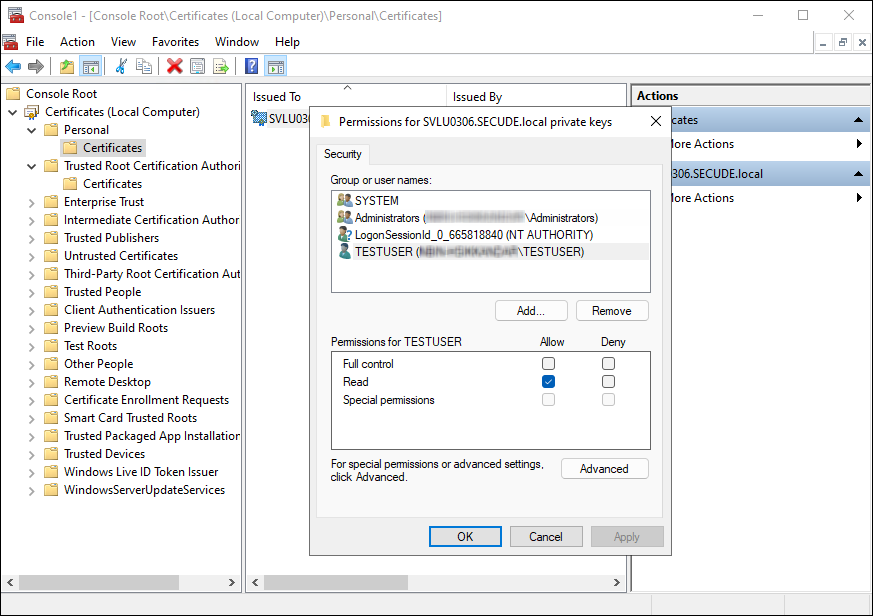
Granting private key access to a non-admin user
Result
The specified non-administrative user can access the certificate's private key, allowing the HaloENGINE GenNXT Tomcat Service to authenticate successfully with MPIP services.