
About this Manual
This manual provides comprehensive guidelines and step-by-step instructions for working with HaloCAD solutions (Monitor and Protect). For installation and configuration instructions, refer to the Installation Manual included with the product package.
How does it work?
At a high level, the HaloCAD for Windchill workflow comprises the following steps:
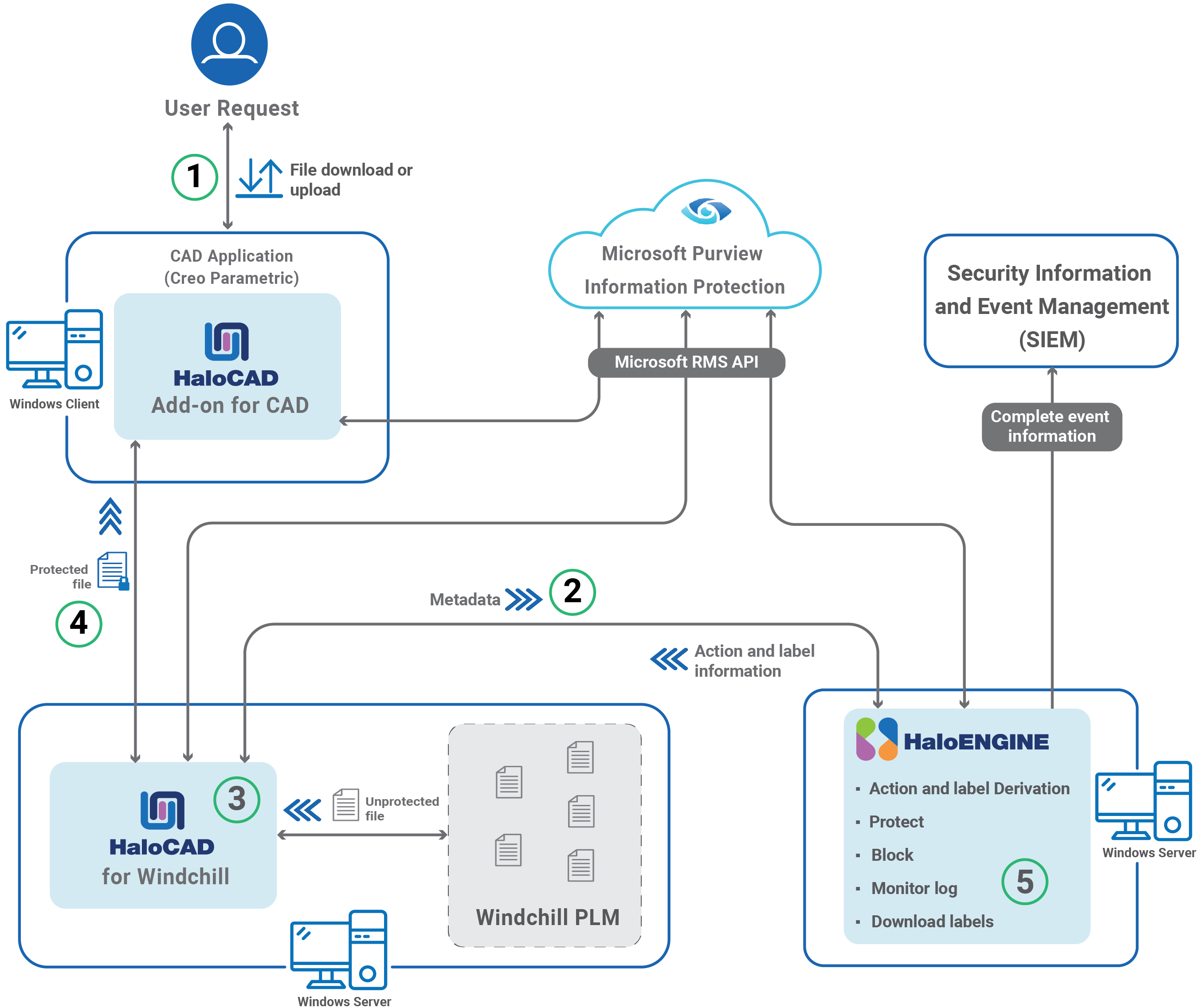
HaloCAD for Windchill
Step 1: User File Selection (Check-out / Check-in)
-
The user creates a new CAD or Microsoft Office document or opens an existing workspace object from the client.
-
The user performs a check-out (download) or check-in (upload).
Step 2: Request Monitoring and Interception
-
HaloCAD for Windchill intercepts every file the user attempts to download, retrieves it from the PLM Vault, and collects its associated metadata.
-
The metadata is sent to HaloENGINE GenNXT, which evaluates the configuration, determines the required action and label, and returns the results to HaloCAD for Windchill.
Step 3: Encryption / Decryption
HaloCAD for Windchill carries out actions based on the provided action and label:
-
If no valid action exists, the file is downloaded without modification.
-
During check-in, if a valid action with a label is identified, the label is removed, and the decrypted file is stored in PLM Vault.
-
During check-out, if a valid action with a label is identified, the label is applied. Protection is performed based on the configured mode:
-
File Mode (Path-Based Processing): The file path is sent to the HaloCAD Tomcat Service for direct protection.
-
Stream Mode (Direct Stream Processing): The file content is sent as a byte stream to the HaloCAD Tomcat Service for protection.
-
-
If a block rule is configured in HaloENGINE GenNXT, HaloCAD for Windchill prevents the file from being downloaded.
Step 4: Processed File Delivery
The encrypted file with the assigned label is delivered to the user through the client application.
Step 5: Monitoring and Audit Log
HaloCAD for Windchill records event details and forwards them to the HaloENGINE GenNXT Monitor log.
How to Protect and Block a File
Fulfill the Requirements
-
HaloCAD for Windchill is installed and configured.
-
HaloCAD Add-on for Creo is installed.
-
HaloENGINE GenNXT is installed and configured.
For illustration purposes, this section describes a simple classification profile configuration.
-
Step 1: Create classification schemas based on your business requirements.
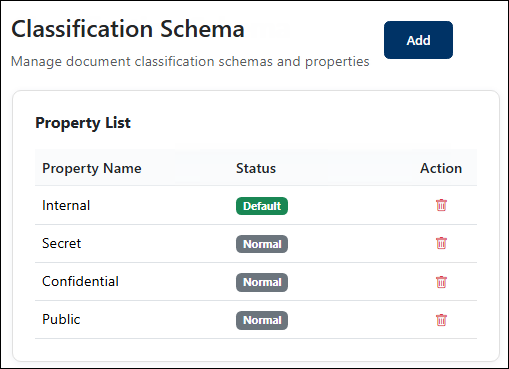
Sample classification schema
-
Step 2: Create a classification profile for the Windchill client type.
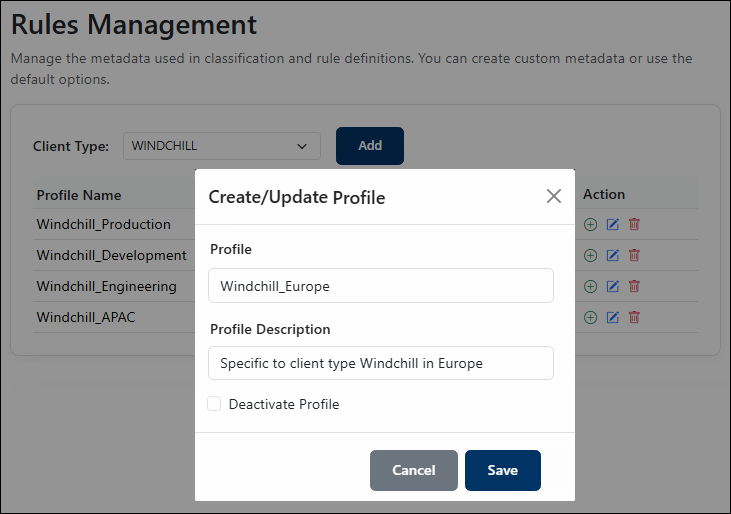
Sample classification profile
-
Step 3: Add classification rules to the profile.
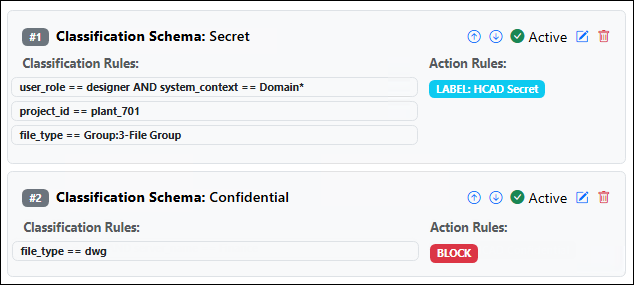
Sample classification rules
Download a Protected File
Follow these steps to download a protected CAD file from the PLM.
Download the File
-
Go to the Windchill Workspace and download a file by using Export from Workspace or Open in Creo.
-
Alternatively, go to Windchill Commonspace and download a file by using the Check Out and Download option.
Result
-
The downloaded file is labeled according to the configuration in HaloENGINE GenNXT.
-
The label-based encryption settings are enforced and remain with the file regardless of its storage location.
What to do next
-
If you are an authorized user, modify the label and save the file.
-
To view audit details, check the export event in the HaloENGINE GenNXT Monitor log.
Block a File Download
Follow these steps to verify file download blocking.
-
Go to the Windchill Workspace, attempt to download a file using Export from Workspace or Open in Creo.
-
Alternatively, go to Windchill Commonspace, attempt to download a file using the Check Out and Download option.
Result
-
The block action rule configured in HaloENGINE GenNXT prevents the file from being downloaded.
-
No file is downloaded.
-
For additional details, refer to the HaloENGINE GenNXT Monitor log.
Common Scenarios
This section presents some common scenarios for illustrative purposes and is meant to provide general guidelines.
Open a Protected CAD File
Prerequisite: Ensure that the HaloCAD Add-on for Creo is installed before opening a protected file.
-
Double-click the protected file to open it.
-
When you open a labeled file for the first time, the system prompts you to connect to the Microsoft Entra tenant using the Microsoft Sign-In Assistant.
-
Click OK when prompted that the Microsoft Sign-In Assistant has been invoked and the user credentials have been cached.
-
Follow the on-screen instructions to complete the authentication process.
Result
-
After successful authentication, the file opens.
-
Access to the document may vary depending on the configured policy settings.
-
For more information about access behavior, refer to the Operations Manual for HaloCAD Add-on for Creo.
Example 1: Application ID as the Owner of the File
The following figure shows an example of an Application ID that is used to initialize the HaloENGINE GenNXT. This Application ID is the default owner of the document. However, a static email or a user who logs in to Windchill can also be an owner of the downloaded file if specified in HaloENGINE GenNXT. Refer to Examples 2 and 3.
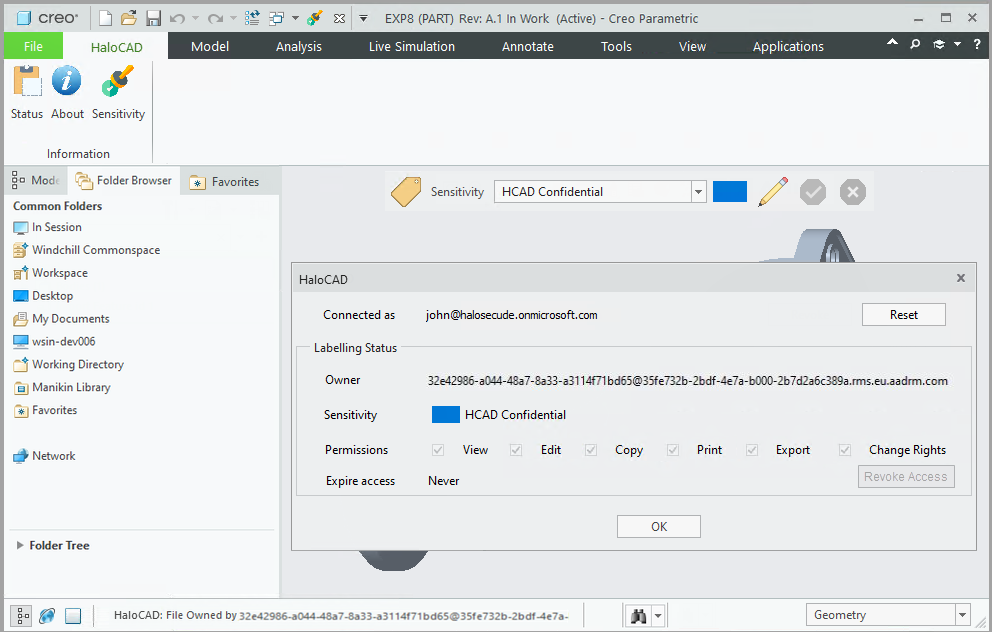
Application ID as the Owner of the File
Example 2: Static Email as the Owner of the File
The following figure shows an example of an email address configured in HaloENGINE GenNXT. This email address identifies the owner of the exported document.
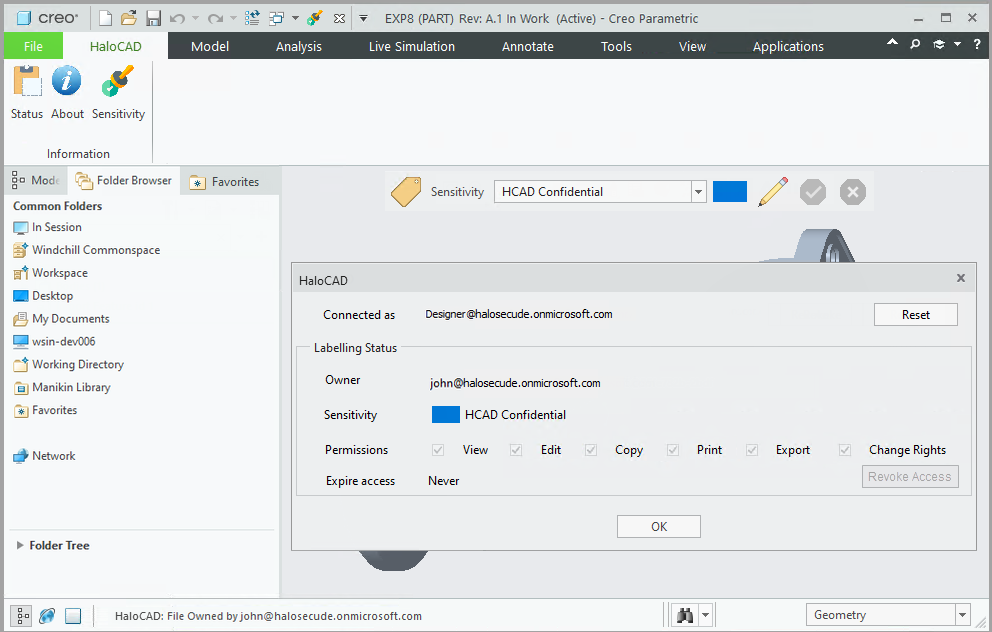
Static Email as the Owner of the File
Example 3: User as the Owner of the File
The following figure shows an example of a PLM logged-in user who becomes the owner of the document. To achieve this, set the Owner configuration to "user" in the HaloENGINE GenNXT Admin portal. The exported document uses the email address of the currently logged-in user as the owner.
If the user logged in to the Windchill PLM Server does not have an email address, the Application ID used to initialize HaloENGINE GenNXT becomes the owner of the document.
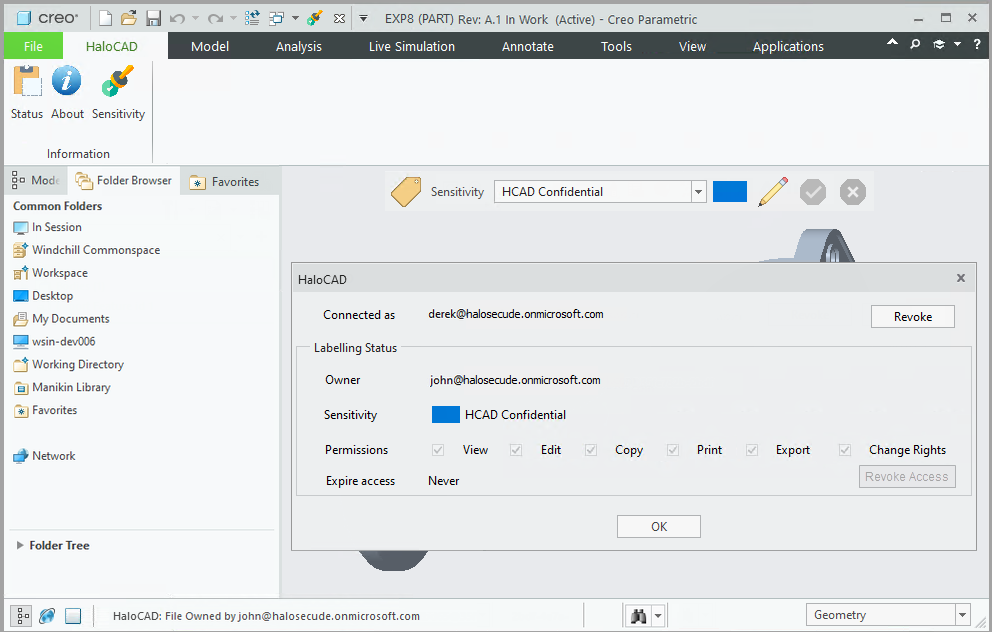
User as the Owner of the File
Example 4: File Upload and Download
The following figure shows an example of a PLM logged-in user who becomes the owner of the document. To achieve this, set the Owner configuration to "user" in the HaloENGINE GenNXT Admin Portal. The exported document uses the email address of the currently logged-in user as the owner.
Upload a File (Check-in Sequence)
-
Open the Creo Parametric application.
-
Log in to the PLM server using your credentials.
-
Navigate to Windchill Commonspace.
-
Click New Document.
-
The New Document screen appears.
-
Select the product type as Document.
-
Click Browse and select the file to upload. Note: In this example, the file (
Bill Of Materials.xlsx) is already protected with the HaloCAD_INTERNAL label. -
Click Finish.
Results
-
The file is uploaded to Windchill.
-
During the upload (check-in) process, the existing HaloCAD_INTERNAL label is removed.
-
The decrypted file is stored (checked in) in Windchill PLM.
-
The upload (check-in) event is logged in the HaloENGINE GenNXT Monitor log.
Download the File (Check-out Sequence)
-
From the list, select the previously uploaded file.
-
Click one of the available download options:
-
Download PDF
-
Download Text File
-
Download Unknown
-
Result
-
The file is downloaded to the default location.
-
During the download (check-out) process, the file is exported from Windchill with the HCAD Confidential label, as defined in HaloENGINE GenNXT.
-
The download (check-out) event is logged in the HaloENGINE GenNXT Monitor log.
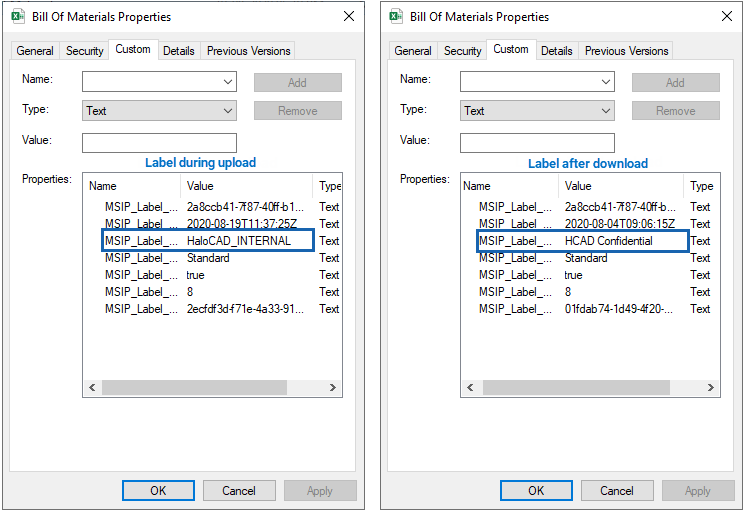
File upload and download Sequence
Technical Support
Before Contacting Technical Support
Before contacting Technical Support, ensure that you have the following information available. Providing this information helps the support team investigate and resolve your issue more efficiently.
-
Full contact details
-
Product build version
-
Date, time, and description of the error (include screenshots, if possible)
-
Details of any third-party software used with the product
-
Any additional information required to reproduce the issue
Contact Technical Support
Secude provides technical support through email support@secude.com. When contacting Technical Support by email, include your company details, a detailed description of the issue, and the relevant log files (if available). A support representative will respond to your inquiry.
Additional Resources
Visit the Secude website https://secude.com to learn about upcoming events, press releases, and to download white papers.
Documentation Feedback
Secude values your feedback and continuously strives to improve product documentation. To provide feedback, send an email to: documentation@secude.com
Include the following details in your feedback:
-
Product name and version
-
Documentation topic
-
Description of the suggestion or error
The technical documentation team reviews all feedback and incorporates relevant updates in future documentation releases.