
This chapter walks through the process of installing and configuring the HaloCAD for SOLIDWORKS PDM.
Before you begin
Before installing HaloCAD for SOLIDWORKS PDM, ensure that the following prerequisites are met.
-
Ensure that you have administrative access to install HaloCAD for SOLIDWORKS PDM.
-
Ensure that the client computer running HaloCAD for SOLIDWORKS PDM can connect to the SOLIDWORKS PDM Server.
-
Ensure that the machine with HaloENGINE GenNXT installed can reach the machine where HaloCAD for SOLIDWORKS PDM is installed.
-
Ensure that your HaloENGINE GenNXT meets the requirements listed below:
-
License file (enabled with SOLIDWORKS_PDM client type).
-
Proper action rules
-
Ensure that an authentication approach is selected for HaloENGINE GenNXT and HaloCAD for SOLIDWORKS PDM: Self-Signed Certificate or CA-Signed Certificate.
-
For a Self-Signed Certificate, export the public key of the HaloENGINE GenNXT server's self-signed certificate and install it in Trusted Root Certification Authorities on the system where HaloCAD for SOLIDWORKS PDM is installed.
-
For a CA-signed certificate, install the Root CA certificate in Trusted Root Certification Authorities on the system where HaloCAD for SOLIDWORKS PDM is installed. If an intermediate CA is used, ensure that the intermediate CA certificate is also available on the client system to validate the certificate chain.
-
-
-
Ensure that HaloCAD for SOLIDWORKS PDM and HaloENGINE GenNXT are installed with the same Directory (Tenant) ID. A mismatch in the Directory (Tenant) ID causes configuration errors.
-
Ensure that your Microsoft Entra ID application information is available when the setup process prompts for a manual installation. Alternatively, for a safe and automatic installation, use
hc.conf.enc. For more details, please refer to the Technical Reference Manual.
Installation Modes
HaloCAD for SOLIDWORKS PDM supports the following installation modes:
-
Graphical Mode
Graphical mode is an interactive installation method that uses a wizard-based graphical user interface.
-
Silent Mode
Silent mode is a non-interactive installation method that installs HaloCAD for SOLIDWORKS PDM by using command-line options.
Graphical Mode
Installation Procedure
Follow the steps below to install SOLIDWORKS PDM using the GUI-based setup application included in the installation package.
-
To begin the interactive installation, double-click the
HaloCAD_SWPDM_Setup.exeinstaller.Depending on your Windows security settings, a security warning similar to "Do you want to allow the following program to make changes to this computer?" may appear. If prompted, click Yes to continue the installation.
-
When the installer starts, the Startup dialog appears, followed by the restart prompt.
Startup dialog
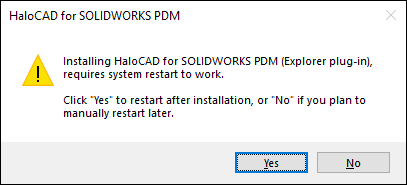
Restart message
-
To activate the HaloCAD component (Explorer plug-in), you must restart your computer after installation. When prompted, choose one of the following options:
-
Yes – The computer restarts automatically after the HaloCAD component is installed.
-
No – The HaloCAD component is installed, but the computer must be restarted manually later.
Note: The HaloCAD component becomes active only after the system is restarted.
-
-
After choosing an option in the restart prompt, the Welcome dialog appears.
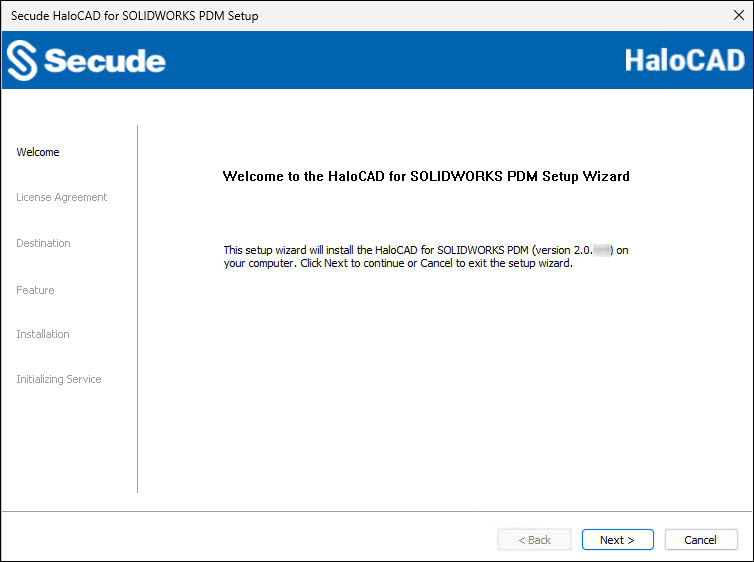
Welcome dialog
-
Click Next to continue.
-
The License Agreement dialog appears.
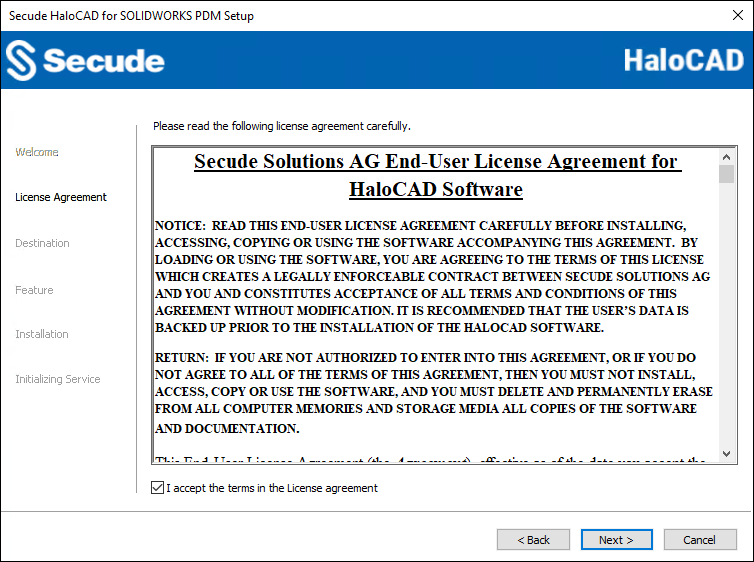
End-User License Agreement dialog
-
Read the End-User License Agreement. If you agree to the terms, select I accept the terms in the License Agreement, and then click Next.
-
The Destination dialog appears.
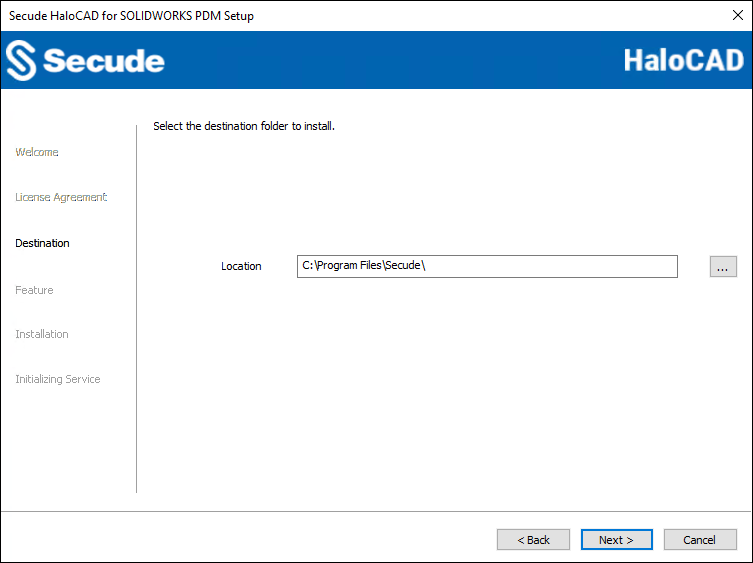
Destination folder selection dialog
-
By default, the application files are installed in the following directory:
C:\Program Files\Secude\. To install HaloCAD for SOLIDWORKS PDM in a different location, click Browse and select the required directory. To return to a previous step in the installation, click Back (optional). -
Click Next.
-
The Feature dialog appears.
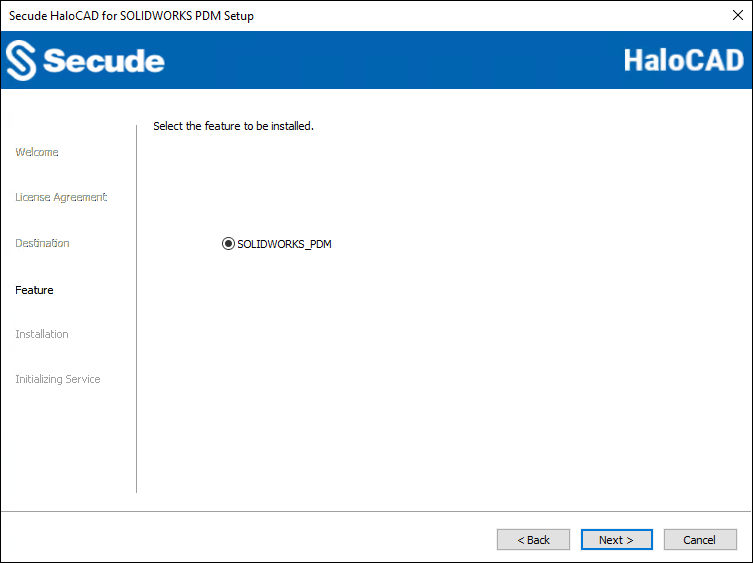
Feature selection dialog
-
By default, the SOLIDWORKS_PDM option is selected. To return to a previous step in the installation, click Back (optional).
-
Click Next.
-
The installation begins, and the progress is displayed in the Installation dialog.
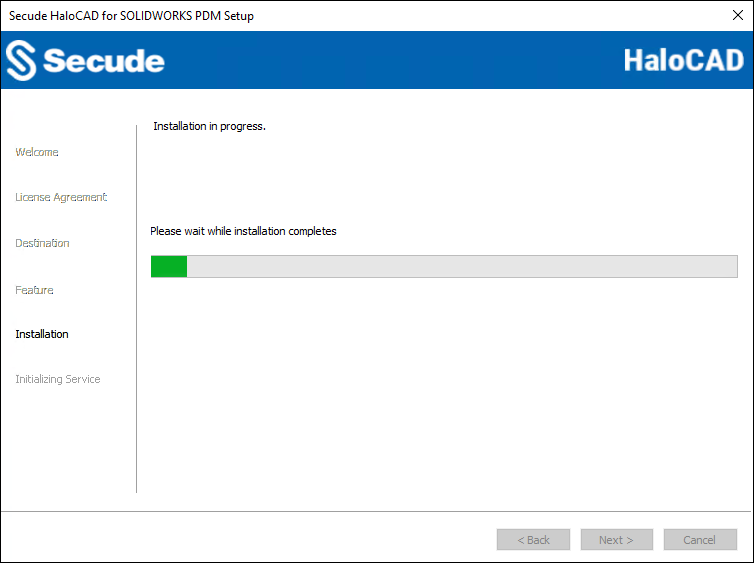
Installation dialog
-
When the installation is complete, a confirmation message appears indicating that the HaloCAD for SOLIDWORKS PDM component has been successfully installed.
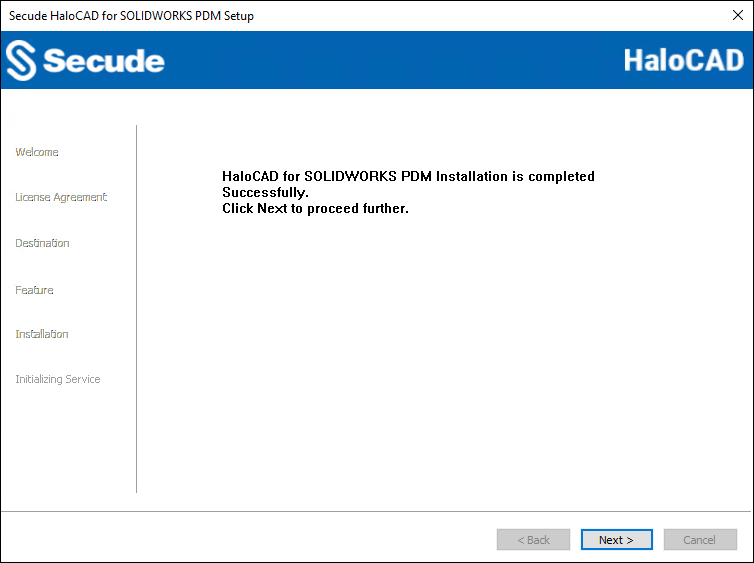
Installation completed dialog
-
Click Next.
-
The Initializing Service dialog appears.
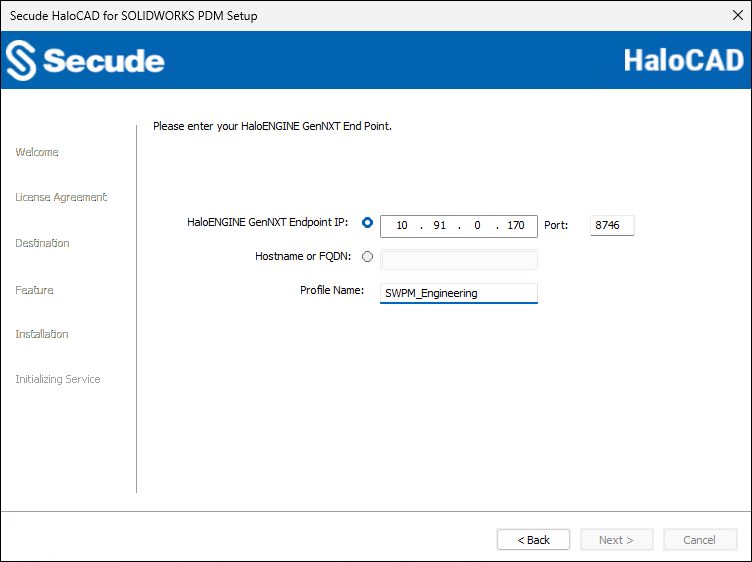
Endpoint dialog
-
Choose either the IP address or the hostname and provide the relevant information. In HaloENGINE GenNXT Endpoint IP, type the HaloENGINE GenNXT's IP address. For example, 10.91.0.170. Alternatively, type the fully qualified domain name (FQDN) or hostname into the Hostname or FQDN fields. For example,
SOLIDWORKSServer01.secude.com. The default port number 8746 is displayed; however, you can enter your HaloENGINE GenNXT port number instead. -
Enter the Profile Name that is assigned in the Admin Portal. For example,
SWPDM_Engineering. -
At this stage, HaloCAD attempts to connect to the HaloENGINE GenNXT. If an invalid endpoint is entered or the HaloENGINE GenNXT server cannot be reached, the installation is terminated with the error message “HaloENGINE GenNXT API endpoint is invalid or not reachable.” In this case, go back to the previous screen, provide a valid endpoint, confirm that the HaloENGINE GenNXT is reachable, and then select Next.
-
-
The MPIP information dialog appears. To avoid errors, ensure that you enter the correct Microsoft Entra ID application details in the installation wizard. Note: If the
hc.conf.encfile is included with the installer, this initialization screen is skipped, and only the completion dialog is shown. The initialization screen appears only when thehc.conf.encfile is not present in the installer folder.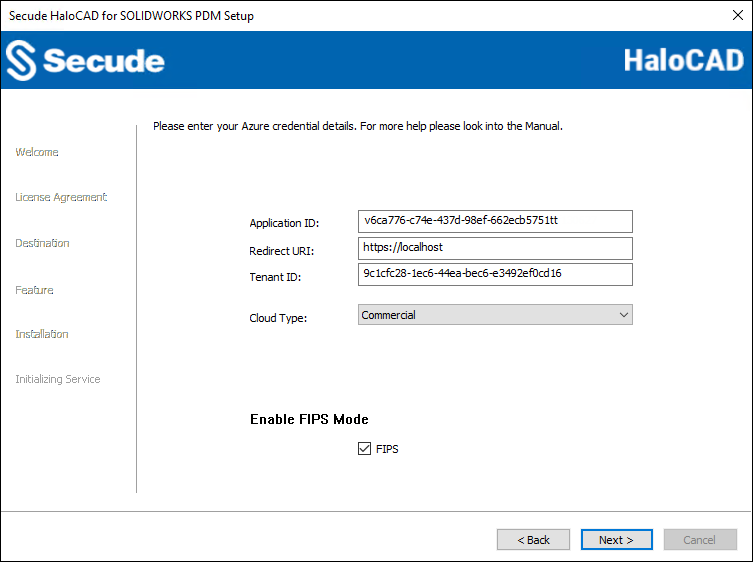
Initialization dialog
-
Application ID: Enter the Application ID of the registered application in the Microsoft Entra admin center. For example,
v6ca776-c74e-437d-98ef-662ecb5751tt -
Redirect URI: Enter the URI that was provided when registering the native application. For example,
https://localhost. -
Tenant ID: If the registered application is Single tenant, you need to enter the globally unique identifier of your tenant if not, you can leave it empty. For example,
9c1cfc28-1ec6-44ea-bec6-e3492ef0cd16 -
Cloud Type: Commercial is selected by default. Based on your Azure subscription and configuration, select the required cloud type from the list: Commercial, Custom, Germany, US_DoD, US_GCC, US_GCC_High, US_Sec, US_Nat, or China_01.
If you select Custom, enter the appropriate URLs in the Protection Cloud URL (for example,
https://api.aadrm.com) and Policy Cloud URL (for example,https://dataservice.protection.outlook.com) fields. -
Enable Federal Information Processing Standards (FIPS): Enable this option to use encryption algorithms that comply with FIPS standards. When enabled, MPIP uses only FIPS-compliant encryption algorithms, and when disabled, it uses standard encryption algorithms. If this option was not enabled during installation, it can later be enabled through a registry entry.
-
Click Next.
-
-
Once the initialization is complete, a success message appears as shown below.
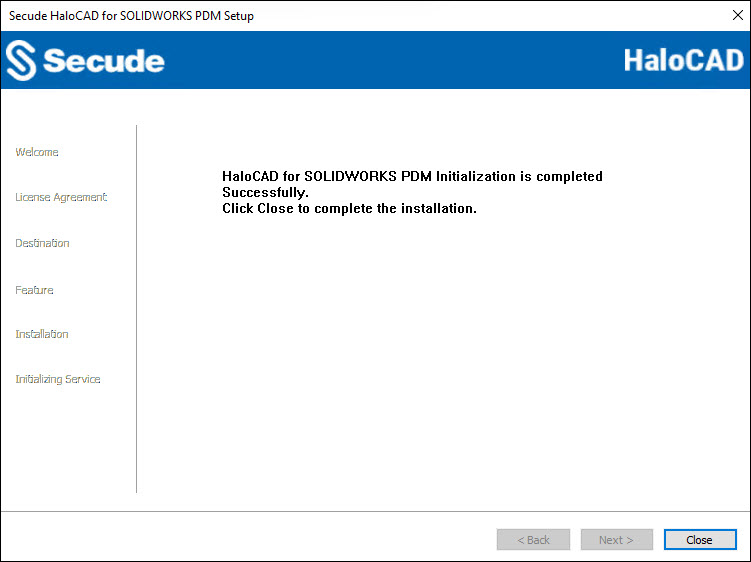
Initialization completed dialog
-
Click Close to exit the installation wizard.
-
Based on the selected option in the initial prompt displayed when clicking the installer:
-
If you choose Yes, the machine restarts automatically.
-
If you choose No, you must restart it manually.
-
Post-installation files
-
View log files at:
%AppData%\Roaming\Secude\HaloCAD\SOLIDWORKS PDM\halocad.log -
HaloCAD stores configuration settings in the Windows registry at
HKEY_LOCAL_MACHINE\SOFTWARE\Secude\HaloCAD for SOLIDWORKS PDM; do not modify registry values unless required. Only theenable_fipssetting may be changed (true: MPIP uses FIPS-compliant encryption algorithms;false: MPIP uses standard encryption algorithms). -
To update HaloENGINE GenNXT settings such as
profile_name, edit:HKEY_LOCAL_MACHINE\SOFTWARE\Secude\HaloCAD for SOLIDWORKS PDM\ep\HCADSWPDM -
Back up the registry before modifying any entries.
Silent Mode
In addition to Graphical Mode, you can install the HaloCAD for SOLIDWORKS PDM component in Silent Mode. Silent Mode does not require user interaction or display a user interface. It enables you to install using command-line options.
-
Open the Command Prompt with elevated rights (Run as Administrator).
-
Navigate to the directory that contains the HaloCAD for SOLIDWORKS PDM installer.
-
To view the available Silent Mode options, run the following command:
-
Type
HaloCAD_SWPDM_Setup.exe -help
PressEnter
Output
...
HaloCAD_SWPDM_Setup.exe [-install [-solidworkspdmshield] [-dir <destination_directory>]
[<ApplicationID> <Redirect URI> <TenantID/Name>] <haloengine_api_endpoint> <haloengine_api_port> <haloengine_api_ProfileName> <RestartRequired <true|false>> <Cloud Type ("Commercial"|"Custom"|"Germany"|"US_DoD"|"US_GCC"|"US_GCC_High"|"US_Sec"|"US_Nat"|"China_01"|"")> [(if Custom) <Protection Cloud Url> <Policy Cloud Url>] [enablefipsmode <true|false>]]
For Silent Mode Installation if ENC file already exists in the same location
HaloCAD_SWPDM_Setup.exe [-install [-solidworkspdmshield] [-dir <destination_directory>] <haloengine_api_endpoint> <haloengine_api_port> <RestartRequired <true|false>> <haloengine_api_ProfileName> <enablefipsmode <true|false>>]HaloCAD_SWPDM_Setup.exe [-uninstall -silent <true|false>]Note: By selecting
true, the computer restarts immediately after installing the HaloCAD component. Iffalseis selected, the HaloCAD component is installed, but the computer must be restarted manually later. The HaloCAD component becomes active only after a system restart. -
The following command shows how to install and initialize HaloCAD.
HaloCAD_SWPDM_Setup.exe -install -solidworkspdmshield -dir "C:\Program Files\Secude" v6ca776-c74e-437d-98ef-662ecb5751tt https://localhost 9c1cfc28-1ec6-44ea-bec6-e3492ef0cd16 10.91.0.170 8746 SWPDM_Engineering true Custom https://api.aadrm.com https://dataservice.protection.outlook.com -enablefipsmode true -
The example below shows how to install the add-on using the
hc.conf.encfile located in the same installation location.
HaloCAD_SWPDM_Setup.exe -install -solidworkspdmshield -dir "C:\Program Files\Secude" 10.91.0.170 8746 false SWPDM_Engineering -enablefipsmode true -
Press
Enter.Result
The installation is complete.
Next Step
After the installation is complete, you can view the HaloCAD-protected files. Please refer to the Operations Manual for more information.