
About this Manual
This manual provides comprehensive guidelines and step-by-step instructions for working with HaloCAD solutions (Monitor and Protect). For installation and configuration instructions, refer to the Installation Manual included with the product package.
General FAQs
This section provides answers to the most frequently asked questions (FAQ). If you have further inquiries, please contact our sales representative or support team.
-
What does HaloCAD provide for an organization?
HaloCAD solution protects engineering CAD files and enforces security throughout their full life cycle. -
What languages are supported by the HaloCAD Add-on?
Currently, the HaloCAD Add-on only supports the English language. -
Does the HaloCAD Add-on support all native CAD file types?
Yes, the HaloCAD Add-on supports all native CAD file types. -
What happens if an unauthorized person tries to open a HaloCAD-protected CAD file?
Initially, user authentication occurs. It is a process of verifying the identity of the user. If the user fails during authentication, he/she will be prompted with an error message, and access will be denied. -
Who decides what labels should be used for various CAD drawings and how they are managed in the background?
An administrator in an organization creates and manages labels (user rights) in the Microsoft Entra admin center.
Engineering managers can define a profile, a classification schema, and an action rule based on the sensitivity of the data to regulate how labels are allocated to different users in HaloENGINE GenNXT.
How does it work?
At a high level, the HaloCAD for SOLIDWORKS PDM workflow comprises the following steps:
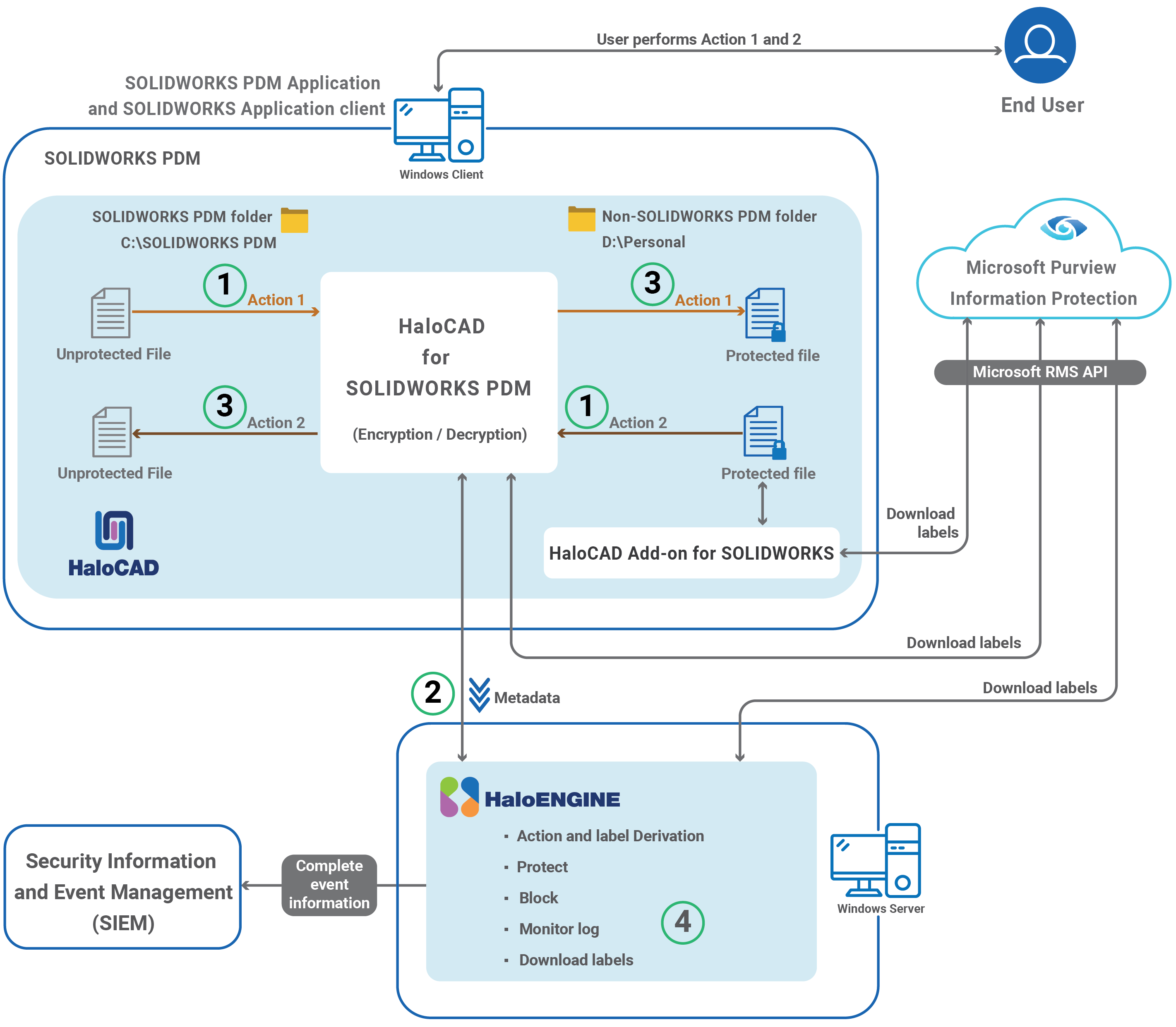
HaloCAD for SOLIDWORKS PDM
Step 1: HaloCAD starts automatically
-
Action #1: The user copies a file from a SOLIDWORKS PDM folder and pastes it into a non-SOLIDWORKS PDM folder, or the user creates a new file or saves an existing file to a non-SOLIDWORKS PDM folder using the SOLIDWORKS application.
-
Action #2: The user copies a previously protected SOLIDWORKS application file to a SOLIDWORKS PDM folder.
Step 2: Send metadata to the HaloENGINE GenNXT
-
HaloCAD for SOLIDWORKS PDM intercepts the copy or cut operation in the background, retrieves metadata from the PDM folder, and passes it to the HaloENGINE GenNXT.
-
Based on the collected metadata, the HaloENGINE GenNXT determines the action derivation and transmits it to HaloCAD for SOLIDWORKS PDM.
Step 3: Execute Action Rule and Deliver Processed File
-
Action #1 (Encrypt): HaloCAD for SOLIDWORKS PDM encrypts the file based on the derived action rule and sensitivity label. The encrypted file is then sent to the user-specified destination folder. When opened using the HaloCAD Add-on for SOLIDWORKS, the protected file displays the enforced permission label.
-
Action #2 (Decrypt): If the file is already encrypted, HaloCAD for SOLIDWORKS PDM decrypts it by default and sends the decrypted file to the SOLIDWORKS PDM folder.
-
If an invalid action is configured or no action rule is provided, the file is not processed.
Files created, saved, or exported to the SOLIDWORKS PDM folder using the SOLIDWORKS application are not protected. However, label information is retrieved from HaloENGINE GenNXT and preserved. As a result, the associated sensitivity label is displayed when the file is opened in the SOLIDWORKS application.
Additionally, HaloCAD for SOLIDWORKS PDM can prevent files from being moved or copied from the SOLIDWORKS PDM folder to a non-SOLIDWORKS PDM folder when an appropriate blocking action rule is configured in HaloENGINE GenNXT.
Step 4: Monitor log
HaloCAD for SOLIDWORKS PDM records event details and forwards them to the HaloENGINE GenNXT Monitor log.
How to Protect and Block a File?
Fulfill the Requirements
-
HaloCAD for SOLIDWORKS PDM is installed and configured.
-
HaloCAD Add-on for SOLIDWORKS is installed.
-
HaloENGINE GenNXT is installed and configured.
For illustration purposes, this section describes a simple classification profile configuration.
-
Step 1: Create classification schemas based on your business requirements.
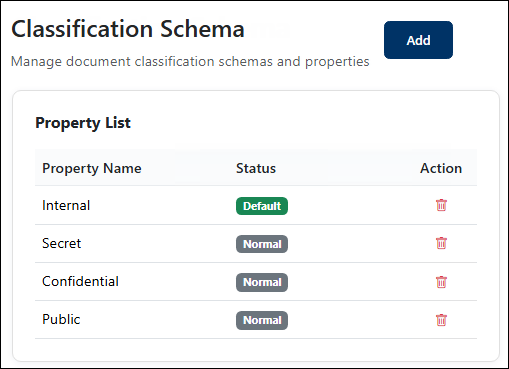
Sample classification schema
-
Step 2: Create a classification profile for the SOLIDWORKS PDM client type.
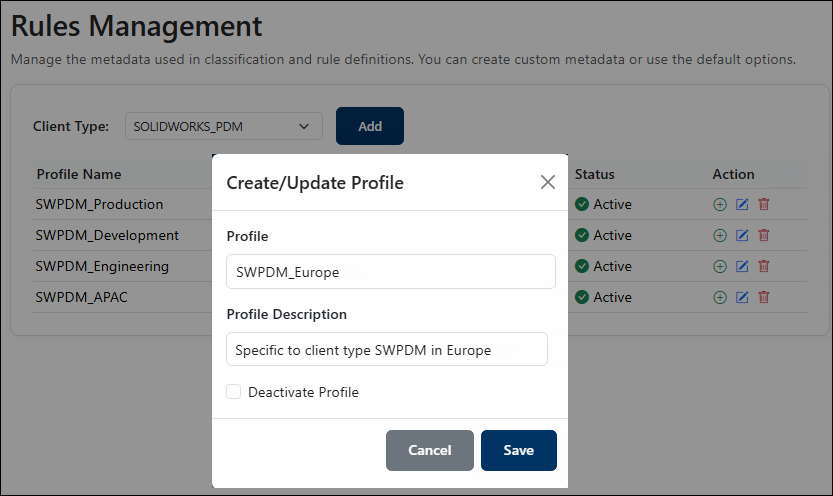
Sample classification profiles
-
Step 3: Add rules to the profile.
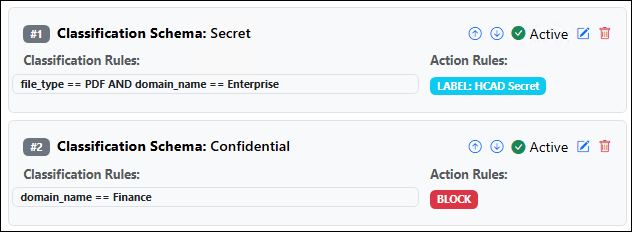
Sample classification rules
Download a Protected File
Follow these steps to download a protected CAD file from the PDM.
-
Move or copy a CAD file from the SOLIDWORKS PDM folder to a non-SOLIDWORKS PDM folder.
-
Microsoft Sign-in prompts you to enter your login information.
-
Enter the credentials and click Sign in.
Result:
-
The copied file is labeled according to the configuration in HaloENGINE GenNXT.
-
The label-based encryption settings are enforced and remain with the file regardless of its storage location.
Block a File Download
-
Move or copy a CAD file from the SOLIDWORKS PDM folder to a non-SOLIDWORKS PDM folder.
-
Microsoft Sign-in prompts you to enter your login information.
-
Enter the credentials and click Sign in.
Result: The copying action is terminated with the HaloCAD message “Copying the file is blocked by the rules.” The rules set up in HaloENGINE GenNXT control the prevention of copying events.
How to Open a Protected CAD File?
Prerequisite: Before opening the protected file, make sure the HaloCAD Add-on for SOLIDWORKS is installed.
-
Click the protected file to open it.
-
When a labeled file is opened for the first time, a connection to the Microsoft Entra tenant is requested via the Microsoft Sign-In Assistant.
-
Click OK when prompted that the Microsoft Sign-In Assistant has been invoked and the user credentials have been cached.
-
Follow the on-screen instructions to complete the authentication process.
Result
-
After successful authentication, the file opens.
-
Users may experience different access outcomes for the same document, depending on the configured policy settings. For more details, refer to the "Operations Manual of HaloCAD Add-on for SOLIDWORKS".
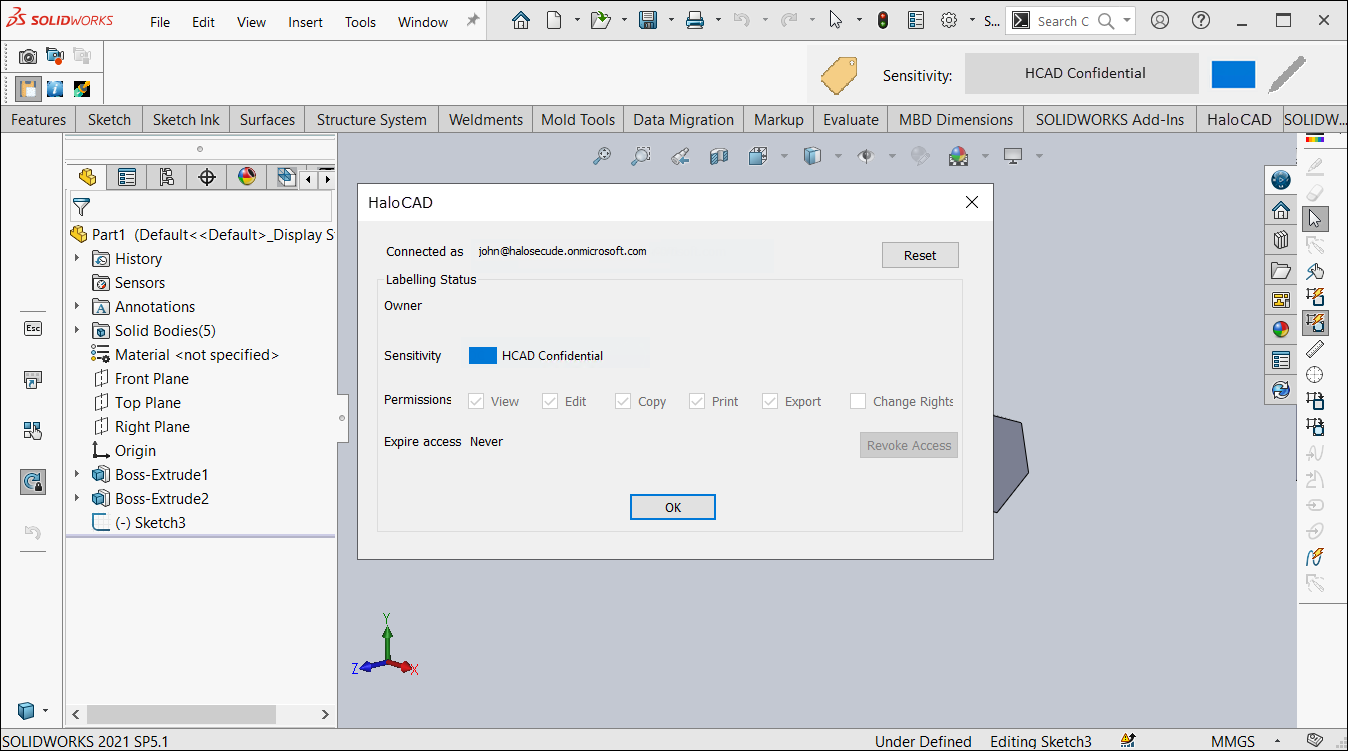
Sample file
Technical Support
Before Contacting Technical Support
Before contacting Technical Support, ensure that you have the following information available. Providing this information helps the support team investigate and resolve your issue more efficiently.
-
Full contact details
-
Product build version
-
Date, time, and description of the error (include screenshots, if possible)
-
Details of any third-party software used with the product
-
Any additional information required to reproduce the issue
Contact Technical Support
Secude provides technical support through email support@secude.com. When contacting Technical Support by email, include your company details, a detailed description of the issue, and the relevant log files (if available). A support representative will respond to your inquiry.
Additional Resources
Visit the Secude website https://secude.com to learn about upcoming events, press releases, and to download white papers.
Documentation Feedback
Secude values your feedback and continuously strives to improve product documentation. To provide feedback, send an email to: documentation@secude.com
Include the following details in your feedback:
-
Product name and version
-
Documentation topic
-
Description of the suggestion or error
The technical documentation team reviews all feedback and incorporates relevant updates in future documentation releases.