
This section provides supplemental information.
Third-Party Libraries
Third-party software/code is included or bundled with Secude's products according to its appropriate license. Secude conducts testing to make sure the third-party products are compatible with and perform as intended with Secude applications.
The third-party libraries and dependencies used by HaloCAD for SOLIDWORKS PDM are shown in the table below.
|
Library |
Version |
Source Code |
License Link |
|---|---|---|---|
|
Mhook |
2.5.1 |
||
|
Protobuf Library |
3.15.6 |
https://github.com/protocolbuffers/protobuf/blob/master/LICENSE |
|
|
JSON Parser |
3.11.3 |
||
|
OpenSSL |
3.4.5 |
||
|
tbb |
2021.6.0 |
https://github.com/dwaddington/tbb-2018/blob/tbb_2018/LICENSE |
|
|
MSAL |
4.72.1 |
https://github.com/AzureAD/microsoft-authentication-library-for-dotnet |
https://github.com/AzureAD/microsoft-authentication-library-for-dotnet/blob/master/LICENSE |
|
WTL |
10.0.10320 |
||
|
MIP SDK |
1.18.103 |
https://learn.microsoft.com/en-us/information-protection/develop/version-release-history |
https://docs.microsoft.com/en-us/information-protection/develop/ |
Third-party libraries
SOLIDWORKS PDM Metadata Definitions
The table below lists the SOLIDWORKS PDM metadata available in the HaloENGINE GenNXT.
|
SOLIDWORKS PDM Metadata |
Use |
|---|---|
|
author_name |
Derivation from the Web2 client interface Items author. |
|
domain_name |
Derivation from the network domain name associated with the current user. (For example, |
|
file_type |
Derivation from file type. File types of SOLIDWORKS. |
|
user_name |
Derivation from machine logged-on user. (For example, John and Derek) |
|
client_hostname |
Derivation from the computer where SOLIDWORKS PDM is installed. (For example, |
|
current_state |
Derivation from the file's status as set in SOLIDWORKS PDM. (For example, Approved and Waiting for approval) |
|
project_name |
The name of the project from which the saved file is derived. (For example, CMS Turbo Engine) |
|
ad_group |
Derivation from the domain groups. (For example, Domain Users and Superusers) |
|
folder_path |
Derivation from folder name in SOLIDWORKS PDM server. (For example, Please note that files cannot be encrypted if the folder name ( |
|
preexpression_custom_pre-expression |
Derivation from custom pre-expression
|
SOLIDWORKS PDM metadata
Uninstalling HaloCAD for SOLIDWORKS PDM
When you no longer use HaloCAD for SOLIDWORKS PDM, you may uninstall the application. Uninstalling removes all files and registry settings that were added to your computer during the initial installation.
Method #1
-
Click Start menu > go to Control Panel > Programs > Programs and Features > Uninstall a Program > select HaloCAD for SOLIDWORKS PDM application from the list > right-click and select Uninstall option or double-click on the installer
HaloCAD_SWPDM_Setup.exefile. -
Depending on your Windows security settings, you may get a security warning as "Do you want to allow the following program to make changes to this computer?". If you get this security warning, click the Yes button to confirm that you want to uninstall the add-on.
-
The warning message shown below appears.
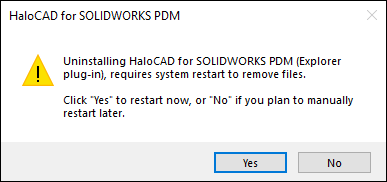
Uninstall Message #1
-
Uninstalling HaloCAD for SOLIDWORKS PDM (Explorer plug-in) requires your computer to restart to confirm that all files have been completely removed.
-
Yes — The computer restarts immediately after removing the HaloCAD component.
-
No — The HaloCAD component is uninstalled, but the computer must be restarted manually later.
-
-
The following notification appears asking you to confirm the uninstall, regardless of whether you selected Yes or No in the previous message.
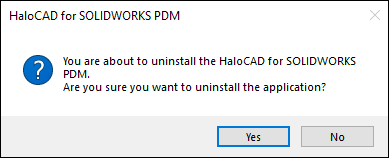
Uninstall Message #2
-
Click Yes to begin the uninstallation. If you choose No, the uninstalling process ends.
-
The following confirmation message appears.
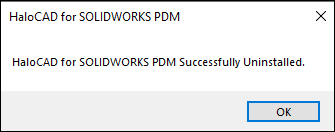
Uninstall Message #3
Result
-
The HaloCAD component is successfully uninstalled.
-
Click OK to close the dialog.
-
The uninstallation process is complete.
-
Alternative method: Open Command Prompt as an administrator, run
HaloCAD_SWPDM_Setup.exe -uninstall -silent true, and select Yes to restart the computer immediately after uninstalling the HaloCAD component, or No to complete the uninstallation and restart the computer manually later.
-