
This section describes two methods (command line and GUI) for configuring the parameters of HaloCAD and HaloENGINE GenNXT.
Configuration Using Tool (GUI)
Prerequisites: Ensure that HaloCAD for Autodesk Vault is installed before proceeding.
Follow these steps to configure the settings through the GUI:
Step 1. Run the HaloCAD Configuration Tool.
-
Navigate to the installation directory. By default, the directory is:
C:\Program Files\Secude\HalocadVault\config. -
Do one of the following:
-
Double-click the JAR file
HaloCAD-for-Autodesk-Vault-config-<version>.jar -
Open Command Prompt as an administrator, type the following command, and then press Enter.
Syntax:
<pathtojar>java -jar HaloCAD-for-Autodesk-Vault-config-<version>.jar
For example:C:\Program Files\Secude\HalocadVault\config>java -jar HaloCAD-for-Autodesk-Vault-config-<version>.jar
-
Result: The HaloCAD for Autodesk Vault Config Tool window is displayed.
Step 2. Enter the Autodesk Vault Configuration Settings.
Select the Autodesk Vault Configuration tab, and then enter the following information.
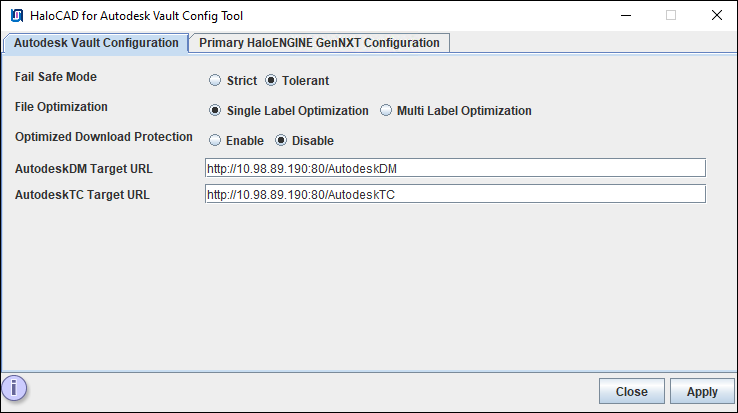
Autodesk Vault configuration tab
-
Fail-Safe Mode: The Fail Safe Mode controls the system behavior when inconsistencies prevent the specified protection from being applied (for example, conflicting configurations, unreachable server components, or returned error messages). Select one of the following options:
-
Strict: Blocks file uploads and downloads whenever an error occurs.
-
Tolerant (default): Allows file uploads and downloads even when an error occurs.
-
-
File Optimization: Choose one of the following options for file optimization. By default, Single Label Optimization is set.
-
Single Label Optimization: The top-level file label is considered and applied to all dependent files.
-
Multi Label Optimization: Each file type group label defined in the Classification Engine is considered and applied to the corresponding group during ASM optimization.
-
-
Optimized Download Protection: When this option is enabled (disabled by default), during the download of assembly files (for example, a parent ASM with dependent files), the smallest single file is protected and delivered to the user’s download location. The remaining files are then automatically protected at the user’s download location by the HaloCAD for PLM Client.
-
AutodeskDM Target URL: Enter the AutodeskDM Target URL on which your Autodesk Vault is hosted. For example,
http://10.98.89.190:80/AutodeskDM. -
AutodeskTC Target URL: Enter the AutodeskTC Target URL on which your Autodesk Vault Thin Client is installed. For example,
http://10.98.89.190:80/AutodeskTC. -
Click Apply. If required values are missing, a red tooltip message appears. Enter the missing information and click Apply to continue.
Result:
-
A confirmation message dialog box appears.
-
Click OK to close the dialog box.
Step 3. HaloENGINE GenNXT Configuration
Select the Primary HaloENGINE GenNXT Configuration tab, and then enter the following information.
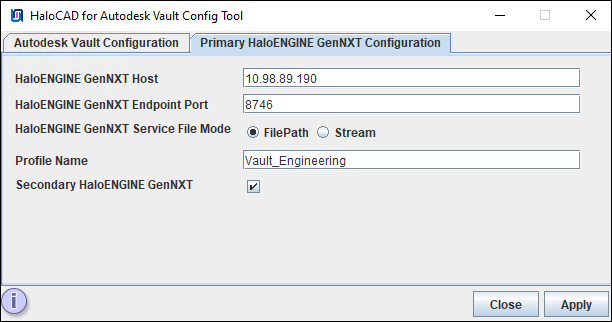
Primary HaloENGINE GenNXT configuration tab
-
HaloENGINE GenNXT Host: Enter the IP address or fully qualified domain name (FQDN) of the HaloENGINE GenNXT server. Example,
10.98.89.190 -
HaloENGINE GenNXT Endpoint Port: Enter the endpoint port used to access HaloENGINE GenNXT. For example,
8746 -
HaloENGINE GenNXT Service File Mode: Select the file transmission method.
-
FilePath (default): Stores the file in a local temporary location for the encryption and decryption process. The file path is used for file transfer.
-
Stream: Transfers the file as a sequence of bytes.
-
-
Profile Name: Enter the profile name configured in the Admin Portal. For example,
Vault_Engineering. -
Secondary HaloENGINE GenNXT: To configure a failover mechanism, select the Secondary HaloENGINE GenNXT check box. HaloCAD supports connection failover between two HaloENGINE GenNXT instances. For more information, please refer to the section “Failover Mechanism for HaloENGINE GenNXT in HaloCAD for PLM”.
-
Click Apply. If required values are missing, a red tooltip message appears. Enter the missing information and click Apply to continue.
Result:
-
A confirmation message dialog box appears.
-
Click OK to close the dialog box.
-
If you have selected the Secondary HaloENGINE GenNXT option, you can notice that the Secondary HaloENGINE GenNXT Configuration tab has been added to the configuration tool, as shown in Step 4 below.
Step 4. Select the Secondary HaloENGINE GenNXT Configuration tab, and then enter the following information.
Skip this step if you are not configuring a secondary HaloENGINE GenNXT. This step is required only if you want to use the failover mechanism.
Prerequisite: Ensure that the secondary HaloENGINE GenNXT uses the same configuration profiles and rules as the primary HaloENGINE GenNXT. This ensures that, if the primary HaloENGINE GenNXT becomes unavailable, the secondary HaloENGINE GenNXT can immediately take over and maintain uninterrupted operation.
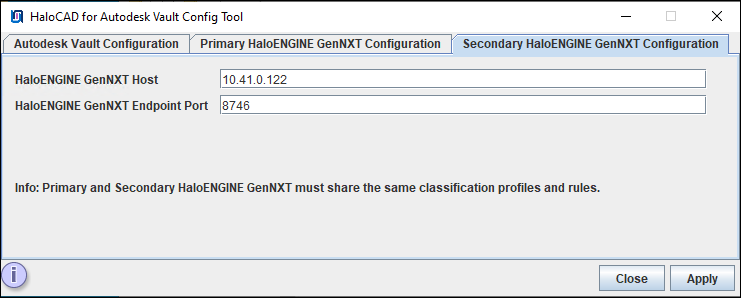
Secondary HaloENGINE GenNXT configuration tab
-
HaloENGINE GenNXT Host: Enter the IP address or fully qualified domain name (FQDN) of the HaloENGINE GenNXT server. For example,
10.41.0.122. -
HaloENGINE GenNXT Endpoint Port: Enter the endpoint port used to access HaloENGINE GenNXT. For example,
8746 -
Click Apply. If required values are missing, a red tooltip message appears. Enter the missing information and click Apply to continue.
Result:
-
A confirmation message dialog box appears.
-
Click OK to close the dialog box.
Step 5. Restart the Tomcat Service.
Restart the HaloENGINE GenNXT Tomcat Service after making any configuration changes.
Configuration Using the Command Line
This section describes an alternative method for configuring HaloCAD for Autodesk Vault and HaloENGINE GenNXT parameters by using the command line.
Prerequisite: Ensure that HaloCAD for Autodesk Vault is installed.
Follow the command-line instructions. A sample is provided below:
-
Open a command prompt and navigate to the destination folder, type
java -jar HaloCAD-for-Autodesk-Vault-config-<version>.jar -shell, and press Enter.C:\Program Files\Secude\HalocadVault\config>Java -jar HaloCAD-for-Autodesk-Vault-config-<version>.jar -shell -------------------------------------------------------------------------------- -------------------------------------------------------------------------------- HaloCAD for Autodesk Vault Config Path: C:\Program Files\Secude\HalocadVault\config 1. Autodesk Vault Configuration 2. Primary HaloENGINE GenNXT Configuration 0. Exit Note: If an invalid value is entered, the default value will be applied. Please choose an option:1 -------------------------------------------------------------------------------- Autodesk Vault Configuration -------------------------------------------------------------------------------- Fail Safe Mode: (Default:Tolerant) : 1. Tolerant 2. Strict Please choose an option: 1 File Optimization: (Default:Single Label Optimization) 1. Multi Label Optimization 2. Single Label Optimization Please choose an option: 1 Optimized Download Protection: (Default:Disable) 1. Enable 2. Disable Please choose an option: 2 Enter the AutodeskDM Target URL :http://10.98.89.190:80/AutodeskDM Enter the AutodeskTC Target URL :http://10.98.89.190:80/AutodeskTC Saved Successfully. -------------------------------------------------------------------------------- Autodesk Vault Configuration Fail Safe Mode :Tolerant File Optimization :Multi Label Optimization Optimized Download Protection :Disable AutodeskDM Target URL :http://10.98.89.190:80/AutodeskDM AutodeskTC Target URL :http://10.98.89.190:80/AutodeskTC 1. Modify all configuration 2. Modify the particular configuration 3. Back to main menu 0. Exit Please choose an option: 3 -------------------------------------------------------------------------------- 1. Autodesk Vault Configuration 2. Primary HaloENGINE GenNXT Configuration 0. Exit Note: If an invalid value is entered, the default value will be applied. Please choose an option:2 -------------------------------------------------------------------------------- Primary HaloENGINE GenNXT Configuration HaloENGINE GenNXT Host IP : HaloENGINE GenNXT Endpoint Port : HaloENGINE GenNXT Service Mode :Local HaloENGINE GenNXT Service File Mode:File Path Profile Name : Secondary HaloENGINE GenNXT :Disable Secondary HaloENGINE GenNXT 1. Modify all configuration 2. Modify the particular configuration 3. Back to main menu 0. Exit Please choose an option: 1 -------------------------------------------------------------------------------- Primary HaloENGINE GenNXT Configuration Enter the Primary HaloENGINE GenNXT Host:10.98.89.198 Enter the Primary HaloENGINE GenNXT Endpoint Port(Default:8746) :8746 Enter the Profile Name:Vault_Engineering Secondary HaloENGINE GenNXT: (Default:Disable Secondary HaloENGINE GenNXT) 1. Disable Secondary HaloENGINE GenNXT 2. Enable Secondary HaloENGINE GenNXT Please choose an option: 1 Saved Successfully. -------------------------------------------------------------------------------- Primary HaloENGINE GenNXT Configuration HaloENGINE GenNXT Host IP :10.98.89.198 HaloENGINE GenNXT Endpoint Port :8746 HaloENGINE GenNXT Service Mode :Local HaloENGINE GenNXT Service File Mode:File Path Profile Name :Vault_Engineering Secondary HaloENGINE GenNXT :Disable Secondary HaloENGINE GenNXT 1. Modify all configuration 2. Modify the particular configuration 3. Back to main menu 0. Exit -
Click Close to close the command prompt.