
This section provides supplemental information.
Failover Mechanism for HaloENGINE GenNXT in HaloCAD for PLM
Server failover between two systems supports uninterrupted operation and service reliability in the event of a failure. The server failover configuration is active-standby, where the primary server is active, and the secondary server is standby.
HaloCAD for PLM supports connection failover between two HaloENGINE GenNXT instances. The failover mechanism provides the following benefits:
-
High Availability: If the primary HaloENGINE GenNXT fails, the secondary HaloENGINE GenNXT takes over, reducing downtime and maintaining continuous operation.
Example: Assume that your business process requires no downtime.
As part of the business security policy, the administrator configures Fail-Safe Mode as Strict to block file uploads or downloads whenever an error occurs. If HaloENGINE GenNXT encounters an unexpected issue and fails to obtain label information, file uploads or downloads are prevented. In such cases, the HaloENGINE GenNXT failover mechanism handles the situation without affecting the end user. If the primary HaloENGINE GenNXT connection fails, HaloCAD detects the failure and immediately switches to the secondary HaloENGINE GenNXT to continue providing services.
Once the primary HaloENGINE GenNXT is restored, it remains in standby while the secondary HaloENGINE GenNXT remains active. If the secondary HaloENGINE GenNXT fails, the primary HaloENGINE GenNXT takes over operations again.
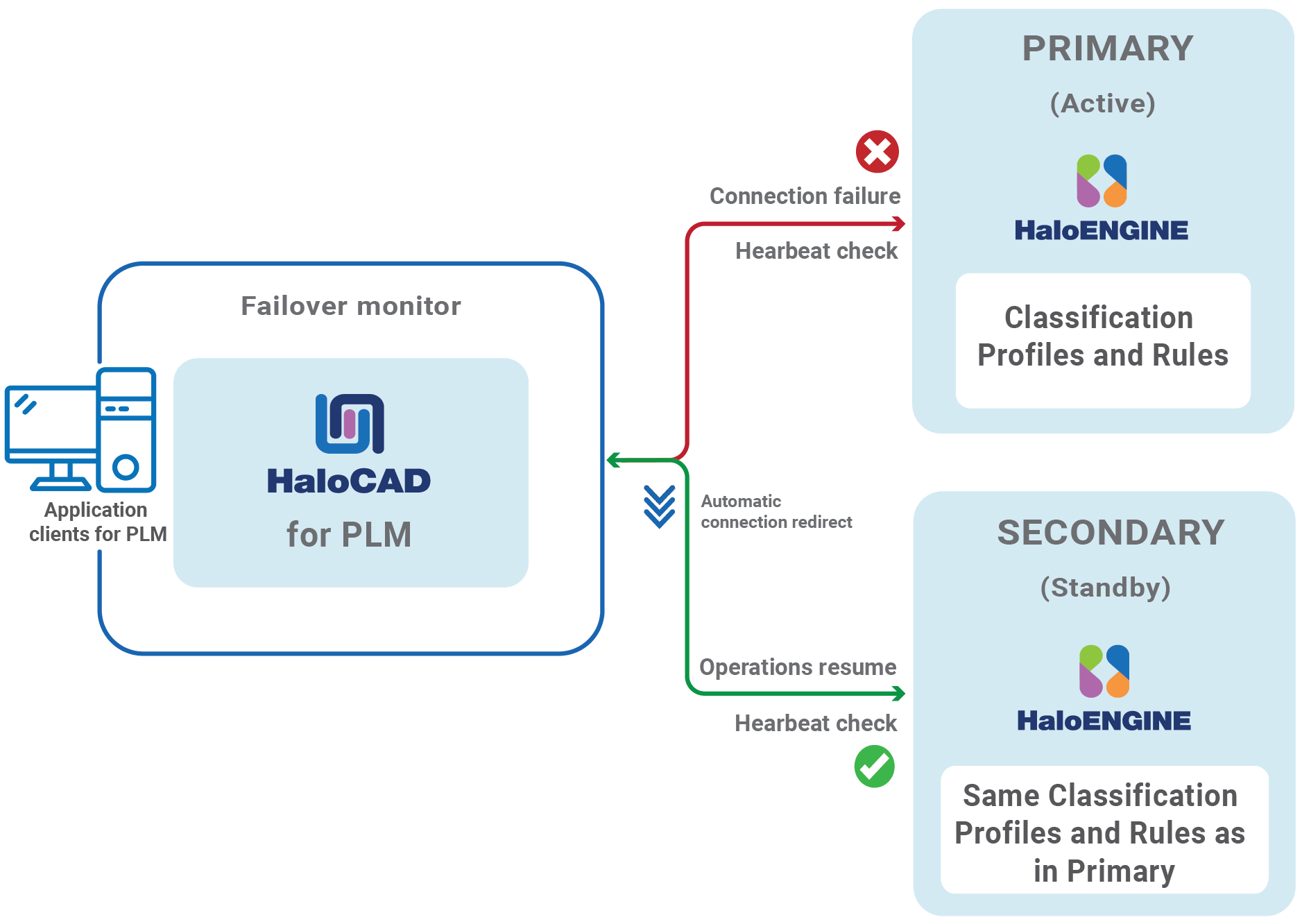
Failover Mechanism for HaloENGINE GenNXT in HaloCAD for PLM
-
Redundancy: Provides redundancy by ensuring that another HaloENGINE GenNXT is always available to take over if the primary HaloENGINE GenNXT fails. This minimizes the possibility of a single point of failure.
-
Data Integrity and Consistency: In the event of a failure, the failover mechanism helps ensure that data remains consistent and that file upload and download activities are not lost. This is crucial for systems that rely on high data security.
Failover Mechanism Requirement
-
Network Infrastructure: Deploy the secondary HaloENGINE GenNXT on a separate network segment from the primary HaloENGINE GenNXT.
-
Data Replication: Ensure that both HaloENGINE GenNXT use the same classification profiles and rules.
Third-Party Libraries
Third-party software/code is included or bundled with Secude's products according to its appropriate license. Secude conducts testing to make sure the third-party products are compatible with and perform as intended with Secude applications.
The third-party libraries and dependencies used by HaloCAD for Autodesk Vault are shown in the table below.
Third-party libraries
Autodesk Vault Metadata Definitions
The table below lists the Autodesk Vault metadata available in the HaloENGINE GenNXT.
|
Autodesk Vault Metadata |
Use |
|---|---|
|
lifecycle_state |
Derivation from the lifecycle of Autodesk Vault data. (For example, work-in-progress, review, and released) |
|
file_type |
Derivation from file type. File types of AutoCAD, Inventor, and MS Office native file types. (For example, |
|
folder_name |
Derivation from the folder name in the Autodesk Vault server. (For example, |
|
preexpression_custom_pre-expression |
Derivation from custom pre-expression.
|
Autodesk Vault metadata
Uninstalling the HaloCAD for Autodesk Vault
Once you stop using the HaloCAD component, you can uninstall it. Uninstalling removes all files and registry settings that were added to your computer during initial installation.
Method #1
-
Click Start menu > go to Control Panel > Programs > Programs and Features > Uninstall a Program > select HaloCAD for Autodesk Vault application from the list > right-click and select Uninstall option or double-click on the installer
HaloCAD_Autodesk_Vault_Setup.exefile. -
Depending on your Windows security settings, you may get a security warning as "Do you want to allow the following program to make changes to this computer?". If you get this security warning, click the Yes button to confirm that you want to uninstall the HaloCAD component.
-
The following confirmation message appears.
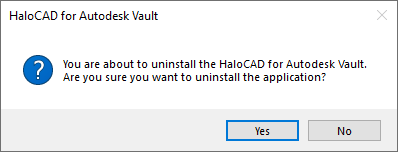
Uninstall Message #1
-
Click Yes to confirm that you want to remove it from the computer.
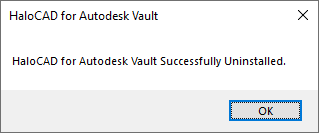
Uninstall Message #2
Result
-
The HaloCAD component is successfully uninstalled.
-
Click OK to close the dialog.
-
The uninstallation process is complete.
-
Alternative method: Open Command Prompt as Administrator, then run this command:
HaloCAD_Autodesk_Vault_Setup.exe -uninstall
-