
Secude’s HaloENGINE API architecture aims to streamline underlying MPIP functionalities such as file protection and audit log export. The HaloENGINE API enables MPIP capabilities by seamlessly integrating with existing business applications.
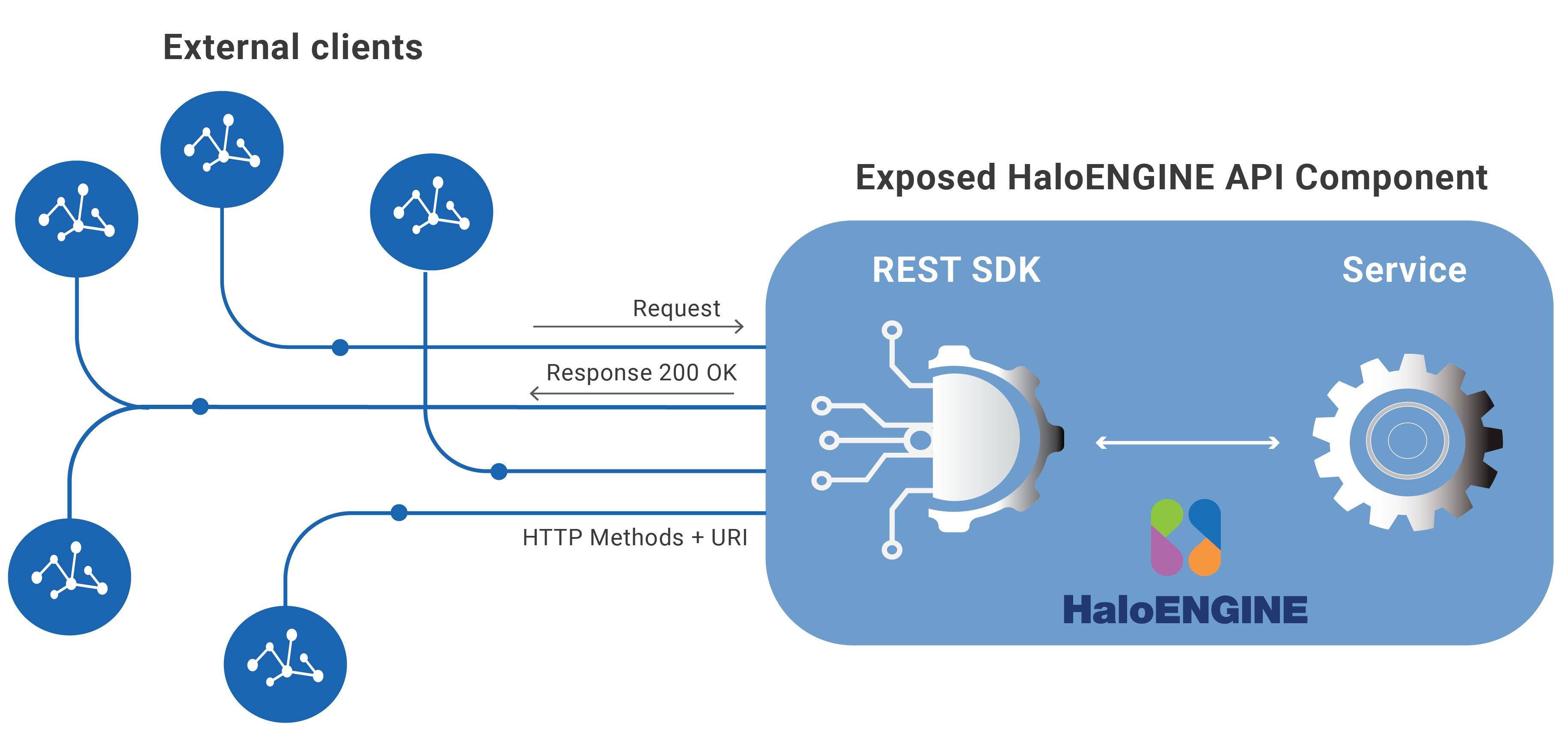
HaloENGINE API
What can be expected when using the API?
-
It streamlines web-based application interaction via HTTP methods.
-
The end consumer can protect files with their own rule engine or business logic.
-
This will extend to any existing or customized data portal within the organization that must be scrutinized and protected against data leaks.
The use of this information and the implementation of any APIs described herein are the sole responsibility of the customer. Successful integration depends on the customer’s ability to evaluate, configure, and incorporate the APIs within their business environment.
About this Chapter
This document demonstrates how to successfully call the HaloENGINE API from your application and use it for your business needs. It assumes you are familiar with REST API calls. It provides a clear and comprehensive background to the REST SDK, including endpoints, parameters, response types, and any other information that developers should be aware of. It also explains how the resources work and provides examples that should help you get started.
Please note that the examples in this document are intended solely as guidance and should not be applied in a production environment.
Quick Start
The following high-level steps describe how to get started with HaloENGINE and expose the APIs.
-
Step 1: Install and configure the HaloENGINE as described in the following chapter, “Installing the HaloENGINE”.
-
Step 2: Import the license in the admin portal with the HaloENGINE API enabled.
-
Step 3: Server Certificate Authentication. Select one of the following authentication approaches.
Self-signed Certificate: A minor configuration change is necessary on the client side. Download the server certificate (HaloENGINEServer.cer) from the HaloENGINE Admin portal and manually install it on the client machine in the Trusted Root Certification Authorities.Company-Owned Signed Certificate: If you already have a certificate, you can import it into the admin portal. Make sure your company's Root CA is installed in Trusted Root Certification Authorities. In this case, there is no need to install the server certificate (
HaloENGINEServer.cer) on your client machine. For more details, please refer to the section “Phase 1. Certificate Configuration”. -
Step 4: Set the classification engine. This step comprises creating profiles, schema, and action rules based on the needs of your business. Please refer to the chapter “Setting Up Classification Engine”.
-
Postman or another REST client.
API Reference
This section provides API examples that can be executed using Postman.
Host/Base URL
|
Base URL |
|
|
Endpoint description |
|
Base URL
Using the above URL, the "halosdk" API is accessible.
The following variables should be replaced with values for your system.
-
{
server} corresponds to the server's name or IP address. -
{
port} is the port number on which the server runs.
Resource Methods Description
Typically, an API will have multiple endpoints associated with the same resource. Every resource is exposed via a URL. You can obtain the URL of every resource by obtaining access to the API Root Endpoint.
|
Method |
URL |
|---|---|
|
GET |
|
|
POST |
|
|
POST |
|
|
POST |
|
|
POST |
|
|
POST |
|
Endpoints
Version
Description: Returns the HaloENGINE server version.
Request method: GET
Request Example
The following example shows a request sent using Postman.
Request URL
GET https://10.41.14.69:8746/haloengine-server/halosdk/Version
Response
A successful request returns the following information:
-
Status Code: 200
-
Response Body: Plain text containing the HaloENGINE version number.
6.10.1.0
This response confirms that the HaloENGINE service is running and returns the current version.
Get Required Metadata Types
Description: Returns supported metadata types used by the HaloENGINE server.
Request method: POST
Request Example
The following example shows a request sent using Postman.
Request URL
POST https://10.41.14.69:8746/haloengine-server/halosdk/GetMetaDataTypes
Prerequisite: The HaloENGINE API system type does not currently have any built-in metadata; hence, new metadata can be created using Custom metadata. Please refer to the “Custom metadata” section.
Request
The request is sent in the Body-JSON format with the following parameters.
-
customerId – Customer ID used by HaloENGINE. Note:
halo_customeris the default Customer ID in the HaloENGINE Admin Portal and must be used as a mandatory parameter in API requests without modification. Any mismatch in the Customer ID results in an error. -
systemId – Unique system ID of the client system.
-
systemType – Type of the client system.
Example
{
    "customerId": "halo_customer",
    "systemId": "API_customer",
    "systemType": "HaloENGINE_API"
}
Response
A successful request returns the following information:
-
Status Code: 200
-
Response Body: Plain text containing the configured metadata [
user_group, work_in_progress, folder, review, release, file_name, user_name, file_type, project].
Get Action
Description: Determines the action (monitor, encrypt, or decrypt) based on the provided inputs.
Request method: POST
There are three options in "Owner Configuration": Service (default), Static email, and User. You can set it up on the HaloENGINE admin portal. Note: For static email, enter the user's email address in the admin portal. To learn how to configure Owner Configuration, refer to the section “Owner Configuration”.
Request Example
The following example shows a request sent using Postman.
Request URL
POST https://10.41.14.69:8746/haloengine-server/halosdk/GetActionFormRest
Request
The request is sent in the Body-JSON format with the following parameters.
-
customerId – Customer ID used by HaloENGINE.
-
systemId – Unique ID of the client system.
-
systemType – Type of the client system.
-
Example values
user_name,file_type, andfile_name.
Example
{
  "customerIdentification": {
    "customerId": "halo_customer",
    "systemId": "API_customer",
    "systemType": "HaloENGINE_API"
  },
  "metadata": {
  "simpleValue": {
    "user_name": ["john"],
    "file_type": ["docx"],
    "file_name": ["BOM.docx"]
  }
}
}
Response
A successful request returns the following information:
-
Status Code: 200
-
Response Body: A successful request returns a JSON response with the following structure:
{
    "simMode": false,
    "labelVendor": "NONE",
    "action": {
        "value": [
            "LABEL",
            "AUDIT"
        ]
    },
    "authorMode": {
        "userEmailNeeded": false,
        "staticEmail": ""
    },
    "classification": "
<?xml version=\"1.0\" encoding=\"UTF-8\" standalone=\"yes\"?>\n
<classification version=\"1.0\">\n
	<class name=\"Default\">\n
		<displayNames>\n
			<displayName locale=\"en_US\" name=\"Default\"/>\n
		</displayNames>\n
		<properties>\n
			<property name=\"Sensitivity\" dataType=\"listValue\">\n
				<displayNames>\n
					<displayName locale=\"en_US\" name=\"Sensitivity\"/>\n
				</displayNames>\n
				<values>\n
					<listValue name=\"Secret\">\n
						<displayNames>\n
							<displayName locale=\"en_US\" name=\"Secret\"/>\n
						</displayNames>\n
					</listValue>\n
				</values>\n
			</property>\n
		</properties>\n
	</class>\n
</classification>\n",
    "template": {
        "guid": "99f1473d-74f4-47ca-9843-e735f94fa797",
        "templateName": "HCAD Secret"
    }
}
The response varies based on the Owner Configuration setting:
-
Service →
"userEmailNeeded": false,"staticEmail": "" -
Static email →
"userEmailNeeded": false,"staticEmail": "john@halosecude.onmicrosoft.com" -
User →
"userEmailNeeded": true,"staticEmail": ""
Encrypt File
Description: Executes the encrypt action.
Request method: POST
Request Example
The following example shows a request sent using Postman.
Request URL
POST https://10.41.14.69:8746/haloengine-server/halosdk/encryptFile
Request
The request is sent in the Body-JSON format with the following parameters.
Key: file (File as Type). Browse and select the required file.
Description: File to be encrypted.
Example
BOM.txt
Key (Optional): authorEmailId (Text as Type)
Description: Email address of the document owner. Note: When an email address is provided, the user is assigned owner permissions. If no email address is provided, the service principal ID is assigned as the owner.
Example
john@halosecude.onmicrosoft.com
Key: labelId (Text as Type)
Description: GUID of the template.
Example
99f1473d-74f4-47ca-9843-e735f94fa797
Key: type (Text as Type).
Description: Labeling type. Supported values:
-
LABELING
-
COMPOUNDFILELABELING
Example
LABELING
Key: additionalParam (Text as Type).
Description: Required when the COMPOUNDFILELABELING type is used. Provide the compound file details in JSON format.
Example
{"compoundid":"compound123"}
Response
A successful request returns the following information:
-
Status Code: 200
-
Response Body: A successful request returns a JSON response with the following structure:
{
    "success": true,
    "message": "File encrypted successfully",
    "fileName": "BOM.ptxt",
    "fileType": "ptxt",
    "content": "The encrypted content is displayed."
}
Decrypt File
Description: Decrypts an encrypted file.
Request method: POST
Request Example
The following example shows a request sent using Postman.
Request URL
POST https://10.41.14.69:8746/haloengine-server/halosdk/decryptFile
Request
The request is sent in the Body-JSON format with the following parameters.
Key: file (File as Type). Browse and select the required file.
Description: Encrypted file to be decrypted.
Example
BOM.rtf.pfile
Response
A successful request returns the following information:
-
Status Code: 200
-
Response Body: A successful request returns a JSON response with the following structure:
{
    "success": true,
    "message": "File decrypted successfully",
    "fileName": "BOM.rtf",
    "fileType": "rtf",
    "content": "The decrypted content is displayed."
    "templateID": "99f1473d-74f4-47ca-9843-e735f94fa797"

}
Send PLM Monitor Log Data
Description: Accepts monitoring logs for auditing.
Request method: POST
Request Example
The following example shows a request sent using Postman.
Request URL
POST https://10.41.14.69:8746/haloengine-server/halosdk/SendPLMMonitorLogData
Request
The request is sent in the Body-JSON format with the following parameters.
-
customerId – Customer ID used by HaloENGINE.
-
systemId – Unique ID of the client system.
-
systemType – Type of the client system.
The request body may also include additional fields, such as:
-
logInfo – Details about the log event.
-
userInfo – Information about the user who triggered the event.
-
fileInfo – Metadata about the file involved in the action.
-
resultedDecision – Final decision returned by HaloENGINE.
Example
{
  "customerIdentification": {
    "customerId": "halo_customer",
    "systemId": "API_customer",
    "systemType": "HaloENGINE_API"
  },
  "logInfo": {
    "utcTimeStamp": "2021-02-23T23:01:00+05:00",
    "timeZone": "+5",
    "logID": "sjkfsdfsd"
  },
  "userInfo": {
    "userName": "john",
    "userType": "DEV",
    "userEmail": "john@techuyt.com"
  },
  "fileInfo": {
    "fileName": "partrocket.asm",
    "filePath": "C:\\",
    "fileType": "asm",
    "fileProtectedBefore": false,
    "sizeOriginal": 4355675,
    "sizeDownload": 67848
  },
  "resultedDecision": {
    "fileBlocked": false,
    "fileLabeled": false,
    "fileProtected": false,
    "unprotected": true,
    "unlabeled": true,
    "fileBlockedByRule": false,
    "policyName": "HCAD Secret",
    "policyId": "1234",
    "classification": {
      "byUser": "<?xml version=\"1.0\" encoding=\"UTF-8\"?><classification version=\"1.0\">...</classification>",
      "bySystem": "<?xml version=\"1.0\" encoding=\"UTF-8\"?><classification version=\"1.0\">...</classification>"
    },
    "abortedBySystem": false,
    "abortedByUser": false,
    "error": false,
    "simMode": false,
    "extendedTags": [
      {
        "key": "Key1",
        "value": "Value1"
      }
    ]
  },
  "plmContextInfo": {
    "eventType": "user download",
    "browserClient": "true",
    "preProcessInfo": [
      {
        "type": "Testing",
        "key": "ABC",
        "value": "12345"
      }
    ],
    "attributes": [
      {
        "type": "Attr1",
        "key": "user_name",
        "value": "sjohn"
      }
    ],
    "documentId": "1222",
    "documentNumber": "222",
    "documentType": "1",
    "documentPart": "j",
    "documentVersion": "00",
    "viewOnly": false,
    "dmsProcess": false
  },
  "plmDestInfo": {
    "destinationAttributes": [
      {
        "type": "Dest",
        "key": "XYZ",
        "value": "123"
      }
    ],
    "browser": "IE",
    "hostname": "ABC",
    "ipaddress": "10.91.0.1",
    "operatingSystem": "WIN10"
  }
}
Response
A successful request returns the following information:
-
Status Code: 200
-
Response Body: The response body returns the boolean value true, represented as plain text.
Error Handling
An unsuccessful request returns a response code other than 200. If you receive a null response, you may need to review the input.
|
Status Code |
Sample Message |
Description |
|---|---|---|
|
400 |
Sample error messages:
|
|
|
401 |
Unauthorized client attempting to access the endpoint. The page cannot be viewed because the client type is not licensed for it. Please contact the administrator. |
Attempted to connect to an unlicensed endpoint.
|
|
|
The System type is wrong. Please contact the administrator. |
When any of the values, such as customer ID, system ID, or system type, are incorrect, it will be stated in the error message. |
Error Codes