
Introduction
Companies across industries, including automotive, aviation, and high-tech manufacturing, create and manage valuable intellectual property (IP) in the form of CAD drawings. These drawings are often shared with customers, suppliers, and partners to support business operations. Sharing sensitive design data, however, introduces security risks that can lead to unauthorized access, modification, or distribution.
HaloCAD helps organizations protect CAD files by integrating with Microsoft Purview Information Protection (MPIP). It applies sensitivity labels and protection policies to CAD files, helping organizations safeguard their intellectual property throughout its lifecycle.
How does HaloCAD protect your data?
HaloCAD integrates with Microsoft Purview Information Protection, formerly known as Microsoft Information Protection (MIP), to provide Enterprise Digital Rights Management (EDRM) capabilities for CAD files. HaloCAD applies Microsoft Purview Information Protection sensitivity labels to CAD files and enforces the associated protection policies. Protected files can be accessed only by authorized users according to the permissions defined in the applied sensitivity label.
HaloCAD Add-on for CAD can operate as a standalone solution or integrate with HaloCAD for PLM. When integrated with a supported PLM system, HaloCAD automatically protects downloaded files, decrypts files during upload, and stores them securely in the PLM vault.
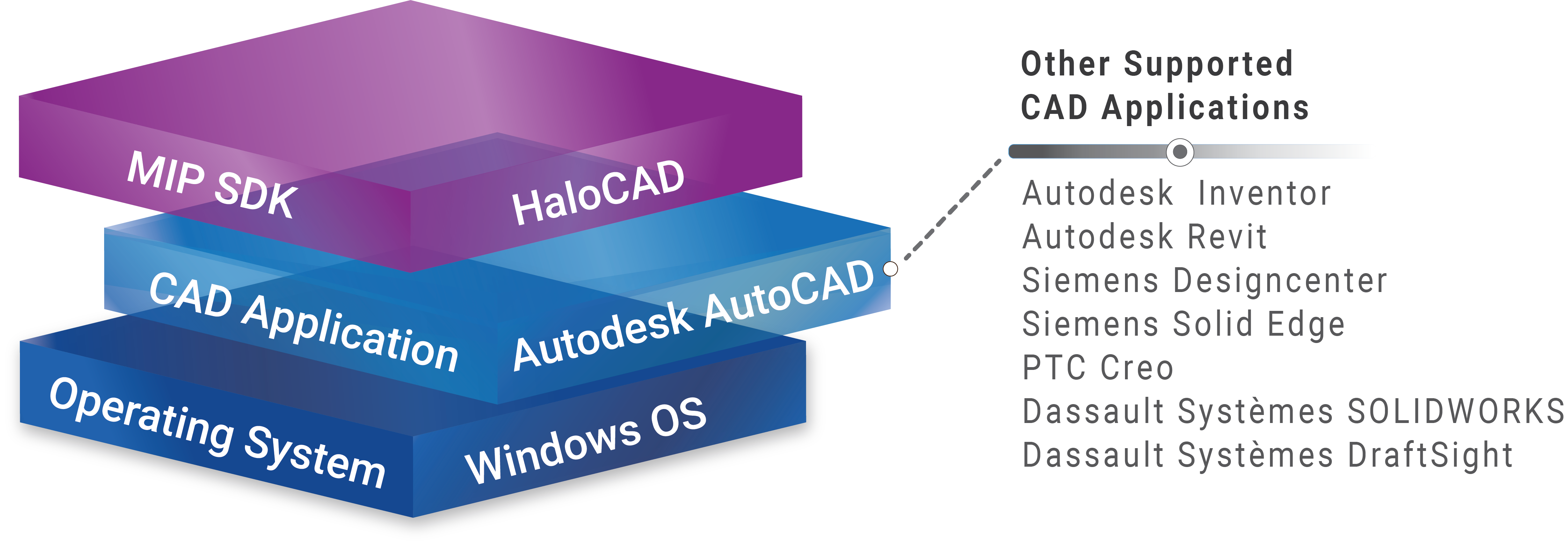
HaloCAD Add-on for CAD applications
About this Manual
This manual provides the common information shared across all HaloCAD products, including product architecture, prerequisites, licensing, and shared configuration requirements. For product-specific installation, configuration, administration, and operating procedures, refer to the appropriate Installation Manual and Operations Manual.
This manual covers the following products:
-
HaloCAD Add-on for CAD
-
HaloCAD for Viewers
-
HaloCAD for TCAI
-
HaloCAD for PLM
-
HaloCAD for SOLIDWORKS PDM
Terminology
Throughout this manual, the following terms are used to refer to supported HaloCAD products and integrations.
|
Term |
Description |
|---|---|
|
HaloCAD Add-on for CAD |
An add-on that integrates with supported CAD applications to protect CAD files. |
|
HaloCAD for PLM |
A solution that integrates with PLM systems and the HaloCAD Add-on for CAD to automatically lock access to files during download and unlock access when the files are returned to the PLM vault. It supports PLM integrations, such as Teamcenter, Windchill, and Autodesk Vault. |
|
HaloCAD for PDM |
A solution that integrates with SOLIDWORKS PDM and the HaloCAD Add-on for SOLIDWORKS to protect files when they are copied or moved outside the PDM vault and decrypt protected files when they are copied into the PDM vault. |
|
HaloENGINE GenNXT |
It evaluates file metadata against configured classification rules and determines the applicable action and sensitivity label. |
|
HaloENGINE GenNXT Tomcat Service |
A Windows service used by HaloENGINE GenNXT and HaloCAD components. |
Terminology
Acronyms
The following acronyms are used throughout this manual.
|
Acronym |
Description |
|---|---|
|
CAD |
Computer-Aided Design |
|
PLM |
Product Lifecycle Management |
|
PDM |
Product Data Management |
|
MPIP |
Microsoft Purview Information Protection |
|
EDRM |
Enterprise Digital Rights Management |
|
TCAI |
Teamcenter Integration for Autodesk Inventor |
|
SCCM |
Microsoft System Center Configuration Manager |
|
TLS |
Transport Layer Security |
Acronyms
Features
HaloCAD provides the following capabilities:
-
Integration with Existing Infrastructure
Integrates with your existing CAD and PLM environments without requiring significant infrastructure changes. -
CAD File Protection
Extends Microsoft Purview Information Protection to supported CAD applications by applying sensitivity labels and protection policies to CAD files. -
Rights Management
Protects CAD files by applying Microsoft Purview sensitivity labels together with user-defined permissions. -
Persistent Data Protection
Protects sensitive files wherever they are stored or shared, including cloud and mobile environments. -
Policy-Based Access Control
-
Controls who can access protected files.
-
Controls the actions users can perform, such as viewing, editing, copying, printing, exporting, relabeling, or modifying permissions.
-
Supports watermarking for sensitive documents.
-
-
PLM Integration
Automatically protects files during download and removes protection from files during upload before storing the unprotected files in the PLM vault.
Related Documentation
The following documents provide additional information about HaloCAD products.
|
Document |
Purpose |
|---|---|
|
Installation Manual |
Describes product installation, configuration, deployment methods, and uninstallation. Supports installation using the user interface (UI), silent mode, Microsoft System Center Configuration Manager (SCCM), or an encrypted configuration file ( |
|
Operations Manual |
Describes product administration, features, and troubleshooting. |
|
Release Notes |
Describes new features, resolved issues, known issues, and supported platforms. |
|
Technical Reference Manual |
|
HaloCAD-related documentation
HaloCAD Add-on for CAD
HaloCAD Add-on for CAD is a standalone solution that provides the HaloCAD PROTECT feature. It enables users to access protected CAD files, enforces the permissions defined in the applied sensitivity labels, and allows authorized users to apply or modify MPIP sensitivity labels.
Architecture
HaloCAD Add-on for CAD integrates with Microsoft Purview Information Protection to provide persistent protection for CAD files. When creating a CAD file, users authenticate with MPIP. After successful authentication, HaloCAD downloads the available sensitivity labels. Users then select an appropriate sensitivity label and apply it to the file. In standalone mode, users apply sensitivity labels manually.
Only authorized users can open or modify protected files. The applied protection remains with the file regardless of where it is stored or shared. User permissions are determined by the applied sensitivity label and its associated protection policy. The following figure illustrates the HaloCAD Add-on for CAD operating as a standalone solution.
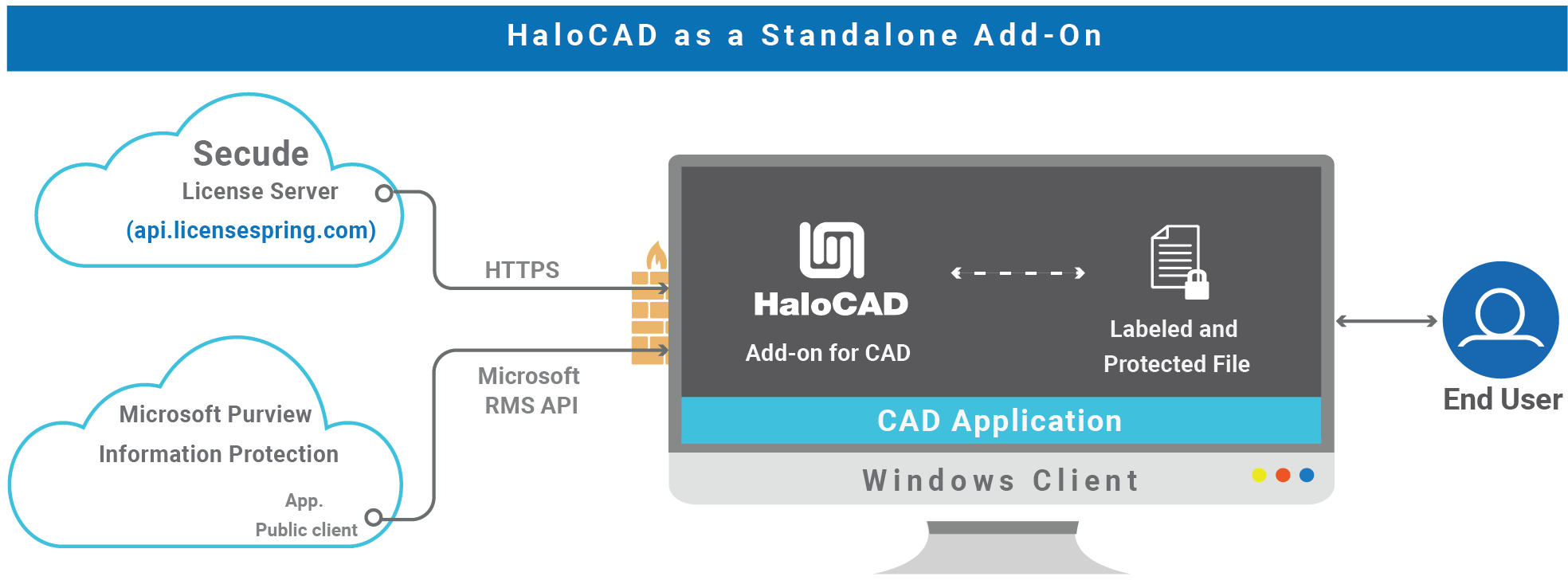
HaloCAD as a standalone add-on
Note: When HaloCAD Add-on for CAD is integrated with HaloCAD for PLM, files are automatically protected according to the configured action rules before they are made available to users.
Quick Start
The following figure illustrates the high-level process for setting up the HaloCAD Add-on for CAD.
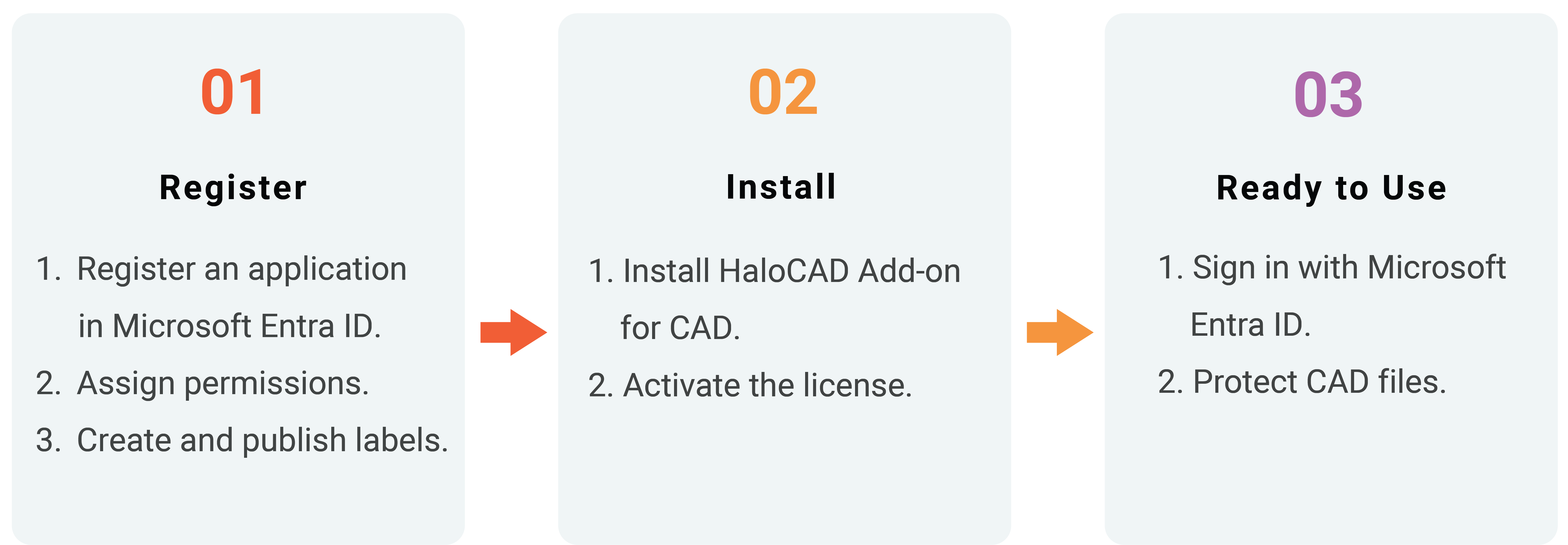
Quick start installation steps for HaloCAD Add-on for CAD
Prerequisites
Refer to the section “Prerequisites”.
HaloCAD for PLM
HaloCAD extends data protection to supported Product Lifecycle Management systems. The supported integrations include:
-
HaloCAD for Teamcenter
-
HaloCAD for Windchill
-
HaloCAD for Autodesk Vault
HaloCAD for PLM integrates with supported PLM systems and combines the capabilities of HaloCAD PROTECT and HaloCAD MONITOR while utilizing Microsoft Purview Information Protection (MPIP) to provide Enterprise Digital Rights Management (EDRM) for CAD files. It automatically protects files during download and removes protection from protected files during upload.
Architecture
HaloCAD for PLM continuously monitors file upload and download operations within the PLM environment. It integrates with Microsoft Purview Information Protection to download sensitivity labels and perform file encryption and decryption.
-
During file upload, HaloCAD for PLM checks whether the file is protected. If the file is encrypted, HaloCAD for PLM decrypts it before storing it in the PLM Vault.
-
During file download, HaloCAD for PLM applies protection based on the configured action rules before delivering the file to the user.
For file uploads, HaloCAD for PLM performs file processing independently. For file downloads, HaloCAD for PLM relies on HaloENGINE GenNXT to evaluate the configured classification and action rules.
The following figure illustrates the high-level architecture of HaloCAD for PLM.
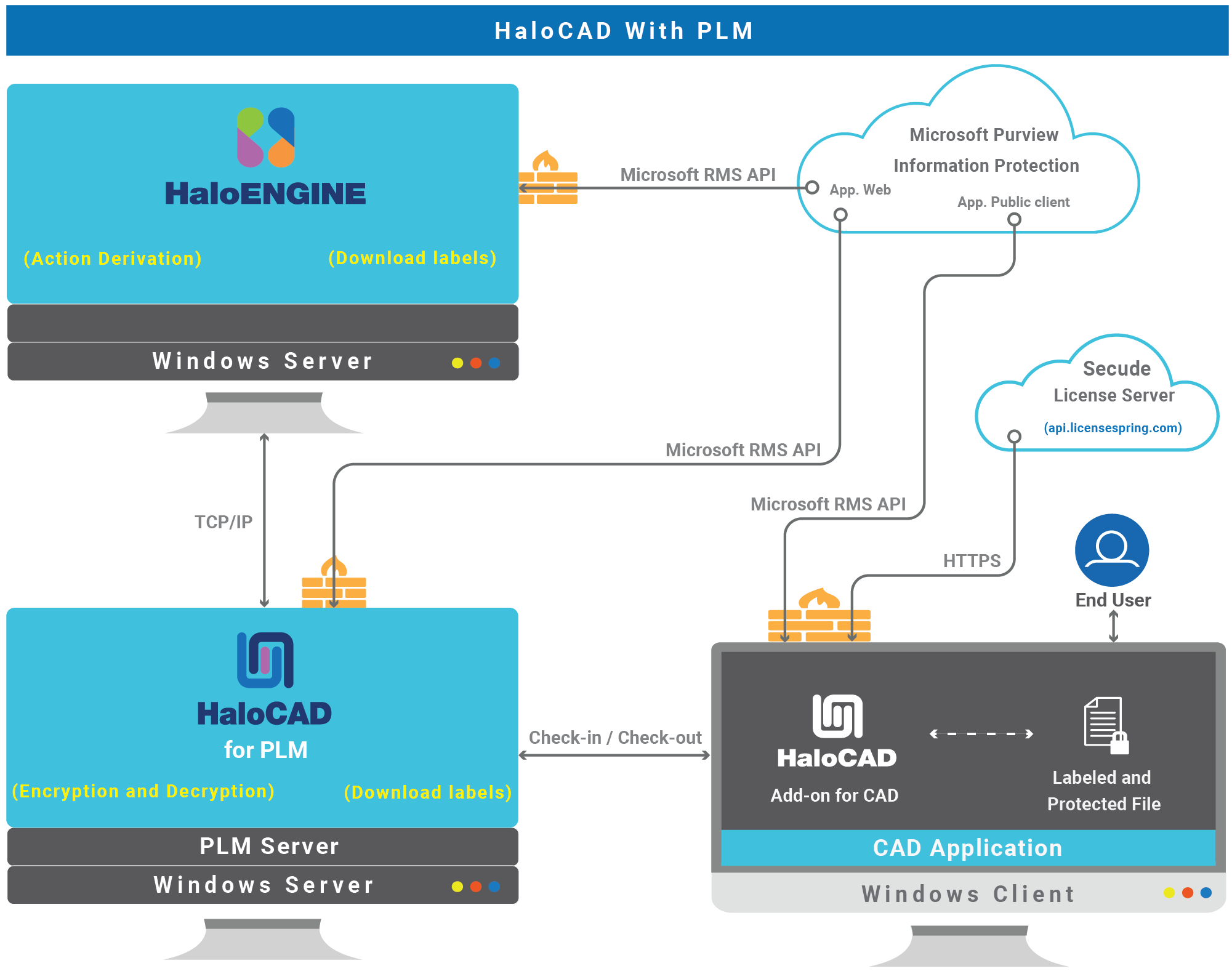
HaloCAD for PLM
Separate Installation Requirement
Ensure that HaloENGINE GenNXT and HaloCAD for PLM are installed and configured separately on Windows servers.
HaloENGINE GenNXT integrates with Microsoft Purview Information Protection to download sensitivity labels and make them available for configuration. It evaluates metadata based on the configured classification and action rules to determine the appropriate protection action. All file downloads must comply with these rules.
During a file download, HaloCAD for PLM sends the relevant file metadata to HaloENGINE GenNXT. HaloENGINE GenNXT evaluates the metadata, determines the required protection action and sensitivity label, and returns the result to HaloCAD for PLM. HaloCAD for PLM then applies the appropriate protection before delivering the file to the user.
Quick Start
The following figure illustrates the high-level process for setting up HaloCAD Add-on for CAD with HaloCAD for PLM.
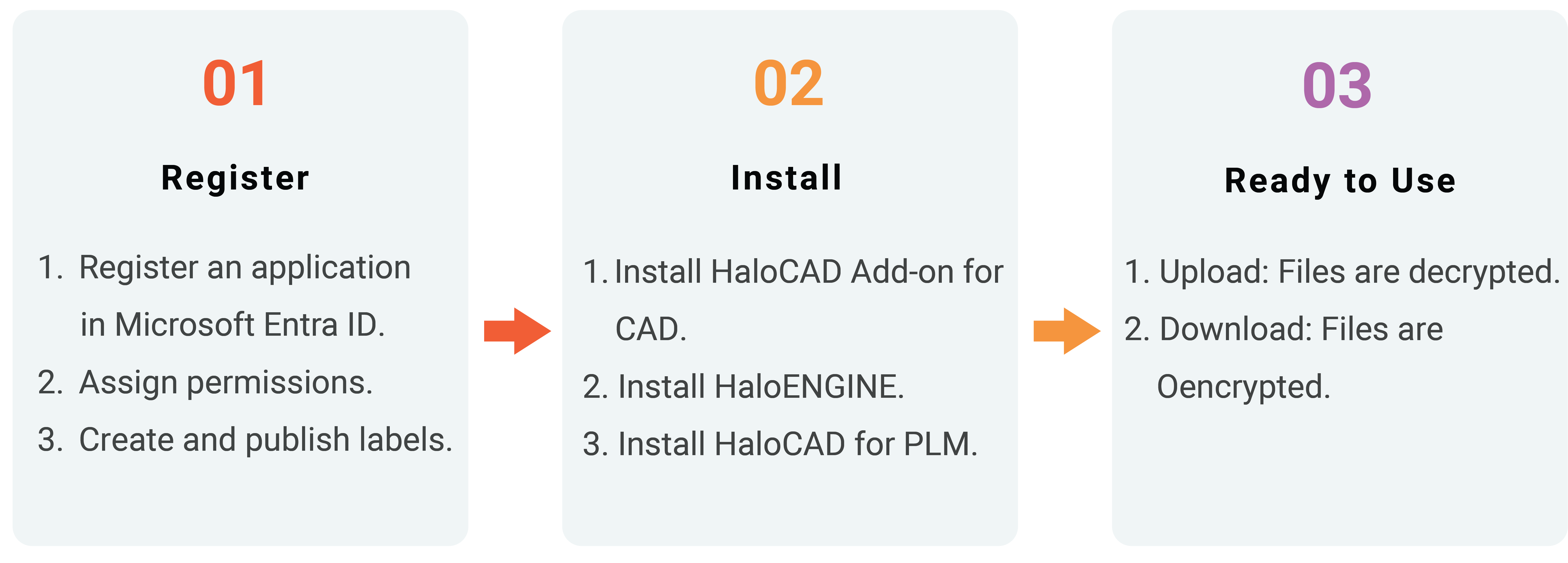
Quick start installation steps for HaloCAD for PLM
Prerequisites
Refer to the section “Prerequisites”.
HaloCAD for SOLIDWORKS PDM
HaloCAD for SOLIDWORKS PDM integrates with SOLIDWORKS PDM and combines the capabilities of HaloCAD PROTECT and HaloCAD MONITOR while utilizing Microsoft Purview Information Protection (MPIP) to provide Enterprise Digital Rights Management (EDRM) for CAD files.
Architecture
HaloCAD for SOLIDWORKS PDM continuously monitors SOLIDWORKS PDM folders to protect CAD files during file operations.
-
When users copy or move files from a SOLIDWORKS PDM folder to a non-SOLIDWORKS PDM location, HaloCAD for SOLIDWORKS PDM automatically protects the files before they reach the destination.
-
When protected SOLIDWORKS CAD files or PDF files are copied or moved into a SOLIDWORKS PDM folder, HaloCAD for SOLIDWORKS PDM detects the protected files, decrypts them, and stores the decrypted files in the SOLIDWORKS PDM vault.
HaloENGINE GenNXT evaluates the configured classification and action rules to determine the protection to apply during copy and move operations. Its role is the same as described in HaloCAD for PLM.
The following figure illustrates the high-level architecture of HaloCAD for SOLIDWORKS PDM.
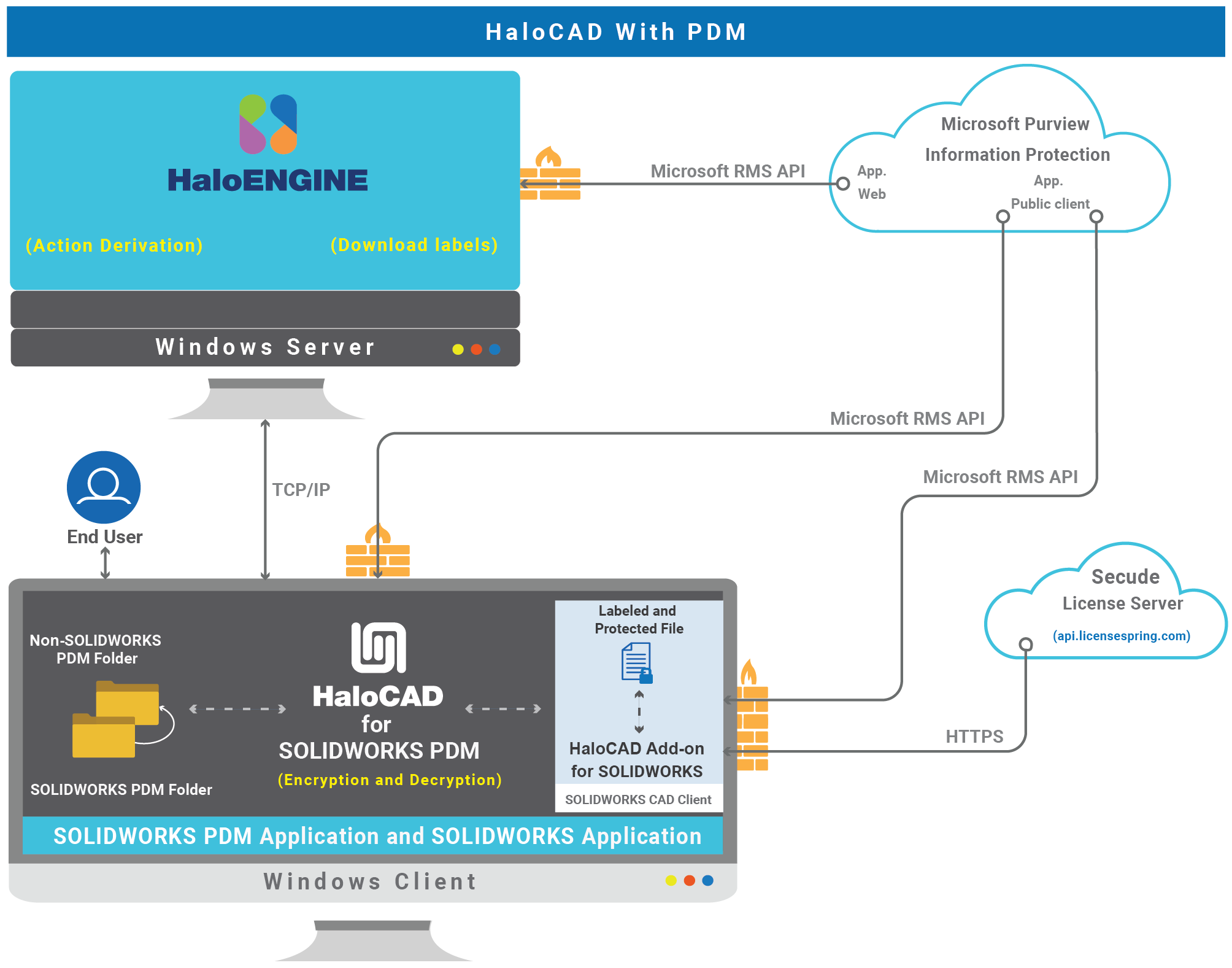
HaloCAD for SOLIDWORKS PDM
Quick Start
The following figure illustrates the high-level process for setting up the HaloCAD Add-on for CAD with HaloCAD for SOLIDWORKS PDM.
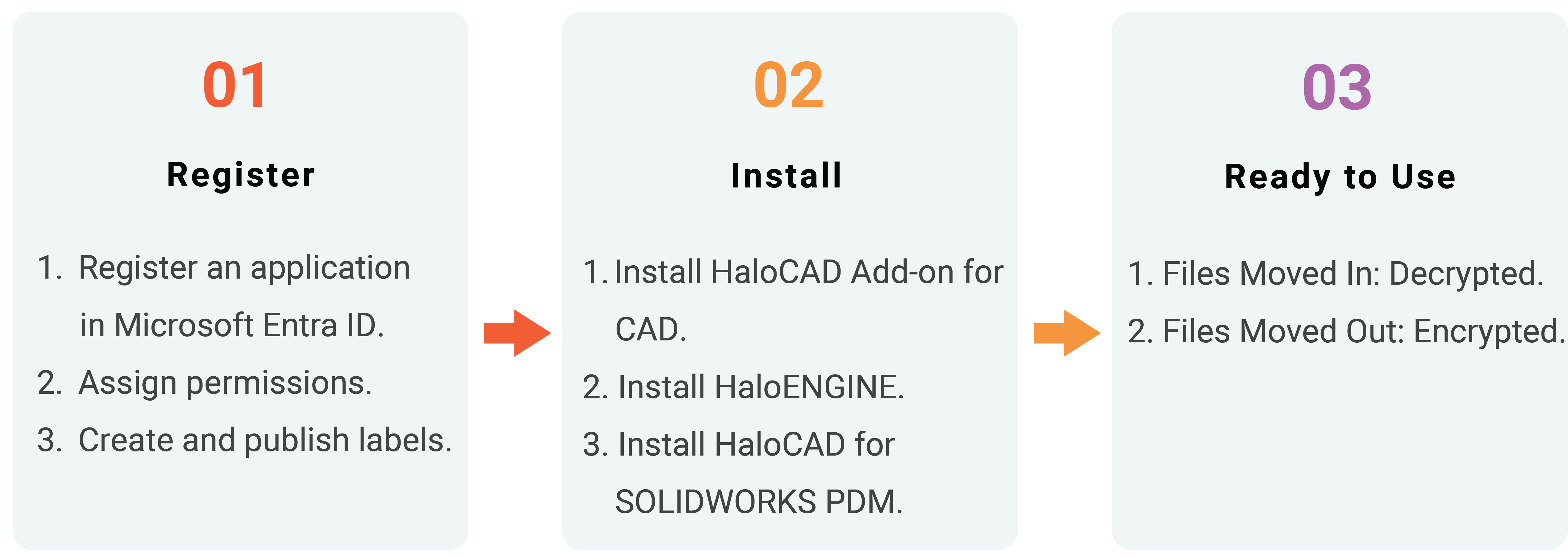
Quick start installation steps for HaloCAD for SOLIDWORKS PDM
Prerequisites
Refer to the section “Prerequisites”.
HaloCAD for Viewers
HaloCAD for Viewers enables users to access HaloCAD-protected CAD files in supported CAD viewer applications. It integrates with Microsoft Purview Information Protection to enforce the permissions defined in the applied sensitivity labels.
Architecture
HaloCAD for Viewers provides view-only access to HaloCAD-protected CAD files. It prevents users from modifying, copying, or taking screenshots of protected content.
The application is intended for external users, such as suppliers and partners, who need to access protected CAD models or drawings without installing the HaloCAD Add-on for CAD. The following figure illustrates the high-level architecture of HaloCAD for Viewers.
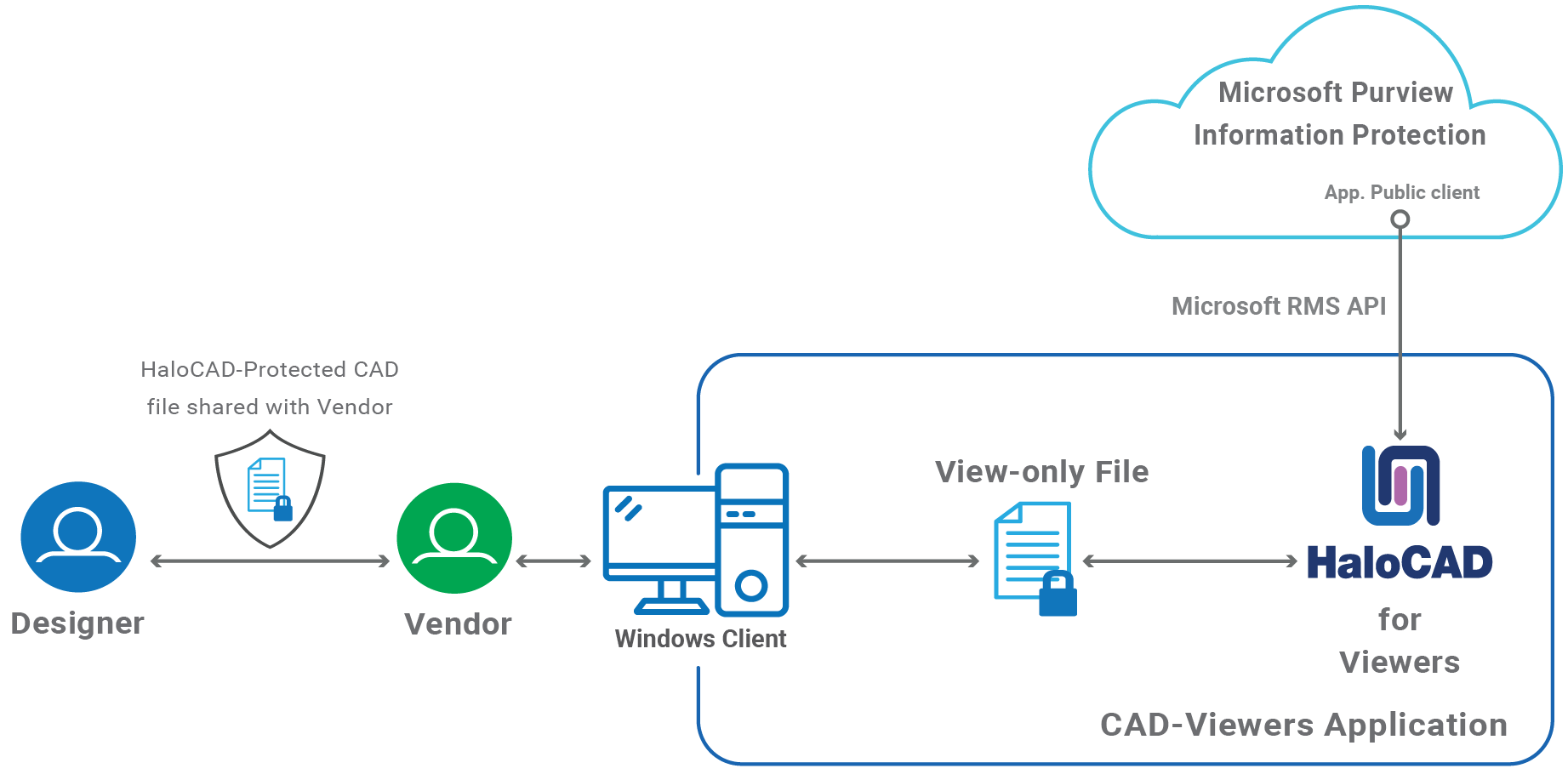
HaloCAD for Viewers
Quick Start
The following figure illustrates the high-level process for setting up HaloCAD for Viewers.
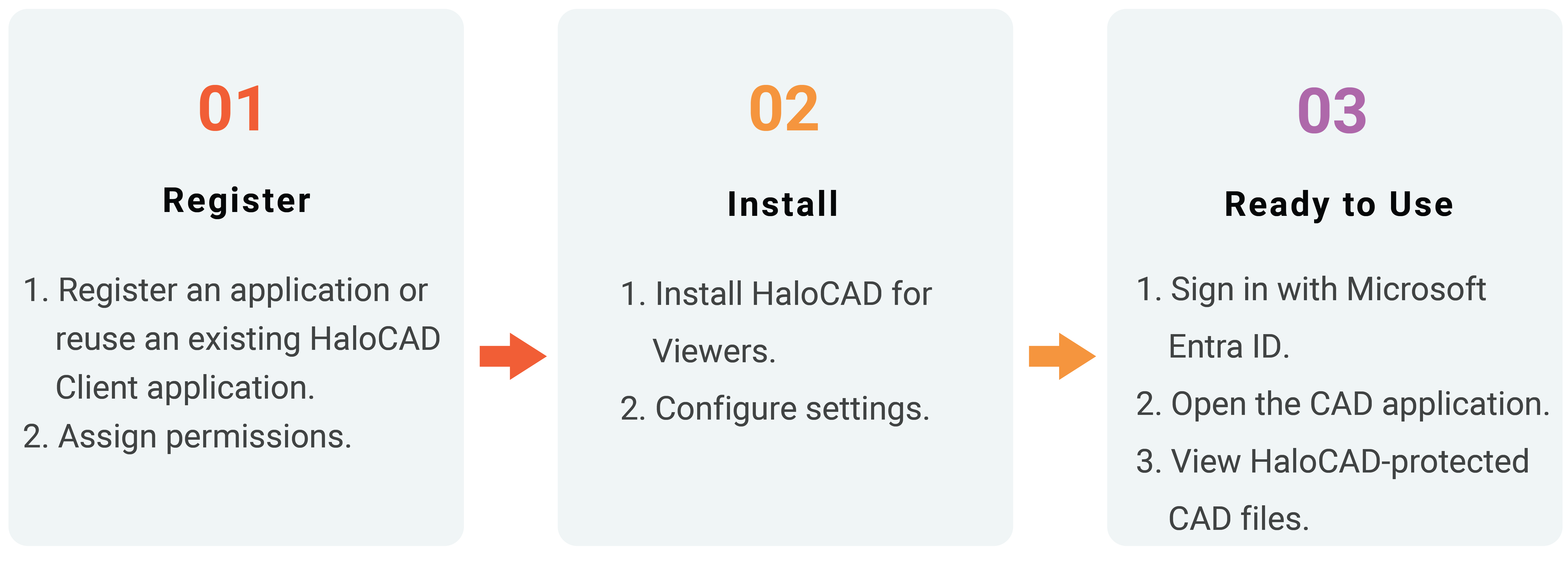
Quick start installation steps for HaloCAD for Viewers
Prerequisites
Refer to the section “Prerequisites”.
HaloCAD for TCAI
HaloCAD for TCAI uses Microsoft Purview Information Protection to decrypt HaloCAD-protected CAD files during bulk loading operations in Teamcenter Integration for Autodesk Inventor (TCAI). This enables the TCAI Bulk Loader to scan and process protected Inventor files before importing them into Teamcenter.
Architecture
The Teamcenter Integration for Autodesk Inventor Bulk Loader imports Inventor files into Teamcenter. However, the Bulk Loader cannot recognize or process protected (encrypted) Inventor files directly. HaloCAD for TCAI decrypts protected Inventor files before they are processed by the Bulk Loader. This enables the Bulk Loader to scan and import the files into Teamcenter.
HaloCAD for TCAI uses the same decryption mechanism as HaloCAD for Viewers and is designed specifically to support bulk loading operations in the TCAI environment. The following figure illustrates the high-level architecture of HaloCAD for TCAI.
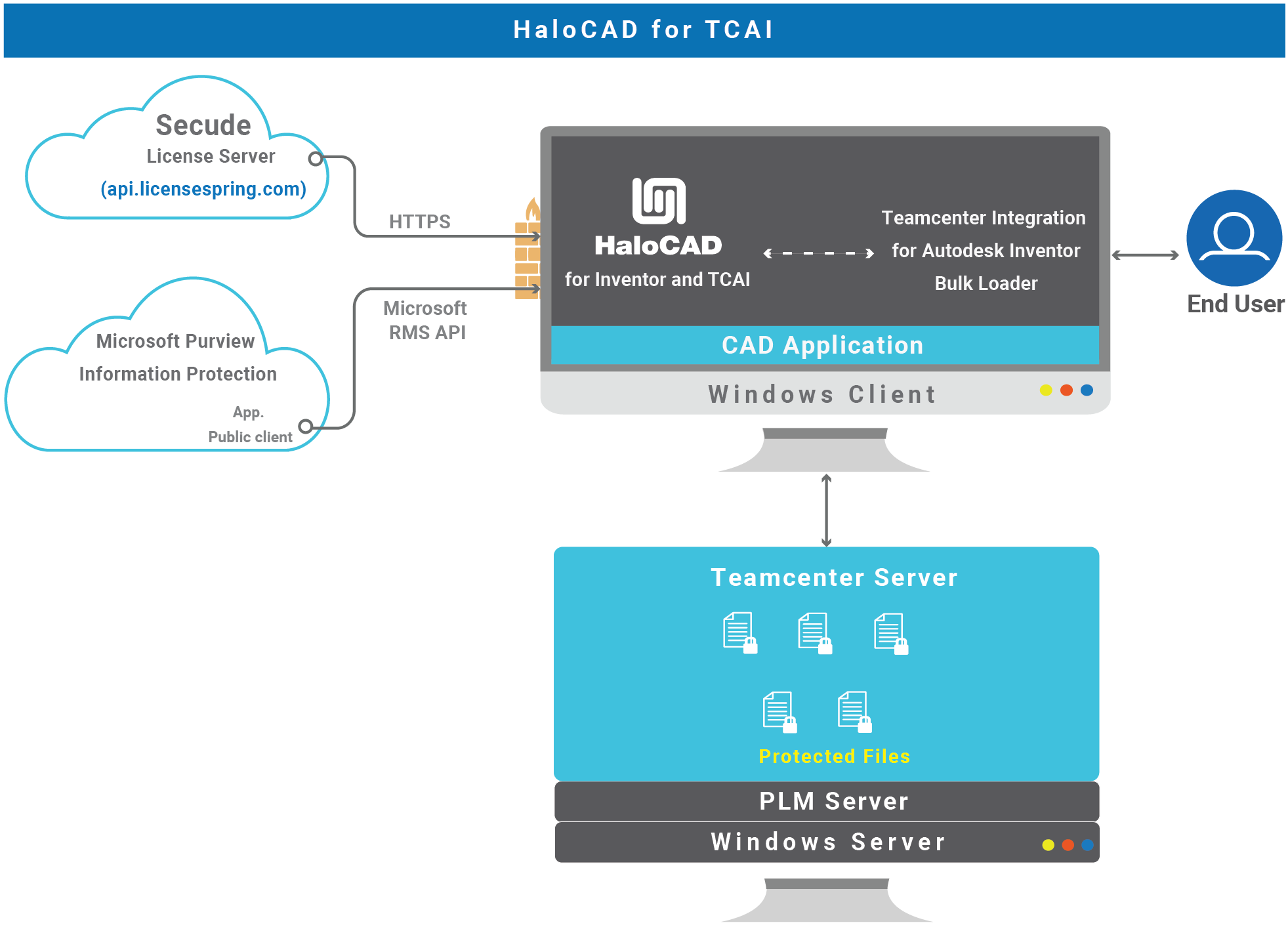
HaloCAD for TCAI
Quick Start
The following figure illustrates the high-level process for setting up HaloCAD for TCAI.
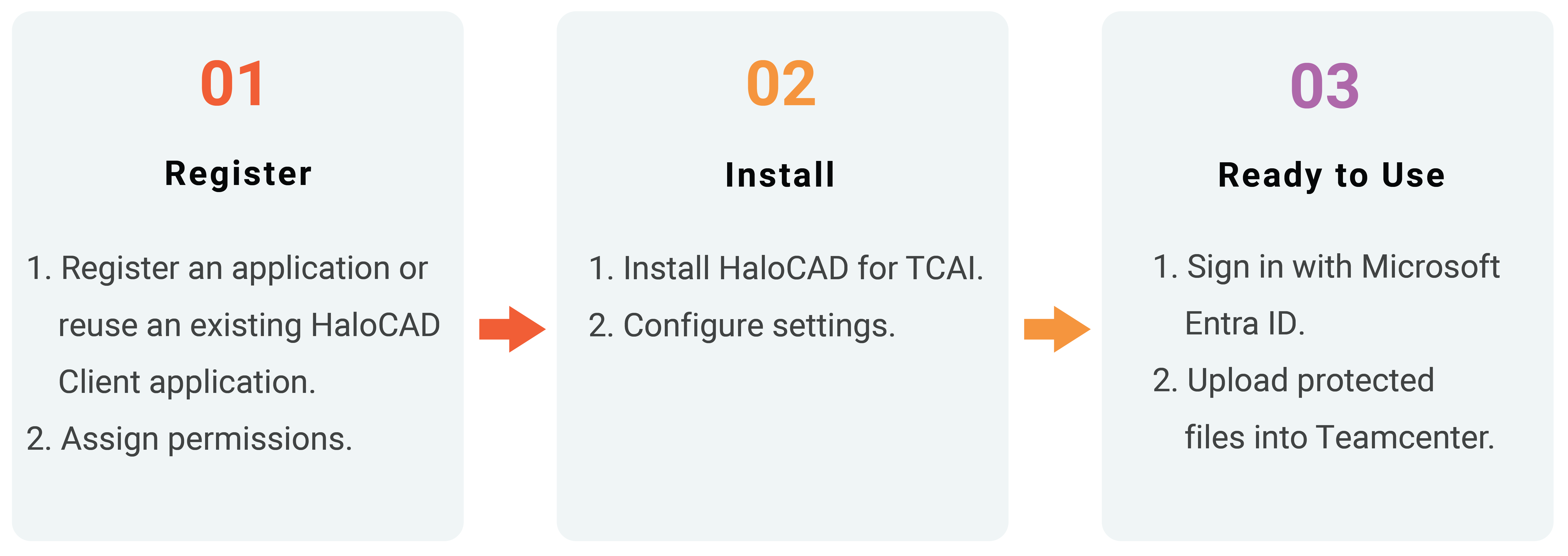
Quick start installation steps for HaloCAD for TCAI
Prerequisites
Refer to the section “Prerequisites”.
Prerequisites
This chapter describes the prerequisites for installing and configuring HaloCAD components.
|
Product |
Application Type |
License Required |
|
|---|---|---|---|
|
Public Client |
Web |
||
|
HaloCAD Add-on for CAD |
✓ |
✗ |
✓ |
|
HaloCAD for Viewers |
✓ |
✗ |
✗ |
|
HaloCAD for TCAI |
✓ |
✗ |
✗ |
|
HaloCAD for Teamcenter |
✗ |
✓ |
✗ |
|
HaloCAD for Windchill |
✗ |
✓ |
✗ |
|
HaloCAD for Autodesk Vault |
✗ |
✓ |
✗ |
|
HaloCAD for SOLIDWORKS PDM |
✓ |
✗ |
✗ |
|
HaloENGINE GenNXT |
✗ |
✓ |
✓ |
Prerequisites by Product
Register an Application in Microsoft Entra ID - Public client/native
This section describes how to register an application in Microsoft Entra ID, obtain the Application (client) ID and Directory (tenant) ID, assign the required API permissions, and upload the certificate required for MPIP authentication.
Microsoft documentation
Registering an application in Microsoft Entra ID establishes a trust connection between your application and the identity provider, the Microsoft identity platform. Microsoft documentation takes precedence over this section. Refer to the latest Microsoft documentation for updates.
Create an Application
Follow the instructions below to register an application:
-
Log in to the Microsoft Entra admin center using an account that has administrator privileges.
-
If you have access to multiple tenants, click the Settings icon in the top menu. From Directories + subscriptions, select the tenant in which you want to register the application.
-
The application homepage opens.
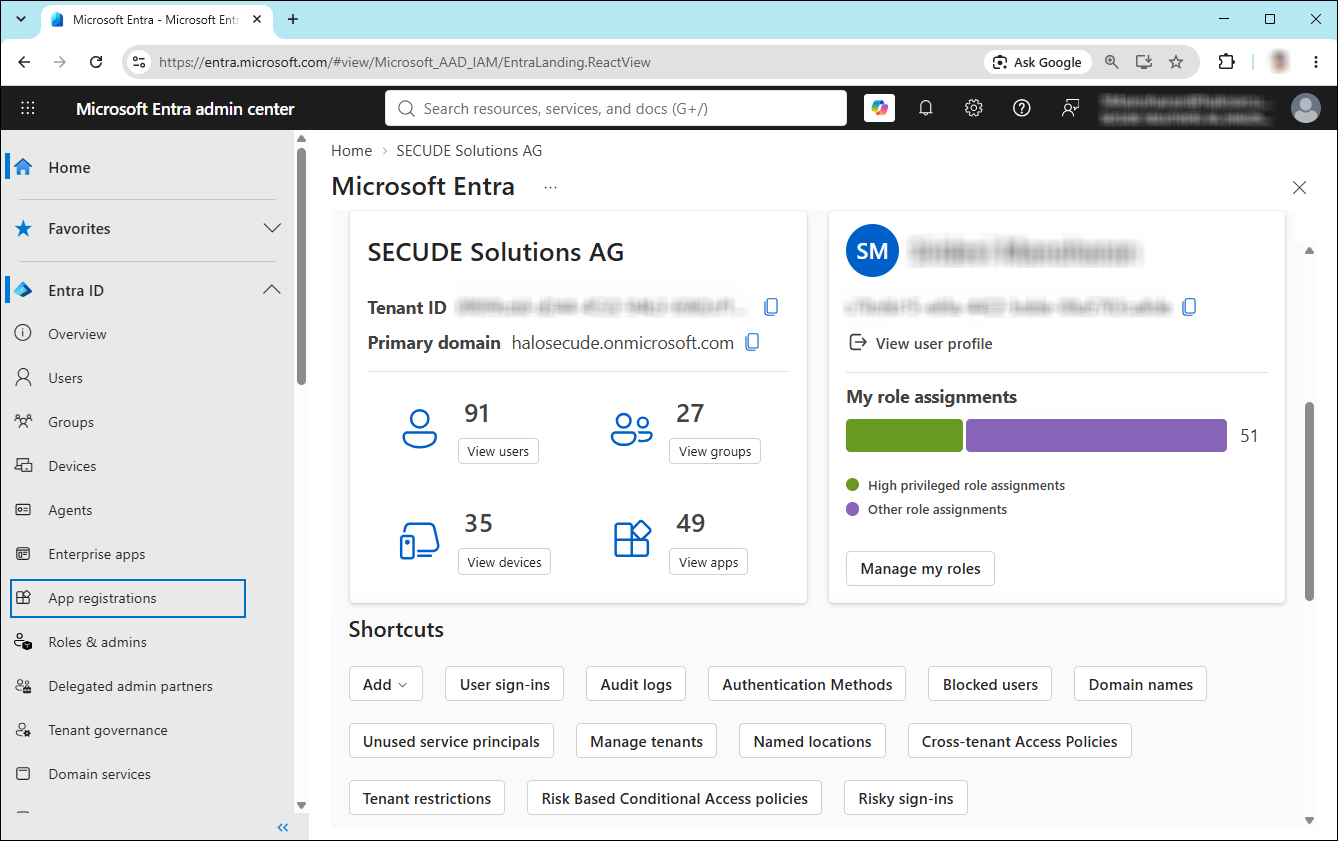
Selecting Microsoft Entra ID
-
In the left navigation pane, select Entra ID > App registrations.
-
On the App registrations page, click New registration or Register an Application. The Register an Application button appears only if no applications have already been created.
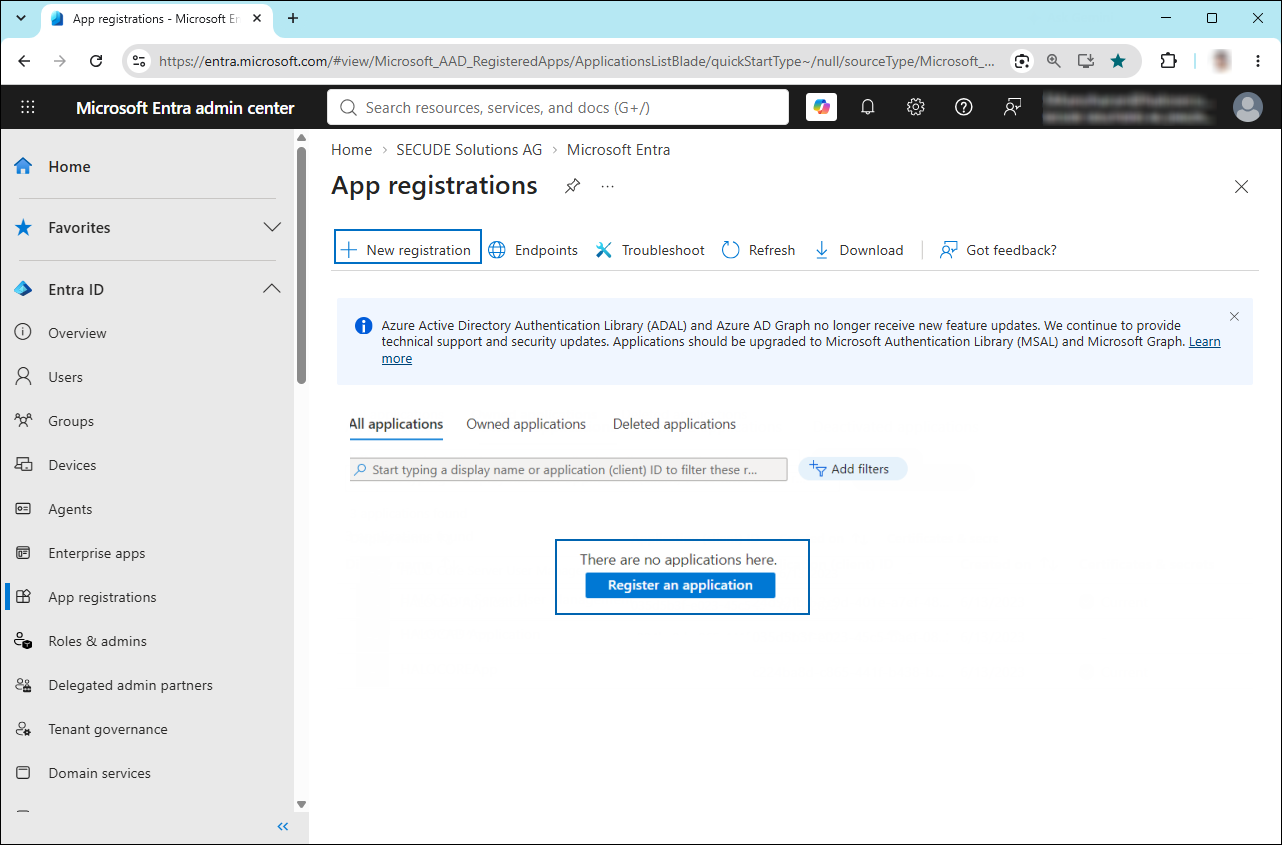
New application registration
-
On the Register an application page, configure the following:
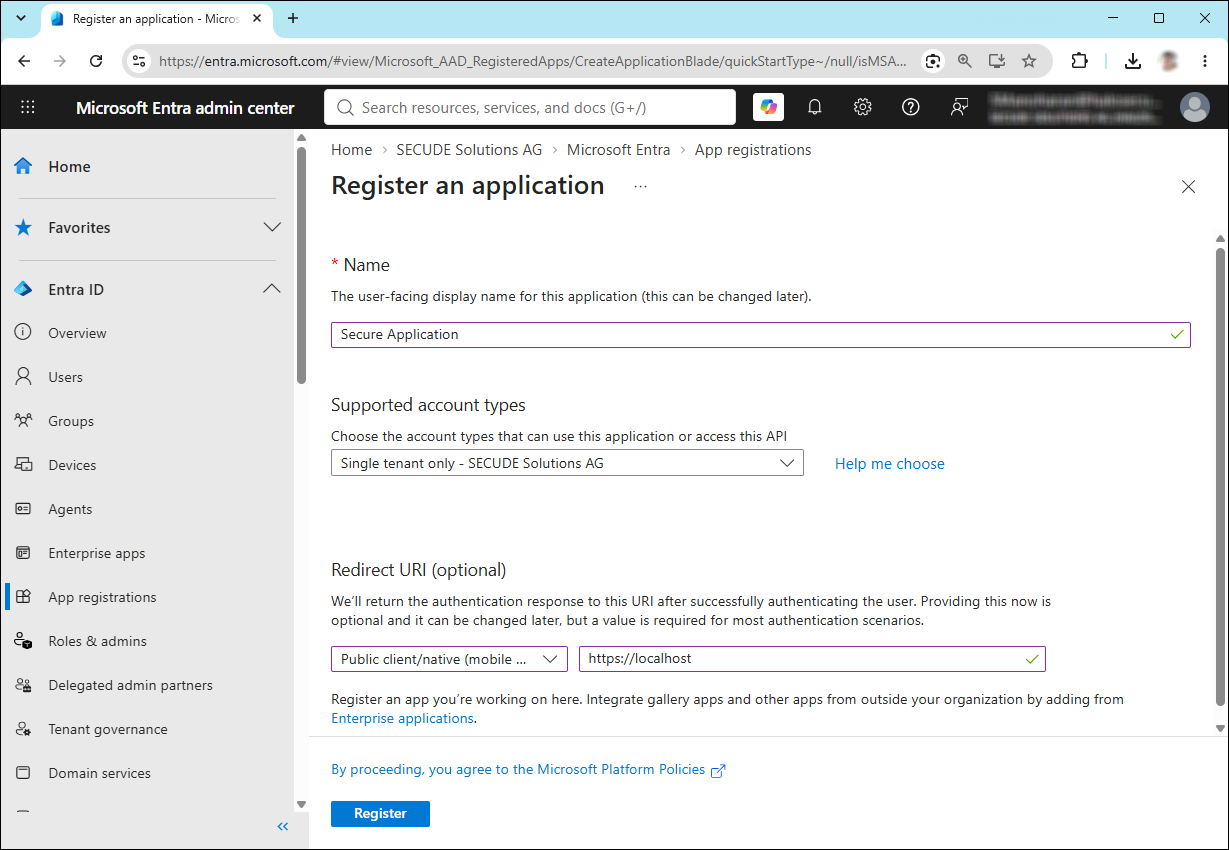
Application details
-
Name: Enter an appropriate name for the application.
-
Supported account types: Select which account you would like your application to support. For detailed information on these types, please see Microsoft documentation.
-
Single tenant only – <your tenant>: For users or guests in your tenant.
-
Multiple Entra ID tenants: For users from any Microsoft Entra tenant.
-
Any Entra ID Tenant + Personal Microsoft accounts: For users from any Entra tenant and personal Microsoft accounts.
-
Personal accounts only: For personal Microsoft accounts only.
-
Redirect URI: Select Public client/native (mobile & desktop), and enter a valid redirect URI. For example,
https://localhost.
-
-
Click Register.
-
The Overview page of the newly registered application opens.
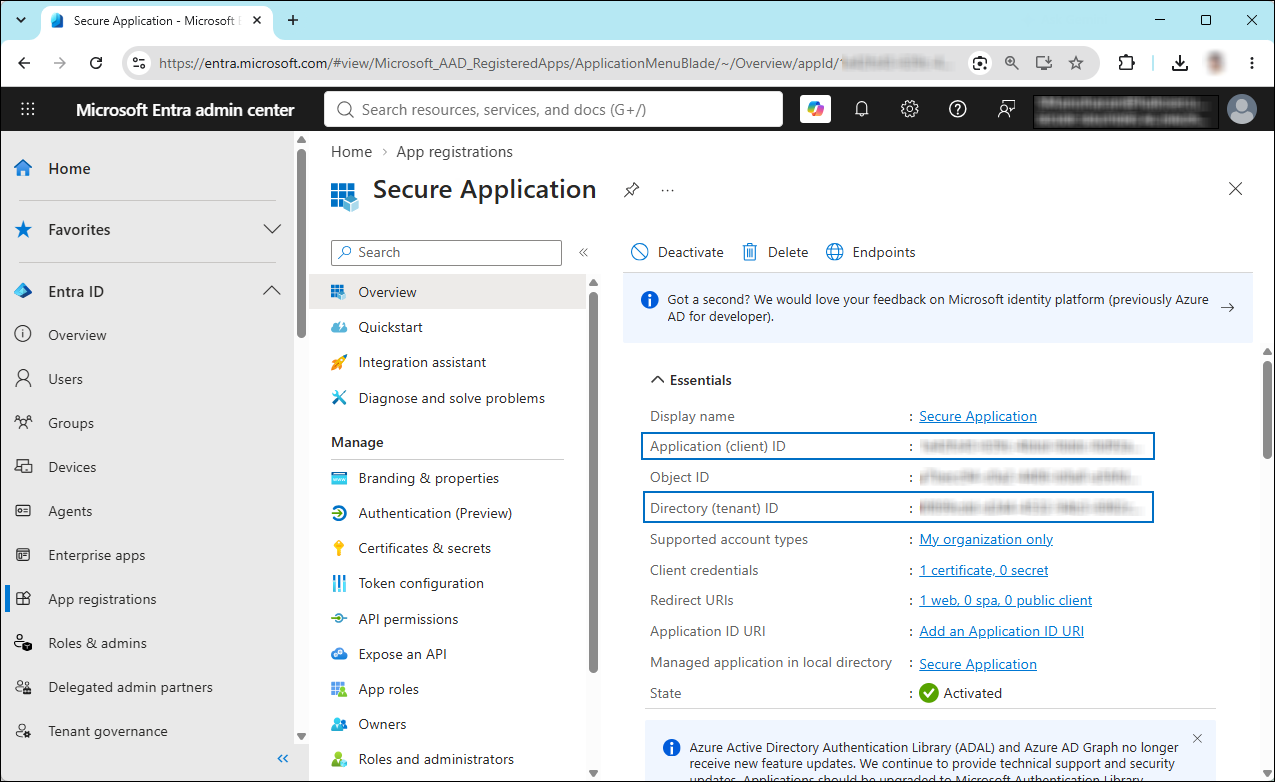
Application ID and Tenant ID
-
Once registration is complete, the portal displays the following values. To copy and save the ID value in a text editor, hover your cursor over it and click the Copy to clipboard icon.
-
Application ID – also known as Client ID.
-
Directory ID – also known as Tenant ID.
-
Save the authentication parameters
Open a text editor (such as Notepad) and copy the values for the Application (client) ID, Directory (tenant) ID, and Redirect URI. Save these details for initializing the HaloCAD Add-on. Note that the Directory (tenant) ID is required only for single-tenant applications.
Add Required Permissions
To protect content using the MIP SDK, you need to provide the following API permission(s) for the created application ID.
-
In the left navigation pane of the application, select API permissions.
-
Click Add a permission. The Request API permissions page appears.
-
Under the Select an API setting, select APIs my organization uses. A list appears, containing the applications in your directory that expose APIs.
-
Type in the search box or scroll to find the required API that is mentioned in the table below, “Required Permissions”.
-
For example, type Microsoft Information Protection Sync Service. You can see the API listed as shown in the figure below:
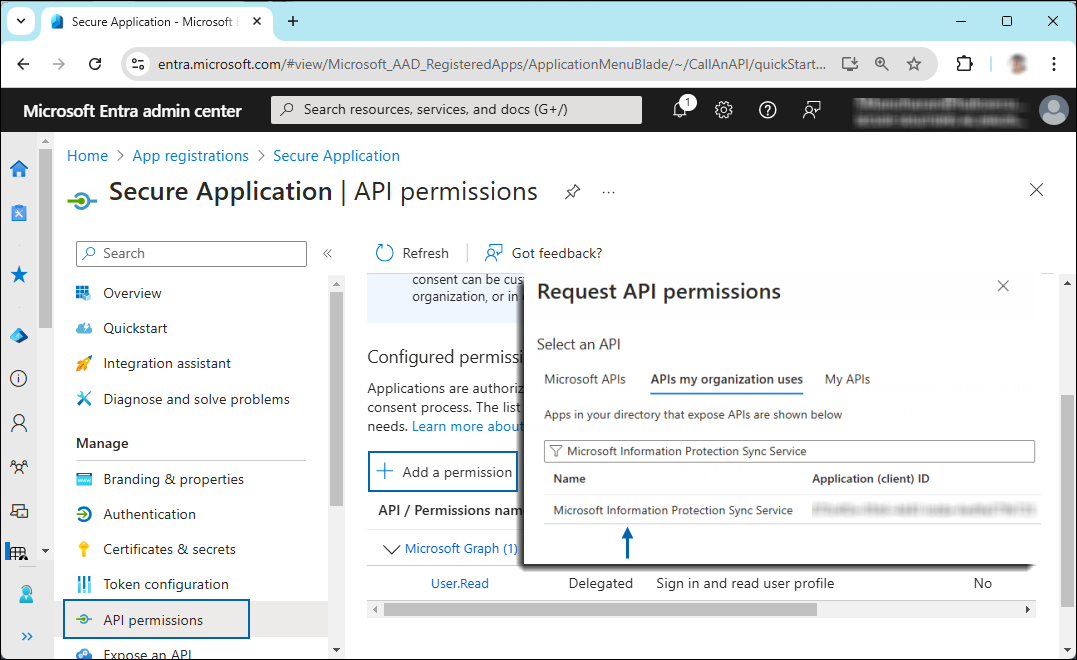
Searching for permissions
-
Now, click on the displayed API. You can see two permissions on the page − Delegated permissions and Application permissions.
-
Click the Delegated permissions button and then, under the Permission section, select the check box against "Read all unified policies a user has access to".
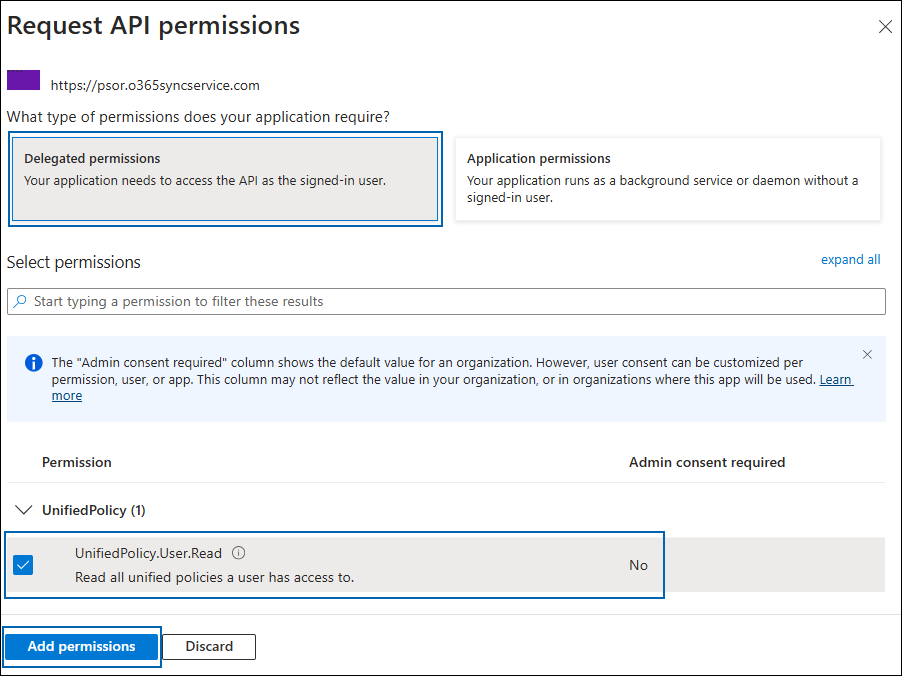
Adding permission
-
Click Add permissions. Repeat the steps outlined above to add the other required permissions listed in the table below.
-
The API permissions page opens, and the added permissions appear in the table. Administrator consent is not required for Delegated Permissions.
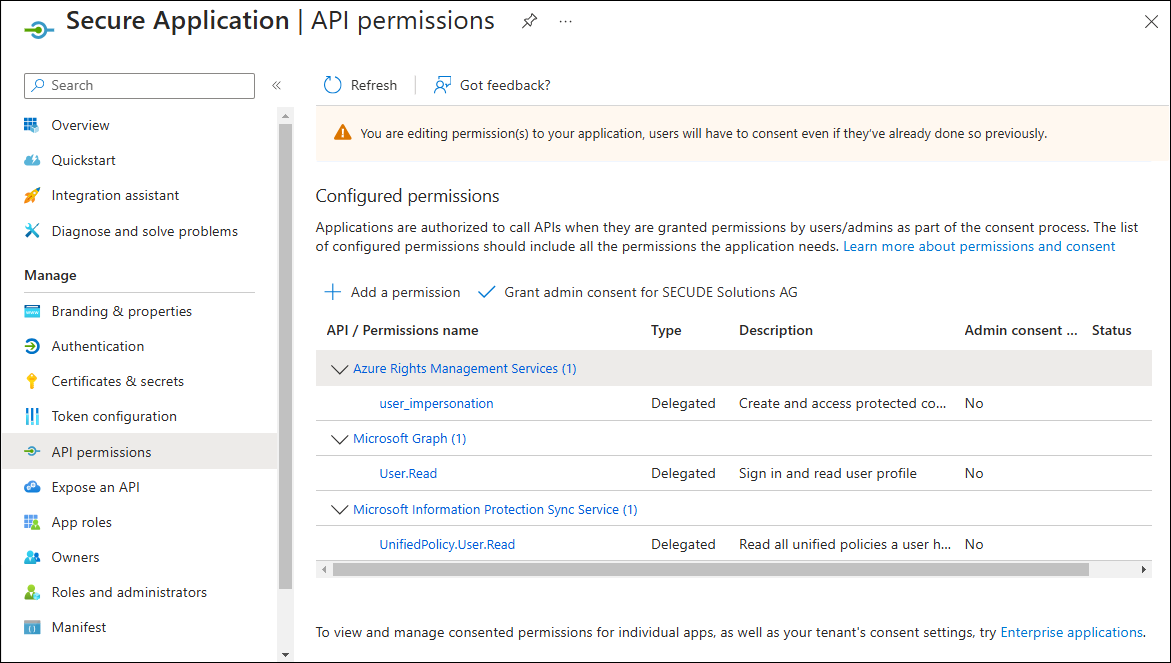
API Required permissions
-
The following table lists the required permissions.
|
API / Permission name |
Display Name |
Type |
Description |
|---|---|---|---|
|
Azure Rights Management Services (Microsoft Rights Management Services) |
|
Delegated |
Create and access protected content for users |
|
Microsoft Graph |
|
Delegated |
Sign in and read user profile (added by default) |
|
Microsoft Information Protection Sync Service |
|
Delegated |
Read all unified policies a user has access to. |
Required permissions
Register an Application in Microsoft Entra ID - Web
Creating an application in Microsoft Entra ID is similar to the steps in the previous section. However, for HaloCAD for PLM, some variations apply.
-
Under Redirect URI, select Web.
-
Add the permissions listed in the following table.
-
Click Grant admin consent for your <company>.
-
When the confirmation dialog appears, select Yes to approve.
-
After the consent is granted, the Status column changes to Granted.
|
API / Permission Name |
Display Name |
Type |
Description |
|---|---|---|---|
|
Microsoft Graph |
|
Delegated |
Sign in and read the user profile. This API permission is added by default, but it is not used by the HaloENGINE GenNXT Tomcat Service. |
|
Azure Rights Management Services (Microsoft Rights Management Services) |
|
Application |
Create protected content on behalf of a user |
|
|
Application |
Create protected content |
|
|
Microsoft Information Protection Sync Service |
|
Application |
Read all unified policies of the tenant |
Required permissions #1
Additional Permission (Only for Decryption)
The permissions mentioned above are adequate for applying the MPIP label to a file with the owner as SPN (Service Principal Name) ID or any user email ID. Additionally, the HaloENGINE GenNXT Tomcat Service requires the following superuser privilege for the decryption function when the owner is not as SPN.
|
API / Permission Name |
Display Name |
Type |
Description |
|---|---|---|---|
|
Azure Rights Management Services (Microsoft Rights Management Services) |
|
Application |
Read all protected content in this tenant. |
Required permissions #2
Upload the Certificate
The HaloENGINE GenNXT Tomcat Service uses certificate-based authentication to access MPIP services. Therefore, you must upload the certificate to the registered application before proceeding with the configuration.
Prerequisites:
-
Certificate:
-
Ensure that you have a valid certificate containing the following key properties:
-KeyExportPolicy Exportableand-KeySpec Signature. -
The certificate can also be self-signed. As a best practice, use a self-signed certificate only in a test environment.
-
-
Local Computer certificate store: The certificate required for MPIP authentication must be installed in the Local Computer certificate store, along with the Root CA and Intermediate CA certificates.
-
If the certificate is CA-signed, install all related certificates in their respective stores (Root, Intermediate, and Personal).
-
If the certificate is self-signed, install it in both the Trusted Root Certification Authorities and Personal stores of the Local Computer.
-
To upload the certificate, follow these steps:
-
In the sidebar of the application page, select Certificate & secrets.
-
Under Certificates, click Upload certificate. The Upload certificate dialog box opens.
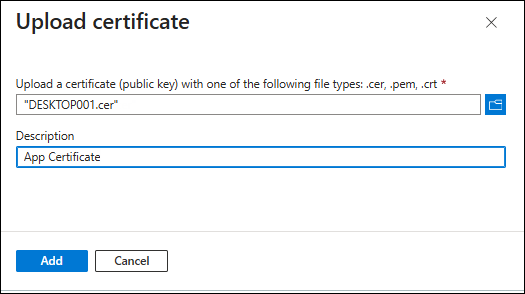
Upload certificate #1
-
Click the folder icon, select the certificate, and click Open. For example, the file
DESKTOP001.ceris used. -
Click Add. The certificate is uploaded, and its thumbprint appears on the page.
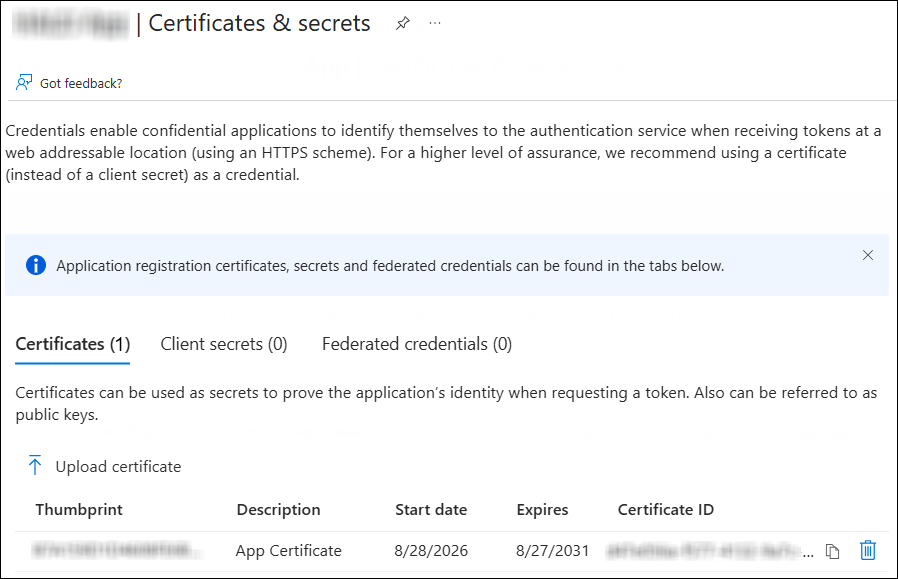
Upload certificate #2
The following table lists the Microsoft Entra ID application types that must be registered when using HaloCAD Add-on for CAD, HaloCAD for Viewers, HaloENGINE GenNXT, or HaloCAD for PLM.
Configuration Guidelines
-
When HaloCAD for SOLIDWORKS PDM is integrated with HaloENGINE GenNXT, use the same Directory (Tenant) ID.
-
When HaloCAD for PLM is integrated with HaloENGINE GenNXT, both components can use the same Web application details.
-
HaloCAD for Viewers can use a new or existing HaloCAD application. Ensure that the client type is configured as Public Client (Mobile & Desktop).
-
HaloCAD for TCAI can use a new or existing HaloCAD application. Ensure that the client type is configured as Public Client (Mobile & Desktop).
Create and Configure the Sensitivity Labels
|
Applicable to |
|
As an administrator, you can create, configure, and publish sensitivity labels for various levels of content sensitivity based on your organization's classification taxonomy. Use names or terms that are familiar to your users. Consider starting with label names like Personal, Public, General, Confidential, and Highly Confidential if you don't already have a taxonomy in place. For more information, see the Microsoft documentation.
Office 365 Subscription Details
|
Applicable to |
|
-
Fully configured Microsoft Purview Information Protection.
-
An Office 365 subscription is required to use Azure RMS and MPIP functionality.
-
A working Microsoft Entra ID service must be available.
-
Transport Layer Security (TLS) 1.2 or higher must be enabled to ensure the use of cryptographically secure protocols at all client workstations. Please refer to the section “Enable Support for TLS 1.2 at the Client Workstation for Microsoft Entra ID”.
-
To use the Revoke Access feature, the user must be assigned an Azure Information Protection Premium P1 or P2 license. This license is not required for the Viewer Add-on.
-
Monitor logging: Your subscription must include Log Analytics on the same tenant as Microsoft Entra ID.
Recommended URLs, Addresses, and Ports for MPIP
|
Applicable to |
|
MIP SDK does not support the use of authenticated proxies. So, make sure you set the Microsoft 365 endpoints to bypass the proxy. View a list of endpoints at “Microsoft Online Documentation”. However, Microsoft recommends the following:
|
Addresses |
Ports |
|---|---|
|
|
TCP 443 |
|
|
TCP 443, 80 |
|
For event logging
|
TCP 443 |
|
National Cloud |
Microsoft Entra ID authentication endpoint |
|
Microsoft Entra ID for the US Government |
|
|
Microsoft Entra ID (global service) For details on Microsoft Entra ID endpoints, please refer to “Microsoft Online Documentation”. |
|
Recommended endpoints
Sovereign cloud: For Microsoft 365 U.S. Government GCC High and DoD environments, configure the required Microsoft service endpoints. For endpoint details, see Microsoft 365 U.S. Government GCC High endpoints.
Secude License Manager for HaloCAD
|
Applicable to |
HaloCAD Add-on for CAD |
To communicate with Secude License Manager for HaloCAD, the following URL and port must be whitelisted in the customer's proxy:
|
Address |
Port |
|---|---|
|
License API - api.licensespring.com |
TCP 443 |
Recommended license manager endpoint
Enable TLS 1.2 for Microsoft Entra ID Authentication
|
Applicable to |
|
To improve tenant security and comply with industry standards, Microsoft Entra ID stopped supporting the following Transport Layer Security (TLS) protocols and ciphers:
-
TLS 1.1
-
TLS 1.0
-
3DES cipher suite (TLS_RSA_WITH_3DES_EDE_CBC_SHA)
To authenticate with Microsoft Entra ID, TLS 1.2 must be enabled on the client workstation. For instructions, refer to the Microsoft documentation on enabling TLS 1.2 in the following link: Microsoft article to enable TLS 1.2.
Microsoft documentation
The Microsoft documentation takes precedence over the information in this section. Because Microsoft may update its guidance, always refer to the latest Microsoft documentation before making configuration changes.
Complete the following steps:
-
Update the Windows Operating System
-
Update .NET Framework
-
Set the following registry settings:
|
S.No |
Windows Registry |
Values |
|---|---|---|
|
1 |
|
|
|
2 |
|
|
Registry entries
License Administration
|
Applicable to |
HaloCAD Add-on for CAD |
HaloCAD uses license keys to enable product features. Obtain a valid license key from Secude Support before installing HaloCAD. For information about purchasing or renewing licenses, contact your Secude representative.
HaloCAD supports the following license activation methods:
-
Secure Installation (Recommended): Uses an encrypted configuration file (
hc.conf.enc) that contains the license key and Microsoft Entra ID application details. During installation, HaloCAD automatically initializes the application and activates the license. For more information, refer to the “Secure Installation” section. -
UI-based manual license activation: Allows administrators to activate the license manually after installation by entering the license key through the HaloCAD user interface. For more information, refer to the “UI-based Manual License Activation” section.
-
License Activation in Silent Mode: Uses an encrypted configuration file to automatically initialize the application and activate the license during a silent installation. For more information, see the Installation Manual.
-
License activation via Microsoft System Center Configuration Manager: Uses an encrypted configuration file together with the installer to deploy and activate HaloCAD across multiple workstations. For more information, refer to the Installation Manual.
The following figure illustrates the license activation process.
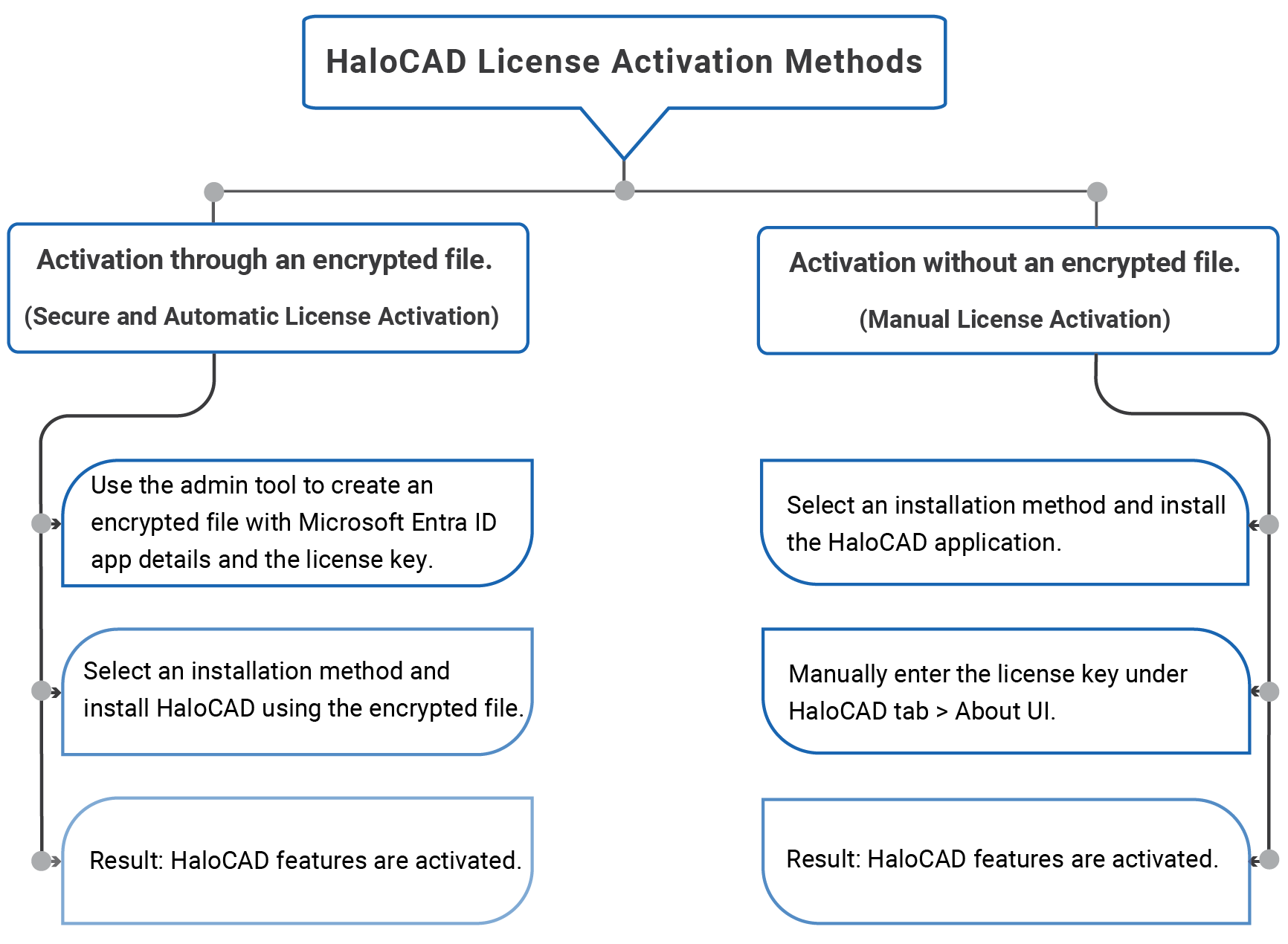
License activation
Secure Installation (Recommended Method)
|
Applicable to |
|
To protect sensitive configuration information, HaloCAD supports secure installation by using an encrypted configuration file.
The HaloCAD Admin Utility encrypts the Microsoft Entra ID application details, cloud configuration, and license key into an encrypted configuration file (hc.conf.enc). During installation, HaloCAD automatically reads the configuration from the encrypted file, initializes the application, and activates the license without requiring users to enter the Microsoft Entra ID application details manually.
Administrators can securely distribute the encrypted configuration file without exposing tenant information or license details.
HaloCAD Admin Utility Tool
The HaloCAD installation package includes the hc.admintool.exe utility.
Prerequisites
Before running the utility, collect the following information:
-
Microsoft Entra ID application details
-
Cloud type
-
License key
Note
A license key is not required for HaloCAD for Viewers or HaloCAD for TCAI.
How to Encrypt the Configuration File
-
Copy the admintool folder from the installation package to a local directory. For example,
C:\Users\superdocs\Desktop\admintool. -
Open Command Prompt as an administrator (Run as Administrator).
-
Navigate to the directory of the admintool folder and type
hc.admintool.exeand press Enter.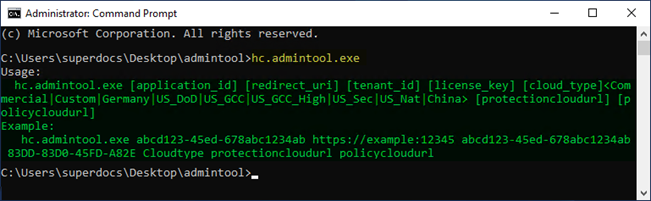
Admin tool with help command
-
Enter the required details. For example,
Cloud type: Commercial -hc.admintool.exe v6ca776-c74e-437d-98ef-662ecb5751tt https://localhost 9c1cfc28-1ec6-44ea-bec6-e3492ef0cd16 B27N-CMTO-LWGH-AKEQ Commercial
Cloud type: US_DoD -hc.admintool.exe v6ca776-c74e-437d-98ef-662ecb5751tt https://localhost 9c1cfc28-1ec6-44ea-bec6-e3492ef0cd16 B27N-CMTO-LWGH-AKEQ US_DoD
Cloud type: Custom -hc.admintool.exe v6ca776-c74e-437d-98ef-662ecb5751tt https://localhost 9c1cfc28-1ec6-44ea-bec6-e3492ef0cd16 B27N-CMTO-LWGH-AKEQ Custom https://api.aadrm.com https://dataservice.protection.outlook.com -
The output window appears as follows:
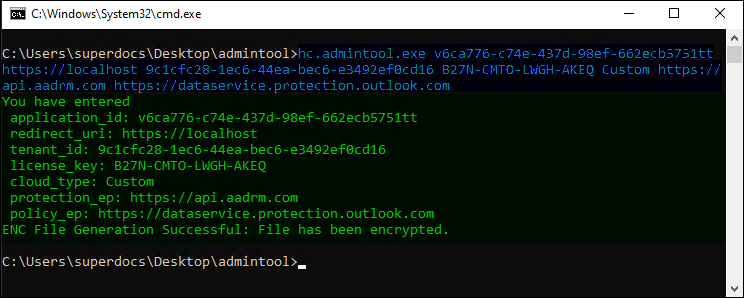
Admin tool displaying the output
-
HaloCAD add-on for Creo: The following help commands are specific to the HaloCAD add-on for Creo.
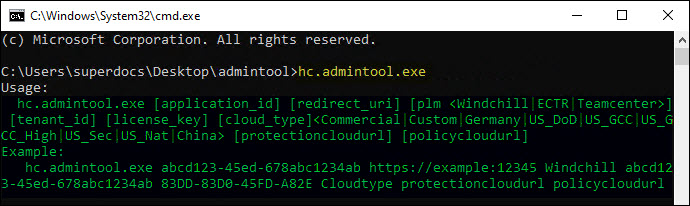
Admin tool with help command for Creo add-on
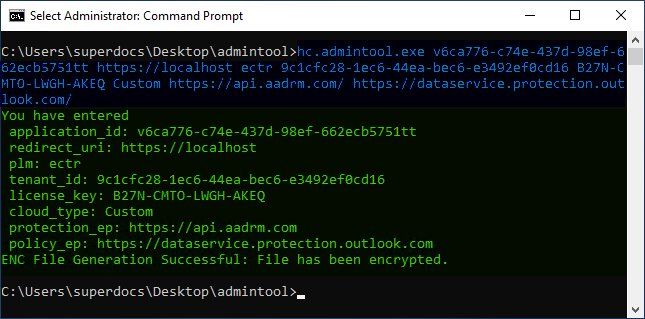
Admin tool displaying the output with ECTR integration (only for Creo add-on)
-
HaloCAD for SOLIDWORKS PDM: The following help commands are specific to HaloCAD for SOLIDWORKS PDM.
.png?cb=5e986a9c43bd90f71bd8c85c932bc538)
Admin tool displaying the output for SOLIDWORKS PDM
-
HaloCAD for Viewers and TCAI: The following help commands are specific to HaloCAD for Viewers and TCAI.
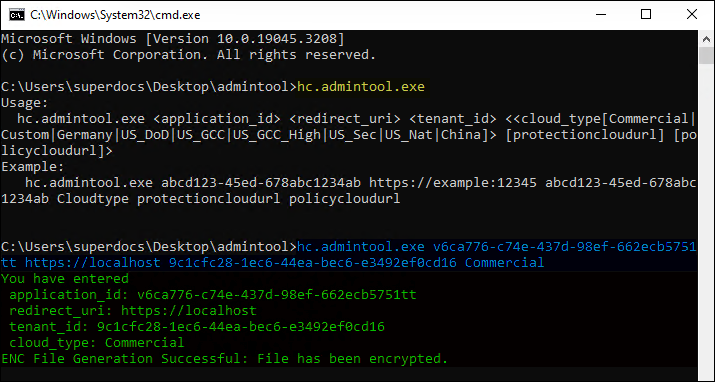
Admin tool displaying the output for Viewers and TCAI
Result:
-
The utility replaces
hc.conf.jsonwith the encryptedhc.conf.encfile. -
Distribute
hc.conf.encwith the HaloCAD installation package. -
Always use the version of
hc.admintool.exeincluded with the current installation package. Configuration files created with earlier releases are not supported.
Next steps
-
Copy
hc.conf.encto the same directory as the HaloCAD installer. -
Run the installer.
-
Complete the installation by following the Installation Manual.
UI-based Manual License Activation
|
Applicable to |
HaloCAD Add-on for CAD |
This section explains how to activate a HaloCAD license using the user interface. If you experience problems activating the license, refer to the Troubleshooting chapter in the Operations Manual.
Prerequisite: Ensure that HaloCAD is installed.
-
Open the CAD application for which the add-on was purchased.
-
When the license warning message appears, click OK.
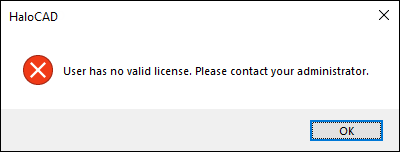
HaloCAD license warning message
-
On the HaloCAD tab, click About.
-
Verify that the license status is None.
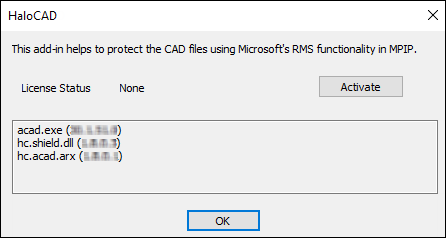
License Status: None
-
Click Activate.
-
The HaloCAD License Activation screen appears:
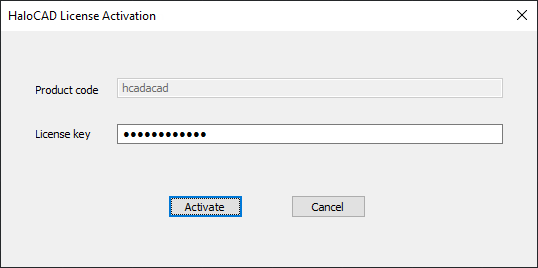
HaloCAD activation screen
-
Enter the license key provided by Secude.
-
Click Activate.
Result:
-
The following confirmation message appears:
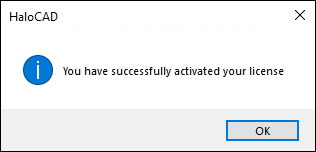
Activation success message
-
Click OK.
-
The license status changes to Active.
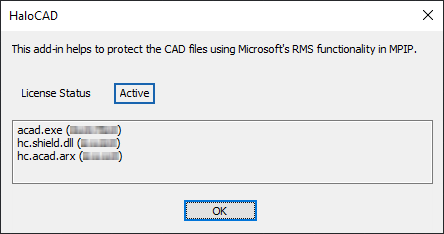
License Status: Active
Related tasks:
-
If you click the pencil icon (Click to change label) to label the file, the Rights Management Service prompts you to sign in. Click OK, and then enter your credentials.
-
After successful authentication, the labels can be retrieved from Microsoft Purview Information Protection, and the HaloCAD Ribbon is activated. For more details, please refer to the Operations Manual.
License Renewal After Expiration
|
Applicable to |
HaloCAD Add-on for CAD |
HaloCAD licenses are valid until the specified expiration date. After a license expires, HaloCAD displays a warning message when the CAD application starts. To continue using HaloCAD, obtain and activate a new license key.
Prerequisite: Before reactivating the license, obtain a new license key from Secude.
Option 1: Automatic Activation Using the Admin Tool
-
Run the admin tool with the new license key, as explained in the section “How to Encrypt the Configuration File”.
-
Navigate to the configuration directory containing the old
hc.conf.encfile and replace it with the one created in the previous step. -
Restart the application.
Result:
-
The HaloCAD license key is now automatically activated.
-
You can start protecting CAD files.
Option 2: Manual Activation Using the About Dialog
-
Open the CAD application.
-
Go to the HaloCAD tab and click About.
-
Click Activate.
-
Enter the new key that Secude has provided.
Result:
-
The HaloCAD license key is now manually activated.
-
You can start protecting CAD files.
Appendix
Third-Party Libraries
Third-party software/code is included or bundled with Secude's products according to its appropriate license. Secude conducts testing to ensure that third-party products are compatible with and perform as intended with Secude applications.
|
Applicable to |
HaloCAD Add-on for CAD |
The third-party libraries and dependencies used by the HaloCAD Add-on for CAD are shown in the table below.
|
Library |
Version |
Source Code |
License Link |
|---|---|---|---|
|
Mhook |
2.5.1 |
||
|
Protobuf Library |
3.15.6 |
https://github.com/protocolbuffers/protobuf/blob/master/LICENSE |
|
|
OpenSSL |
3.2 |
||
|
Rapidxml |
1.13 |
https://sourceforge.net/projects/rapidxml/files/latest/download |
|
|
JSON Parser |
3.11.3 |
||
|
MSAL |
4.90.0 |
https://github.com/AzureAD/microsoft-authentication-library-for-dotnet |
https://github.com/AzureAD/microsoft-authentication-library-for-dotnet/blob/master/LICENSE |
|
ConfuserEx |
1.0.0.0 |
||
|
WTL |
9.0.4140 |
||
|
MIP SDK |
1.18.124 Creo and Designcenter: 1.16.126 |
https://learn.microsoft.com/en-us/information-protection/develop/version-release-history |
https://docs.microsoft.com/en-us/information-protection/develop/ |
|
Licensespring |
8.9.0 |
- |
- |
Third-party libraries
The third-party libraries used by HaloCAD for Viewers, HaloCAD for TCAI, HaloENGINE GenNXT, HaloCAD for Teamcenter, HaloCAD for Windchill, HaloCAD for Autodesk Vault, and HaloCAD for SOLIDWORKS PDM are documented in their respective Installation Manuals.