
About this Manual
This manual explains how to use HaloCAD to classify and protect CAD files. It provides step-by-step instructions for applying sensitivity labels, protecting files, and managing protected content. For installation and configuration instructions, refer to the Installation Manual.
General FAQs
This section answers frequently asked questions about HaloCAD. If you need additional assistance, contact your sales representative or the Secude Support team.
-
What does HaloCAD provide to an organization?
HaloCAD solution protects engineering CAD files and enforces security across their entire lifecycle. -
How many variants does HaloCAD have?
HaloCAD is available in three variants:-
HaloCAD Add-on for CAD applications – a standalone add-on
-
HaloCAD for PLM and PDM
-
-
What is the difference between HaloCAD Add-on for CAD and HaloCAD for PLM/PDM?
HaloCAD Add-on for CAD is a standalone solution for organizations that do not use a PLM/PDM system. Users manually apply Microsoft Purview Information Protection (MPIP) sensitivity labels to protect CAD files.
HaloCAD for PLM/PDM integrates with supported PLM/PDM systems and automatically applies MPIP sensitivity labels during file download based on the rules configured in HaloENGINE GenNXT. This eliminates the need for user intervention while providing centralized protection and monitoring.
-
What languages are supported by the HaloCAD Add-on?
Currently, the HaloCAD Add-on only supports English. -
Does the HaloCAD Add-on support all native CAD file types?
Yes, the HaloCAD Add-on supports all native CAD file types. -
What happens if an unauthorized person tries to open a HaloCAD-protected CAD file?
The process begins with user authentication, which verifies the user's identity. If authentication fails, an error message is displayed, and access is denied. -
Who decides what labels should be used for various CAD drawings and how they are managed in the background?
An administrator manages labels (user rights) in the Microsoft Entra admin center, while engineers can create profiles, classification schemas, and action rules based on the sensitivity of their data. -
What if I don't want a certain file to be protected?
If you do not want the file to be protected, you can apply the No Protection label, which does not include any policy settings. -
Can I create my own labels?
Yes, HaloCAD allows users to create custom permission labels.
How does HaloCAD work?
This section provides a high-level overview of how HaloCAD protects sensitive CAD files and how the system components interact.
License Enforcement
After installation, HaloCAD automatically sends a license validation request to the Secude License Manager when a user first starts a HaloCAD session by opening the CAD application.
Case 1:
If the license is activated during installation, users can use all HaloCAD features without interruption.
Case 2:
If the license is not activated, HaloCAD displays an error message, and the user cannot access HaloCAD features. For more information, refer to the License Activation section in the Technical Reference Manual.
Applying Protection using HaloCAD Add-on
The following steps describe how HaloCAD protects CAD files.
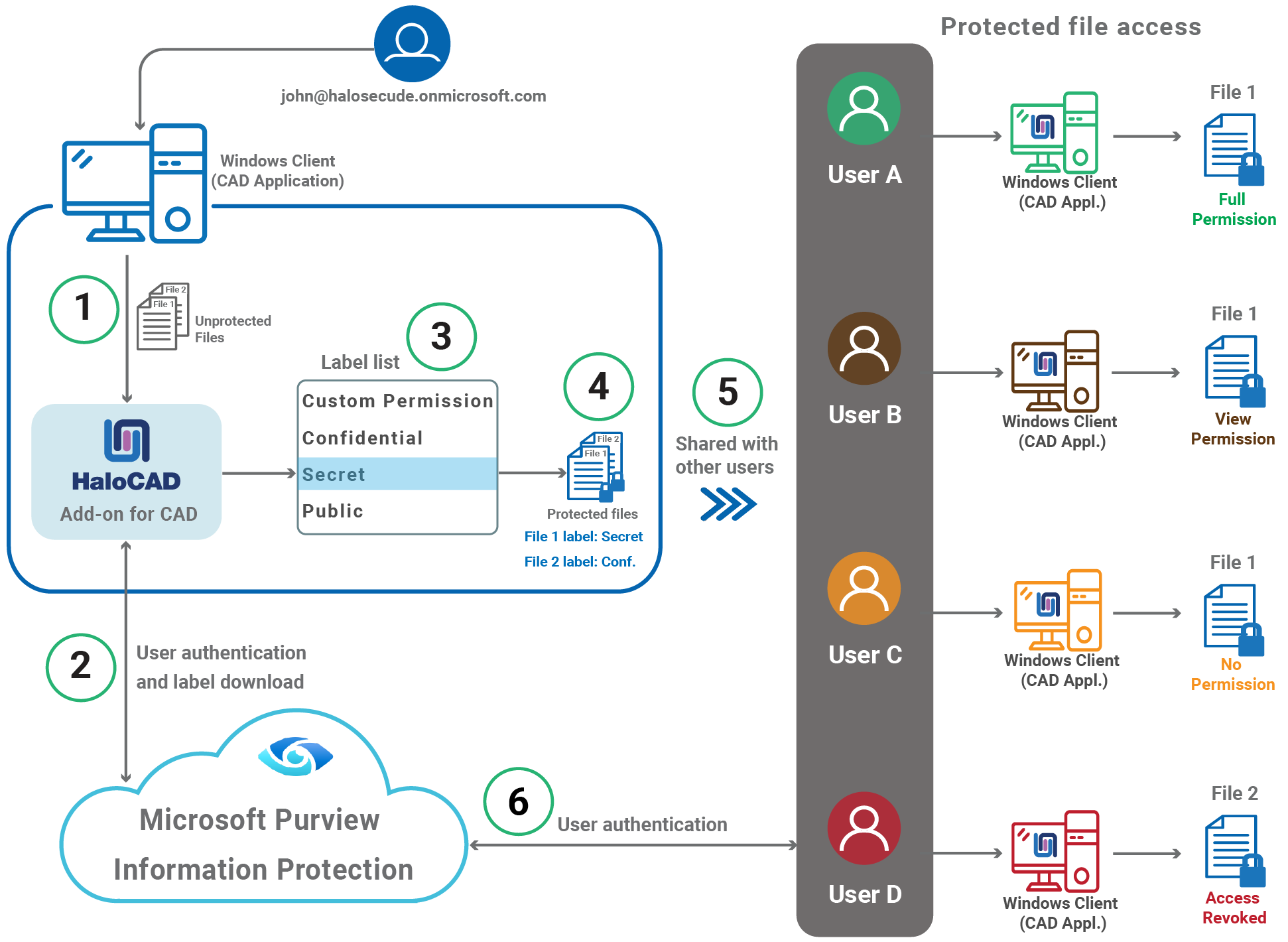
HaloCAD protection
-
The user launches the CAD application and signs in to a HaloCAD session.
-
HaloCAD connects to the Microsoft Entra tenant. Throughout this manual,
halosecude.onmicrosoft.comis used as the example tenant.a. Microsoft Entra ID prompts the user to sign in and verifies the user's identity.
b. After successful authentication, HaloCAD downloads the Microsoft Purview Information Protection (MPIP) sensitivity labels available to the logged-in user.
-
Apply protection: John applies two different sensitivity labels to two separate CAD files.
-
HaloCAD enforces protection based on the applied sensitivity label. The label is stored in the document metadata, and HaloCAD applies the associated protection settings to secure the file.
-
Share files: Assume that
john@halosecude.onmicrosoft.comshares the protected files with multiple users. Users A, B, and C receive File 1, while User D receives File 2. -
Access protected files: Users A, B, C, and D attempt to open the protected files. Microsoft Entra ID authenticates each user. If authentication succeeds, HaloCAD grants access according to the permissions defined in the applied sensitivity label. Permissions such as View, Edit, Print, Copy, Export, and Change Rights are granted based on the applied sensitivity label. Different permission levels can be assigned to individual users or groups. Note: The user who initializes the HaloCAD session becomes the author of the file and automatically receives full access rights. For more information about sensitivity labels, refer to the Microsoft documentation.
-
File 1 –
UserA@halosecude.onmicrosoft.comis granted full access. -
File 1 –
UserB@halosecude.onmicrosoft.comis granted read-only access. -
File 1 –
UserC@halosecude.onmicrosoft.comis denied access and cannot open the file. -
File 2 – Access for
UserD@halosecude.onmicrosoft.comhas been revoked because of risky or suspicious activity.
-
Logged-in user (HaloCAD session)
In this manual, the terms logged-in user and active user are used interchangeably to refer to the user account that launches the CAD application and signs in to Microsoft Entra ID by using Microsoft Sign-In. This account can differ from the user currently signed in to the operating system. Throughout this manual, this authenticated connection is referred to as the HaloCAD session.
Get Started with HaloCAD
This section describes how to protect a file, open a protected file, and export a protected file as a PDF.
Permission Levels and Usage Rights
Basic Permissions
The following table describes the basic permissions and the actions allowed for each permission level.
|
S.No |
Permission Level |
Usage Rights (Allowed Recipient Actions) |
|---|---|---|
|
1 |
View |
Open and read the data (read-only access). It includes zooming and viewing from different angles (for CAD file types). |
|
2 |
Edit |
Edit the file and save it |
|
3 |
Copy |
Extract data (including screen captures) from the file into the same or another file. |
|
4 |
|
Print the content |
|
5 |
Export |
Save the content under a different file name (Save As). Also includes Export to PDF. |
|
6 |
Change Rights |
Change the label applied to a file, remove protection, or save the file in an unprotected format. |
|
7 |
Owner (Full Control rights) |
Grants full access to the file and allows all available actions. This permission also includes the following rights:
|
Basic Permissions
Author (creator) of a file
The author of a file has all the rights and actions mentioned in the above table. Also includes the following permissions:
-
Open file after the expiry date
-
Revoke access
Custom Permissions
The following table describes the available custom permission levels.
|
S.No |
Permission Level |
Usage Rights (Allowed Recipient Actions) |
|---|---|---|
|
1 |
Viewer |
Open and read the data (read-only access). It includes zooming and viewing from different angles. |
|
2 |
Reviewer |
Viewer’s allowed permissions plus:
|
|
3 |
Co-Author |
Reviewer’s allowed permissions plus:
|
|
4 |
Co-Owner |
Co-Author’s allowed permissions plus:
|
|
5 |
Only for me |
Grants all rights to the file and allows all available actions to be performed only by the file author. |
Custom Permissions
HaloCAD Screen Introduction
After installing the HaloCAD Add-on, the HaloCAD tab appears in the CAD application, as shown in the figure below:
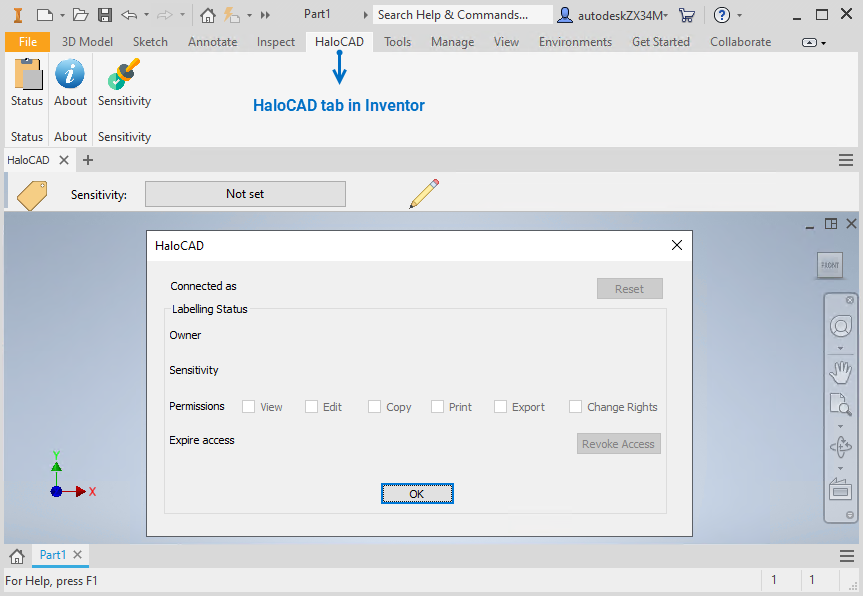
HaloCAD in Inventor
The following table provides a brief description of each HaloCAD menu element.
|
S.No |
Icon |
Description |
|---|---|---|
|
1 |

|
The Status icon displays the status of the file. 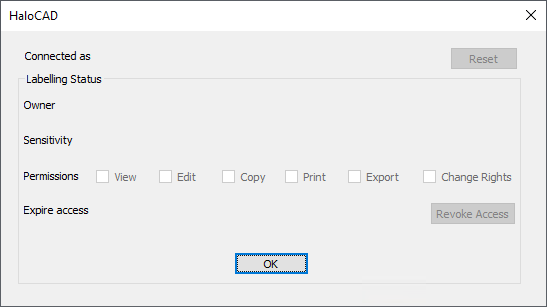
|
|
2 |

|
The About icon displays the application version and license information. For details on license activation, refer to the “License Activation” section of the Technical Reference Manual. 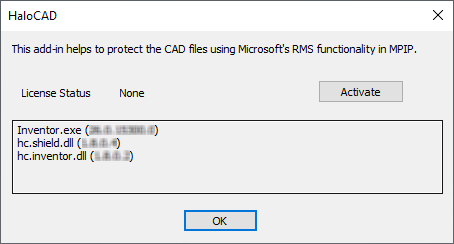
|
|
3 |

|
The Sensitivity icon enables and disables the HaloCAD ribbon. 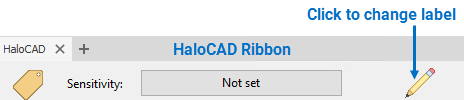
Pencil icon - Click to change label:
|
|
Overview of screen elements
How to Protect a CAD File?
Prerequisites
-
Configure the protection settings for each sensitivity label in the Microsoft Entra admin center.
-
To apply a default sensitivity label to documents, configure the following setting in the Microsoft Entra admin center: Information Protection > Policies > Label publishing policies > select a label policy > Settings > Documents > Default settings for documents > Apply a default label to documents.
To protect a CAD file, perform the following steps:
-
Open Inventor.
-
Open an existing file or create a new file.
-
For new or unprotected files, the Sensitivity status displays Not set if no default label is configured in the policy. If a default label is configured, it is displayed. In this example, no default label is set.
-
The first time you sign in, HaloCAD prompts you to sign in using Microsoft Sign-In Assistant.
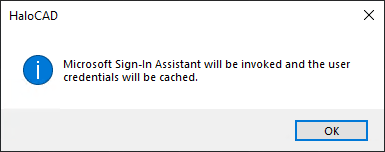
Microsoft Sign-In Assistant invoking message
-
Click OK and enter your credentials.
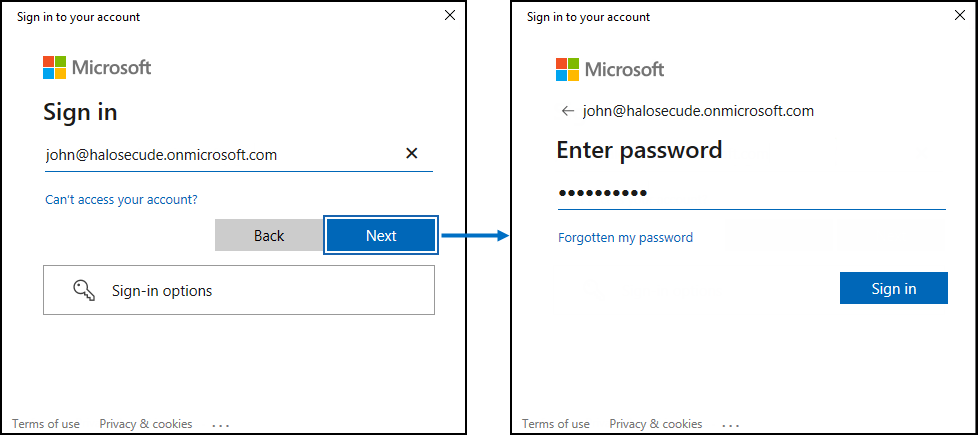
Authentication sign-in dialog
-
After authentication, HaloCAD connects to Microsoft Entra ID and caches the user credentials.
-
Go to the HaloCAD tab and click Sensitivity.
-
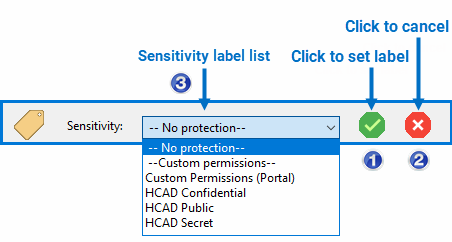
To apply the label to the active document, click the pencil icon (Click to change label).
-
A notification appears indicating that labels are being downloaded.

Fetching the labels
-
From the Sensitivity list, select a label, and then click the green check mark (Click to set label) to confirm the selection.
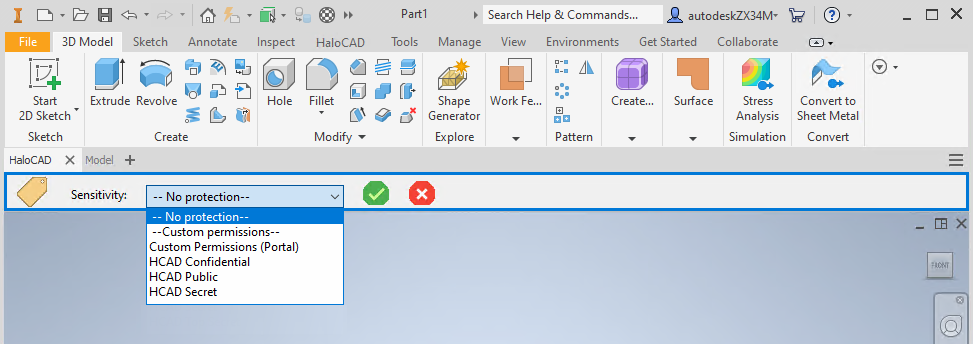
Downloaded labels for the signed-in user
-
For a new file, click Save and specify a file name.
-
For an existing file, no additional save action is required. When the label is applied by clicking the Click to set label (check mark) icon, the file is saved automatically.
Result
-
The selected sensitivity label is applied to the active document.
-
The applied sensitivity label appears on the HaloCAD ribbon using the color configured in the Microsoft Entra admin center.
-
To clear the credential cache, click Reset in the Status UI.
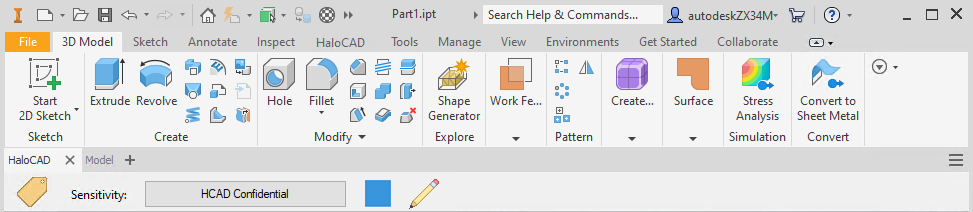
File with applied label
Manage Sensitivity Labels
Use the Sensitivity list to manage the sensitivity label applied to a file.
-
Cancel a label selection: If you select the wrong sensitivity label but have not yet applied it, click the Click to Cancel (red cross) icon. HaloCAD cancels the selection.
-
Remove protection: To remove the existing sensitivity label and leave the file unprotected, select the No Protection label from the list.
-
Change a sensitivity label: To apply a different sensitivity label or modify the protection settings (Custom Permissions), click the Click to change label (pencil) icon, select a new label, and then click the Click to set label (green check mark) icon. HaloCAD replaces the existing sensitivity label with the selected label and saves the file.
-
Revoke access: If the file author no longer wants users to access a shared file, select Revoke Access in the Status UI.
Log Out the Active User
This section explains how to log out the active user from a HaloCAD session. Logging out ends the current HaloCAD session and allows another user to log in.
-
Go to the HaloCAD tab > click Status > click Reset.
-
When the following message appears, click Yes.
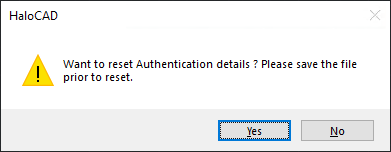
Clear cached credentials #1
-
When the next message appears, click OK.
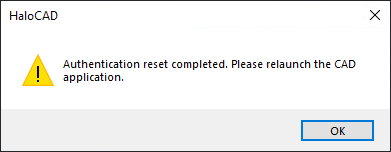
Clear cached credentials #2
-
Restart the application.
Result
-
The current HaloCAD session ends, and the cached credentials are cleared.
-
After restarting the application, another user can sign in to a new HaloCAD session.
-
If you do not relaunch the CAD application, HaloCAD displays the following message: "For HaloCAD to work properly you should relaunch the application now".
-
Click OK, and then restart the application.
Next step
-
Log in after reset: After restarting the application, when you open a protected file or click the pencil icon (Click to change label), HaloCAD prompts you to use the Microsoft Sign-In Assistant. Click OK, and then sign in with your credentials.
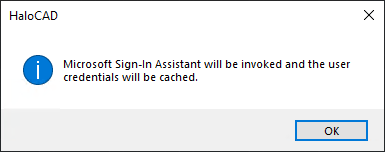
Microsoft Sign-In Assistant invoking message
-
For more information about HaloCAD features, refer to the Common Scenarios section.
How to Export a Protected CAD File to a PDF File?
To convert / export / save a protected file as PDF:
-
Go to the File tab > click Export > PDF > choose a location and enter a file name.
-
Click Save on the Save As dialog.
Result: The PDF file is exported with the same protection as the source CAD file.
The protected file may need to be viewed after being exported. To open a protected file, follow the instructions below:
Prerequisite: Ensure that the latest version of Acrobat Reader DC or Acrobat DC is installed.
-
Double-click the protected file or open the Adobe application, go to the File menu > Open > browse, and select the file.
-
Microsoft Sign-in prompts you to provide your credentials.
-
Enter the credentials and click Sign in.
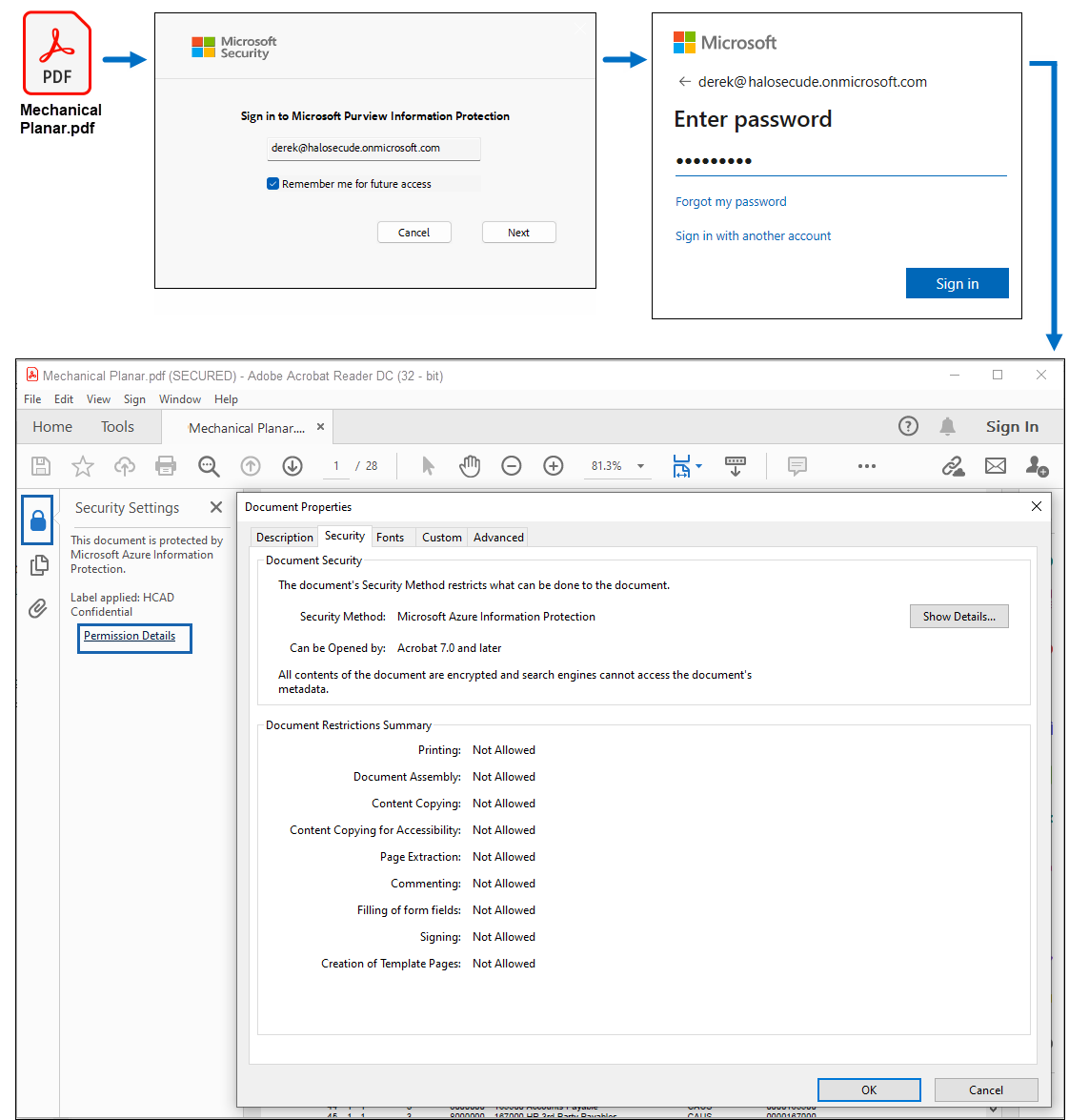
Protected PDF File
-
To the question “Do you want to stay signed in?”, answer Yes.
Result:
-
Upon successful authentication, the protected file is opened.
-
If authentication fails, access to the file is blocked.
Next step
To see the actual permissions that are applied to the file, do one of the following:
-
Click on the lock icon > Permission Details > Document Properties screen > click Show Details.
-
Click File > Properties > click Security tab > Document Properties screen > click Show Details.
Common Scenarios
This section describes common HaloCAD scenarios and the expected behavior for each scenario.
Concept: Sensitivity Labels
Microsoft Purview Information Protection (MPIP) sensitivity labels can be customized to meet an organization's security requirements. Administrators define and manage these labels in the Microsoft Entra admin center, and HaloCAD downloads the available labels for user selection.
When a sensitivity label is applied, HaloCAD enforces the permissions defined in the label. Permissions that are not explicitly granted are denied.
-
View: Allows users to view the protected file only. HaloCAD disables the following features:
-
Click to change label (pencil) icon
-
CAD application tabs, panels, and commands
-
Edit, Copy, Print, Export, Change Rights, and Revoke Access
For more information, refer to Example 1.
-
-
Co-Owner: Grants full access to the protected file, including viewing, editing, printing, copying, exporting, and changing rights.
For more information, refer to Example 2.
How to Open a Protected CAD File?
To open a protected CAD file, follow these steps:
-
Open the protected CAD file.
-
The first time you open a protected file, HaloCAD prompts you to sign in by using Microsoft Sign-In.
-
Click OK, and then enter your credentials.
-
Follow the on-screen instructions to complete the authentication process.
-
After successful authentication, the protected file opens.
-
The permissions available for the file depend on the sensitivity label applied. Refer to the following examples.
Example 1: Label with Read-only Access
The HCAD Confidential sensitivity label is applied to the following file. This label grants the logged-in (active) user view-only access and restricts all other actions. To view the applied sensitivity label and the assigned permissions, click the HaloCAD tab, and then click Status.
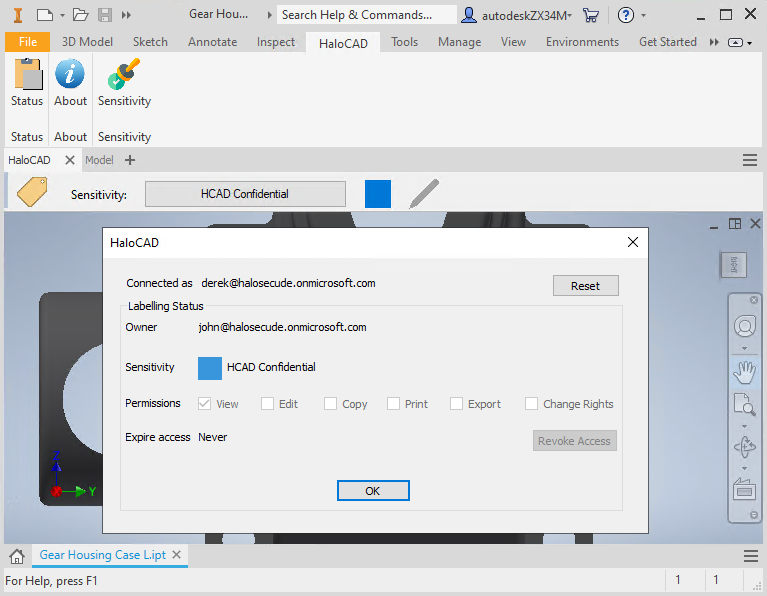
User with restricted access
Behavior When Attempting to Copy, Save, or Capture Screen Data
One of the most common ways confidential information is compromised is by copying it (Ctrl + C) or capturing it using tools such as Print Screen or the Snipping Tool and then transmitting it elsewhere. To prevent this, when a label without the Copy usage right is applied, the entire content is blanked out during copy or screen-capture attempts. Similarly, when the user clicks the File menu, options such as Save, Print, and other related actions are disabled because the user does not have the required authorization to perform these operations.
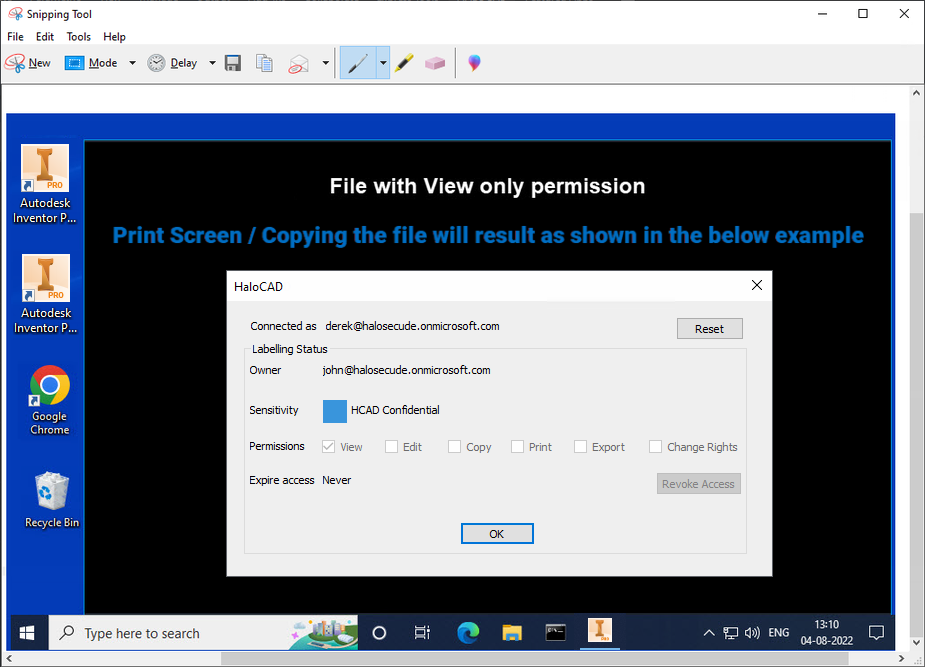
HaloCAD prevents copying data
Behavior When Attempting to Change the Label
With "Read-only / View" rights, you are only allowed to view the content; all other options, including the tab, panel, button, and pencil icon - Click to change label on the HaloCAD Sensitivity ribbon, are disabled. As a result, the imposed protection cannot be relabeled or removed.
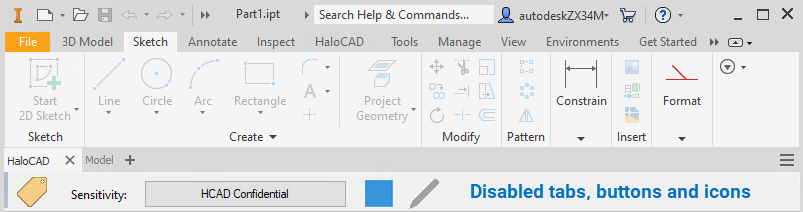
Disabled tab, buttons, and icons
Example 2: Label with Full Control Access
The following file is protected with the HCAD Confidential sensitivity label, which grants the logged-in (active) user Full Control permissions. As a result, all available commands are enabled. To view the applied sensitivity label and the assigned permissions, click the HaloCAD tab, and then click Status.
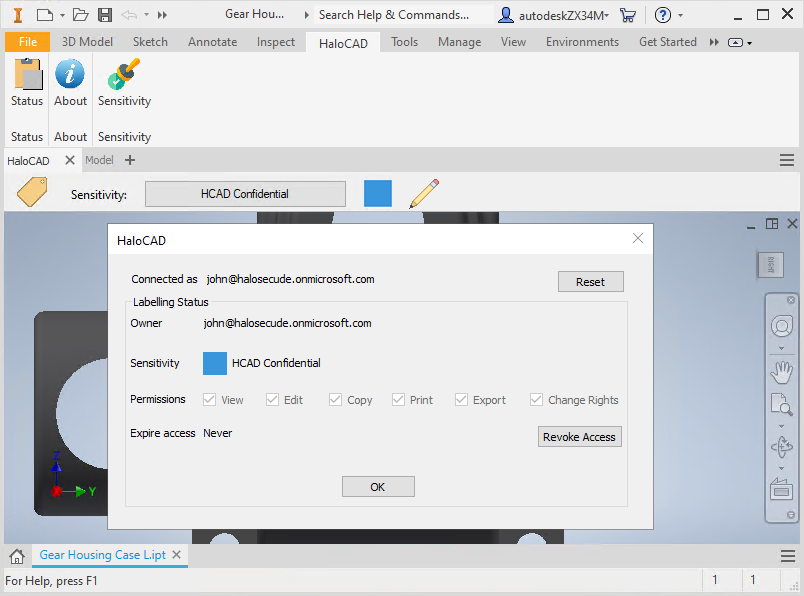
User with full access
What Happens if You Try to Relabel with Co-Owner Permission?
Users with Co-Owner permission have full control over the protected file. To change or remove the applied sensitivity label, click the Click to change label (pencil) icon on the HaloCAD ribbon.
Example 3: Unauthorized User Access
An unauthorized user who attempts to open a protected CAD file receives the following warning message. Note: An unauthorized user is any user who is not included in the allowed users or groups defined in the applied Microsoft Purview Information Protection sensitivity label.
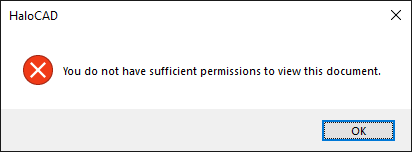
Unauthorized user opening a protected file
Example 4: Label Deleted from Microsoft Entra admin center
A sensitivity label is applied to a protected file and later deleted from the Microsoft Entra admin center. Although the label is no longer available in the admin center, the protection applied to the file remains unchanged. Users attempting to open the protected file receive the following warning message.
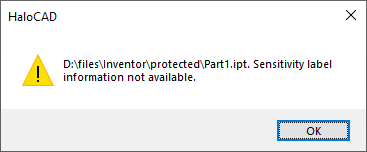
Warning message for unavailability of a label
Example 5: Labeling Dependent (Protected and Unprotected) Files
Assume that a parent assembly file contains both protected and unprotected dependent part or sub-assembly files. When you apply a sensitivity label to the parent assembly file, HaloCAD prompts you to confirm whether the label should also be applied to the dependent files.
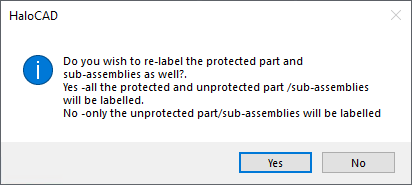
Labeling the unprotected and protected child files
If Yes:
-
All associated unprotected child files receive the parent assembly file's sensitivity label.
-
Existing protected child files are relabeled with the parent assembly file's sensitivity label.
-
If a child file does not have Owner or Co-Owner permissions, the parent assembly file's sensitivity label cannot be applied to that file.
If No:
-
Only unprotected child files receive the parent assembly file's sensitivity label.
-
Existing protected child files remain unchanged.
Example 6: Labeling Dependent (Unprotected) Files
Assume that a parent assembly file contains unprotected dependent parts or sub-assembly files. The parent assembly file can be either protected or unprotected. When you apply or change the sensitivity label on the parent assembly file, HaloCAD displays the following message. Click OK to apply the same sensitivity label to both the parent assembly file and the dependent files.
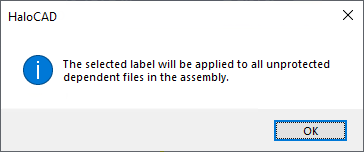
Labeling unprotected child files
Example 7: Removing Protection from Assembly and Part Files
Assume that a protected parent assembly file contains protected part or sub-assembly files. To remove protection from the parent assembly file, remove the existing sensitivity label and apply the No Protection label. HaloCAD displays the following message:
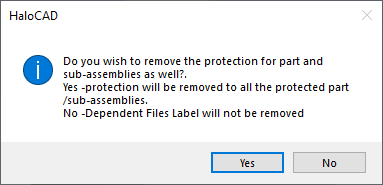
Removing protection from protected part files
Confirm whether the following action should be performed.
If Yes:
-
The sensitivity labels are removed from all associated protected child files, leaving the files unprotected.
-
If a child file does not have Owner or Co-Owner permissions, the protection cannot be removed from that file.
If No:
-
The sensitivity label is removed only from the parent assembly file, leaving it unprotected.
-
The existing protected child files retain their sensitivity labels.
Example 8: Other Use Case Scenarios
Importing a file with a restricted/least permission label
A restricted (least-permission) label grants limited access, such as View permission only. A full permission label grants all available permissions, including Edit, Export, and Change Rights.
Case 1 - When you import a dependent part or sub-assembly file protected with a restricted permission label into a parent assembly file protected with a full permission label, HaloCAD displays the following confirmation message: “Please confirm applying least permission label from import file? Yes - Current file will be updated with import file label “XXXXXXX”. No - Import operation will be cancelled.”
-
Yes – HaloCAD applies the imported dependent part or sub-assembly file's label to the parent assembly file. For example, the HCAD Public label with View permission is applied.
-
No – HaloCAD cancels the import operation, and the parent assembly file remains unchanged.
Case 2 - When you import a dependent part or sub-assembly file protected with either a full permission or restricted permission label into an unprotected parent assembly file, HaloCAD displays the same confirmation message described in Case 1.
-
Yes – HaloCAD applies the imported file's label to the parent assembly file.
-
No – HaloCAD cancels the import operation, and the parent assembly file remains unchanged.
Case 3 - When you import a dependent part or sub-assembly file protected with a full permission label into a parent assembly file protected with a restricted permission label, HaloCAD allows the import without changing the sensitivity label applied to the parent assembly file.
Furthermore, when an assembly file is opened, HaloCAD evaluates the permissions of all linked parts and sub-assembly files. If any linked part or sub-assembly file has the lowest permission level, HaloCAD applies the same permission level to the parent assembly file. For example, if a part file is protected with View permission only, the parent assembly file is also opened with View permission.
Labeling a File Without Protection
A label-only MPIP label adds metadata to a file without applying protection. Unlike a standard MPIP label, it does not include encryption or protection settings. As a result, it can be applied to files that do not require protection but still require a sensitivity label for classification purposes.
Prerequisite: When creating a label-only label in the Microsoft Entra admin center, ensure that the Control access check box on the Choose protection settings for the types of items you selected page is cleared.
Other key points
-
When a label-only MPIP label is applied to a file, the suffix (Label Only) is appended to the label name. For example, if the label name defined in the admin center is HCAD Metadata, it appears as HCAD Metadata (Label Only) after being applied to the file.
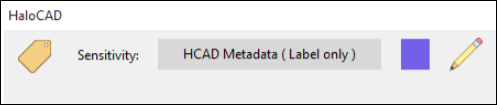
MPIP label-only
-
Full rights: A file with this label allows a user to have full rights on it.
-
Notifications: Similar to a standard MPIP label, the user receives notifications when a label-only policy is applied to a top-level parent file.
-
With the HaloCAD Add-on: The label details are displayed in the Status UI, similar to a standard MPIP label.
-
Without the HaloCAD Add-on: A file with a label-only MPIP label behaves like an unprotected CAD file.
-
Properties: To see label details, follow the instructions below:
-
Go to Model Browser > right-click on the file name and select iProperties.
-
Click on the Custom tab in the iProperties window to view the author name, label ID, and label name.
-
Furthermore, if watermarking is configured in this label, the iProperties window displays additional information such as the font color, font name, font size, layout, and text.
-
Exclude Library Files When Labeling Assembly Files
When protecting an assembly file that includes library files from the Library or Content Center Files folders, HaloCAD displays a prompt allowing you to exclude those library files from protection. Select No to skip protection for the library files, or select Yes to apply protection to all unprotected dependent files attached to the assembly.
Example 9: Label with Content Marking
Content marking, such as a watermark, identifies the sensitivity of a file and reminds users to handle the content appropriately. In this example, the file is protected with the HCAD Secret sensitivity label, which applies the Secret watermark to the document.
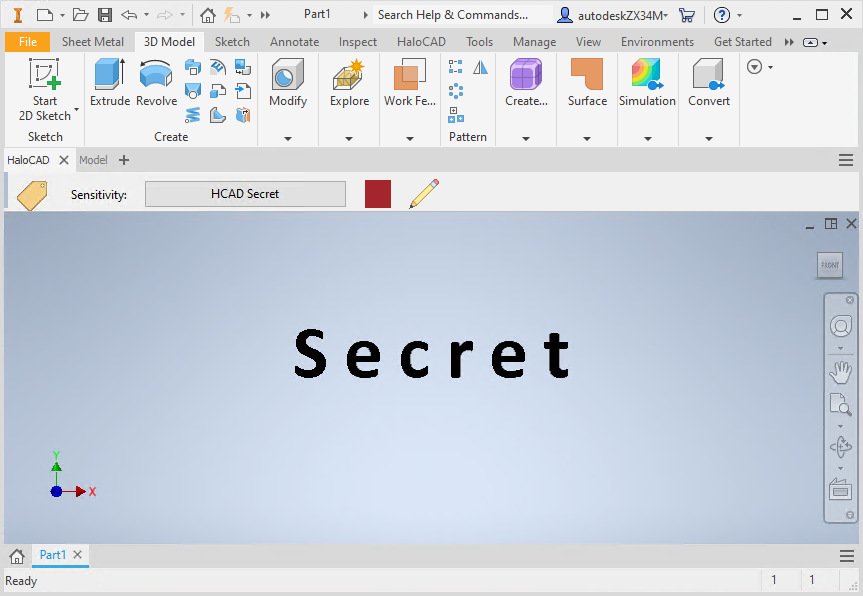
Content with watermark
Example 10: Custom Permissions Label
Difference Between Sensitivity Labels and Custom Permissions
Sensitivity Labels
Sensitivity labels are defined and managed by administrators in the Microsoft Entra admin center. Each sensitivity label includes a predefined set of permissions and is referred to as an administrator-defined permission.
Custom Permissions
Custom permissions allow users to define permission settings when applying protection to a file. These permissions are referred to as user-defined permissions.
Protection using Custom Permissions from Microsoft Entra admin center
Prerequisite: Ensure that the custom permissions label is configured with the Let users assign permissions when they apply the label option in the Microsoft Entra admin center.
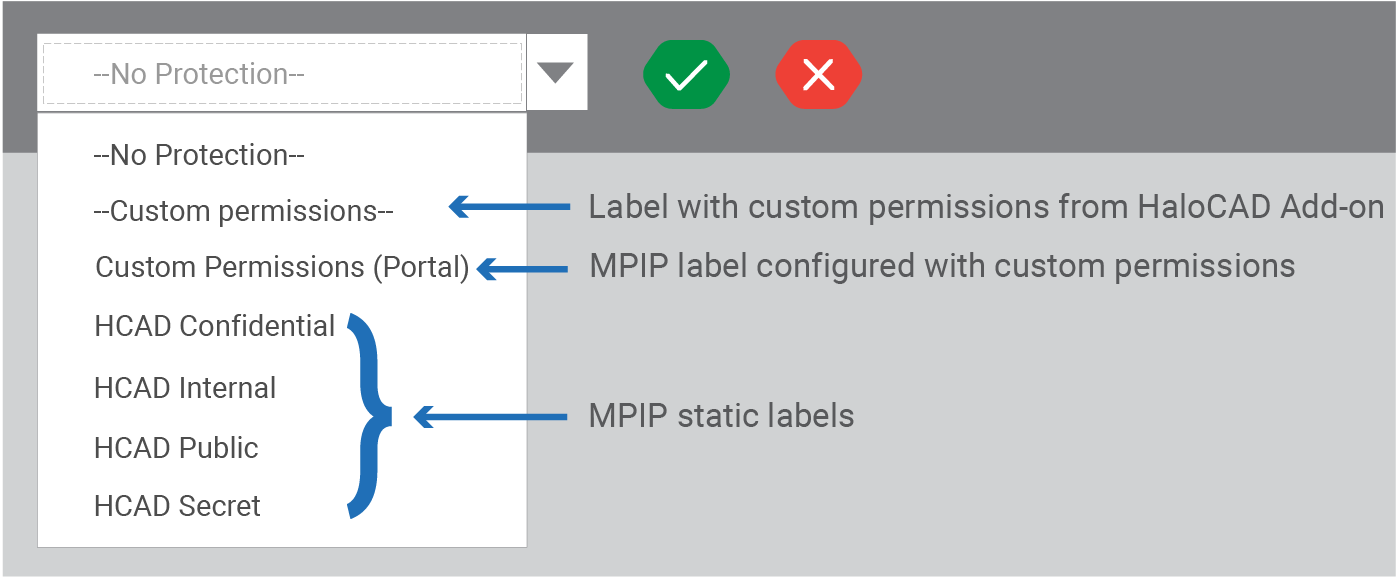
Custom permissions and other labels
Follow the procedure to apply the custom permissions label:
-
Open the Inventor application, select a template, and create objects.
-
Click the Click to change label icon.
-
HaloCAD downloads and displays the available sensitivity labels, including custom permission labels and user-defined labels.
-
For example, the custom permission label configured in the Microsoft Entra admin center is named Custom Permissions (Portal).
-
Select the Custom Permissions (Portal) label from the list and click the green check mark (Click to set label icon).
-
The HaloCAD screen appears, as shown below.
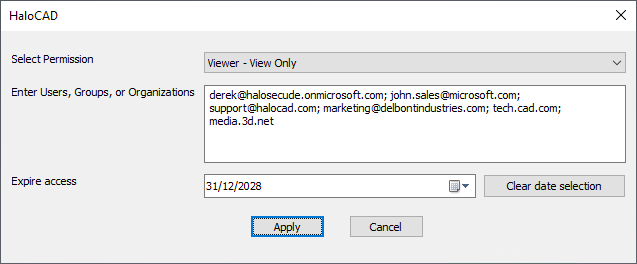
HaloCAD Custom permissions
-
From the Select Permission list, choose the required permission level:
-
Viewer – View only
-
Reviewer – View and Edit
-
Co-Author – View, Edit, Copy, and Print
-
Co-Owner – Full permissions
-
Only for me – Grants access only to the file author
-
-
In Enter Users, Groups, or Organizations, specify the users, groups, or organization domains that can access the file. Separate multiple entries with commas, spaces, or semicolons.
-
In Expire Access, specify how long users can access the protected file.
-
Select Never to allow unlimited access.
-
Specify an expiration date to restrict access after the selected date.
-
-
To remove the selected expiration date, click Clear date selection.
-
Click Apply to confirm the protection settings.
Result: The custom permissions label is applied to the file.
What happens when a user opens a custom permissions–labeled file?
Based on the user’s permissions, the file can be accessed accordingly. Note: The author of the document always has full rights to the file and can access it at any time, regardless of any custom permissions or expiry date configured in the label. The following example shows a label with custom permissions.
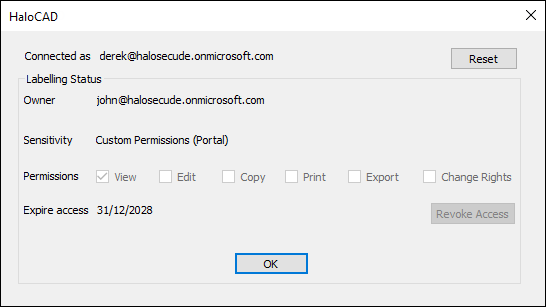
User with custom permission
Protection using Custom Permissions via HaloCAD Add-on
In comparison to the previous section, the HaloCAD Add-on also supports a Custom Permissions label. However, this label is defined at the application level within HaloCAD and is not obtained from the Microsoft Entra admin center. The process for applying this label is the same as described in the previous section.
Example 11: Set an Expiration Date for File Access
Prerequisites
-
Ensure that an expiration date is configured in the Microsoft Entra admin center when using a static MPIP label.
-
When using a Custom Permissions label (from either the Microsoft Entra admin center or the HaloCAD Add-on), specify the expiration date while configuring the label.
Why Set an Expiration Date?
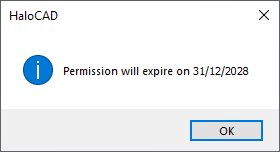
When sharing protected files with external vendors or contractors, recipients may retain access after they no longer require access, creating a potential security risk. To prevent unauthorized access, set an expiration date on the protected file. For example, if a file is shared with an expiration date of 31/12/2028, recipients cannot open the file after that date. Each time the file is opened, HaloCAD displays the file validity information.
Validity of the file
What Happens When a File Expires?
When a user opens a file that has expired in their current time zone, the file cannot be opened. HaloCAD prompts the message “You don’t have permissions to open some of the selected files.” This behavior is similar to unauthorized file access, as described in this section “Example 3: Unauthorized User Access”.
How to Open an Expired File
Only the file author can open an expired protected file. Recipients who require continued access must contact the file author to obtain a new copy of the file with an updated expiration date.
Example 12: Remove protection from a file
To remove the sensitivity label from a protected file, you must be the file owner or have the required permission to remove protection.
Example 13: Revoke a File
Prerequisite: Ensure that the user has the required license to revoke a protected file. For licensing requirements, refer to the Release Notes.
What Is the Revoke Feature?
The Revoke feature prevents further access to a protected file by all users except the file author. Revoking a file removes access permissions but does not delete the file.
When to Revoke a File?
A file author can revoke access if a protected file:
-
Is shared with the wrong recipient.
-
Is accessed from a suspicious location.
-
Is suspected to be compromised.
-
Is no longer required by the recipient.
The Revoke Access option is available in the Status UI.
How to Revoke a File?
-
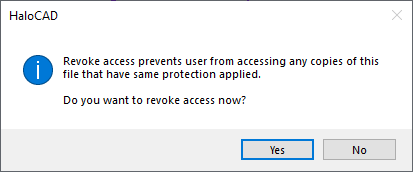
Click the HaloCAD tab, click Status, and then click Revoke Access.
Revoke access message #1
-
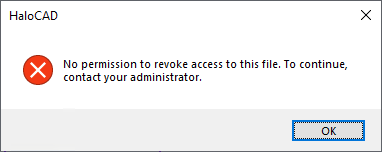
Click Yes to confirm revoking access and continue with step 3. If you do not have the required license, it is not possible to revoke a file. In this instance, HaloCAD displays the following alert:
Access denied when revoking a file
-
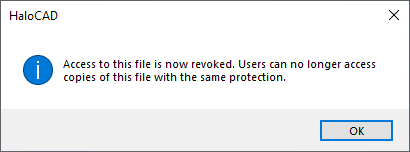
The following message appears:
Revoke access message #2
-
Click OK and save the file.
Result:
-
Access to the file is revoked.
-
Users who previously had access to the document can no longer open it.
What Happens if a User Attempts to Open the Revoked File?
Once access is revoked, users can no longer open the protected file. HaloCAD displays the following message: “You do not have sufficient permissions to view this document.” This behavior is like unauthorized file access, as described in the section “Example 3: Unauthorized User Access”.
MIP SDK
A revoked file can still be accessed by a user if the file was opened earlier in the same HaloCAD session. This behavior is controlled by the Microsoft Information Protection (MIP) SDK. If the applied sensitivity label is configured with the Allow offline access and Users have offline access to the content for this many days options, users can continue to access the revoked file until the configured offline access period expires.
Revoking Access to File Copies
Assume that User A shares a protected file with User B. If User B creates one or more copies of the file without changing the applied sensitivity label, revoking access to the original file also revokes access to all copies because they retain the same sensitivity label.
How to Open the Revoked File?
Only the file author can open a revoked file. Recipients who require access must contact the file author to obtain a new copy of the file.
Troubleshooting
This section describes common HaloCAD issues, their possible causes, and the recommended corrective actions.
Cannot Sign in to Microsoft Sign-In Assistant
Symptoms
The user cannot sign in to a HaloCAD session. The following error message is displayed.
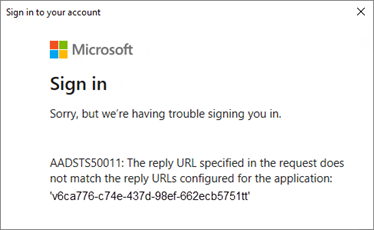
Microsoft Sign-in error message
Background
This issue occurs when a user attempts to sign in to a HaloCAD session by using Microsoft Sign-In Assistant.
Probable Cause
The Redirect URI specified in the request does not match the Redirect URI configured for the registered Microsoft Entra ID application.
Corrective Action
Case 1: Incorrect Redirect URI
If an incorrect Redirect URI was entered during the HaloCAD installation:
-
Reinstall the HaloCAD Add-on by using the correct Redirect URI.
-
Launch the CAD application, click the Click to change label (pencil) icon, and then sign in using Microsoft Sign-In Assistant.
Case 2: Invalid Redirect URI
If the Redirect URI uses an unsupported URI (for example, http://contoso.com):
-
Log in to the Microsoft Entra admin center.
-
On the home page, click the Show Portal Menu icon, then select Microsoft Entra ID.
-
Under the Manage section on your tenant’s Overview page, choose App registrations.
-
Click All Applications, and enter your application name in the search bar.
-
From the list, select your application.
-
Click the Redirect URIs link or select Authentication from the Manage section on the application overview page.
-
Verify that the reply URL begins with
https://. If it does not, update it to https and save the changes.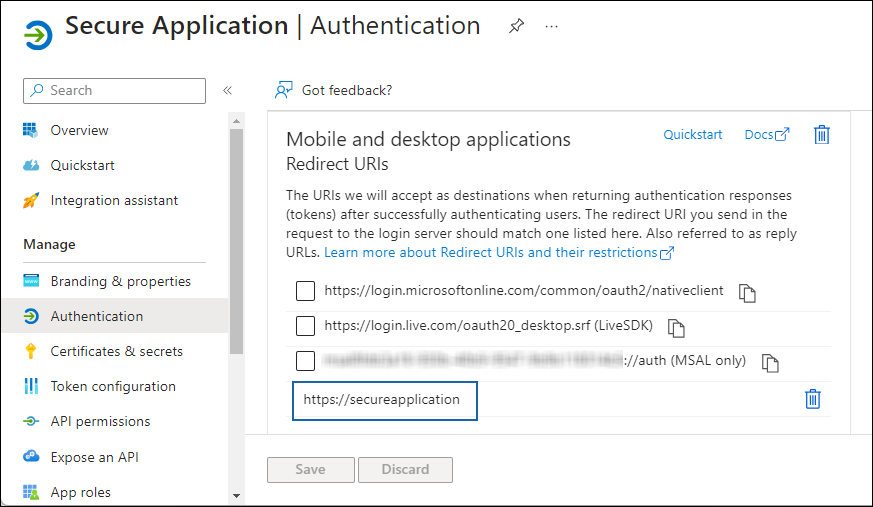
Incorrect Redirect URIs
-
Now, sign in using the Microsoft Sign-In Assistant.
Case 3: Tenant ID Specified for a Multi-Tenant Application
If a Tenant ID is specified during the installation of a multi-tenant application:
-
Reinstall the HaloCAD Add-on without specifying the Tenant ID.
-
Launch the CAD application, click the Click to change label (pencil) icon, and then sign in using Microsoft Sign-In Assistant.
Labels are not Getting Downloaded in the HaloCAD Session
Symptoms
The user could not download labels.
Background
The user logs in successfully to the HaloCAD session, but the sensitivity labels are not downloaded.
Probable Cause
The sensitivity labels or label policies are not configured correctly in the Microsoft Entra admin center.
Corrective Action
-
Log in to the Microsoft Entra admin center as a Global Administrator.
-
Verify that the sensitivity labels are configured to apply protection.
-
Ensure that the required label policies are published to the user.
-
For more information, refer to the Microsoft documentation.
Label Not Found in the Policy
Symptoms
HaloCAD displays the following message:
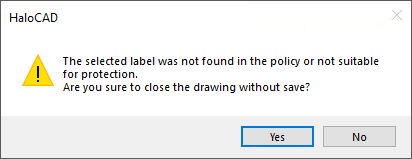
Label not found error message
Background
This issue occurs when you apply a sensitivity label to a file and save it.
Probable Cause
The sensitivity label is not configured correctly or is not included in the published label policy.
Corrective Action
Request your Microsoft Entra admin center administrator to review the sensitivity label configuration and publish the appropriate label policies.
Double Key Encryption Label could not be Applied
Symptoms
HaloCAD displays the following message:
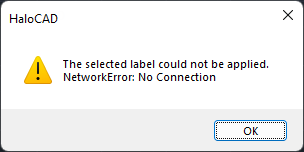
DKE label error message
Background
This issue occurs when you apply a Double Key Encryption (DKE) label to a file and save it.
Probable Cause
The Double Key Encryption service is stopped or unavailable.
Corrective Action
Ensure that the Double Key Encryption service is running and accessible on the client computer.
Could not Connect to MPIP – Case 1
Symptoms
HaloCAD displays the following message:
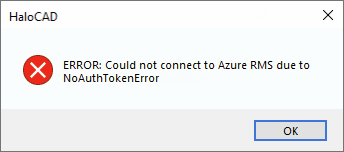
MPIP connection warning message #1
Background
This issue occurs when a user attempts to log in to a HaloCAD session by using Microsoft Sign-In Assistant.
Probable Cause
This issue can occur for one or more of the following reasons:
-
Case 1: The Application (client) ID, Directory (tenant) ID, or Redirect URI is incorrect.
-
Case 2: The Microsoft Sign-In Assistant dialog was closed before the sign-in process was completed.
Corrective Action
Case 1
Ensure you specify the correct Application (client) ID, Directory (tenant) ID, and Redirect URI during HaloCAD initialization.
Case 2
Relaunch the CAD application, and then complete the sign-in process by entering your credentials in the Microsoft Sign-In Assistant dialog.
Could not Connect to MPIP – Case 2
Symptoms
HaloCAD displays the following message:
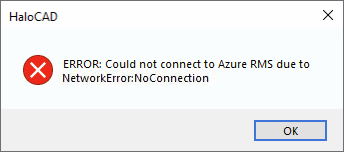
MPIP connection warning message #2
Background
This issue occurs when a user attempts to log in to a HaloCAD session by using Microsoft Sign-In Assistant.
Probable Cause
Your network or proxy settings are preventing HaloCAD from connecting to Microsoft Entra ID.
Corrective Action
-
Review your firewall or network configuration to ensure that connections to Microsoft Azure are allowed.
-
Verify that your proxy configuration does not block the required Microsoft Purview Information Protection URLs.
HaloCAD Activation Fails
Symptoms
HaloCAD displays the following message:
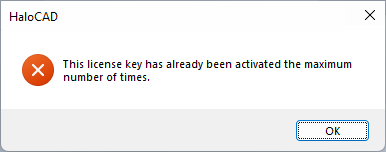
HaloCAD Activation warning message
Background
This issue occurs when you attempt to activate HaloCAD on a system.
Probable Cause
Each successful HaloCAD license activation changes the license status to Active and increases the Total activations count in Secude License Server Manager by one. After the licensed activation limit is reached, additional activation attempts fail. For example, if ten HaloCAD licenses are purchased, HaloCAD can be activated on up to ten systems. An attempt to activate an eleventh system fails because the maximum number of activations has been reached.
Corrective Action
Perform one of the following actions:
-
Action 1: Uninstall HaloCAD from one or more previously activated systems, and then activate the license on the required system.
-
Action 2: Purchase an additional HaloCAD license.
After completing either action, activate the license again.
Incorrect License Key Error Message
Symptoms
HaloCAD displays the following message:
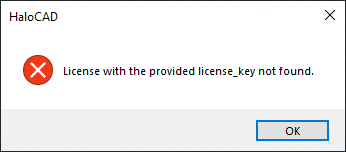
Incorrect license activation message
Background
This issue occurs when you attempt to activate HaloCAD using a license key.
Probable Cause
This issue can occur for one or more of the following reasons:
-
The license key belongs to a different HaloCAD Add-on.
-
The license key is incorrect.
-
The license key is invalid.
Corrective Action
Ensure that you enter the correct license key associated with the HaloCAD Add-on before activating the license.
Why Am I Getting License Expiration Notifications?
Symptoms
HaloCAD displays the following notification:
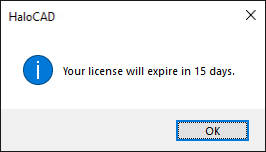
HaloCAD notification
Background
This notification is displayed once each day when a user logs in to a HaloCAD session.
Probable Cause
HaloCAD displays license expiration notifications when the current license is within 30 days of its expiration date. The notification reminds users to renew or replace the license before it expires.
For example, if the license expires on September 30, 2028, daily notifications begin on September 1, 2028 and continue until the license is renewed or expires.
Corrective Action
-
Purchase a new HaloCAD license or renew the existing license.
-
Activate the new or renewed license.
Other License-Related Error Messages
|
HaloCAD License Error Messages |
Root Cause |
Correction Action |
|---|---|---|
|
The license validity period has expired |
When your license had just expired. |
Please contact Secude's representative to receive a new license. |
|
The license is not enabled. |
When you try to activate a license key that is already disabled on the License portal. |
Please contact Secude's representative to enable the license. |
|
This device is blacklisted. |
When your device is blocked in the license portal for a specific reason. |
Please contact Secude's representative to enable the device. |
|
This license cannot be activated before the start date: yyyy-mm-dd. |
When attempting to activate a license before its start date. |
Please make sure the license is activated on the start date. |
|
Date header is not valid or set in past. |
When the date or time on the machine is incorrect. |
Please make sure that the machine installed with the HaloCAD Add-on is synchronized with the current date and time. |
License-related error messages
Technical Support
Before Contacting Technical Support
Before contacting Technical Support, ensure that you have the following information available. Providing this information helps the support team investigate and resolve your issue more efficiently.
-
Full contact details
-
Product build version
-
Date, time, and description of the error (include screenshots, if possible)
-
Details of any third-party software used with the product
-
Any additional information required to reproduce the issue
Contact Technical Support
Secude provides technical support through email support@secude.com. When contacting Technical Support by email, include your company details, a detailed description of the issue, and the relevant log files (if available). A support representative will respond to your inquiry.
Additional Resources
Visit the Secude website https://secude.com to learn about upcoming events, press releases, and to download white papers.
Documentation Feedback
Secude values your feedback and continuously strives to improve product documentation. To provide feedback, send an email to: documentation@secude.com
Include the following details in your feedback:
-
Product name and version
-
Documentation topic
-
Description of the suggestion or error
The technical documentation team reviews all feedback and incorporates relevant updates in future documentation releases.