
Introduction
Organizations frequently share CAD files, such as drawings, blueprints, and prototypes, with suppliers, partners, and vendors. Sharing these files outside the organization increases the risk of unauthorized access or data leakage. HaloCAD for Viewers helps protect sensitive CAD files by enforcing persistent access controls, allowing authorized users to securely view protected content.
About this Manual
This manual walks you through the process of installing, configuring, and operating HaloCAD for Viewers.
Reference
All technical manuals are included with the product package.
Before using this manual, administrators should review the Technical Reference Manual to understand the HaloCAD for Viewers architecture and prerequisites. They should also review the Release Notes to verify the supported CAD viewer applications before following the procedures in this manual.
General FAQs
This section provides answers to frequently asked questions (FAQs). If you need additional assistance, contact your Secude sales representative or Technical Support.
-
What is HaloCAD for Viewers?
HaloCAD for Viewers is a lightweight application that allows users with view-only permissions to securely open and view HaloCAD-protected files in supported CAD viewer applications.
-
Can HaloCAD for Viewers open all protected CAD file types?
No. HaloCAD for Viewers supports only the HaloCAD-protected CAD file types listed in the Release Notes.
-
What languages does HaloCAD for Viewers support?
HaloCAD for Viewers currently supports English only.
-
What happens if an unauthorized user tries to open a HaloCAD-protected CAD file?
User authentication is performed before the file is opened. If authentication fails or the user does not have the required permissions, an error message is displayed, and access to the file is denied.
Installing HaloCAD for Viewers
Step 1: Fulfill the Prerequisites
-
Refer to the Release Notes for the list of supported operating systems, CAD viewer applications, and file types.
-
Ensure that all prerequisites described in the Technical Reference Manual are completed before installing HaloCAD for Viewers.
Please refer to the section “Prerequisites”.
Step 2: Create an Encrypted JSON File
To simplify installation and protect Microsoft Entra ID application details, create an encrypted JSON configuration file by using the administrator tool. Place the hc.conf.enc file in the same directory as the HaloCAD installer. During installation, HaloCAD automatically reads the Microsoft Entra ID application details, so you do not need to enter them manually. A license key is not required for HaloCAD for Viewers.
Please refer to the section “Secure Installation (Recommended Method)”.
Step 3: Install the Add-on
HaloCAD for Viewers can be installed using one of the following methods:
-
Graphical Mode
Provides an interactive, wizard-based installation through the graphical user interface (GUI). -
Silent Mode
Installs HaloCAD for Viewers without displaying a user interface and requires no user interaction. It is intended for automated deployments. -
Via System Center Configuration Manager
Enables administrators to deploy HaloCAD for Viewers silently to multiple computers across the enterprise.
Graphical Mode
Before you begin
Ensure that the following prerequisites are met:
-
The user performing the installation has administrator privileges.
-
Have your Microsoft Entra ID application details available when prompted during installation. Alternatively, use the
hc.conf.encfile for a secure, automated installation.
Installation Procedure
Install HaloCAD for Viewers by using the GUI-based setup program included in the installation package.
-
Double-click
HaloCAD_Viewers_Shield_Setup.exeto start the installation. -
Depending on your Windows security settings, a prompt may appear stating, "Do you want to allow the following program to make changes to this computer?" If this warning appears, click Yes to continue with the installation.
-
When the installer starts, the Startup dialog appears, followed by the Welcome dialog.
Startup dialog
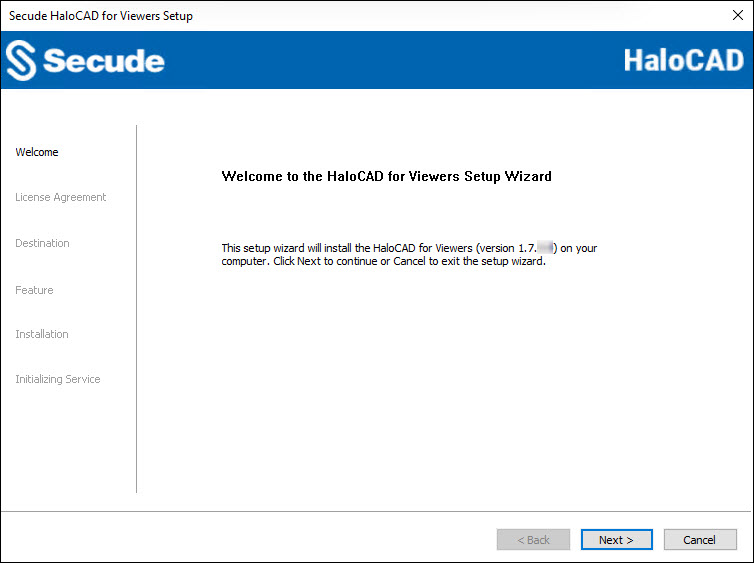
Welcome dialog
-
Click Next to continue the installation.
-
The License Agreement dialog appears.
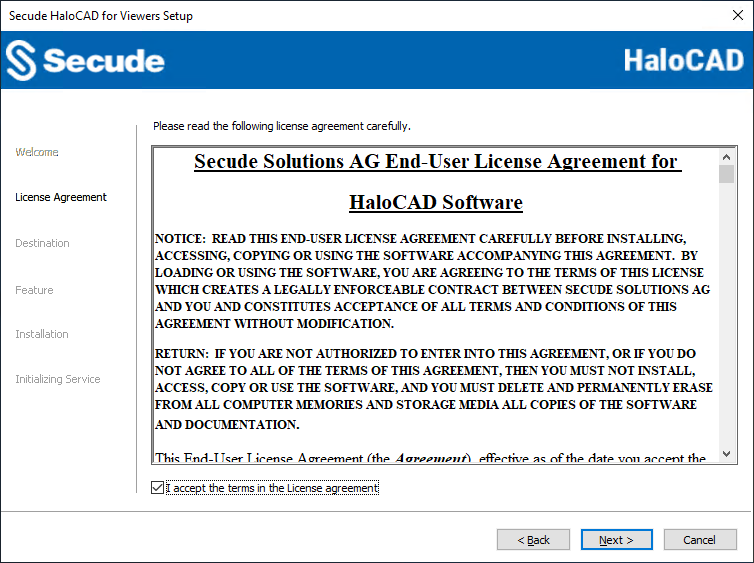
End-User License Agreement dialog
-
Read the End-User License Agreement. If you agree, select I accept the terms in the License Agreement, and click Next to continue.
-
The Destination dialog appears.
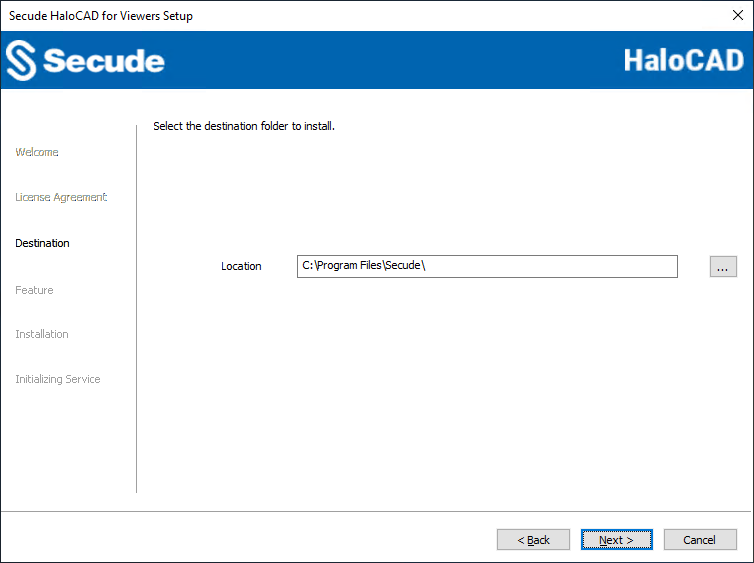
Destination folder selection dialog
-
By default, the application is installed in
C:\Program Files\Secude\. To install it in a different location, click Browse, select the destination folder, and then click Next. -
The Feature dialog appears.
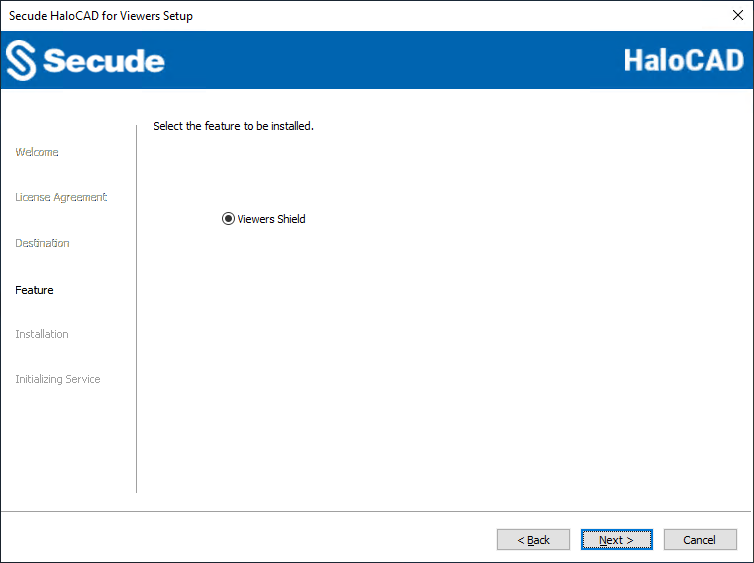
Feature selection dialog
-
Viewers Shield is selected by default.
-
To review or modify the installation settings, click Back. When you are ready to continue, click Next to begin the installation.
-
-
The installation begins, and the progress is displayed in the Installation dialog.
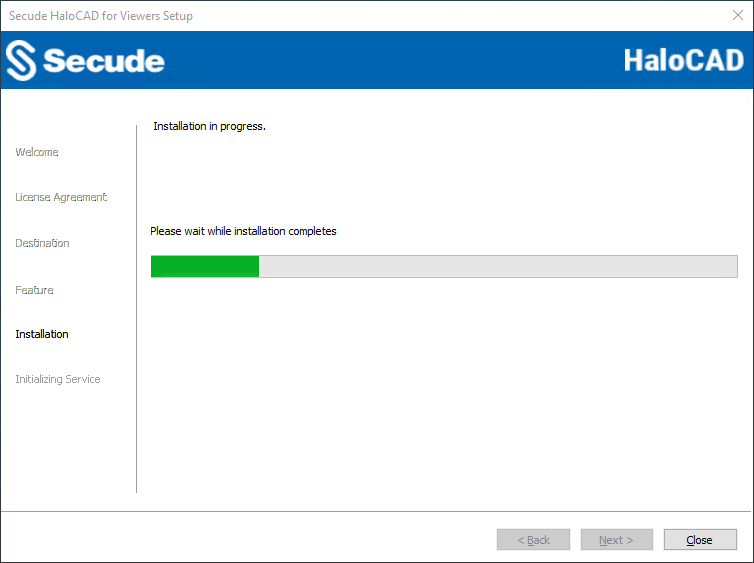
Installation progress dialog
-
When the installation is complete, a confirmation message appears.
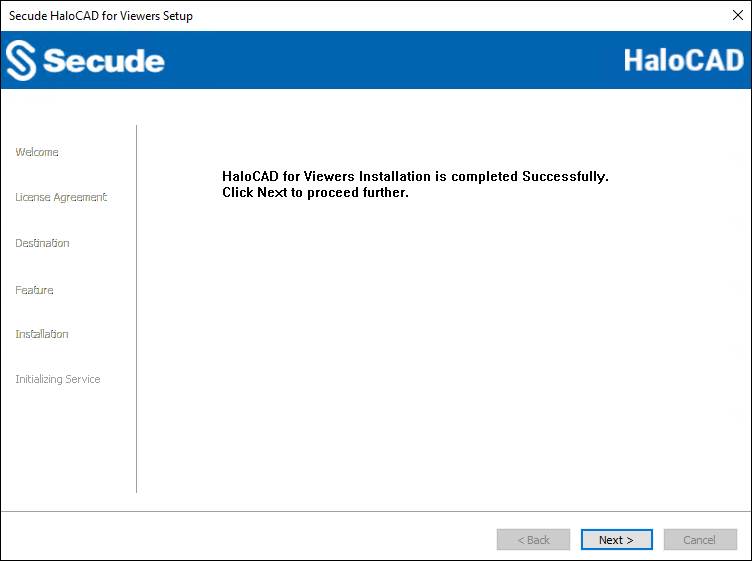
Installation completed dialog
-
Click Next to continue.
-
The Initializing Service dialog appears. To prevent connectivity issues, ensure that the correct Microsoft Entra ID application details are entered on the screen.
If the
hc.conf.encfile is not present. Enter the following Microsoft Entra ID application details: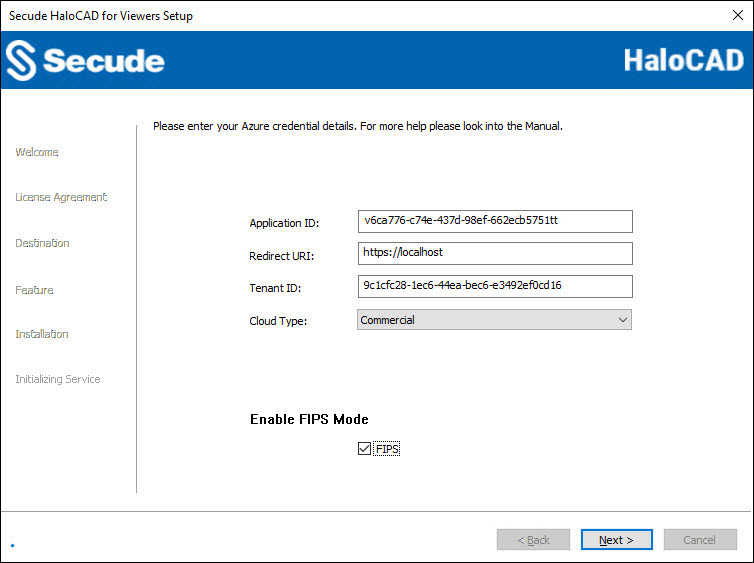
Initializing Service dialog with application details
-
Application ID: Enter the unique identifier (client ID) of the registered Microsoft Entra ID application. For example,
v6ca776-c74e-437d-98ef-662ecb5751tt. -
Redirect URI: Enter the redirect URI specified when registering the application. For example,
https://localhost. -
Tenant ID: If the application is registered as a Single tenant application, enter the tenant ID (GUID). Otherwise, leave this field blank. For example,
9c1cfc28-1ec6-44ea-bec6-e3492ef0cd16. -
Cloud Type: Commercial is selected by default. Depending on your Microsoft Entra ID cloud environment, select one of the following options: Commercial, Custom, Germany, US_DoD, US_GCC, US_GCC_High, US_Sec, US_Nat, or China_01. If you select Custom, specify the following:
-
Protection Cloud URL: For example,
https://api.aadrm.com -
Policy Cloud URL: For example,
https://dataservice.protection.outlook.com
-
-
Enable Federal Information Processing Standards (FIPS) Mode: Select this option to use FIPS-compliant encryption algorithms. When enabled, Microsoft Purview Information Protection (MPIP) uses only FIPS-compliant encryption algorithms. When disabled, MPIP uses standard encryption algorithms. If this option is not enabled during installation, you can enable it later by modifying the registry. For more information, refer to section “Registry Settings”.
-
-
If the
hc.conf.encfile is present.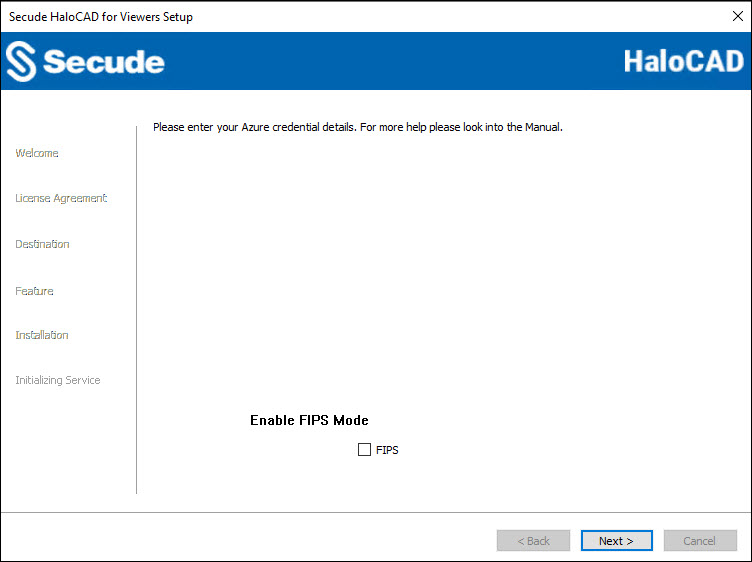
Initializing Service dialog without application details
The installer automatically reads the Microsoft Entra ID application details from the
hc.conf.encfile. As a result, the Microsoft Entra ID application fields are disabled and appear empty. Only FIPS Mode can be enabled or disabled. -
Click Next.
-
Once the initialization is complete, the following success message appears.
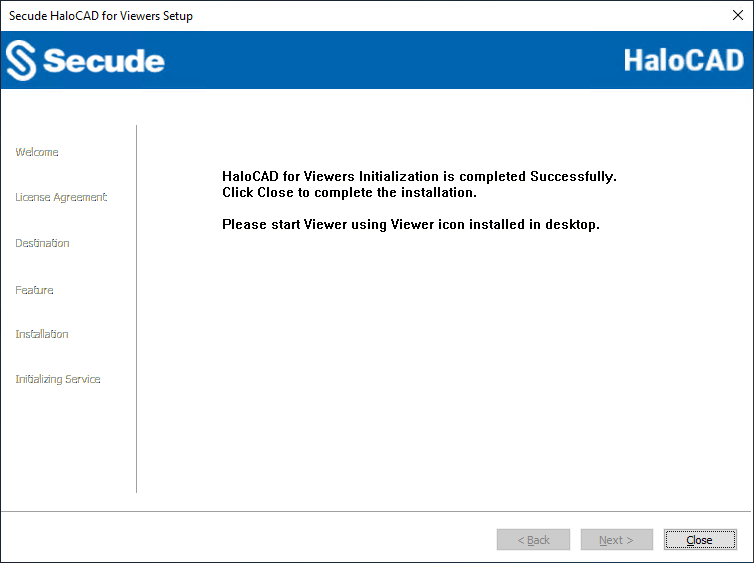
Initialization completed dialog
-
Click Close to close the installation wizard.
-
After installation, a shortcut icon

-
To launch the application, double-click the HaloCAD_Viewers icon or navigate to All apps > HaloCAD_Viewers from the Start menu. The startup dialog appears, as shown below.

Viewers Startup dialog
Note: The Viewers application starts automatically after a system restart or new login session; if it is already running, double-clicking the HaloCAD_Viewers icon displays the message “HaloCAD for Viewer already running.”
-
After you log in to the HaloCAD session and complete authentication through the Microsoft Sign-In Assistant, you can access the following log files:
-
HaloCAD logs at
%AppData%\Roaming\Secude\HaloCAD\viewers\halocad.log -
MIP SDK logs at
%AppData%\Roaming\Secude\HaloCAD\viewers\mip\logs\mip_sdk.miplog
-
Silent Mode
In addition to Graphical Mode, HaloCAD for Viewers supports Silent Mode installation. Silent Mode installs the application without displaying a user interface or requiring user interaction, making it suitable for automated installations.
-
Open the Command Prompt with elevated rights (Run as Administrator).
-
Navigate to the directory that contains the installer.
-
To display the available Silent Mode options, run the following command:
TypeHaloCAD_Viewers_Shield_Setup.exe -help
Press Enter
Output
...
HaloCAD_Viewers_Shield_Setup.exe [-install [-viewersshield] [-dir <destination_directory>]
[<ApplicationID> <Redirect URI> <TenantID/Name> <Cloud Type ("Commercial"|"Custom"|"Germany"|"US_DoD"|"US_GCC"|"US_GCC_High"|"US_Sec"|"US_Nat"|"China_01"|"")> [(if Custom) <Protection Cloud Url> <Policy Cloud Url>] [-enablefipsmode <true|false>]
For Silent Mode Installation if ENC file already exists in the same location
HaloCAD_Viewers_Shield_Setup.exe [-install [-viewersshield] [-dir <destination_directory>] [-enablefipsmode <true|false>]]
HaloCAD_Viewers_Shield_Setup.exe [-uninstall -silent <true|false>] -
The following example installs the add-on by using the Microsoft Entra ID application details.
HaloCAD_Viewers_Shield_Setup.exe -install -viewersshield -dir "C:\Program Files\Secude" v6ca776-c74e-437d-98ef-662ecb5751tt https://localhost 9c1cfc28-1ec6-44ea-bec6-e3492ef0cd16 Commercial -enablefipsmode true -
The following example installs the add-on by using the
hc.conf.encfile located in the same directory as the installer.
HaloCAD_Viewers_Shield_Setup.exe -install -viewersshield -dir "C:\Program Files\Secude" -enablefipsmode true -
Press Enter.
-
Installation is complete.
Via System Center Configuration Manager
Microsoft System Center Configuration Manager (SCCM) enables organizations to deploy operating systems and applications across enterprise-managed Windows devices.
Using SCCM, administrators can deploy the HaloCAD Add-on silently to multiple target computers across the enterprise.
Before You Begin
-
Review the prerequisites described in the Graphical Mode section.
-
Follow your organization's best practices when creating an SCCM deployment.
-
For information about configuring SCCM, refer to the Microsoft documentation.
Deployment Using SCCM
This procedure assumes that your SCCM environment is already configured. Use the Silent Mode command-line options described in the previous section to create and deploy the installation package through SCCM.
Registry Settings
HaloCAD stores configuration settings in the Windows registry. This section describes the registry entries that can be configured. Do not modify any other settings.
Prerequisite: Back up the registry before making any changes, in case you need to restore it later.
Modify the Registry
To modify a registry value:
-
Open Registry Editor.
-
Navigate to the following registry key:
HKEY_LOCAL_MACHINE\SOFTWARE\Secude\HaloCAD for Viewers -
Locate the registry key that you want to update.
-
Modify the value as required.
|
Name |
Default Value |
Type |
Description |
|---|---|---|---|
|
log_enable |
|
REG_SZ |
Defines the status of the log.
|
|
log_level |
|
REG_SZ |
Log level information is logged in the
|
|
log_purge |
|
REG_SZ |
It indicates the removal of files older than a defined time frame. By default, log files older than 7 days are deleted. |
|
log_rollover |
|
REG_SZ |
Defines the log rollover interval, that is, a new log file is generated after the specified number of minutes. By default, a new log file is generated every 100 minutes. |
|
mipallowpii |
|
REG_SZ |
Enable or disable the visibility of Personally Identifiable Information (PII) such as email addresses and IP addresses in the MIP SDK logs.
|
|
enable_fips |
|
REG_SZ |
Enable or Disable FIPS Mode
|
Registry value
Next Steps
HaloCAD for Viewers has been successfully installed and initialized in your environment. You may now proceed to open protected files using the supported CAD Viewer applications. For additional information, please refer to the “Operating Instructions.”
Operating Instructions
This section outlines key operational procedures for working with HaloCAD for Viewers.
How does it work?
At a high level, HaloCAD for Viewers operates as follows:
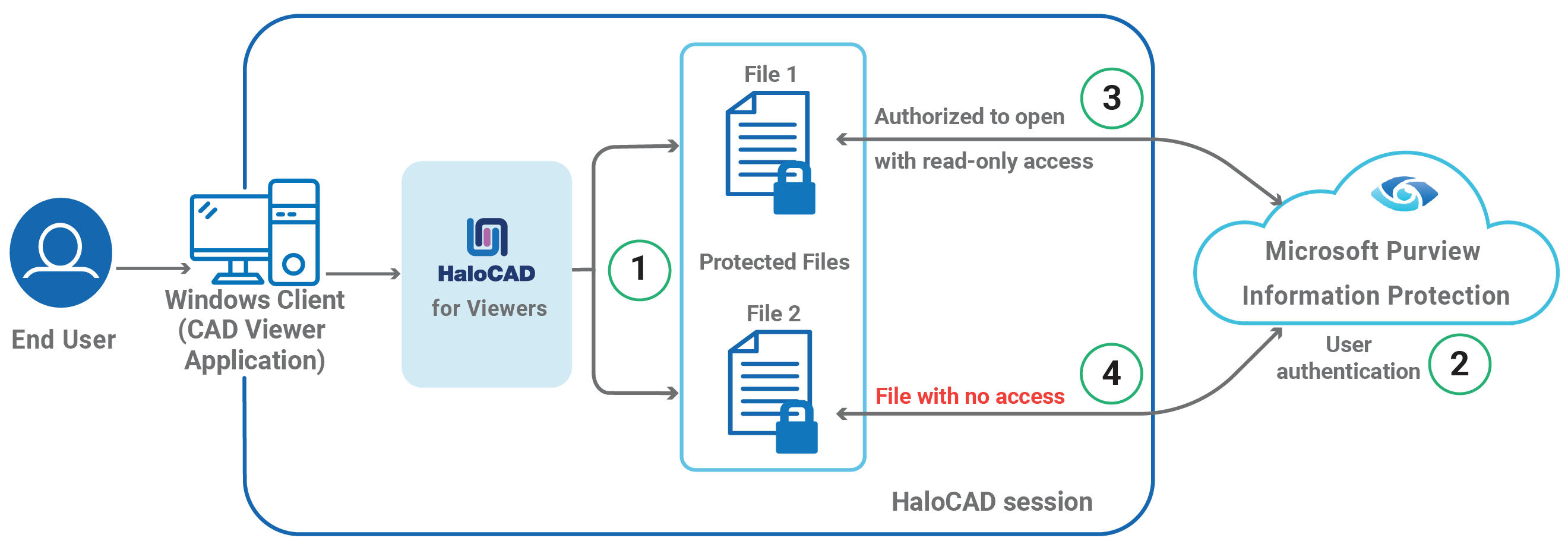
HaloCAD for Viewers
-
The user launches the CAD viewer application, after which HaloCAD loads and displays the message “Protected files can be loaded.” The user then selects two files protected by HaloCAD.
-
The first time you sign in, HaloCAD prompts you to sign in using Microsoft Sign-In Assistant.
-
The user is permitted to open File 1 with view-only access.
-
File 2 does not open because the user does not have the required permissions.
How to Open a Protected File in HaloCAD for Viewers?
Prerequisite: Ensure that HaloCAD for Viewers is installed.
-
Open a supported CAD viewer application, such as Teamcenter Visualization Base.
-
HaloCAD for Viewers loads automatically whenever a viewer application is launched, and the following message appears.
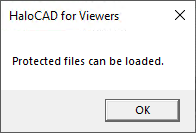
Protected files can be loaded
-
Click OK.
-
Open a HaloCAD-protected file using File > Open. When you log in to a HaloCAD session for the first time, you must connect to Microsoft Purview Information Protection. As a result, the HaloCAD Microsoft sign-in window prompts you to enter your credentials to start a new session.
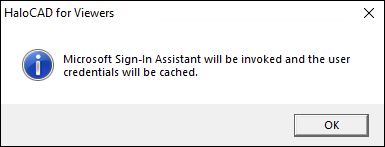
Microsoft Sign-In Assistant invoking message
-
Click OK. Enter your credentials.
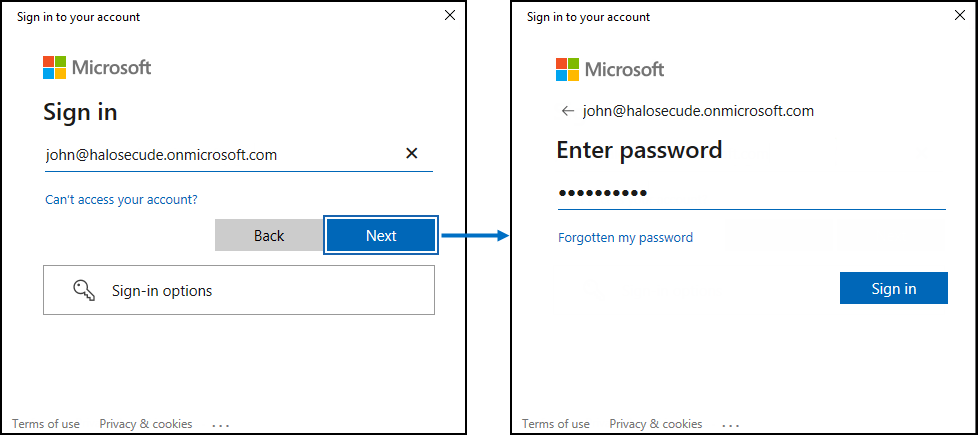
Authentication sign-in dialog
-
After successful authentication, HaloCAD connects to the Microsoft Entra tenant configured during initialization.
Result: The file opens in view-only mode.
User Reset
After logging in to a HaloCAD session, the credentials are cached for easier access to Microsoft Purview Information Protection. To clear the cached credentials, select Show hidden icons on the taskbar, right-click the Secude icon, and select User Reset.
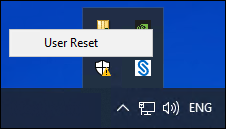
User Reset button
Restrictions When Using Viewers
When you launch a viewer application, HaloCAD for Viewers starts automatically and enforces the permissions assigned to the protected file. The following sections describe the restrictions and warning messages displayed when you attempt to perform restricted actions.
Copy Data
If you try to copy data by pressing Ctrl+C, HaloCAD blocks the operation and displays a warning message.
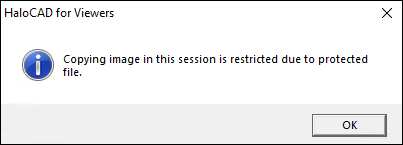
Warning message for the copy action
Capture a Screenshot
If you try to capture a screenshot by pressing Print Screen (PrtScn) or using the Snipping Tool, the displayed data is blanked out.
Print a File
With view-only rights, you can view the content but cannot print it. If you try to print the file by selecting Print > Microsoft Print to PDF, a warning message appears.
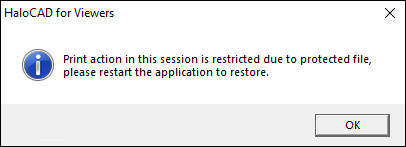
Warning message for the print action
Export, Save, or Edit a File
With view-only rights, you can view the content but cannot export, save, or edit the file. If you try to export the file using options such as Export Image, save it using Save or Save As, or edit the file, a warning message appears.
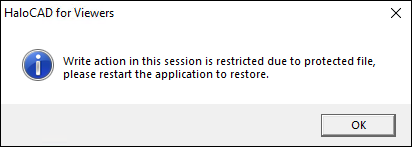
Warning message for the export action
Send a File by Email
With view-only rights, you can view the content but cannot send the protected file by email. If you try to send the file by selecting File > Send > Representation by E-mail, entering the details in the New Annotation Set dialog box, and clicking OK, or by selecting File > Send > Active View by E-mail, a warning message appears.
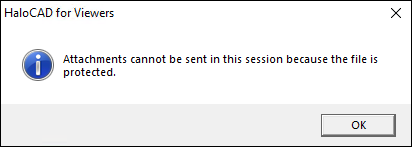
Warning message for the email action
Warning message in an unprotected file
After a HaloCAD-protected file is opened, HaloCAD for Viewers blocks exporting, editing, and emailing files for the duration of the active HaloCAD session, even for unprotected files. Therefore, complete any required editing before opening a HaloCAD-protected file.
Technical Support
Before Contacting Technical Support
Before contacting Technical Support, ensure that you have the following information available. Providing this information helps the support team investigate and resolve your issue more efficiently.
-
Full contact details
-
Product build version
-
Date, time, and description of the error (include screenshots, if possible)
-
Details of any third-party software used with the product
-
Any additional information required to reproduce the issue
Contact Technical Support
Secude provides technical support through email support@secude.com. When contacting Technical Support by email, include your company details, a detailed description of the issue, and the relevant log files (if available). A support representative will respond to your inquiry.
Additional Resources
Visit the Secude website https://secude.com to learn about upcoming events, press releases, and to download white papers.
Documentation Feedback
Secude values your feedback and continuously strives to improve product documentation. To provide feedback, send an email to: documentation@secude.com
Include the following details in your feedback:
-
Product name and version
-
Documentation topic
-
Description of the suggestion or error
The technical documentation team reviews all feedback and incorporates relevant updates in future documentation releases.
Appendix
This section provides supplemental information.
Third-Party Libraries
Third-party software/code is included or bundled with Secude's products according to its appropriate license. Secude conducts testing to make sure the third-party products are compatible with and perform as intended with Secude applications.
The third-party libraries and dependencies used by HaloCAD for Viewers are shown in the table below.
|
Library |
Version |
Source Code |
License Link |
|---|---|---|---|
|
Mhook |
2.5.1 |
||
|
Boost |
1.75.0 |
- |
- |
|
OpenSSL |
3.4.1 |
||
|
Rapidxml |
1.13 |
https://sourceforge.net/projects/rapidxml/files/latest/download |
|
|
tbb |
2021.6.0 |
https://github.com/dwaddington/tbb-2018/blob/tbb_2018/LICENSE |
|
|
MSAL |
4.90.0 |
https://github.com/AzureAD/microsoft-authentication-library-for-dotnet |
https://github.com/AzureAD/microsoft-authentication-library-for-dotnet/blob/master/LICENSE |
|
ConfuserEx |
1.0.0.0 |
||
|
WTL |
10.0.10320 |
||
|
MIP SDK |
1.18.124 |
https://learn.microsoft.com/en-us/information-protection/develop/version-release-history |
https://docs.microsoft.com/en-us/information-protection/develop/ |
Third-party libraries
Uninstalling the HaloCAD for Viewers
When you no longer use HaloCAD for Viewers, you may uninstall the application. Uninstalling removes all files and registry settings that were added to your computer during the initial installation.
Installer Version Requirement
When uninstalling the HaloCAD add-on, use the installer for the currently installed version, whether you run it by double-clicking the installer or from the command line. Using a different installer version may result in errors.
Method #1
-
Click Start menu > go to Control Panel > Programs > Programs and Features > Uninstall a Program > select HaloCAD for Viewers application from the list > right-click and select Uninstall option or double-click on the installer
HaloCAD_Viewers_Shield_Setup.exefile. -
Depending on your Windows security settings, you may get a security warning as "Do you want to allow the following program to make changes to this computer?". If you get this security warning, click the Yes button to confirm that you want to uninstall the add-on.
-
The HaloCAD installer checks the current user session for any supported CAD viewer applications running in the background and, if any are detected, displays the following message.
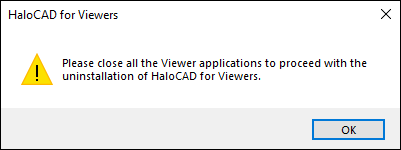
Uninstall Message #1
-
Click OK and close all HaloCAD-supported CAD viewer applications.
-
Redo step 1, and the following confirmation message appears.
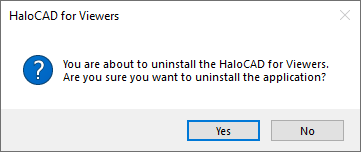
Uninstall Message #2
-
Click Yes to confirm the uninstallation of HaloCAD from your computer.
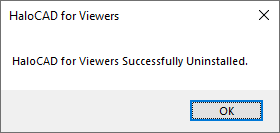
Uninstall Message #3
-
The HaloCAD component has been successfully uninstalled. Click OK to close the dialog box.
Method #2
The following is an example of uninstalling HaloCAD for Viewers using the command line.
-
Open a command prompt.
-
Navigate to the directory of the add-on installer.
Example:HaloCAD_Viewers_Shield_Setup.exe -uninstall -silent true -
The uninstallation process is complete.