
Introduction
As a part of the digital process chain, CAD files are highly valued, such as drawings, blueprints, and prototypes that need to be shared with suppliers, partners, or vendors on a day-to-day basis. There is always a high risk of data being lost or stolen, knowingly or unknowingly, when collaborating with suppliers or partners. With Secude’s HaloCAD for Viewers, you can ensure your design files are secure with persistent access controls without any risk of data getting stolen or lost.
About this Manual
This manual walks you through the process of installing, configuring, and operating HaloCAD for Viewers.
Reference
All technical manuals are included with the product package you have purchased.
Administrators should first read the Technical Reference Manual to understand the add-on's architecture and learn about the prerequisites. They should also refer to the Release Notes to learn about the supported CAD applications before following the instructions in this document.
General FAQs
This chapter provides answers to the most frequently asked questions (FAQ). If you have any further inquiries, please contact our sales representative or support team.
-
What can HaloCAD for Viewers offer a user?
HaloCAD for Viewers is a lightweight application that allows users with “View only” access to view protected files in other CAD viewer applications. -
Is it possible to view all types of CAD files that are protected?
You can only access HaloCAD-protected CAD files that are mentioned as supported file types in the Release Notes. -
What languages are supported by the HaloCAD add-on?
Currently, the HaloCAD add-on only supports the English language. -
What happens if an unauthorized person tries to open a HaloCAD-protected CAD file?
Initially, user authentication occurs. It is a process of verifying a user's identity. If the user fails during the authentication, he/she will be prompted with an error message, and access will be denied.
Installing HaloCAD for Viewers
Step 1: Fulfill the Prerequisites
-
Refer to the Release Notes to learn about supported operating systems, file types, and CAD applications.
-
Before installing, make sure all prerequisites are fulfilled.
Please refer to the section “Prerequisites”.
Step 2: Create an Encrypted JSON File
To ensure a secure installation, create an encrypted JSON file using the admin tool and share it without exposing tenant details. Place the encrypted file with the HaloCAD installer. The installer reads configuration data from the hc.conf.enc file and bypasses the "Initialization" screen, which would otherwise require Microsoft Entra ID application details. Note: A license key is not required for HaloCAD for Viewers.
Please refer to the section “Secure Installation (Recommended)”.
Step 3: Install the Add-on
You can install the add-on in the following modes:
-
Graphical Mode
Graphical mode installation is an interactive, graphical user interface-based method that is driven by a wizard. -
Silent Mode
Silent-mode installation is a non-interactive method of installing the add-on using command lines. -
Via System Center Configuration Manager
With System Center Configuration Manager (SCCM), the add-on is deployed on the targeted computers across your enterprise.
Graphical Mode
Before you begin
The following prerequisites must be met:
-
A user who installs HaloCAD for Viewers must have administrator rights.
-
Ensure that your Microsoft Entra tenant details are ready when the installation UI requests them. As an alternative, you can use
hc.conf.encfor a secure and automated installation.
Installation Procedure
Install the HaloCAD for Viewers using the GUI-based setup program provided in the installation package.
-
Double-click the installer
HaloCAD_Viewers_Shield_Setup.exefile. -
Depending on your Windows security settings, a prompt may appear stating, "Do you want to allow the following program to make changes to this computer?" If this warning appears, click Yes to continue with the installation.
-
When the installer starts, the Startup dialog appears, followed by the Welcome dialog.
Startup dialog
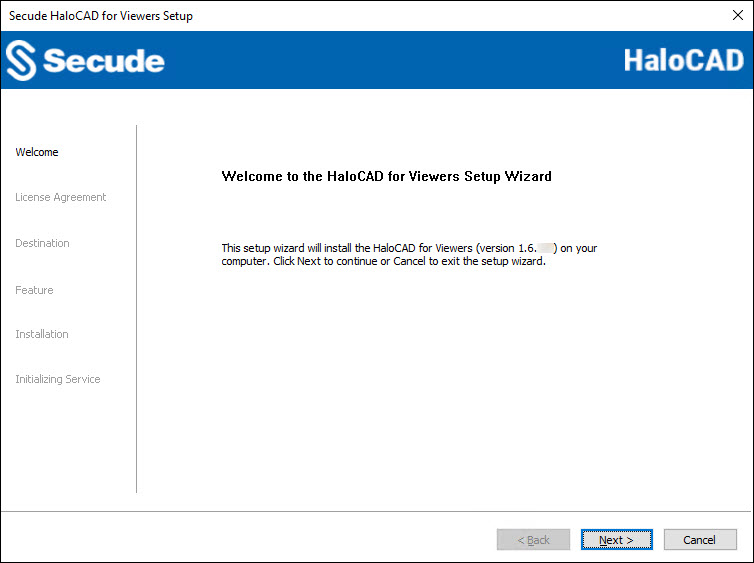
Welcome dialog
-
Click Next to continue the installation.
-
The End-User License Agreement (EULA) dialog appears.
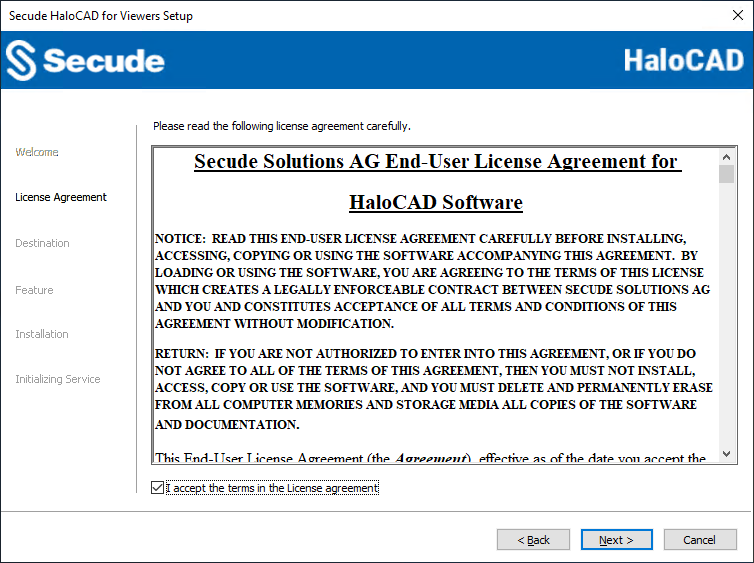
End-User License Agreement dialog
-
Read the End-User License Agreement. If you agree, select I accept the terms in the License Agreement, and click Next to continue.
-
The destination folder selection dialog appears:
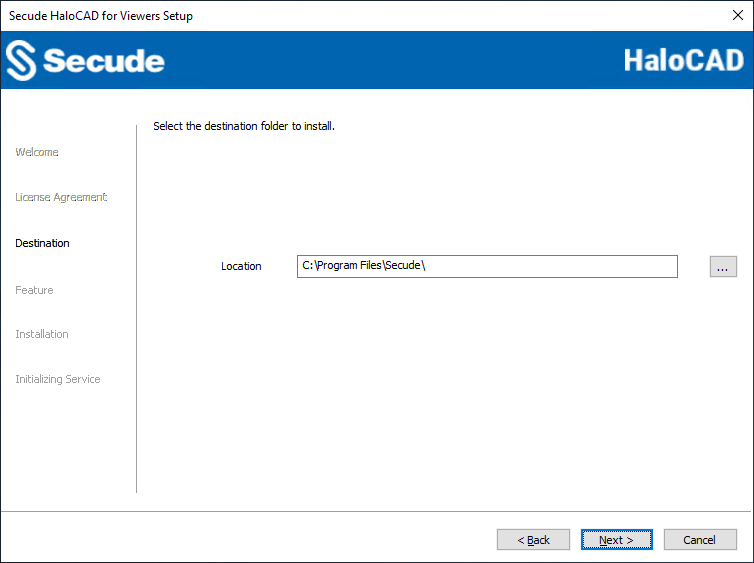
Destination folder selection dialog
-
By default, application files are stored in the program files directory (
C:\Program Files\Secude\). If you would like to choose an alternate location, click the Browse button and select your location preference. When you are finished, click Next. -
The feature selection dialog appears.
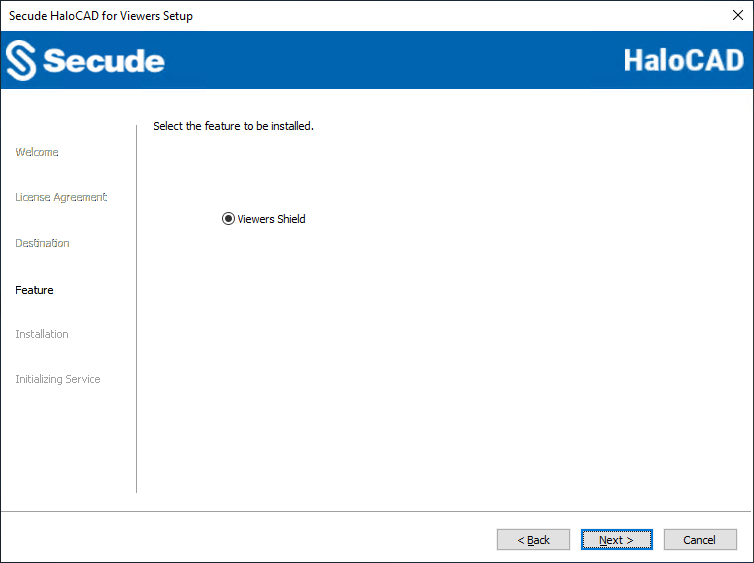
Feature selection dialog
-
The Viewers Shield option is selected by default.
-
To review or modify any installation settings, click Back to return to the previous screens. If you are ready to proceed, click Next to begin installing the application.
-
The installation begins, and the progress is displayed in the dialog.
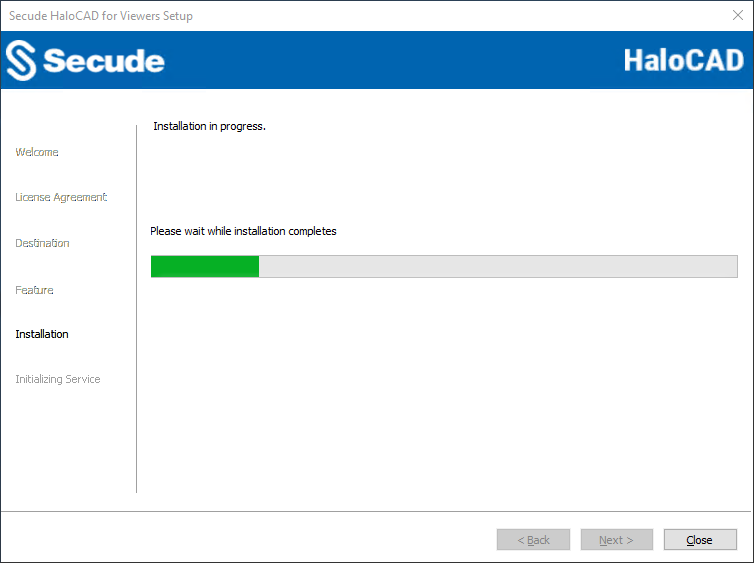
Installation progress dialog
-
When the installation is complete, a message appears confirming that the add-on has been successfully installed. Click Next to proceed.
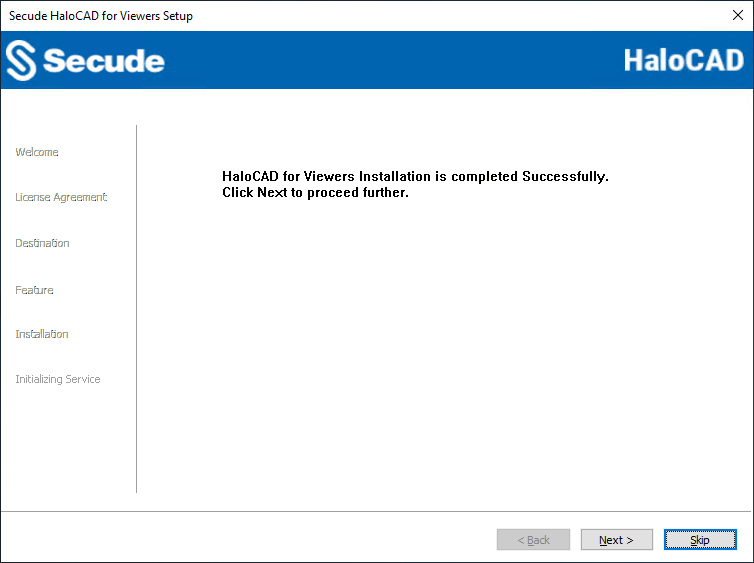
Installation completed dialog
-
The initialization dialog appears. To prevent connectivity issues, ensure that the correct Microsoft Entra ID application details are entered on the screen. Note: If the
hc.conf.encfile is included with the installer, this initialization screen is skipped and only the completion dialog is shown. The initialization screen appears only when thehc.conf.encfile is not present in the installer folder.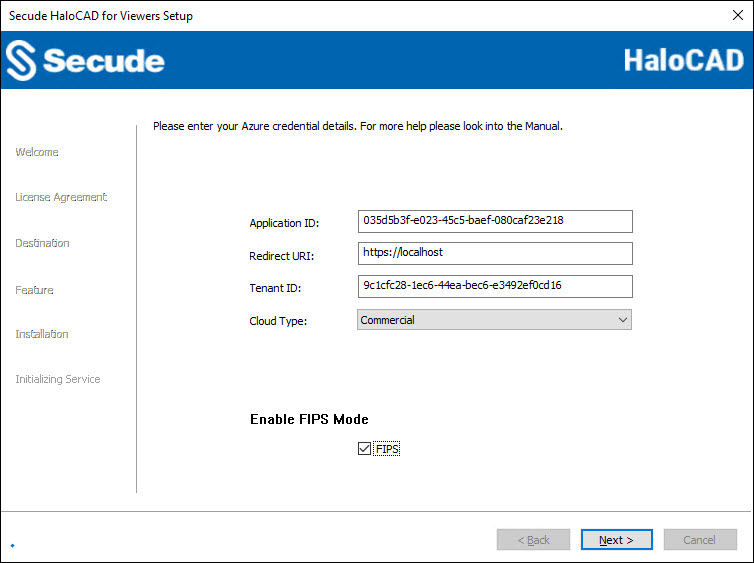
Initialization dialog
-
Application ID: Enter the unique identifier of your registered application. For example,
v6ca776-c74e-437d-98ef-662ecb5751tt -
Redirect URI: Enter the URI that was provided when registering the native application in the Azure portal. For example,
https://localhost -
Tenant ID: If the registered application is Single tenant, you need to enter the globally unique identifier of your tenant if not, you can leave it empty. For example,
9c1cfc28-1ec6-44ea-bec6-e3492ef0cd16. -
Cloud Type: Commercial is selected by default. Based on your Azure subscription and configuration, select the required cloud type from the list: Commercial, Custom, Germany, US_DoD, US_GCC, US_GCC_High, US_Sec, US_Nat, or China_01. If you select Custom, enter the appropriate URLs in the Protection Cloud URL (for example,
https://api.aadrm.com) and Policy Cloud URL (for example,https://dataservice.protection.outlook.com) fields. -
Enable Federal Information Processing Standards (FIPS) Mode: Enable this option to use encryption algorithms that comply with FIPS standards. When enabled, MPIP uses only FIPS-compliant encryption algorithms, and when disabled, it uses standard encryption algorithms. If this option was not enabled during installation, it can later be enabled through a registry entry. For more details, please refer to the section “Registry Settings”.
-
Click Next.
-
-
Once the initialization is completed, you will get the success message as shown below.
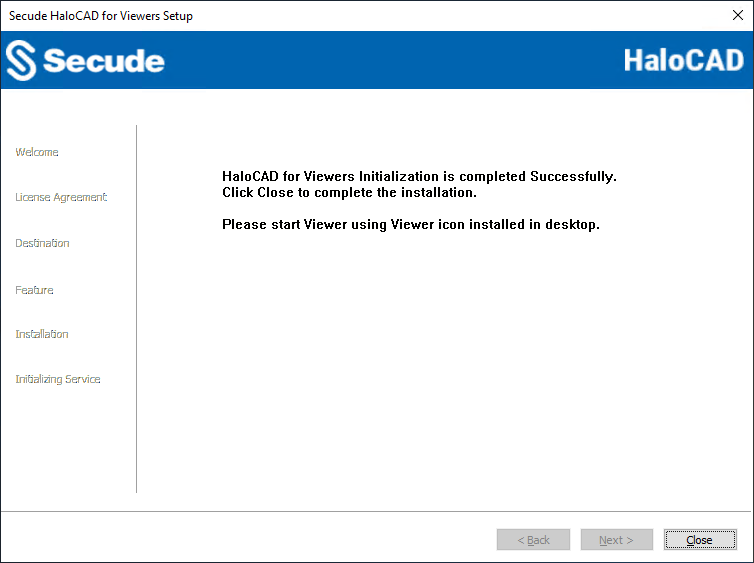
Initialization completed dialog
-
Click Close to close the installation wizard.
-
After installation, a shortcut icon

-
To launch the application, double-click the HaloCAD_Viewers icon or navigate to All apps > HaloCAD_Viewers from the Start menu. The startup dialog appears, as shown below.
Viewers Startup dialog
Note: The Viewers application starts automatically after a system restart or new login session; if it is already running, double-clicking the HaloCAD_Viewers icon displays the message “HaloCAD for Viewer already running.”
-
After you log in to the HaloCAD session and complete authentication through the Microsoft Sign-In Assistant, you can access the following log files:
-
HaloCAD logs at
%AppData%\Roaming\Secude\HaloCAD\viewers\halocad.log -
MIP SDK logs at
%AppData%\Roaming\Secude\HaloCAD\viewers\mip\logs\mip_sdk.miplog
-
Silent Mode
In addition to the graphical mode, HaloCAD for Viewers can be installed in silent mode, which does not display a user interface and requires no user interaction. This provides a convenient way to streamline the installation by executing the command once.
-
Open the Command Prompt with elevated rights (Run as Administrator).
-
Navigate to the installer directory.
-
To know the list of options available in silent mode, follow the steps given below:
TypeHaloCAD_Viewers_Shield_Setup.exe -help
PressEnter
Output
...
HaloCAD_Viewers_Shield_Setup.exe [-install [-viewersshield] [-dir <destination_directory>]
[<ApplicationID> <Redirect URI> <TenantID/Name> <Cloud Type ("Commercial"|"Custom"|"Germany"|"US_DoD"|"US_GCC"|"US_GCC_High"|"US_Sec"|"US_Nat"|"China_01"|"")>
[(if Custom) <Protection Cloud Url> <Policy Cloud Url>] [-enablefipsmode <true|false>]
For Silent Mode Installation if ENC file already exists in the same location
HaloCAD_Viewers_Shield_Setup.exe [-install [-viewersshield] [-dir <destination_directory>] [-enablefipsmode <true|false>]]
HaloCAD_Viewers_Shield_Setup.exe [-uninstall -silent <true|false>] -
The following command illustrates how to install the add-on using the Azure application details.
HaloCAD_Viewers_Shield_Setup.exe -install -viewersshield -dir "C:\Program Files\Secude" v6ca776-c74e-437d-98ef-662ecb5751tt https://localhost 9c1cfc28-1ec6-44ea-bec6-e3492ef0cd16 Commercial -enablefipsmode true -
The example below shows how to install the add-on using the
hc.conf.encfile located in the same installation location as mentioned.
HaloCAD_Viewers_Shield_Setup.exe -install -viewersshield -dir "C:\Program Files\Secude" -enablefipsmode true -
Press
Enter. -
Installation is completed.
Via System Center Configuration Manager
Microsoft System Center Configuration Manager (SCCM) is an administrative tool that allows organizations to deploy operating systems and applications to Windows users efficiently and cost-effectively across their environment.
Using SCCM, the HaloCAD add-on can be deployed silently and automatically to specific target computers throughout the enterprise.
Before You Begin
-
Ensure that you have reviewed the prerequisites described in the Graphical Mode section.
-
We recommend adhering to best practices when creating a deployment procedure.
-
For guidance on preparing your environment, refer to the official Microsoft online documentation.
Deployment Using SCCM
This guide assumes that an SCCM environment is already configured. After configuration, you can use the silent mode commands described in the Silent Mode section to deploy the add-on.
Registry Settings
HaloCAD stores configuration settings in the Windows registry. This section describes the registry entries that can be configured. Do not modify any other settings.
Prerequisite: Make sure to back up the registry before making any changes, in case you need to restore it later.
Modify the Registry
To modify a registry value:
-
Open Registry Editor.
-
Navigate to:
HKEY_LOCAL_MACHINE\SOFTWARE\Secude\HaloCAD for Viewers -
Locate the registry key that you want to update.
-
Modify the value as required.
|
Name |
Default Value |
Type |
Description |
|---|---|---|---|
|
log_enable |
|
REG_SZ |
Defines the status of the log.
|
|
log_level |
|
REG_SZ |
Log level information is logged in the
|
|
log_purge |
|
REG_SZ |
It indicates removing files older than a defined time frame. By default, the log files older than 7 days will be deleted. |
|
log_rollover |
|
REG_SZ |
Defines the log rollover time, i.e., a new log file will be generated based on the specified minute(s). By default, a new log file will be generated every 100 minutes. |
|
mipallowpii |
|
REG_SZ |
Enable or disable the visibility of Personally Identifiable Information (PII) such as Email names and IP addresses in the MIP SDK logs.
|
|
enable_fips |
|
REG_SZ |
Enable or Disable FIPS Mode
|
Registry value
Next Steps
HaloCAD for Viewers has been successfully installed and initialized in your environment. You may now proceed to open protected files using the supported CAD Viewer applications. For additional information, please refer to the “Operating Instructions.”
Operating Instructions
This section outlines key operations procedures for working with HaloCAD for Viewers.
How does it work?
At a high level, HaloCAD workflow involves the following steps:
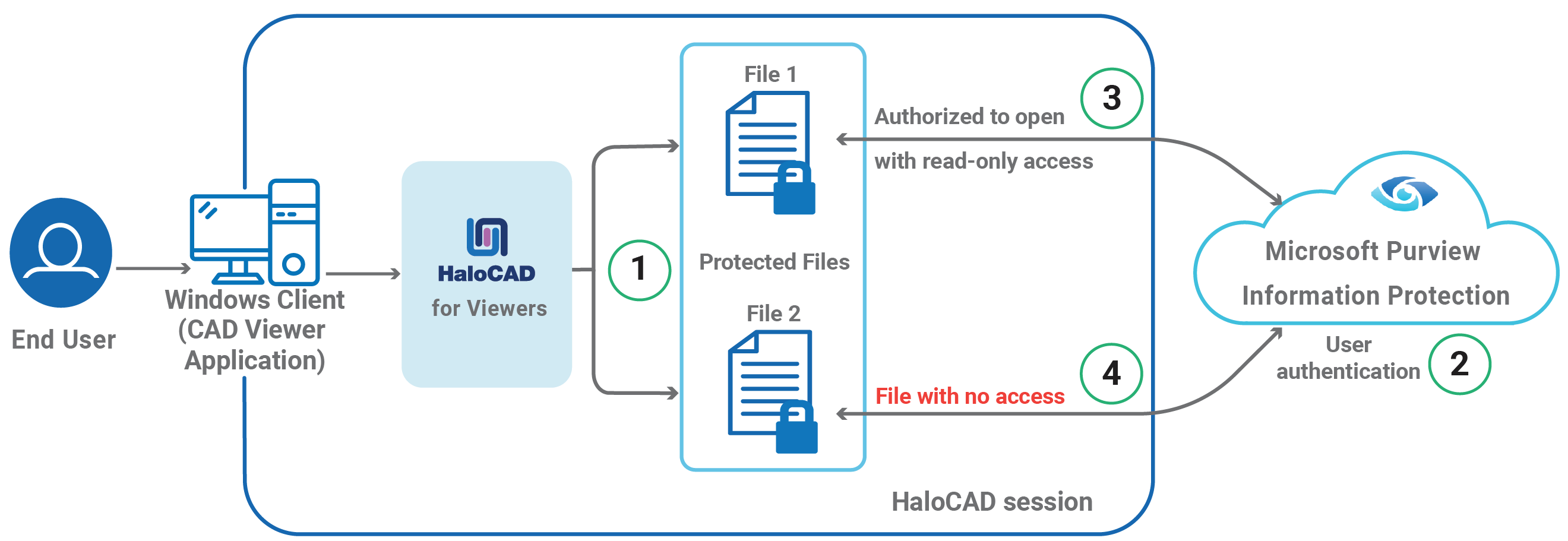
HaloCAD for Viewers
-
The user launches the CAD viewer application, after which HaloCAD loads and displays the message “Protected files can be loaded.” The user then selects two files protected by HaloCAD.
-
During the first HaloCAD session login, a connection to Microsoft Purview Information Protection is established, and Microsoft Entra ID authenticates the user.
-
The user is permitted to open File 1 with view-only access.
-
File 2 does not open because the user does not have the required permissions.
How to Open a Protected File in HaloCAD for Viewers?
Prerequisite: Make sure that HaloCAD for Viewers is installed.
-
Open any supported Viewer application. For Example, Teamcenter Visualization Base.
-
HaloCAD for Viewers loads automatically whenever a viewer application is launched, and you will receive the following message.
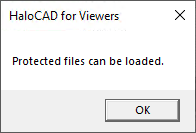
Protected files can be loaded
-
Click OK.
-
Open a HaloCAD-protected file using File > Open. When you log in to a HaloCAD session for the first time, you must connect to Microsoft Purview Information Protection. As a result, the HaloCAD Microsoft sign-in window prompts you to enter your credentials to start a new session.
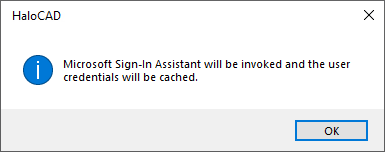
Microsoft Sign-In Assistant invoking message
-
Click OK. Enter your credentials.
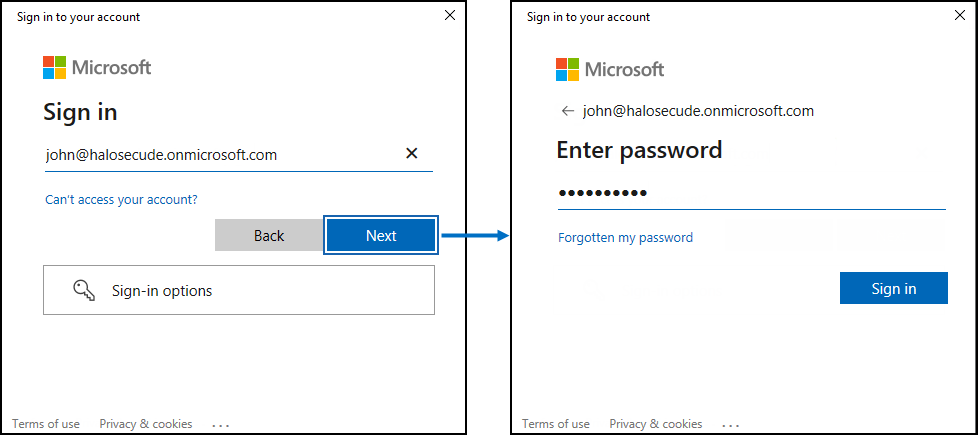
Authentication sign-in prompt
-
After successful verification, a connection is established with the Microsoft Entra tenant used during the initialization process.
Result: The file opens in view-only mode.
User Reset
After logging in to a HaloCAD session, the credentials are cached for easier access to Microsoft Purview Information Protection. To clear the cached credentials, select Show hidden icons on the taskbar, right-click the Secude icon, and choose User Reset.
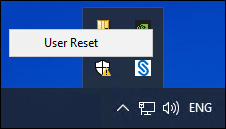
User Reset button
What Happens if You Try to Copy Data or Print Screen?
The most common ways to leak sensitive information are by copying it (Ctrl+C) or taking screenshots using Print Screen (PrtScn) or the Snipping Tool. When a viewer application is launched, HaloCAD for Viewers is automatically invoked and begins preserving the attributes of both protected and unprotected files. As a result, any attempt to copy content or capture a screenshot causes the displayed data to be blanked out.
What Happens if You Try to Export or Print?
With View-only rights, you can only view the content, and other actions, such as printing, are restricted. Therefore, when you try to export the file using Print > Microsoft Print to PDF, the following warning message is displayed:
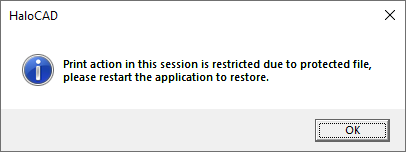
Warning message for the print action
What Happens if You Try to Write or Send the File via Email?
With View-only rights, you can only view the content, and other actions such as Email, Edit, Save, and Save As are restricted. Attempting to edit a file or send it via File > Send > Email will display the following warning message:
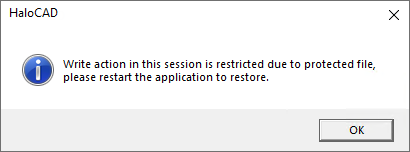
Warning message for the write or email action
Warning message in an unprotected file
It is designed in such a way that when opening a protected file, HaloCAD for Viewers does not allow exporting / editing / emailing data, even from an unprotected file. Therefore, please edit a file before opening a HaloCAD-protected file in a HaloCAD session.
HaloCAD for Viewers is designed to block exporting, editing, or emailing data whenever a protected file is opened, even if the file is unprotected. Therefore, ensure you complete any editing of a file before opening a HaloCAD-protected file in a HaloCAD session.
Technical Support
Before contacting Technical Support, ensure that you have the following information available. Providing this information helps the support team investigate and resolve your issue more efficiently.
-
Full contact details
-
Product build version
-
Date, time, and description of the error (include screenshots, if possible)
-
Details of any third-party software used with the product
-
Any additional information required to reproduce the issue
Contact Technical Support
Secude provides technical support through email support@secude.com. When contacting Technical Support by email, include your company details, a detailed description of the issue, and the relevant log files (if available). A support representative will respond to your inquiry.
Additional Resources
Visit the Secude website https://secude.com to learn about upcoming events, press releases, and to download white papers.
Documentation Feedback
Secude values your feedback and continuously strives to improve product documentation. To provide feedback, send an email to: documentation@secude.com
Include the following details in your feedback:
-
Product name and version
-
Documentation topic
-
Description of the suggestion or error
The technical documentation team reviews all feedback and incorporates relevant updates in future documentation releases.
Appendix
This section provides supplemental information.
Third-Party Libraries
Third-party software/code is included or bundled with Secude's products according to its appropriate license. Secude conducts testing to make sure the third-party products are compatible with and perform as intended with Secude applications.
The third-party libraries and dependencies used by HaloCAD for Viewers are shown in the table below.
|
Library |
Version |
Source Code |
License Link |
|---|---|---|---|
|
Mhook |
2.5.1 |
||
|
Boost |
1.75.0 |
- |
- |
|
Protobuf Library |
3.15.6 |
https://github.com/protocolbuffers/protobuf/blob/master/LICENSE |
|
|
OpenSSL |
3.4.1 |
||
|
Rapidxml |
1.13 |
https://sourceforge.net/projects/rapidxml/files/latest/download |
|
|
tbb |
2021.6.0 |
https://github.com/dwaddington/tbb-2018/blob/tbb_2018/LICENSE |
|
|
MSAL |
4.72.1 |
https://github.com/AzureAD/microsoft-authentication-library-for-dotnet |
https://github.com/AzureAD/microsoft-authentication-library-for-dotnet/blob/master/LICENSE |
|
ConfuserEx |
1.0.0.0 |
||
|
WTL |
10.0.10320 |
||
|
MIP SDK |
1.18.103 |
https://learn.microsoft.com/en-us/information-protection/develop/version-release-history |
https://docs.microsoft.com/en-us/information-protection/develop/ |
Third-party libraries
Uninstalling the HaloCAD for Viewers
When you no longer use HaloCAD for Viewers, you may uninstall the application. Uninstalling removes all files and registry settings that were added to your computer during the initial installation.
Installer Version Requirement
When uninstalling the HaloCAD add-on, use the installer for the currently installed version, whether you run it by double-clicking the installer or from the command line. Using a different installer version may result in errors.
Method #1
-
Click Start menu > go to Control Panel > Programs > Programs and Features > Uninstall a Program > select HaloCAD for Viewers application from the list > right-click and select Uninstall option or double-click on the installer
HaloCAD_Viewers_Shield_Setup.exefile. -
Depending on your Windows security settings, you may get a security warning as "Do you want to allow the following program to make changes to this computer?". If you get this security warning, click the Yes button to confirm that you want to uninstall the add-on.
-
The HaloCAD installer checks the current user session for any supported CAD viewer applications running in the background and, if any are detected, displays the following message.
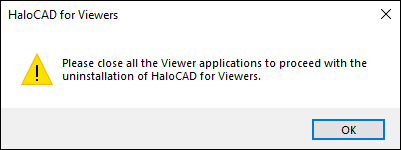
Uninstall Message #1
-
Click OK and close all HaloCAD-supported CAD viewer applications.
-
Redo step 1, and the following confirmation message appears.
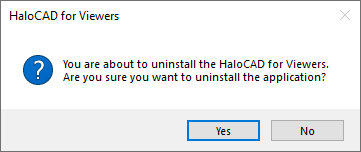
Uninstall Message #2
-
Click Yes to confirm the uninstallation of HaloCAD from your computer.
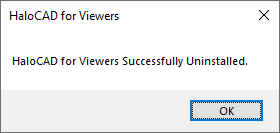
Uninstall Message #3
-
The HaloCAD component has been successfully uninstalled. Click OK to close the dialog box.
Method #2
The following is an example of uninstalling HaloCAD for Viewers using the command line.
-
Open a command prompt.
-
Navigate to the directory of the add-on installer.
Example:HaloCAD_Viewers_Shield_Setup.exe -uninstall -silent true -
The uninstalling process is complete.