
This chapter explains the requirements, prerequisites, and how to install HaloCAD for Teamcenter.
System Requirements
The following system requirements table specifies the minimum and recommended technical specifications, such as software and network resources, necessary to run the product.
|
Components |
Details |
|---|---|
|
Supported Operating System |
Windows Server 2022 and above with updates installed. |
|
Supported file types |
|
|
Office 365 Subscription |
Refer to the Technical Reference Manual for details on TLS 1.2 and application registration. |
|
Others |
Install HaloENGINE and HaloCAD for PLM separately on Windows servers. |
Requirements
Prerequisites
The following preparatory steps or conditions must be met before installing the product.
-
Make sure you have administrative access before performing the most of system and dataset tasks.
-
Make sure the client computer running the HaloCAD Add-on for NX or the HaloCAD Add-on for Creo can connect to the Teamcenter Server.
-
Make sure your HaloENGINE complies with the requirements listed below:
-
License file (enabled with TEAMCENTER system type).
-
Proper action rules
-
Client certificate (
.JKS)
-
-
Make sure that the following system variables are set:
-
Default_Transient_Server − The default transient file server location.
-
Default_Transient_Server=http://<host>:<proxy port>/tc/fms -
For example,
Default_Transient_Server=http://tclu0310.secude.local:8080/tc/fms
-
-
Fms_BootStrap_Urls – The FMS server that manages file downloads.
-
Fms_BootStrap_Urls=http://<host>:<proxy port>/tc/fms -
For example,
Fms_BootStrap_Urls=http://tclu0310.secude.local:8080/tc/fms
-
-
-
If you want to implement a failover mechanism in HaloENGINE, please refer to the section “Failover Mechanism for HaloENGINE in HaloCAD for PLM”.
-
Ensure that both HaloCAD for Teamcenter and HaloENGINE are installed using the same Azure tenant details. A mismatch in the tenant details will result in configuration errors.
-
Ensure that the previously installed HaloENGINE Service is completely uninstalled.
Conditions for Running the HaloENGINE Tomcat Service
Before you begin, make sure that the following prerequisites are met in your system:
Deny log on as a service policy
If the service is running under a specific user or a specific group, ensure that the user is not restricted by the Deny log on as a service policy (Local Security Policy > Security Settings > Local Policies > User Rights Assignment). If the user(s) exist, the “Error 1069: The Service did not start due to a logon failure” message appears while running the HaloENGINE Tomcat service.
Allow non-admin users to access a private key (without full admin rights)
During installation, the HaloENGINE gets the required Azure tenant details and certificate thumbprint. When the HaloENGINE Tomcat service starts, it tries to connect to the MPIP services using the details entered during installation. As part of this process, it validates the certificate thumbprint against the certificate installed in the Local Computer certificate store. The thumbprint entered in the installation wizard must match the one available in the Local Computer certificate store.
If the service runs under a non-administrative user account, the user may not have sufficient permissions to access the certificate’s private keys when the certificate is installed in the Local Computer store. This restriction prevents successful authentication with MPIP services. To resolve this issue, grant the user Read permission to access the certificate’s private key by following the steps listed below.
Any errors encountered during this process are recorded in the log file. If the verification succeeds, the service proceeds with initialization.
Prerequisites
-
The required certificates (machine certificate, root CA, and intermediate CA) are already installed.
-
The private key is stored in the Windows Certificate Store under Local Computer.
-
You have administrative rights to perform the setup.
Follow the procedure below to grant read access:
-
Open Certificate Manager as Administrator.
-
Press Win + R, type mmc, and press Enter.
-
In the console, go to File and select Add/Remove Snap-in.
-
Select Certificates from the list and click Add.
-
Choose the Computer account, then click Next, followed by Finish, and then OK.
-
In the left panel, expand Certificates (Local Computer), expand Personal, and select Certificates.
-
Identify the certificate that contains the private key.
-
Right-click the certificate, select All Tasks, and then select Manage Private Keys.
-
In the Permissions window, click Add and enter the non-admin username (for example, TESTIL) and click OK.
-
Select the Read permission, click Apply, and then click OK.
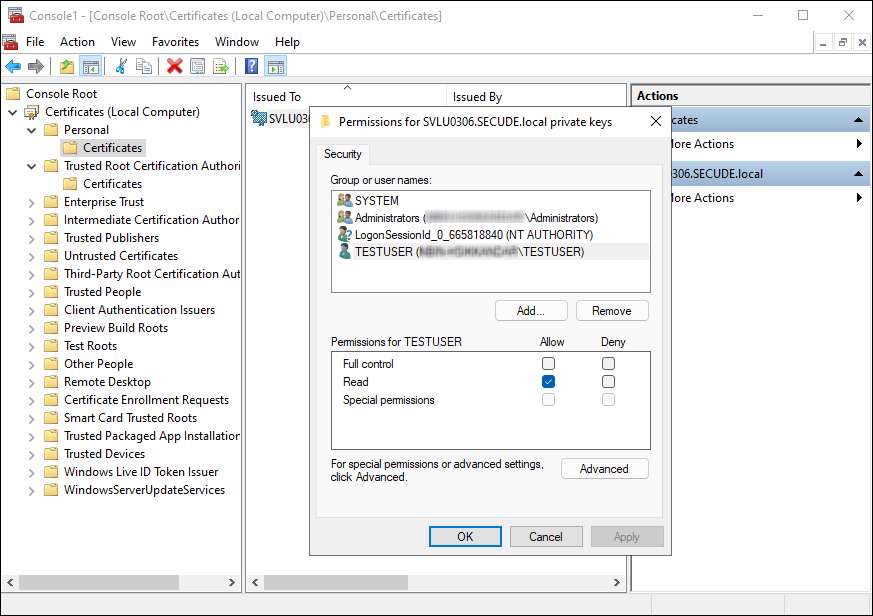
Granting private key access to a non-admin user
Installation Modes
You can install the HaloCAD component in the following modes:
-
Graphical Mode
Graphical mode installation is an interactive, graphical user interface-based method that is driven by a wizard. -
Silent Mode
Silent-mode installation is a non-interactive method of installing the HaloCAD component using command lines.
Prerequisites
Before installing HaloCAD, ensure that the following requirements are met:
-
Azure application registration details: Please refer to the Technical Reference Manual.
-
The certificate required for MPIP authentication must be installed in the Local Computer certificate store, along with the Root CA and Intermediate CA certificates.
-
If the certificate is CA-signed, install all related certificates in their respective stores (Root, Intermediate, and Personal).
-
If the certificate is self-signed, install it in both the Trusted Root Certification Authorities and Personal stores of the Local Computer.
-
-
Administrator rights: The user performing the HaloCAD installation must have administrator privileges.
Graphical Mode
Install the HaloCAD component using the GUI-based setup program provided in the installation package.
-
To begin the interactive installation, double-click the installer
HaloCAD_Teamcenter_Setup.exefile. -
Depending on your Windows security settings, you may get a warning such as "Do you want to allow the following program to make changes to this computer?". If you get this security warning, click the Yes button to continue the installation.
-
When the installer starts, the Startup dialog appears, followed by the Welcome dialog.

Startup Dialog
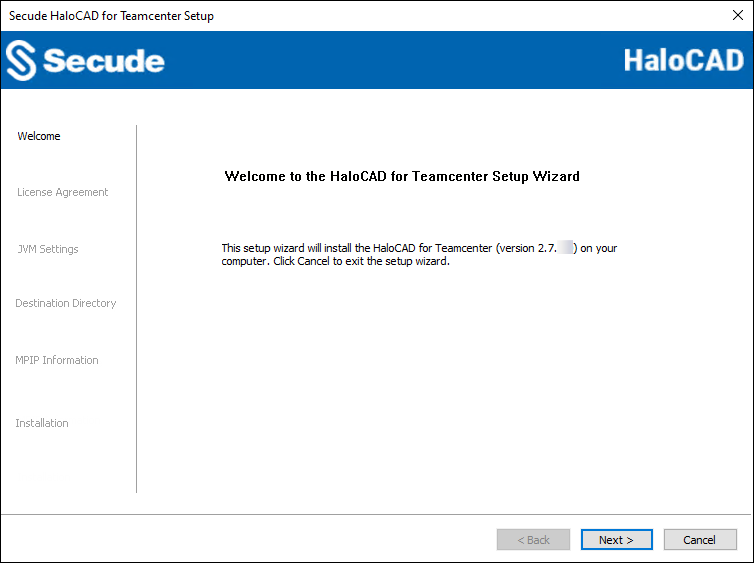
Welcome Dialog
-
Click Next to continue the installation.
-
The End-User License Agreement (EULA) dialog appears.
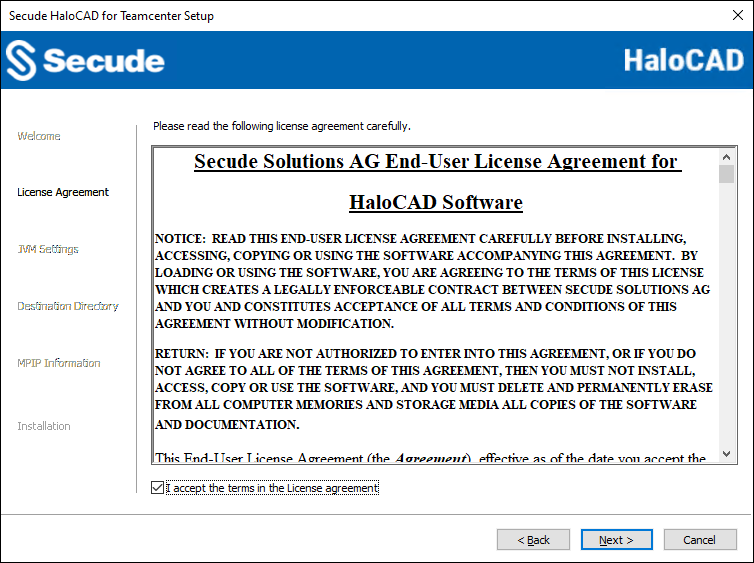
End-User License Agreement Dialog
-
Read the End-User License Agreement. If you agree, select I accept the terms in the License Agreement, and click Next to continue.
-
The Tomcat memory pool size configuration dialog appears.
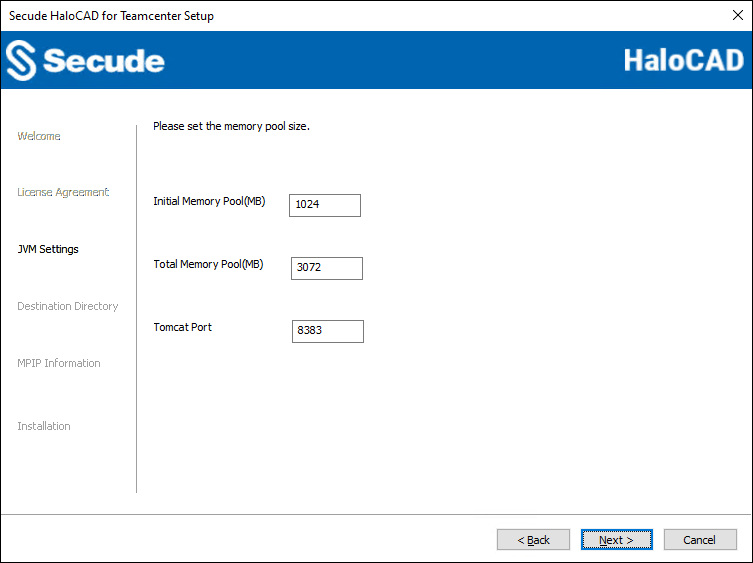
Tomcat pool size configuration dialog
-
Specify the amount of memory to modify the preset values for the Initial Memory Pool, Total Memory Pool, and Tomcat Port. The default port is 8383; however, you can change the port number. The port value must be greater than 999 and less than or equal to 65535. Note: Ensure that the Total Memory Pool does not exceed three-fourths (3/4) of the system’s available RAM.
-
Click Next. The destination folder selection dialog will appear:
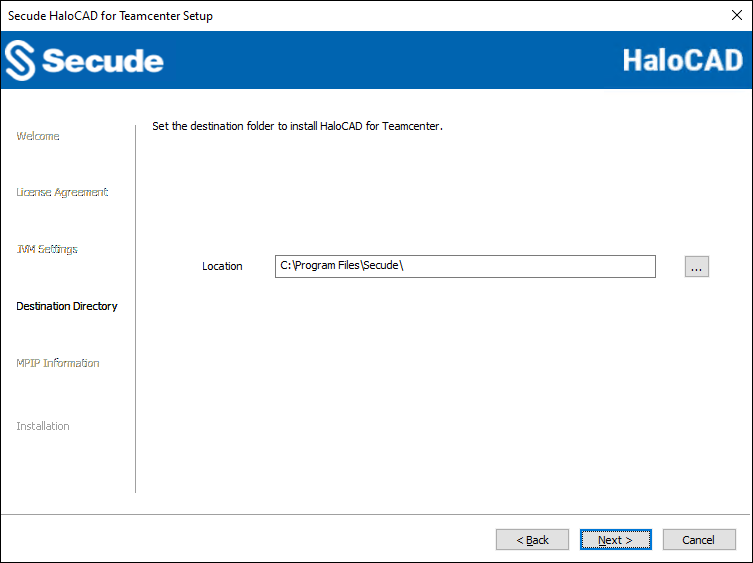
Destination folder selection dialog
-
By default, application files are stored in the program files directory (
C:\Program Files\Secude\). If you would like to choose an alternate location, click the Browse button and select your location preference. To return to any point in the installation process, click the Back button (optional). -
Click Next to allow the Setup program to install the HaloCAD component.
-
The certificate-based authentication dialog appears. To avoid errors, please ensure that you enter the correct Azure application registration details in the installation wizard.
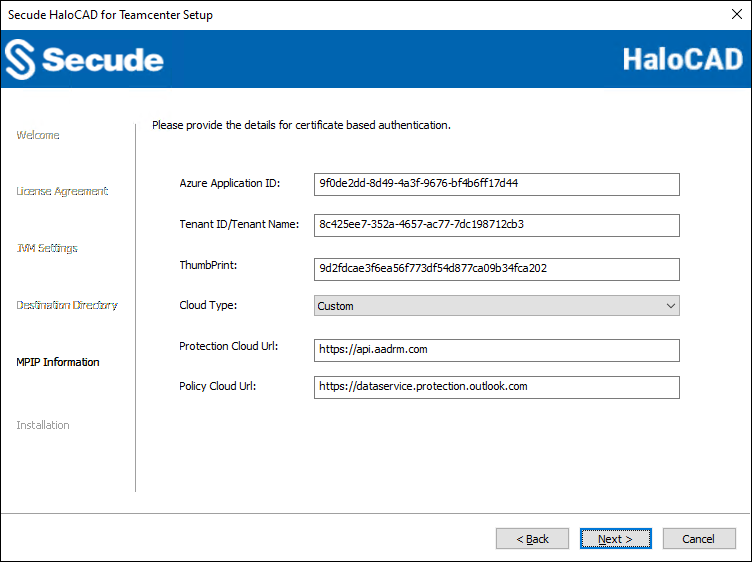
Certificate-based authentication dialog
-
Application ID: Enter the unique identifier of your registered application. For example,
9f0de2dd-8d49-4a3f-9676-bf4b6ff17d44 -
Tenant ID/Tenant Name: Enter your Microsoft Entra tenant name (for example,
contoso.onmicrosoft.com) or its tenant ID (for example,8c425ee7-352a-4657-ac77-7dc198712cb3) -
Thumbprint: Enter the thumbprint of the MPIP authentication certificate installed in the Local Computer certificate store.
-
Cloud Type: By default, Commercial will be set. However, based on your Azure subscription and configuration, you can change the cloud type from the list — Commercial / Custom / Germany / US_DoD / US_GCC / US_GCC_High / US_Sec / US_Nat / China_01. In the case of Custom cloud type, you need to enter the appropriate URLs in Protection Cloud URL (for example,
https://api.aadrm.com) and Policy Cloud URL (for example,https://dataservice.protection.outlook.com). -
Click Next.
-
-
The installation begins, and the progress is displayed in the dialog.
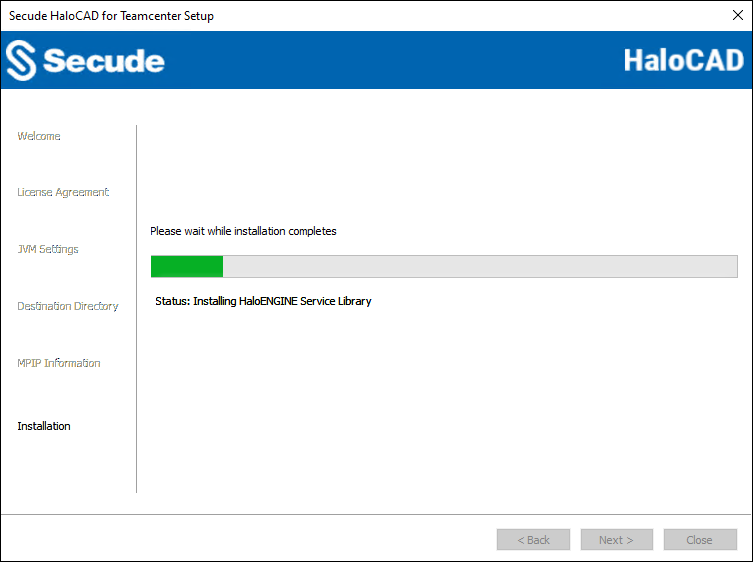
Installation progress dialog
-
When the installation is complete, a message appears confirming that the HaloCAD component has been successfully installed.
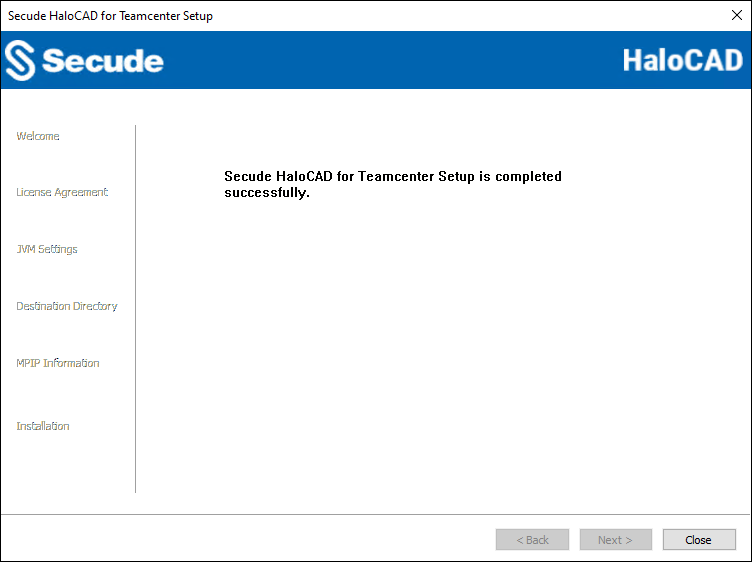
Installation completed dialog
-
Click Close to close the installation wizard.
Silent Mode
Besides graphical mode, the HaloCAD component can be installed in silent mode, which does not require user involvement or display a user interface. It is a convenient way to streamline the installation process using commands at once.
-
Open the Command Prompt with elevated rights (Run as Administrator).
-
Navigate to the directory of the HaloCAD component installer.
-
To know the list of options available in silent mode, follow the steps given below:
TypeHaloCAD_Teamcenter_Setup.exe -help
PressEnter
Output
...
HaloCAD_Teamcenter_Setup.exe -install -initmempool <Initial memory pool size in MB(s). Minimum size is 128 MB> -totalmempool <Total memory pool size in MB(s). Maximum size is 3/4 of total RAM size.> -dir <destination_directory> -port <range_1_to_65535> -applicationid <application_id> -tenantid <tenant_id> -thumbprint <thumb_print> -cloudtype <(Commercial|Custom|Germany|US_DoD|US_GCC|US_GCC_HIGH|US_Sec|US_Nat|China_01)> (if cloudtype is Custom) <protectioncloudurl> <policycloudurl>
HaloCAD_Teamcenter_Setup.exe -uninstall -
The following command shows how to install and initialize HaloCAD.
HaloCAD_Teamcenter_Setup.exe -install -initmempool 1024 -totalmempool 2048 -dir "C:\Program Files\Secude" -port 8383 -applicationid "9f0de2dd-8d49-4a3f-9676-bf4b6ff17d44" -tenantid "8c425ee7-352a-4657-ac77-7dc198712cb3" -thumbprint "961602617275c2ab538cf28bb3648c0c6d97edab" -cloudtype "Custom" https://api.aadrm.com https://dataservice.protection.outlook.com -
Press
Enter. -
The installation is complete.