
About this Manual
This manual provides comprehensive guidelines and step-by-step instructions for working with HaloCAD solutions (Monitor and Protect). For installation and configuration instructions, please refer to the "Installation Manual" shipped with the product package.
How does it work?
At a high level, the HaloCAD for Autodesk Vault workflow comprises the following steps:
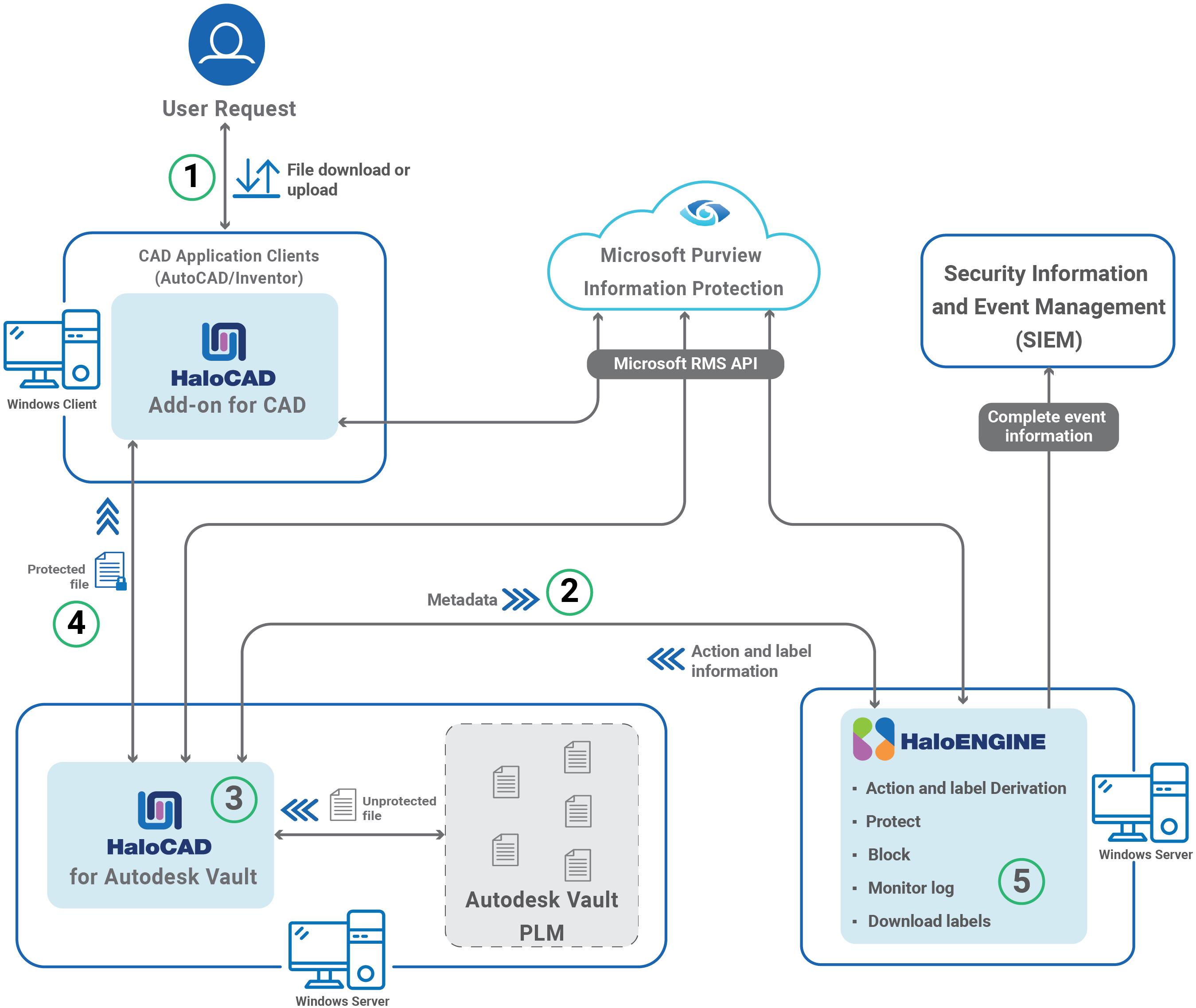
HaloCAD for Autodesk Vault
Step 1: User File Selection (Check-out / Check-in)
-
The user creates a new CAD or Office document or opens an existing workspace object from the client.
-
The user performs a check-out (download) or check-in (upload).
Step 2: Request Monitoring and Interception
-
HaloCAD for Autodesk Vault intercepts every file the user attempts to download, retrieves it from the PLM Vault, and collects its associated metadata.
-
The metadata is sent to HaloENGINE, which evaluates the configuration, determines the required action and label, and returns this information to HaloCAD for Autodesk Vault.
Step 3: Encryption / Decryption
HaloCAD for Autodesk Vault carries out actions based on the provided action and label:
-
If no valid action exists, the file is downloaded without modification.
-
During check-in, if a valid action with a label is identified, the label is removed, and the decrypted file is stored in Autodesk Vault PLM.
-
During check-out, if a valid action with a label is identified, the label is applied. Protection is performed based on the configured mode:
-
File Mode (Path-Based Processing): The file path is sent to the HaloCAD Tomcat service for direct protection.
-
Stream Mode (Direct Stream Processing): The file content is sent as a byte stream to the HaloCAD Tomcat service for protection.
-
-
If a block rule is configured in HaloENGINE, HaloCAD for Autodesk Vault prevents the download.
Step 4: Processed File Delivery
The encrypted file with the assigned label is delivered to the user through the client application.
Step 5: Monitoring and Audit Log
HaloCAD for Autodesk Vault records event details and forwards them to the HaloENGINE monitor log.
How to Protect a CAD File?
This section describes how to protect AutoCAD, Inventor, and Office files via PLM. Note: We recommend referring to the "Operations Manual of HaloCAD Add-on for AutoCAD/Inventor" to know more about standalone HaloCAD protection scenarios.
Fulfill the Requirements
-
HaloCAD for Autodesk Vault must be installed and configured.
-
HaloENGINE must be installed and configured.
-
The Classification Engine must be configured. For illustration purposes, a simple classification profile is explained here.
-
Step 1: Enter a name for the profile.
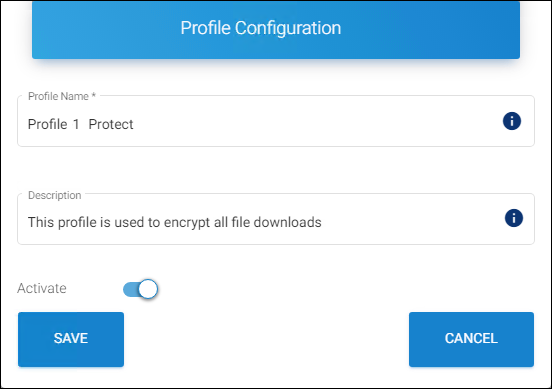
Sample profile
-
Step 2: Configure classification properties and their values.
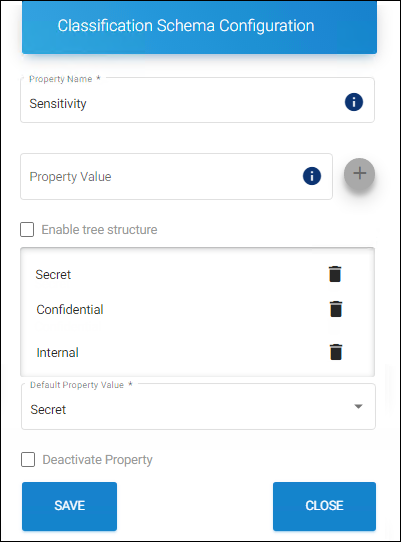
Classification properties
-
Step 3: Create classification rules based on metadata types. Note: If you want to use your metadata, specify it on the Custom Metadata page of the HaloENGINE admin portal. Please refer to the Custom Metadata section of the HaloENGINE Installation and Configuration manual.
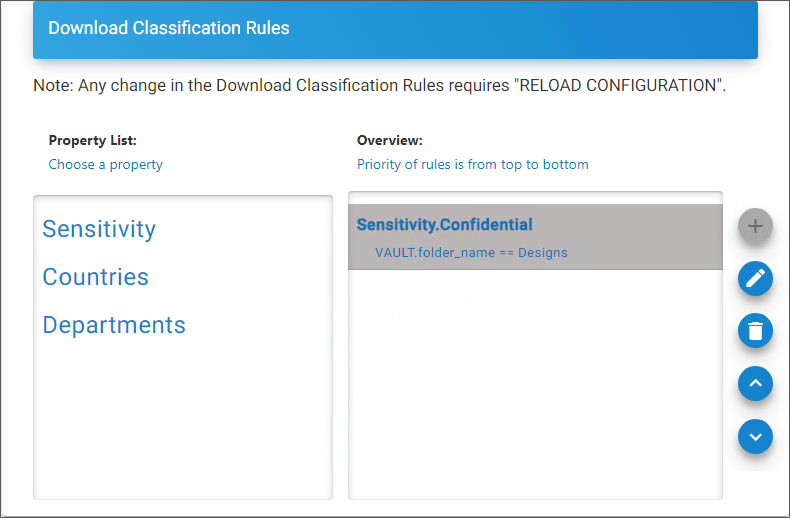
Rules
-
Step 4: Create an action rule to label and block.
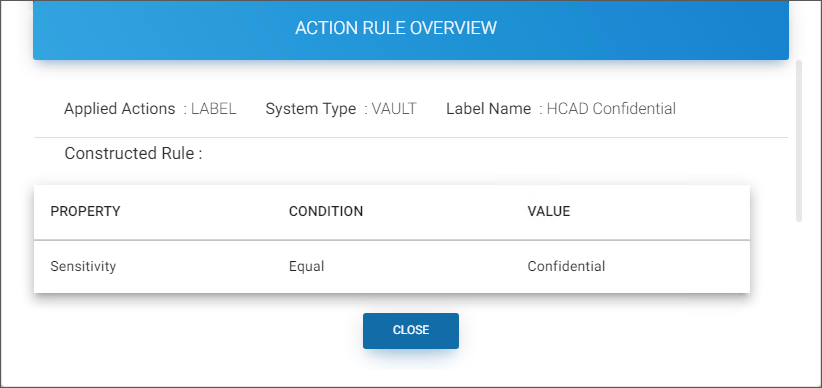
Action rule for labeling
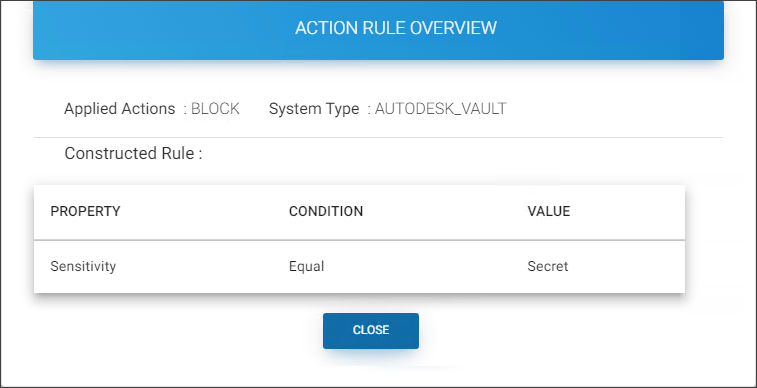
Action rule for blocking
-
Step 5: Assign Systems to the profile.
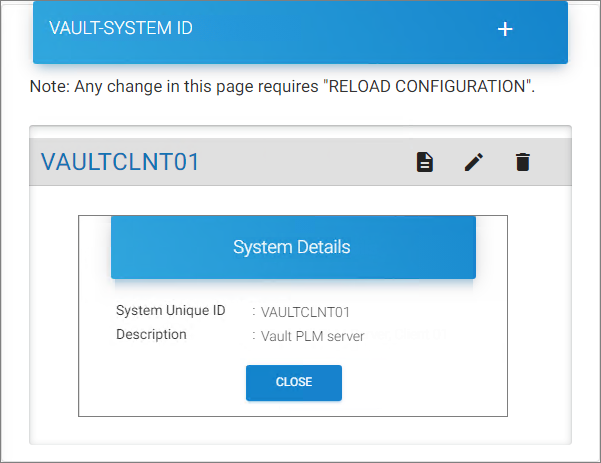
Assign Systems
-
-
HaloCAD add-on must be installed.
Download a Protected File
Files can be exported from the Autodesk Vault server using multiple methods. The following options describe how to download (check out) a file using different clients and applications.
Option 1: Autodesk Vault Professional Client
-
Log in to the Autodesk Vault Professional Client (Standalone Vault Client).
-
In the Project Explorer screen, navigate to the required folder.
-
Select a file.
-
Right-click the file and select Get to download it.
Option 2: Autodesk Vault Thin Client
-
Open the Autodesk Vault Thin Client.
-
Select the workspace.
-
Click Sign In and enter your credentials.
-
Navigate to the required folder.
-
Select the file.
-
Download the file using one of the following options:
-
Click the three dots menu.
-
Click the Download button.
-
Option 3: AutoCAD or Inventor Application
-
Open the AutoCAD or Inventor application.
-
Go to the Vault tab.
-
Click Log In and enter your credentials.
-
Click Open.
-
Select a file to download.
Results
-
The downloaded file is labeled according to the configuration in HaloENGINE.
-
The label-based encryption settings are enforced and remain with the file regardless of its storage location.
-
All upload and download events are recorded in the HaloENGINE audit log, regardless of file protection status.
Block a File Download
-
Log in to the Autodesk Vault Professional Client.
-
In the Project Explorer screen, navigate to the required folder.
-
Attempt to download a file. Note: You can also attempt to download the file using any other supported method.
Results
-
The block action rule configured in HaloENGINE prevents the file from being downloaded.
-
No file is downloaded.
-
Refer to the HaloENGINE Monitor log file for additional details.
Common Scenarios
This section presents some common scenarios for illustrative purposes and provides general guidelines.
Open a Protected CAD File
Prerequisite: Ensure that the HaloCAD Add-on is installed before opening a protected file.
-
Double-click the protected file to open it.
-
When you open a labeled file for the first time, the system prompts you to connect to the Microsoft Entra tenant using the Microsoft Sign-In Assistant.
-
Click OK when prompted that the Microsoft Sign-In Assistant will be invoked and user credentials will be cached.
-
Follow the on-screen instructions to complete the authentication process.
Results
-
After successful authentication, the file opens.
-
Access to the document may vary depending on the configured policy settings.
-
For more information about access behavior, refer to the Operations Manual of the respective add-ons.
Integrate with the AutoCAD Application
Below are some examples of the functionality of HaloCAD in the AutoCAD application.
Example 1: Application ID as the Owner of the File
The following figure shows an example of an Application ID that is used to initialize the HaloENGINE. This Application ID will be the owner of the document by default, however, a static email can also be an owner of the downloaded file if specified in the HaloENGINE. Please refer to example 2.
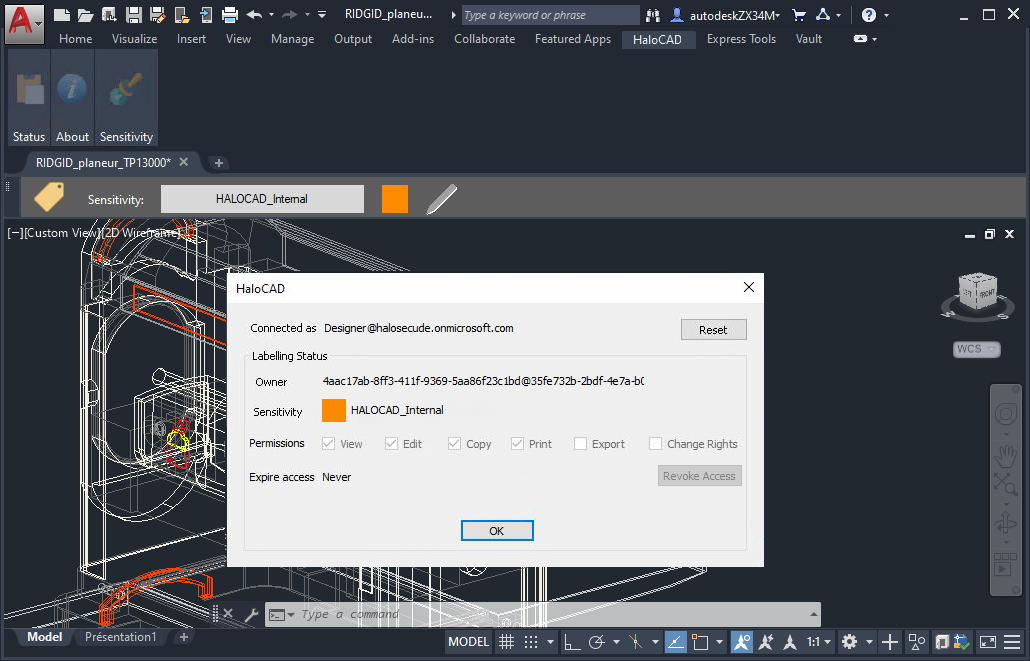
Application ID as the owner of the file
Example 2: Static Email as the Owner of the File
The following figure shows an example of an email address configured in the HaloENGINE. This email address will be the owner of the exported document.
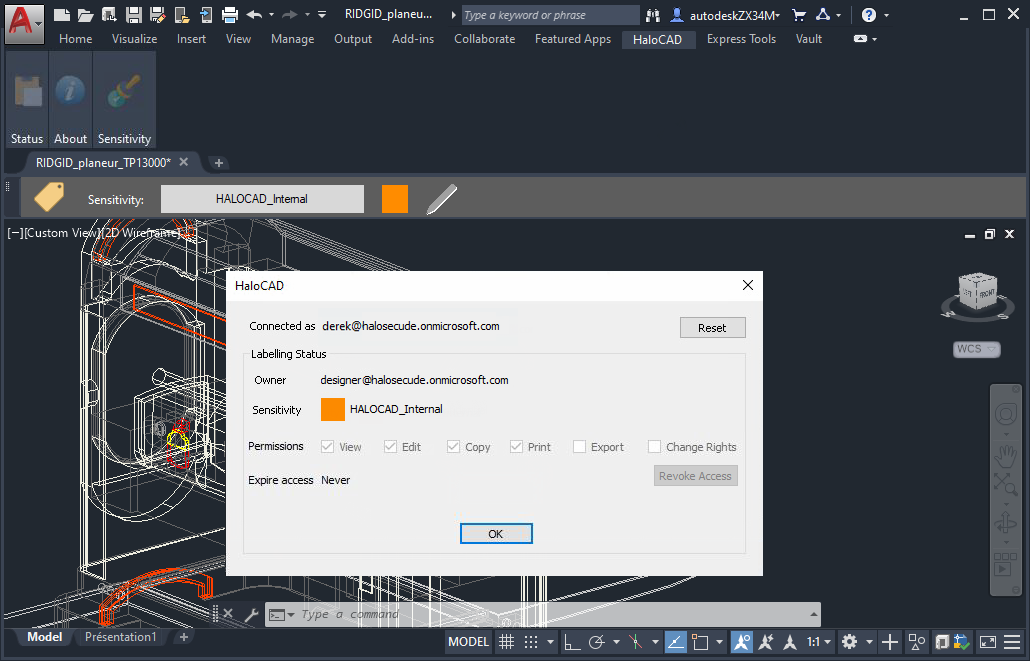
Static Email as the Owner of the File
Example 3: User as the Owner of the File
The following figure shows an example of a PLM logged-in user who has become the owner of the document. To achieve this, the Owner configuration must be set to "user" on the HaloENGINE Admin portal. The exported document will have the email address of the currently logged-in user as its owner.
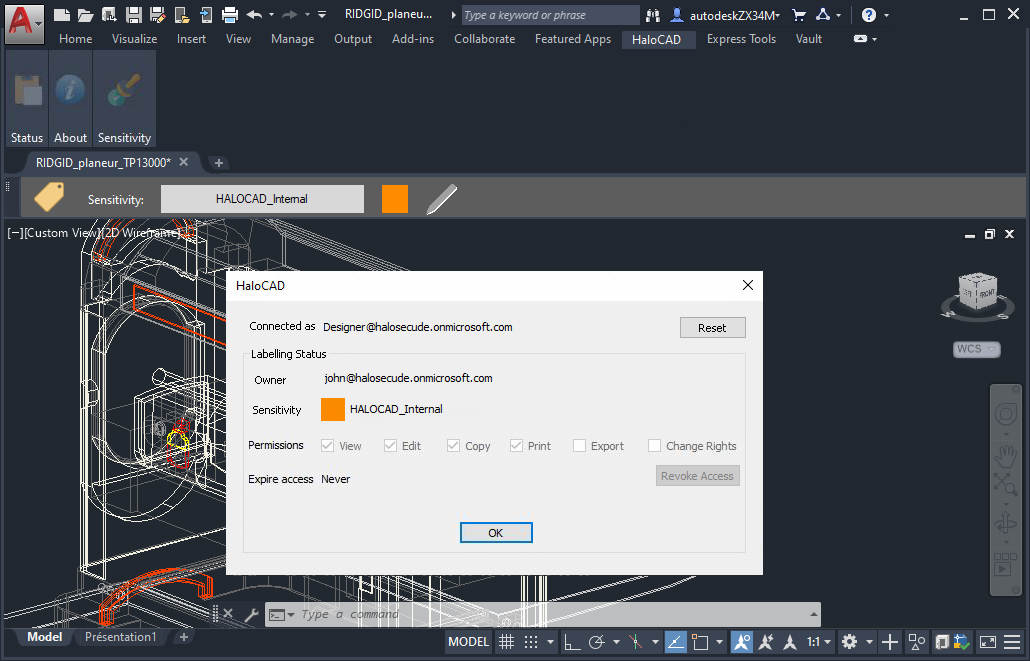
User as the Owner of the File
Integrate with the Inventor Application
Below are some examples of the functionality of HaloCAD in the Inventor application.
Example 1: Application ID as the Owner of the File
The following figure shows an example of an Application ID that is used to initialize the HaloENGINE. This Application ID will be the owner of the document by default, however, a static email can also be an owner of the downloaded file if specified in the HaloENGINE. Please refer to example 2.
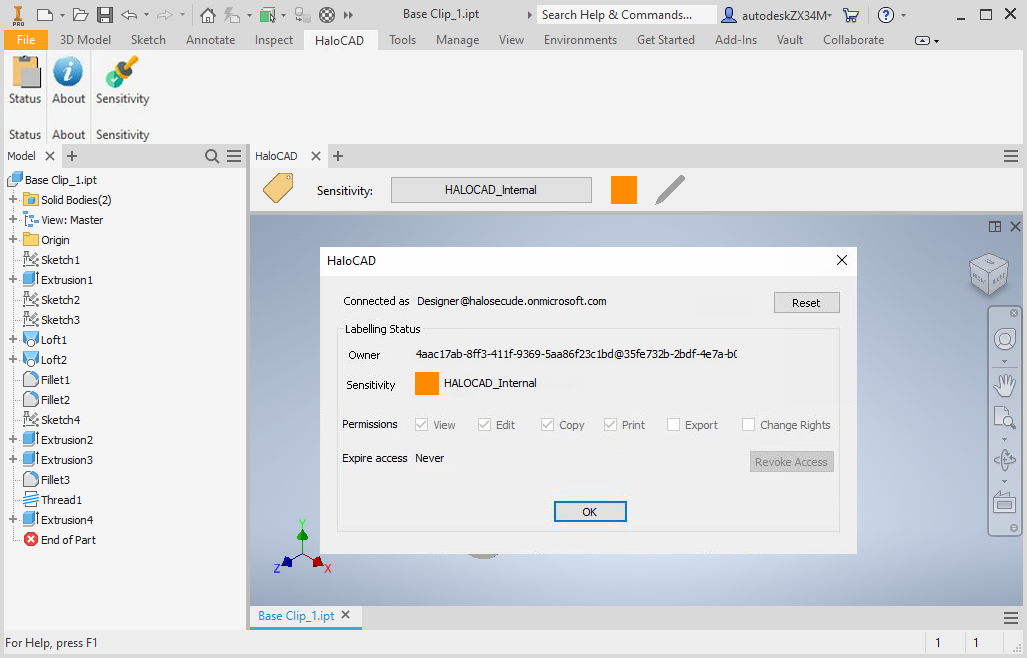
Application ID as the owner of the file
Example 2: Static Email as the Owner of the File
The following figure shows an example of an email address configured in the HaloENGINE. This email address will be the owner of the exported document.
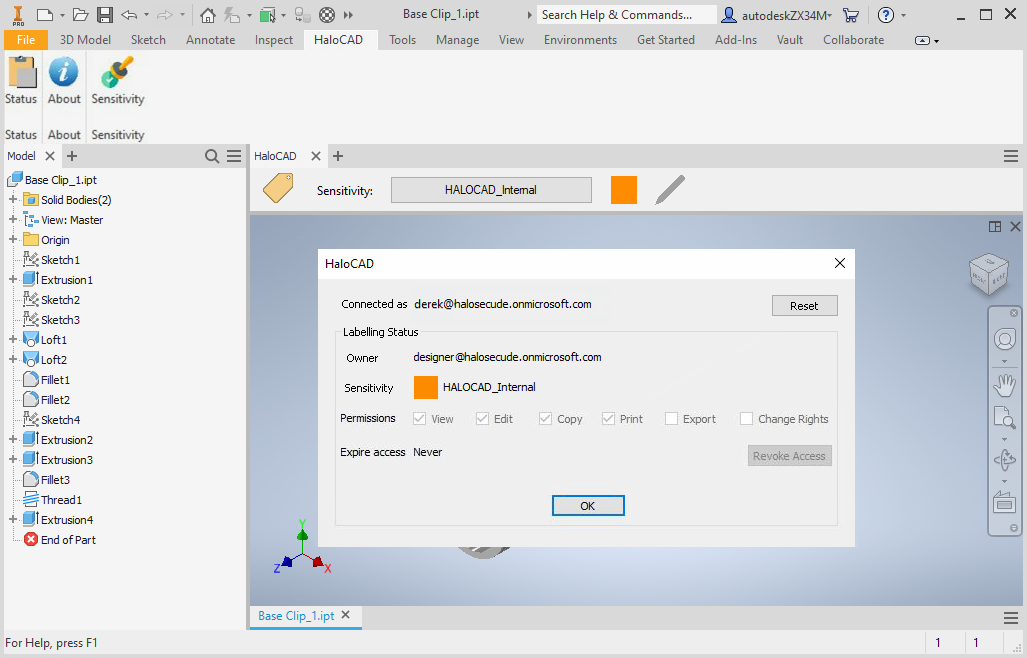
Static Email as the Owner of the File
Example 3: User as the Owner of the File
The following figure shows an example of a user whose name is configured in the HaloENGINE. This user is considered the owner of the document. In case the user who logged in to Autodesk Vault PLM Server does not have an email ID, then the Application ID (which is used to initialize HaloENGINE) will be the owner of the document.
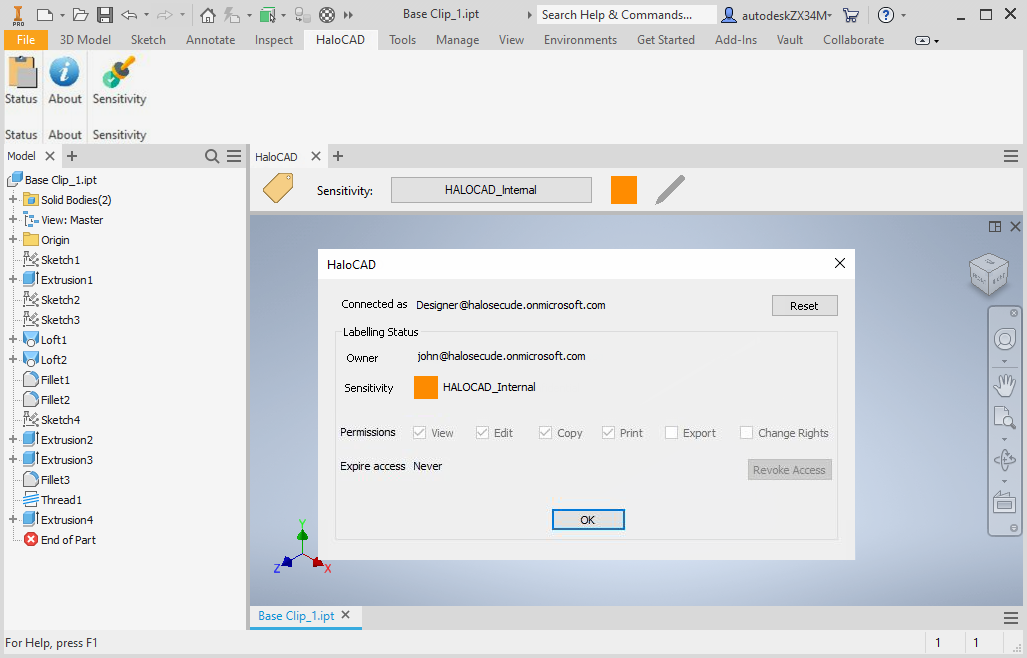
User as the Owner of the File
Integrate with MS Office Applications (File Upload and Download)
The following example describes the upload and download sequence in Autodesk Vault PLM integrated with HaloCAD. Although non-Office files (for example, .txt and .pdf) are also supported, this procedure uses an Excel file for illustration.
Upload a File (Check-in Sequence)
-
Create a new Microsoft Office file (Word or Excel).
-
Select a label from the Sensitivity ribbon.
-
Click Save.
-
Alternatively, open an existing protected file. Note: In this example, the file (
Bill Of Materials.xlsx) is already protected with the HaloCAD_INTERNAL label. -
Go to the Autodesk Vault tab.
-
Click Log In and enter your credentials.
-
Click Check-in.
-
Select the destination folder in Autodesk Vault Server.
-
The Check-in dialog box appears.
-
Select the Close files and delete working copy check box.
-
Click OK.
-
When prompted, “Do you wish to delete the file xxxxx.xlsx from its original location ‘C:\xxxx\xxxx\xxxx'?" click Yes or No.
Results
-
During the upload (check-in) process, the original label is removed.
-
The decrypted file is stored (checked in) in Autodesk Vault PLM.
-
The upload (check-in) event is logged in the HaloENGINE Monitor log file.
Download the File (Check-out Sequence)
-
Go to the Autodesk Vault tab.
-
Click Open.
-
Select the previously uploaded file from the Vault server.
-
Click Open.
-
When prompted, “File S/xxxxx/logs/xxx.xlsx is not checked out. Do you want to check it out now?"
-
Click Yes to check out the file directly
-
Alternatively, click No, and then click Check-out from the Autodesk Vault tab.
Results
-
During the download (check-out) process, the file is exported from Vault with a new label defined in HaloENGINE.
-
The download (check-out) event is logged in the HaloENGINE Monitor log file.
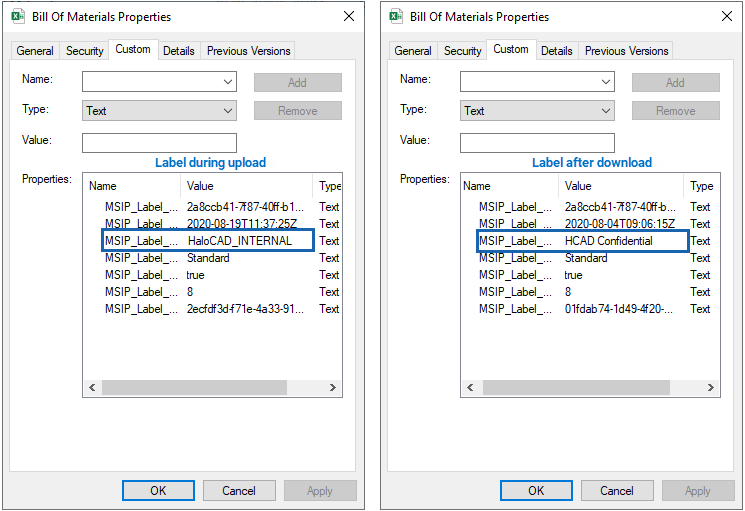
File upload and download Sequence
Technical Support
Before contacting Technical Support, ensure that you have the following information available. Providing this information helps the support team investigate and resolve your issue more efficiently.
-
Full contact details
-
Product build version
-
Date, time, and description of the error (include screenshots, if possible)
-
Details of any third-party software used with the product
-
Any additional information required to reproduce the issue
Contact Technical Support
Secude provides technical support through email support@secude.com. When contacting Technical Support by email, include your company details, a detailed description of the issue, and the relevant log files (if available). A support representative will respond to your inquiry.
Additional Resources
Visit the Secude website https://secude.com to learn about upcoming events, press releases, and to download white papers.
Documentation Feedback
Secude values your feedback and continuously strives to improve product documentation. To provide feedback, send an email to: documentation@secude.com
Include the following details in your feedback:
-
Product name and version
-
Documentation topic
-
Description of the suggestion or error
The technical documentation team reviews all feedback and incorporates relevant updates in future documentation releases.