
About this Manual
This manual provides comprehensive guidelines and step-by-step instructions for working with HaloCAD solutions (Label and Protect). For information on deployment and configuration, refer to the Installation Manual included in the product package.
General FAQs
This section answers the most frequently asked questions (FAQs). For additional inquiries, please contact your sales representative or the support team.
-
What does HaloCAD provide for an organization?
HaloCAD solution protects engineering CAD files and enforces security across their entire lifecycle. -
How many variants does HaloCAD have?
HaloCAD is available in three variants:-
HaloCAD Add-on for CAD applications – a standalone add-on
-
HaloCAD for PLM
-
HaloCAD Reader Add-on for CAD applications
-
-
What is the difference between the HaloCAD Add-on for CAD and the HaloCAD for PLM?
HaloCAD Add-on for CAD is a standalone solution for organizations that do not store CAD files in PLM. It enforces protection through user engagement.HaloCAD for PLM integrates with the respective PLM application and includes the capabilities of HaloCAD PROTECT and HaloCAD MONITOR. The MPIP label is applied automatically, based on the rules defined in the Classification Engine, without requiring user intervention.
-
What distinguishes the HaloCAD Reader add-on from the HaloCAD Standalone (full add-on)?
HaloCAD Standalone Add-on (Full Version) protects CAD files using Microsoft Purview Information Protection solution. This version is licensed.HaloCAD Reader Add-on allows viewing of files protected by the HaloCAD Standalone Add-on. This version is free of charge.
-
What languages are supported by the HaloCAD add-on?
Currently, the HaloCAD add-on only supports English. -
Does the HaloCAD Add-on support all native CAD file types?
Yes, the HaloCAD Add-on supports all CAD native file types. -
What happens if an unauthorized person tries to open a HaloCAD-protected CAD file?
The process begins with user authentication, which verifies the user's identity. If authentication fails, an error message is displayed, and access is denied. -
Who decides what labels should be used for various CAD drawings and how they are managed in the background?
An administrator manages labels (user rights) in the Microsoft Purview portal, while engineers can create profiles, classification schemas, and action rules based on the sensitivity of their data. -
What if I don't want a certain file to be protected?
If you do not want the file to be protected, you can apply the “No Protection” label, which does not include any policy settings. -
Can I create my own labels?
Yes, HaloCAD allows users to create custom permission labels.
How does it work?
This chapter provides a high-level explanation of the underlying processes and interactions between the system components to help you understand how HaloCAD protects sensitive data.
License Enforcement
After installation, HaloCAD programmatically sends a license validation request to Secude’s License Manager when a user attempts to start a session for the first time by opening the CAD application. Based on the administrator’s installation method, one of the following scenarios applies:
Case 1:
If the license is activated automatically during the installation process, the user can continue using all HaloCAD features without interruption.
Case 2:
If the license has not been activated, the user will receive an error message and will be unable to access HaloCAD features. For information on license activation, refer to the License Activation section of the Technical Reference Manual.
Applying Protection using HaloCAD Add-on
At a high level, HaloCAD workflow involves the following steps:
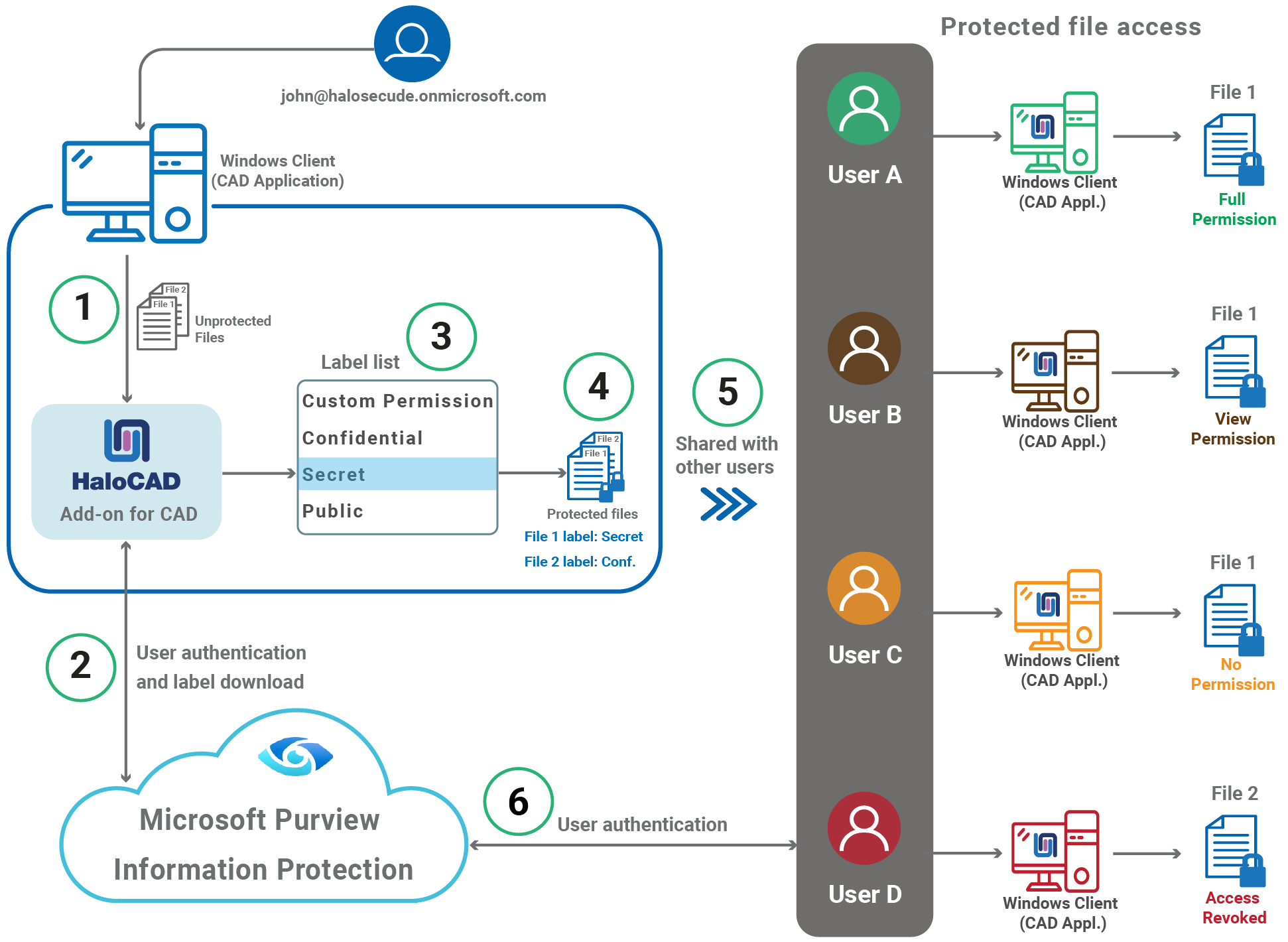
HaloCAD protection
-
To create new CAD files, the user launches the CAD application and logs into the HaloCAD session for the first time.
-
HaloCAD connects to the Microsoft Entra tenant. In this manual,
halosecude.onmicrosoft.comis used as an example tenant.-
Microsoft Entra ID prompts the user for authentication.
-
After successful authentication, Microsoft Purview Information Protection (MPIP) labels are downloaded for the logged-in user (
john@halosecude.onmicrosoft.com).
-
-
File protection: The user (John) selects and applies two different labels to two separate files.
-
HaloCAD enforces document protection based on the selected label. When a sensitivity label is applied, it is stored in the document metadata, and the corresponding protection settings are enforced to secure the content.
-
File-Sharing: Assume that
john@halosecude.onmicrosoft.comshares the files with multiple users. Users A, B, and C receive File 1, while User D receives File 2. -
Content consumption: Users A, B, C, and D attempt to access the protected files. Microsoft Entra ID authenticates each user, and the file opens upon successful authentication. Access permissions such as View, Edit, Print, Copy, Export, and Change are granted based on the applied label. Different permission levels may be assigned to individual users or user groups.
Note: The user who initializes HaloCAD is considered the author and is granted full access rights to the document. For more information on labels, refer to the Microsoft documentation.-
File 1 - Full access is granted to
User A@halosecude.onmicrosoft.com. -
File 1 - Read-only (view-only) access is granted to
User B@halosecude.onmicrosoft.com. -
File 1 -
User C@halosecude.onmicrosoft.comis denied access and cannot open the file. -
File 2 - Access was previously granted to
User D@halosecude.onmicrosoft.combut has been revoked due to risky or suspicious activity.
-
Logged-in user (HaloCAD session)
In this document, the term “logged-in user” refers to the individual or user account that launches the CAD application and signs in to Microsoft Entra ID through the Microsoft Sign-In application. This may differ from the operating system user currently signed in. Collectively, this is referred to as the “HaloCAD session.”
Viewing a Protected File Via the HaloCAD Reader Add-on
At a high level, HaloCAD workflow involves the following steps:
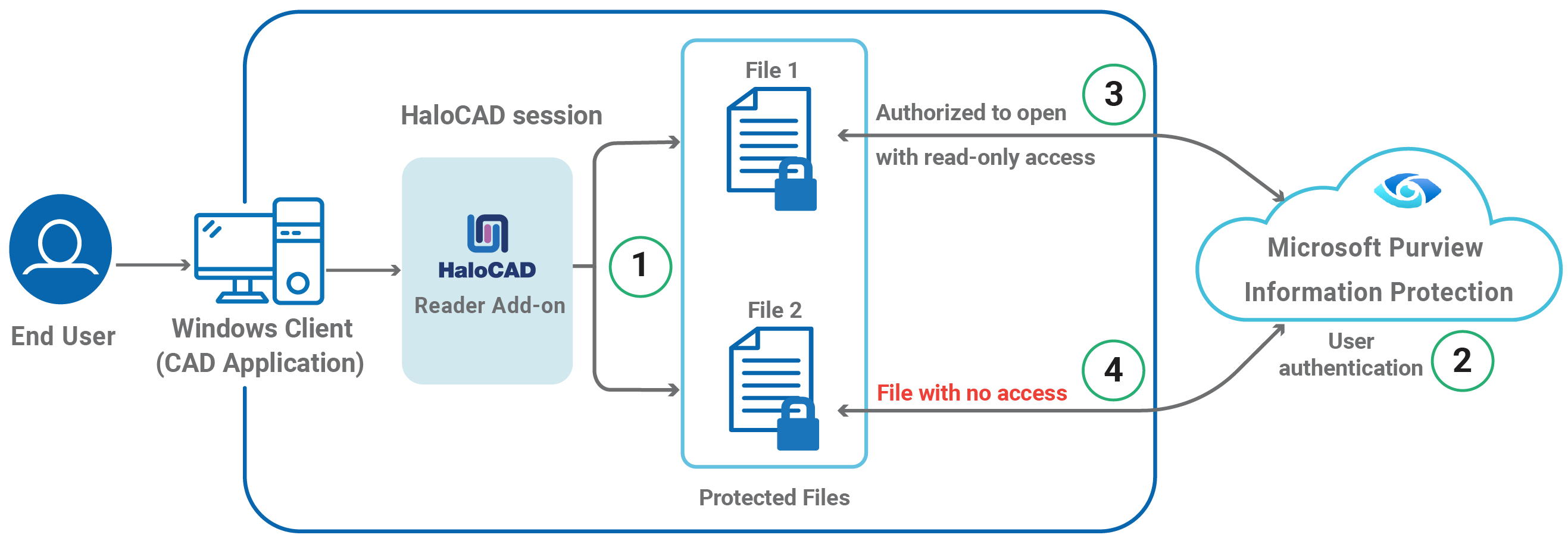
HaloCAD Reader Add-on
-
The user selects two files that are protected by HaloCAD.
-
When the user logs in to the HaloCAD session for the first time, a connection to Microsoft Purview Information Protection is required. Microsoft Entra ID authenticates the user.
-
HaloCAD indicates that the files can be opened only in read-only mode. In this scenario, the user is authorized to open File 1.
-
File 2 does not open because the user does not have the required permissions.
By design, saving is restricted once a protected file is opened in a session to prevent protected content from being copied to an unprotected file. HaloCAD shows a restriction message. In a fresh session, unprotected files can be created and saved without any restrictions.
Get Started with HaloCAD
This section describes how to protect a file, open a protected file, and use the HaloCAD Reader add-on.
Permission Levels and Usage Rights
Basic Permissions
The following table lists the basic permissions and the usage rights that they contain:
|
S.No |
Permission Level |
Usage Rights (Allowed Recipient Actions) |
|---|---|---|
|
1 |
View |
Open and read the data (also known as “Read-only”). It includes Zoom and view from different angles (for CAD file types). |
|
2 |
Edit |
Edit the file and save it |
|
3 |
Copy |
Extract data (including screen captures) from the file into the same or another file. |
|
4 |
|
Print the content |
|
5 |
Export |
Save the content to a different filename (Save As). Also includes “Export to PDF”. |
|
6 |
Change Rights |
Changing the label that is applied to a file includes removing protection and saving it as an unprotected file. |
|
7 |
Owner (Full Control rights) |
Grants all rights to the file and all available actions can be performed. Also includes the following permissions:
|
Basic Permissions
Author (creator) of a file
The author of a file has all the rights and actions mentioned in the above table. Also includes the following permissions:
-
Open file after the expiry date
-
Revoke access
Custom Permissions
The following table lists the custom permissions and the usage rights that they contain:
|
S.No |
Permission Level |
Usage Rights (Allowed Recipient Actions) |
|---|---|---|
|
1 |
Viewer |
Open and read the data (also known as “Read-only”). It includes Zoom and view from different angles. |
|
2 |
Reviewer |
Viewer’s allowed permissions plus:
|
|
3 |
Co-Author |
Reviewer’s allowed permissions plus:
|
|
4 |
Co-Owner |
Co-Author’s allowed permissions plus:
|
|
5 |
Only for me |
Grants all rights to the file and all available actions can be performed only by the author of the file. |
Custom Permissions
HaloCAD Screen Introduction
After installing the HaloCAD add-on, the HaloCAD tab appears in the CAD application, as shown in the figure below:
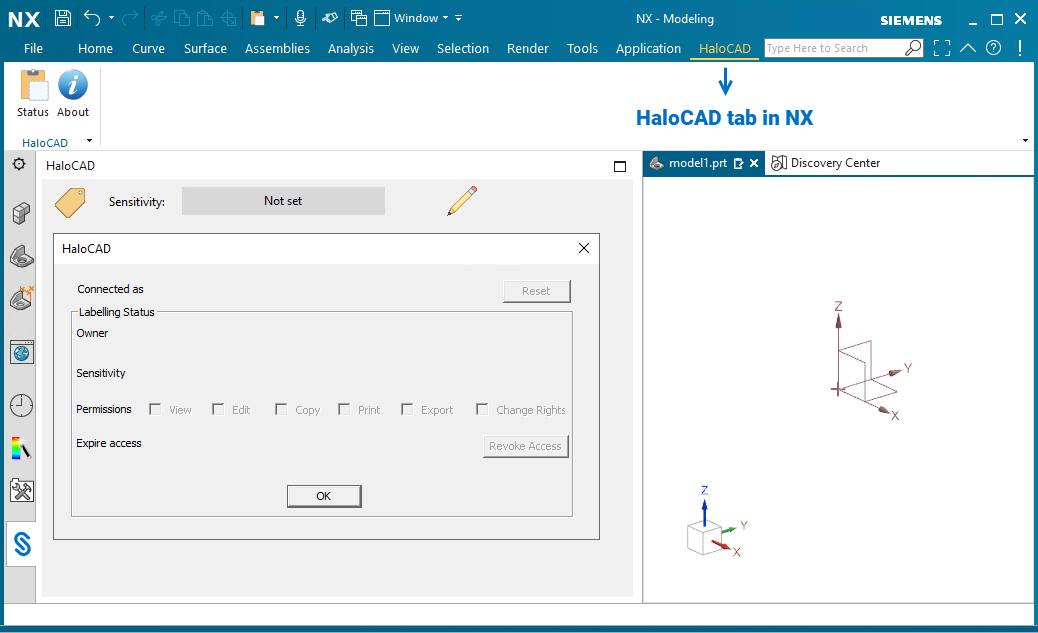
HaloCAD in NX
The following table outlines each element of the HaloCAD menu.
|
S.No |
Icons |
Description |
|---|---|---|
|
1 |

|
The Status icon displays the status of the file. 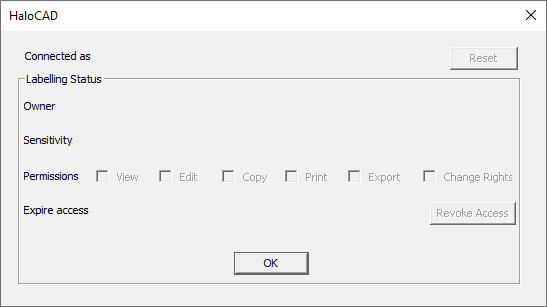
|
|
2 |

|
The About icon displays the application version and license information. For details on license activation, refer to the “License Activation” section of the Technical Reference Manual. 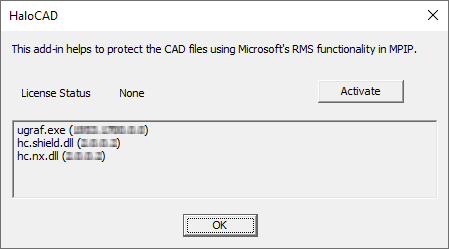
|
|
3 |

|
The Secude icon, displays the HaloCAD pane. If you double-click, the pane opens separately. |
|
4 |

|
Pencil icon - Click to change label: 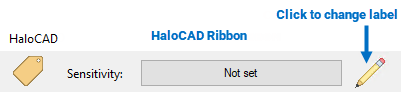
|
|
Overview of screen elements
How to Protect a CAD File?
Prerequisites
-
To protect organizational data by using sensitivity labels, configure protection settings for each label in the Microsoft Purview portal.
-
To set a default label for documents, configure the following setting in the Microsoft Purview portal: Go to Label policies > Settings > Documents > Default settings for documents > Apply a default label to documents, and then select a label from the list.
To protect a CAD file, perform the following steps:
-
Open the NX application, and then open an existing file or create a new file.
-
For new or unprotected files, the Sensitivity status displays Not set if no default label is configured in the policy. If a default label is configured, the configured default label is displayed. In this example, no default label is set.
-
On first login, HaloCAD prompts for Microsoft Sign-In Assistant authentication.
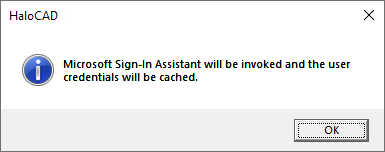
Microsoft Sign-In Assistant invoking message
-
Click OK and enter your credentials.
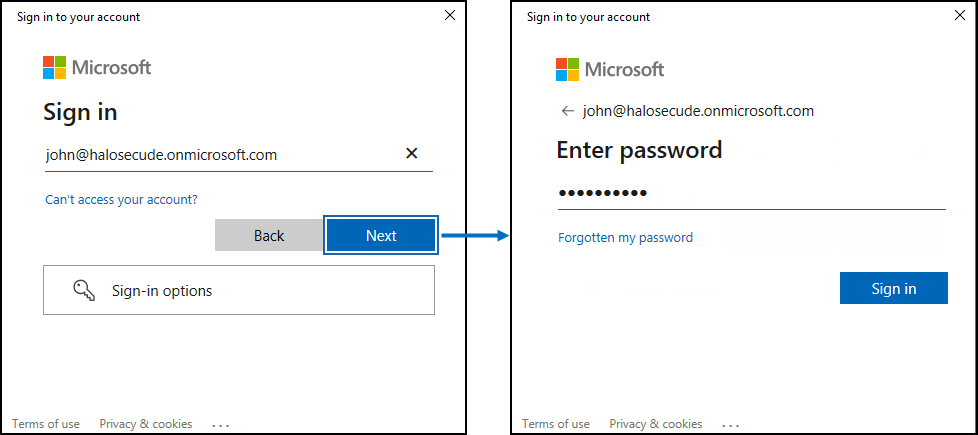
Authentication sign-in prompt
-
After authentication, HaloCAD connects to Microsoft Entra ID and caches the user credentials.
-
Go to the HaloCAD tab and click Sensitivity.
-
To apply the label to the active document, click the pencil icon (Click to change label).
-
A notification appears indicating that labels are being downloaded from Microsoft Purview Information Protection.

Fetching the labels
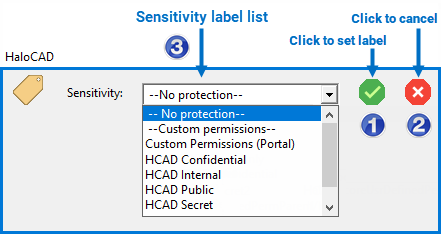
-
From the Sensitivity list, select a label, and then click the green check mark (Click to set label) to confirm the selection.
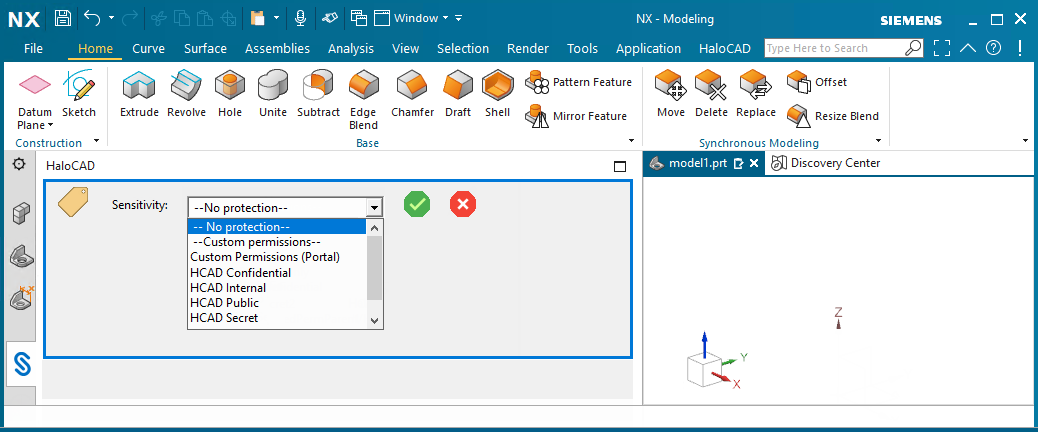
Downloaded labels for the signed-in user
-
For a new file, click Save and specify a file name.
-
For an existing file, an additional save action is not required. When the label is applied by clicking the Click to set label (check mark) icon, the file is saved automatically.
Result
-
The selected label is applied to the active document.
-
The selected label is displayed on the HaloCAD ribbon, along with the color configured in the Microsoft Purview portal.
-
To clear the credential cache, click Reset in the Status UI.
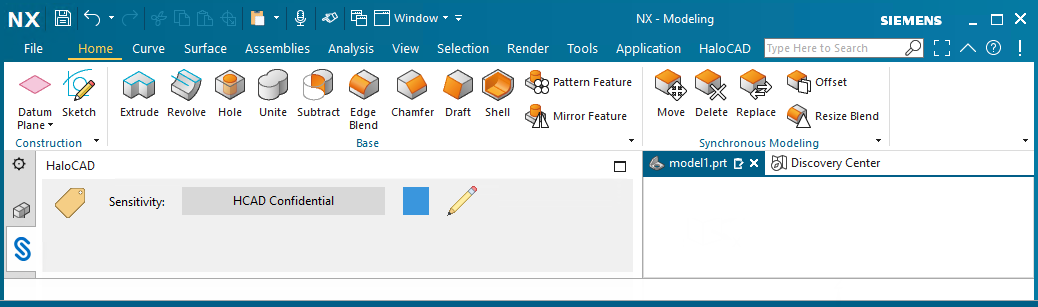
File with applied label
Cancel, Remove, Relabel, and More
-
Canceling Label Selection: If you have selected an incorrect label, you can cancel it by clicking the red cross icon (Click to Cancel). This will remove only the selected label that has not yet been applied to the file.
-
Removing Protection: To remove an existing label and keep the file unprotected, select the No Protection label from the list. Note: Whenever you change a label, click the green check mark icon (Click to set label) to apply the updated label. The file will be saved, and the label will be applied to the active document.
-
Relabeling: If you want to apply a different label or modify protection settings (Custom Permissions) after a label has already been applied, first click the pencil icon (Click to change label) and then select a new label from the list. For more details, refer to “Example 10: Custom Permissions Label”.
-
Revoke Access - If an author does not want a user to access the shared file for security reasons, you can prohibit it by clicking Revoke Access in the Status UI. Please refer to the section “Example 12: Revoke a File”.
-
Visual Indicator - HaloCAD allows for the addition of visual indicators for components labeled within an Assembly file. To enable the visual indicator, follow the steps below.
-
Open a protected assembly file.
-
Go to Menu → HaloCAD → Visual Report. (Note: If the Menu tab is not displayed, right-click on the toolbar > and select Top Border Bar.)
-
For each component, a small rectangular Secude icon is now displayed on the graphic area.
-
Moving your cursor over the Secude icon will display the label information.
-
To deactivate the visual indicator, go to Menu → HaloCAD → Deactivate Report.
-
Log out an Active User
This section describes how to log out the currently active user from HaloCAD. Logging out ends the active session and allows another user to log in.
-
Go to the HaloCAD tab > click Status > click Reset.
-
When the following message appears, click Yes.
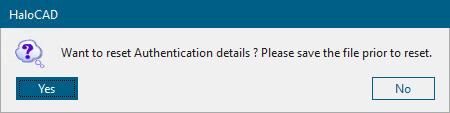
Clear cached credentials #1
-
When the next message appears, click OK.
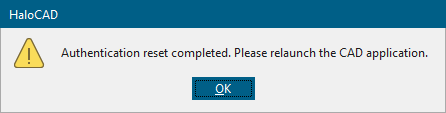
Clear cached credentials #2
-
Restart the application.
Result
-
After relaunching the application, users can log in to a new HaloCAD session using their credentials.
-
If you do not relaunch the CAD application, HaloCAD displays the following message: "For HaloCAD to work properly you should relaunch the application now".
-
Click OK, and then relaunch the application.
Next step
-
Log in after reset: After restarting the application, when you open a protected file or click the pencil icon (Click to change label), HaloCAD prompts you to use the Microsoft Sign-In Assistant. Click OK, and then sign in with your credentials.
Microsoft Sign-In Assistant invoking message
-
For more information about HaloCAD functionality, see the Common scenarios section.
How to Export a Protected CAD File to a PDF File?
To convert / export / save a protected file as PDF:
-
Go to the File menu > click Export > PDF > choose a location and enter a filename.
-
Click Apply or OK on the Export PDF dialog.
-
An exported PDF file is saved with protection.
Result: An exported PDF file is saved with protection.
The protected file may need to be viewed after being exported. To open a protected file, follow the instructions below:
Prerequisite: Ensure that the latest version of Acrobat Reader DC or Acrobat DC is installed.
-
Double-click the protected file or open the Adobe application, go to the File menu > Open > browse, and select the file.
-
Microsoft Sign-in prompts you to provide your credentials.
-
Enter the credentials and click Sign in.
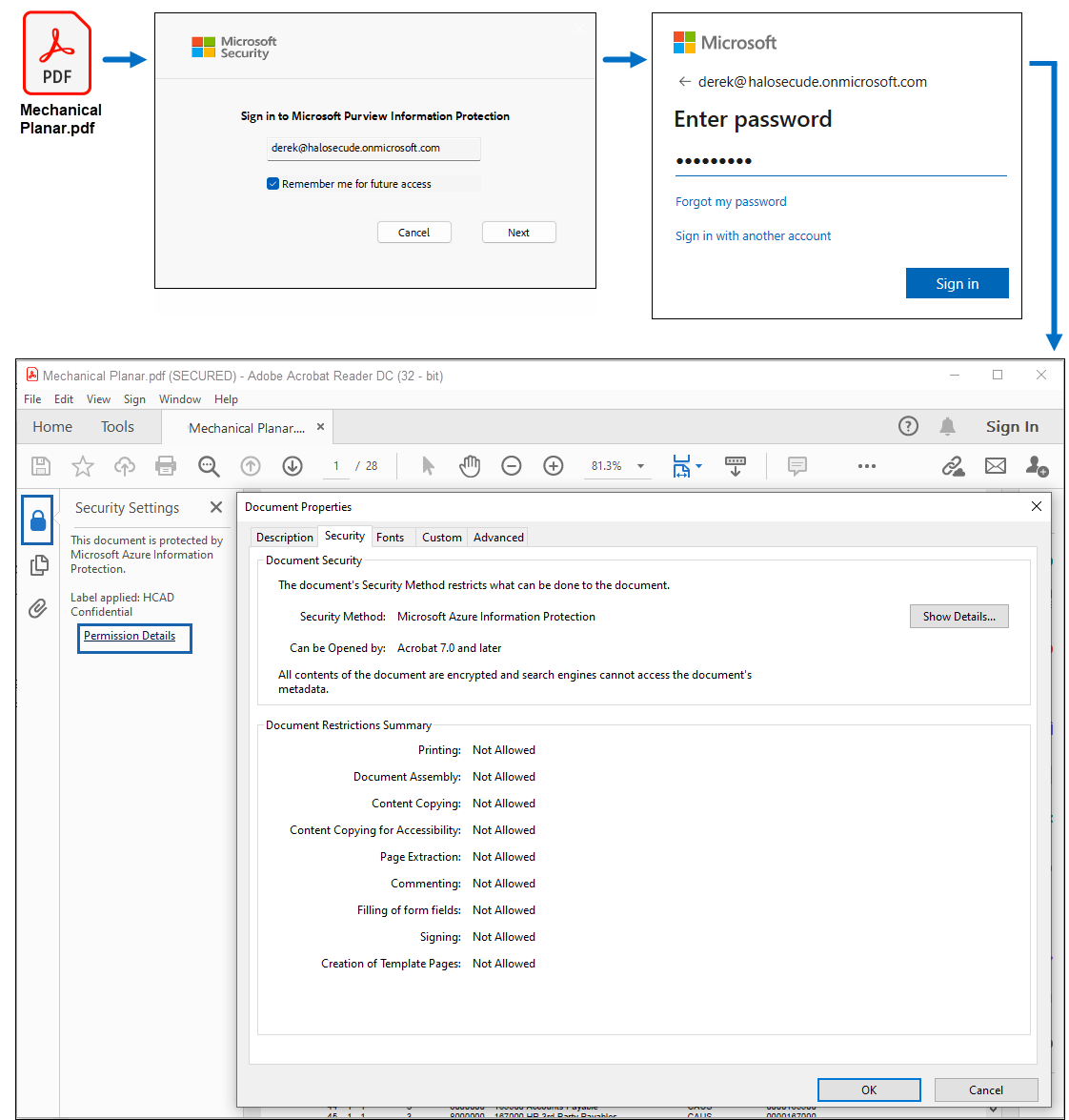
Protected PDF File
-
To the question “Do you want to stay signed in?”, answer Yes.
Result:
-
Upon successful authentication, the protected file is opened.
-
If authentication fails, access to the file is blocked.
Next step
To see the actual permissions that are applied to the file, do one of the following:
-
Click on the lock icon > Permission Details > Document Properties screen > click Show Details.
-
Click File > Properties > click Security tab > Document Properties screen > click Show Details.
How to View a Protected File in HaloCAD Reader?
The reader add-on is intended for customers who do not have the full HaloCAD solution installed. Secude provides this viewer program to enable end users to view HaloCAD-protected files without having to install the standard (full) version of the HaloCAD solution on their desktops.
Reader add-on vs HaloCAD Standard add-on
Both add-ons use the Microsoft Purview Information Protection security solution. However, the reader add-on cannot function as a HaloCAD Standard add-on; it is limited to opening and reading CAD files that are protected by the Standard/Full add-on.
Prerequisite: Make sure that the HaloCAD Reader Add-on for NX is installed.
-
Double-click the protected file.
-
HaloCAD will prompt you about the Microsoft Sign-In Assistant before allowing you to access the file.
-
Click OK. Enter the credentials and click Sign in. (However, you do not require this validation if your cached account information is available.)
Result:
-
A read-only version of the file opens with the following message.
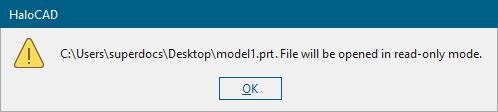
HaloCAD Reader message
-
Click OK on the HaloCAD reader message.
-
You can also observe the disabled pencil icon (Click to change label) in the Sensitivity ribbon, along with disabled tabs, panels, and buttons in the CAD application, as well as disabled permissions such as edit, copy, print, export, and change rights options.

Disabled Click to change label icon
Next step
The reader add-on gives you the following options, similar to the standard add-on:
-
To view the file's permissions, click the Status icon.
-
To log out an active user from a HaloCAD session, click the Reset icon.
Common Scenarios
This section presents common scenarios for illustrative purposes and provides general guidelines.
Concept: Sensitivity Labels
MPIP labels can be customized to meet the requirements of each organization. These labels are defined and managed directly in the Microsoft Purview portal, and the HaloCAD Add-on retrieves them for user selection. When a sensitivity label is applied, the associated permission levels are automatically enforced on the document; any rights that are not explicitly granted are not assigned to the user. For example, a label applied to a CAD file with view-only permission allows users to view the content without any additional rights.
-
Let's say, for example, that you set up a label with "Viewer" permission. In this case, the user will be able to view MPIP-protected content, but the following actions and menus will be disabled:
-
Pencil icon - Click to change label in the HaloCAD Sensitivity ribbon.
-
All tabs, panels, and buttons in the CAD application.
-
Edit, Copy, Print, Export, Change Rights, and Revoke options in the Status UI. Refer to Example 1.
-
-
In contrast to the previous point, if you configure a label with 'Co-Owner' permission, the user will have full access to the file, including the ability to view, edit content, print, copy, and export the file, as well as change rights (labels). Refer to Example 2.
-
For more details on labels, please refer to Microsoft Documentation.
How to Open a Protected CAD File?
Follow the procedure below to view the protected file:
-
Click the protected file to open it.
-
When a labeled file is opened for the first time, a connection to the Microsoft Entra tenant is requested via the Microsoft Sign-In Assistant.
-
Click OK when prompted that the Microsoft Sign-In Assistant will be invoked and user credentials will be cached.
-
Follow the on-screen instructions to complete the authentication process.
-
After successful authentication, the file opens.
-
Access results for the same document may vary based on the applied policy settings. Please refer to the following examples.
Example 1: Label with Read-only Access
-
The MPIP label HCAD Confidential is applied to the following file. This label allows the logged-in (connected) user to view the file while restricting all other operations. To view the applied label and your file permissions, click the HaloCAD tab and then select Status.
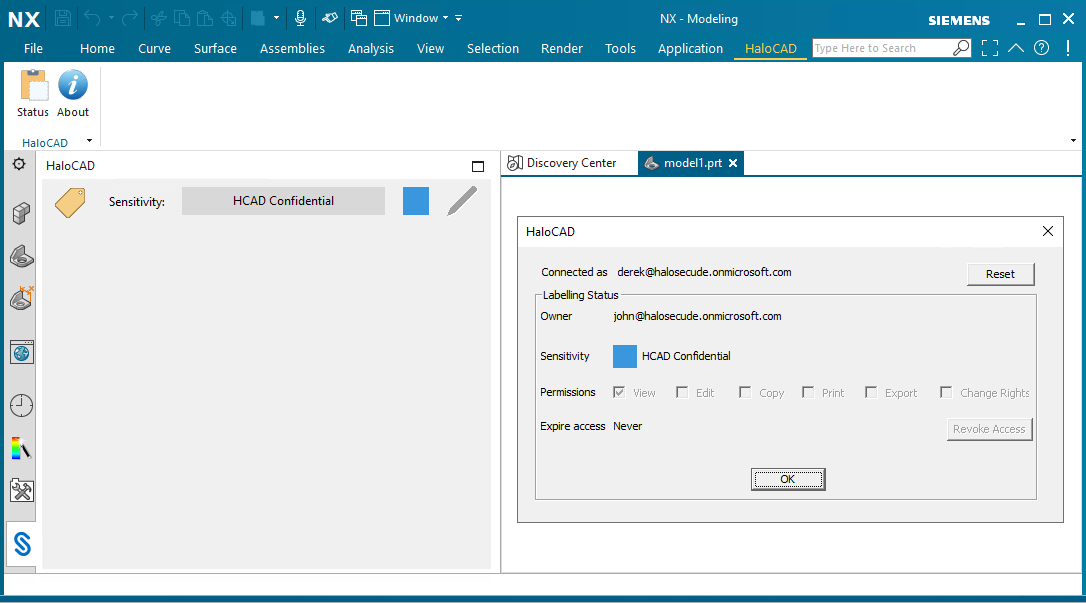
User with restricted access #1
-
In case you modify and try to save the file using the File > Close > Save and Close option, you will receive the following HaloCAD pop-up.
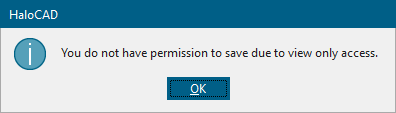
User with restricted access #2
Behavior When Attempting to Copy, Save, or Capture Screen Data
One of the most common ways confidential information is compromised is by copying it (Ctrl + C) or capturing it using tools such as Print Screen or the Snipping Tool and then transmitting it elsewhere. To prevent this, when a label without the Copy usage right is applied, the entire content is blanked out during copy or screen-capture attempts. Similarly, when the user clicks the File menu, options such as Save, Print, and other related actions are disabled because the user does not have the required authorization to perform these operations.
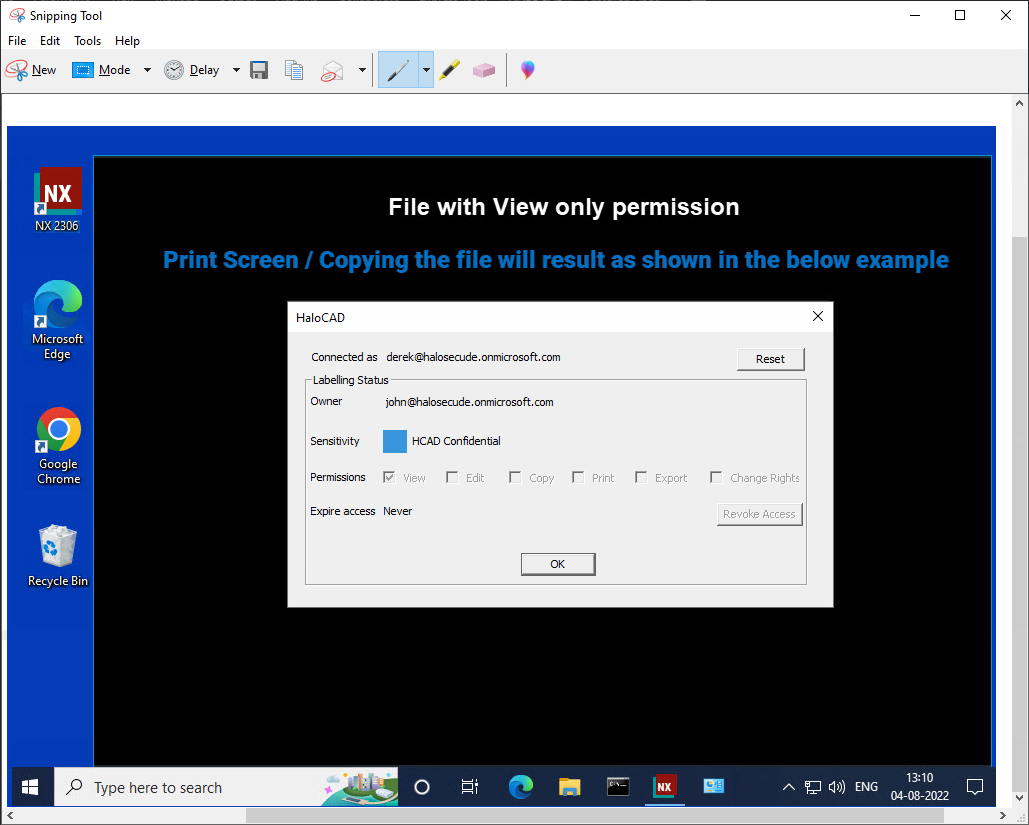
HaloCAD prevents copying data
Behavior When Attempting to Relabel with Read-Only Permissions
With "Read-only / View" rights, you are only allowed to view the content; all other options, including the tab, panel, button, and pencil icon - Click to change label on the HaloCAD Sensitivity ribbon, are disabled. As a result, the imposed protection cannot be relabeled or removed.
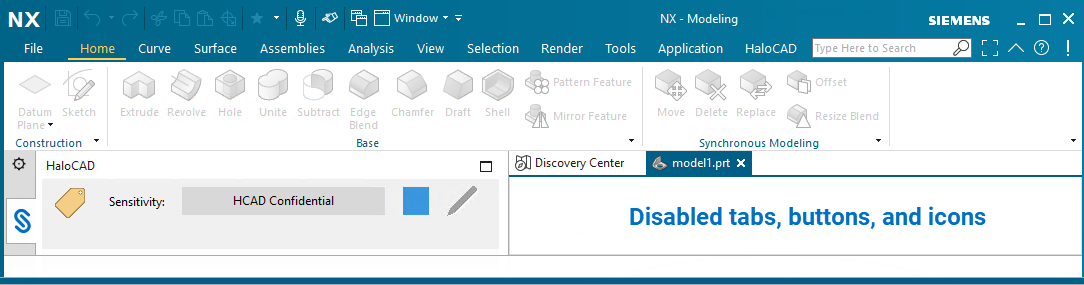
Disabled tab, buttons, and icons
Example 2: Label with Full Control Access
The file shown below is labeled HCAD Confidential, which grants the user full access, therefore, all menus are enabled in the file. To view the applied label and your file permissions, click the HaloCAD tab and then select Status.
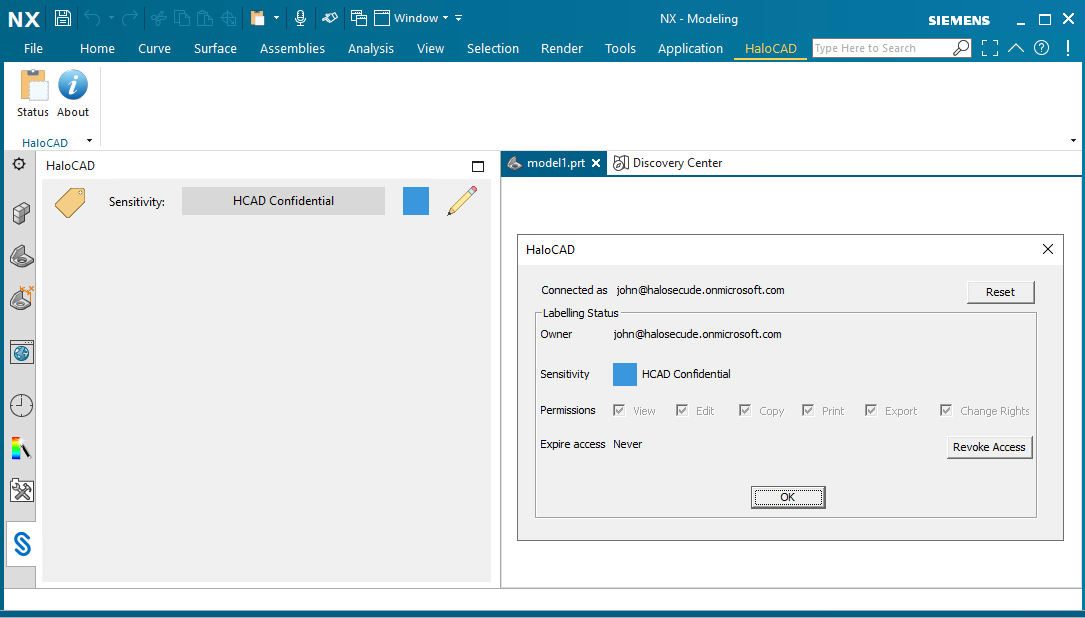
User with full access
What Happens if You Try to Relabel with Co-Owner Permission?
With "Co-Owner" rights, you have complete control over the content and can relabel or remove the protection as needed by clicking the pencil icon - Click to change label on the HaloCAD Sensitivity ribbon.
Example 3: Unauthorized User Access
An unauthorized user who double-clicks on a protected CAD file receives the warning shown below. Note: An unauthorized user is anyone who is not listed in the allowed user list configured within the Microsoft Purview Information Protection sensitivity label.
%20Unauthorized%20User%20Access%20_Warning.png?cb=488a893323818e83a9454705810c4683)
Unauthorized user opening a protected file
Example 4: Label Deleted from Microsoft Purview Portal
For instance, a label is applied to a file and is removed from the Azure portal. Users could no longer open the protected file; however, the underlying protection remains the same. A user who tries to consume this protected file will receive the following message.
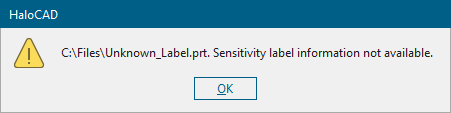
Warning message for the unavailability of a label
Example 5: Labeling Dependent (Protected and Unprotected) Files
Assume, there are dependent parts or sub-assembly files that are protected and unprotected in a Parent Assembly file. When you apply a label to the Parent Assembly file, you must confirm the following action to take effect:
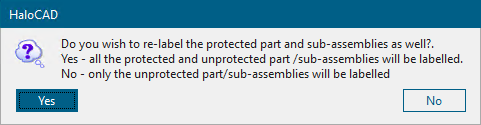
Labeling the unprotected and protected child files
If Yes:
-
All associated unprotected child files receive the Assembly file's label.
-
Already protected child files are relabeled with the Assembly file's label.
-
If a child file does not have Owner or Co-owner rights, the Parent label cannot be imposed on the file.
If No:
-
Only unprotected files receive protection.
-
Existing protected child files remain unchanged.
Example 6: Labeling Dependent (Unprotected) Files
Assume that a Parent Assembly file contains dependent parts or sub-assembly files that are unprotected, while the Parent Assembly file may be protected or unprotected. When you relabel the Parent Assembly file, the following message appears. Click OK to protect both the Parent Assembly file and the dependent files with the same label.
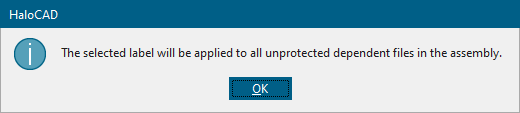
Labeling unprotected child files
Example 7: Removing Protection from Assembly and Part Files
Assume that a protected Parent Assembly file contains part or sub-assembly files. To keep the file unprotected, remove the existing label and apply the --No Protection-- label to the Parent Assembly file. The following message appears:
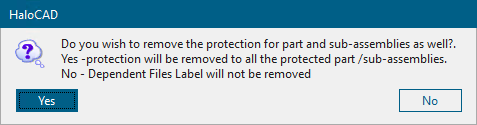
Removing protection from protected part files
You must confirm the following action to take effect:
If Yes:
-
All associated protected child file labels are removed, and the files are unprotected.
-
If a child file does not have Owner or Co-owner rights, protection cannot be removed from the file.
If No:
-
Only the Parent Assembly file label is removed, and the file is unprotected.
-
The labels on the existing protected child files remain unchanged.
Example 8: Label with Content Marking
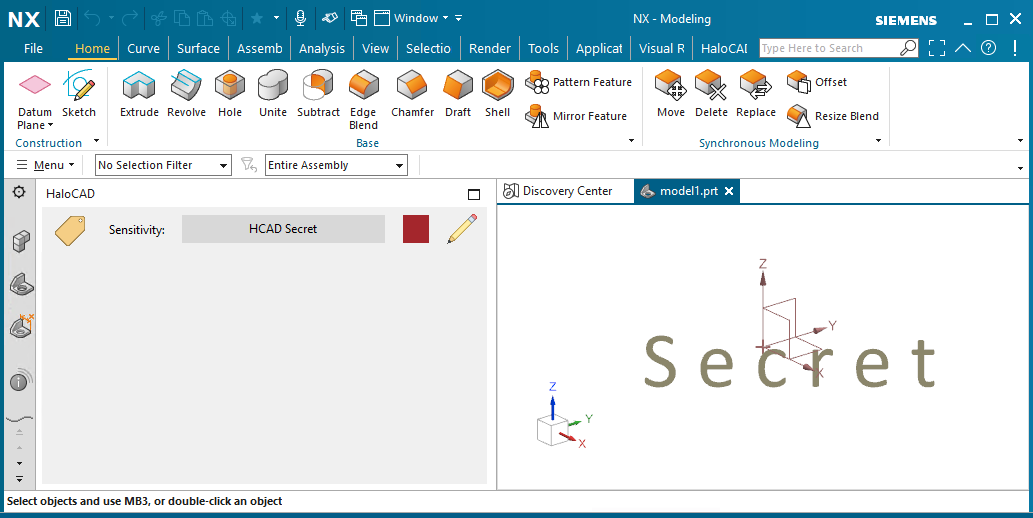
Applying a watermark indicates what type of content it is and how it should be handled, and its presence in a file serves as a constant reminder to the user that the file contains sensitive information. The file below is labeled HCAD Secret and bears the watermark Secret.
Content with watermark
Example 9: Other Use Case Scenarios
Importing a file with a restricted/least permission label
A restricted/least permission label refers to a label with the lowest permission, such as view-only access rights. A full permission label has full access rights, such as Edit, Export, Change Rights, and so on.
-
Case 1 - When you import a dependent part or sub-assembly file protected with a “restricted permission” label into a parent assembly file protected with a “full permission” label, the following HaloCAD pop-up message appears as “Please confirm applying least permission label from import file? Yes - Current file will be updated with import file label “XXXXXXX”. No - Import operation will be cancelled.”
-
If Yes, then the imported dependent part file’s label will be applied to the parent assembly file. For example, HCAD Public label with view rights will be applied.
-
If No, then the import will be blocked and the parent assembly file will remain unchanged.
-
-
Case 2 - When you import a dependent part or sub-assembly file protected with a “full permission” or “restricted permission” label into a parent assembly file that is unprotected, the HaloCAD pop-up message appears as described in Case 1 above. The response (Yes or No) process will also follow the same procedure as in Case 1.
-
Case 3 - When you import a dependent part or sub-assembly file protected with a “full permission” label into a parent assembly file protected with a “restricted permission” label, the import is allowed and no label changes occur in the parent assembly file.
In addition, when an assembly file is opened, all linked part or sub-assembly files are checked to determine the least restrictive permission among them. If any part or sub-assembly file has the lowest permission level, the parent assembly file adopts that restriction. For example, if a part file is set to 'view-only,' the assembly file is also enforced to 'view-only' upon opening.
Labeling a File Without Protection
Compared to a standard MPIP label, a label-only MPIP label adds metadata to a file without applying protection. In this context, label-only refers solely to metadata classification. The key difference between a standard MPIP label and a label-only MPIP label is that the standard label includes encryption and protection options, whereas the label-only variant does not. As a result, a label-only MPIP label can be applied to files that do not require protection but still need to be labeled for classification purposes.
Prerequisite: Make sure the Control access check box under Choose protection settings for the types of items you selected page is unchecked while defining the label-only in the Microsoft Purview portal.
Other key points
-
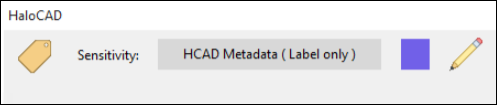
When a label-only MPIP label is applied to a file, the suffix (Label Only) is appended to the label name. For example, if the label name defined in the portal is HCAD Metadata, it appears as HCAD Metadata (Label Only) after being applied to the file.
MPIP label-only
-
Full rights: A file with this label allows a user to have full rights on it.
-
Notifications: Similar to a standard MPIP label, the user will receive notifications when label-only is applied to a top-level parent file.
-
With the HaloCAD Add-on: The label details will be displayed in the Status UI, just like a standard MPIP label.
-
Without the HaloCAD Add-on: A file with a label-only MPIP label will behave like any other unprotected CAD file.
-
Attributes: To see label details, follow the instructions below:
-
Click on the Assembly Navigator icon, under the Descriptive Part Name tab, right-click on the file name, and then click Properties.
-
In the Displayed Part Properties window > Attributes tab, you see the author name, label ID, and label name under the HaloCAD node.
-
Furthermore, if watermarking is configured in this label, the HaloCAD node displays additional information such as the font color, font name, font size, layout, and text.
-
Example 10: Custom Permissions Label
Difference Between Sensitivity Labels and Custom Permissions
Sensitivity Labels
Sensitivity Labels are defined and managed by an organization’s administrator in the Microsoft Purview portal. Each label includes a predefined set of permissions and is also referred to as administrator-defined permissions.
Custom Permissions
Custom Permissions are user-selectable permission sets available in the HaloCAD application UI. These permissions are defined by users and are also referred to as user-defined permissions.
Protection using Custom Permissions from Microsoft Purview Portal
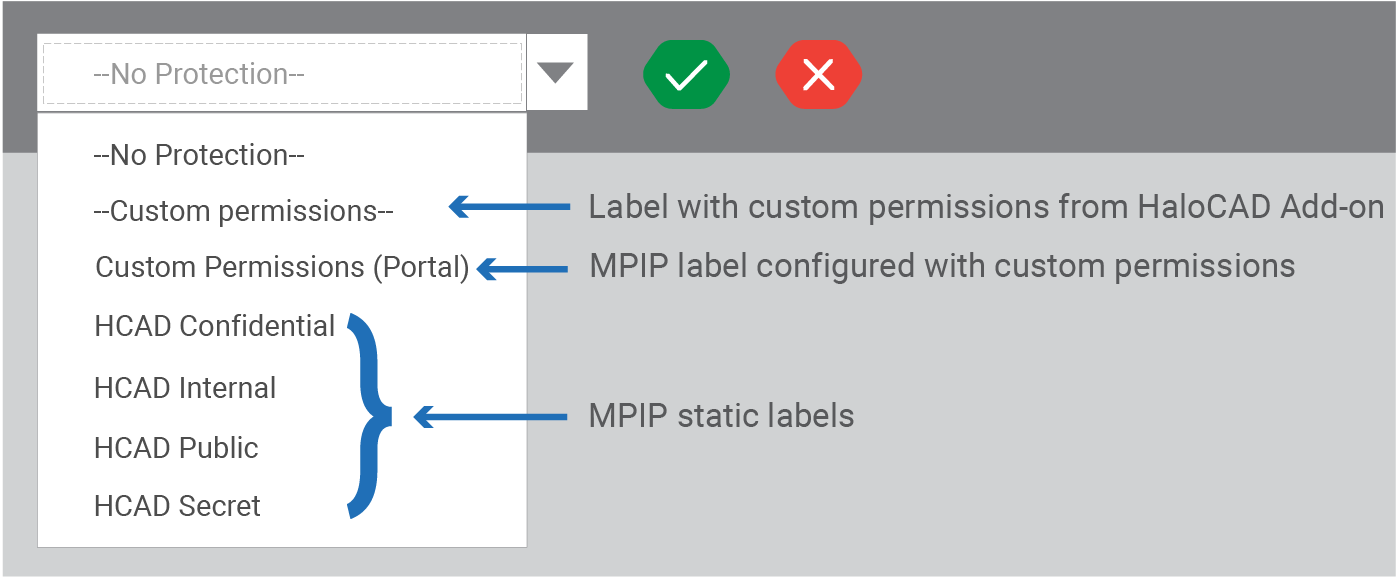
Prerequisite: Make sure the custom permissions label in the portal is set to Let users assign permissions when they apply the label.
Custom permissions and other labels
Follow the procedure to apply the custom permissions label:
-
Open the NX application, select a model, and then create objects.
-
Click the Click to change label icon.
-
When HaloCAD downloads the labels, custom permission labels (from the Microsoft Purview portal and user-defined labels) are listed in the Sensitivity ribbon.
-
For illustration, the custom permission label from Microsoft Purview is named Custom Permissions (Portal).
-
Select the Custom Permissions (Portal) label from the list and click the green check mark (Click to set label icon).
-
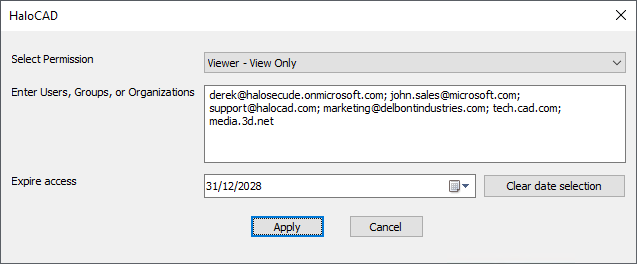
The HaloCAD screen appears, as shown below.
HaloCAD Custom permissions
-
From the Select Permission list, choose the level of access you want users to have when protecting the file: (Viewer - View Only / Reviewer - View, Edit / Co-Author - View, Edit, Copy, Print / Co-Owner - All Permissions / Only for me).
-
In Enter Users, Groups, or Organizations, specify who should have access to the file. Enter individual email addresses, group email addresses, or an organization domain, separated by commas, spaces, or semicolons.
-
In the Expire Access field, specify how long the labeled file can be accessed. Select Never for unlimited access, suitable for less sensitive content. For highly sensitive content, select an expiry date so that recipients (other than the owner) cannot access the file after that date.
-
Click the Clear date selection option to clear the previous date selection.
-
Click Apply to confirm the protection settings.
Result: The label is applied to the file.
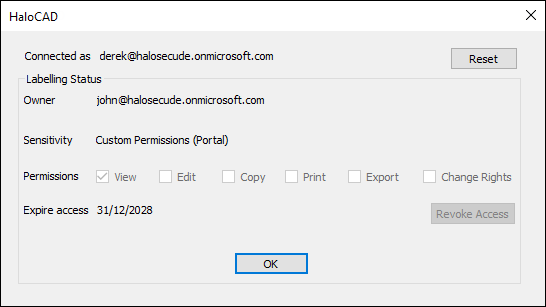
What happens when a user opens a custom permissions–labeled file?
Based on the user’s permissions, the file can be accessed accordingly. Note: The author of the document always has full rights to the file and can access it at any time, regardless of any custom permissions or expiry date configured in the label. The following example shows a label with custom permissions.
User with custom permission
Protection using Custom Permissions via HaloCAD Add-on
In comparison to the previous section, the HaloCAD add-on also supports a Custom Permissions label. However, this label is defined at the application level within HaloCAD and is not obtained from the Microsoft Purview portal. The process for applying this label is the same as described in the previous section.
Example 11: Set an Expiration Date for File Access
Prerequisites:
-
Ensure that the expiration date is configured in the Microsoft Purview portal when using a static MPIP label.
-
Ensure that the expiration date is configured in the Custom Permissions label when using it via the Microsoft Purview portal or the HaloCAD add-on.
Why is File Expiration Necessary?
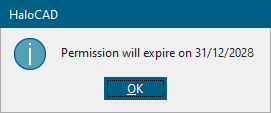
When files are shared with external vendors, access may continue even after a contract ends, creating security risks. To prevent this, set an expiration date on the file. This is a recommended practice when working with vendors or contractors. For example, if a file is shared with an expiration date of 31/12/2028, business partners will not be able to open it after that date. Each time the file is opened, HaloCAD displays the file’s validity.
Validity of the file
What Happens When a File Expires?
When a user opens a file that has reached its expiration date in their current time zone, the labeled file cannot be opened. HaloCAD will prompt a message “You do not have sufficient permissions to view this document”. This behavior is like unauthorized file access, as described in the section “Example 3: Unauthorized User Access”.
How to Open an Expired File
Recipients cannot open an expired file. Only the file author can access it. If a recipient needs continued access, they must contact the author to obtain a new copy of the file with an updated expiration date.
Example 12: Revoke a File
Prerequisite: Ensure that the user who wants to revoke a file has the required license, as specified in the Release Notes under the Requirements section.
Revoke Feature: MPIP provides a revoke feature that prevents any new access attempts to a protected file, restricting access to all users except the author. Note that revoking access removes permissions for all users associated with that label.
Why Should a User Revoke a File?
A user may revoke access to a sensitive file if it was sent by mistake, accessed from a suspicious location, leaked, or if a recipient no longer requires access. In these scenarios, the author can immediately prevent further access by revoking the file. Note: Revoking does not delete the shared file, but users will no longer be able to open it. The Revoke Access button is available on the HaloCAD status screen.
How to Revoke a File?
-
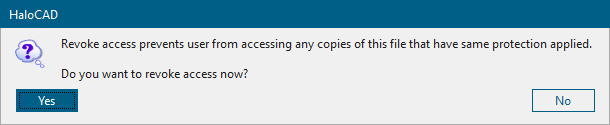
To revoke a file, go to the HaloCAD tab > click Status > click the Revoke Access button. The following message will appear:
Revoke access message #1
-
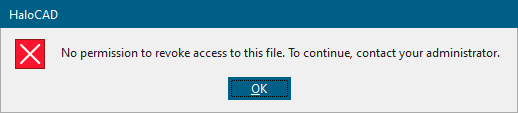
Click Yes to confirm revoking access and continue with step 3. If you do not have the required license, it is not possible to revoke a file. In this instance, HaloCAD will show the alert as follows:
Access denied when revoking a file
-
The following message will appear:

Revoke access message #2
-
Click OK and save the file.
Result:
-
Access to the file is revoked.
-
Users who previously had access to the document can no longer open it.
What Happens if a User Attempts to Open the Revoked File?
Once the file is revoked, the user cannot open it, although the user has accessed it before. HaloCAD shows a generic message as “You do not have sufficient permissions to view this document.” This behavior is like unauthorized file access, as described in the section “Example 3: Unauthorized User Access”.
MIP SDK
A revoked file can be accessed by the same user if it was previously opened by the same user in the same HaloCAD session. This is due to the actual behavior of the MIP SDK if you have defined the sensitivity label with the two options Allow offline access and Users have offline access to the content for this many days, the configured offline access allows users to continue to access the revoked file until the offline policy period ends.
What Happens if a User Changes the Label?
Assume User A shares a sensitive file with User B.
Case 1: If User B makes copies of the original document, revoking file access by User A will also revoke all copies, since the label remains unchanged.
Case 2: If User A has not revoked access and User B (with full rights) changes the label, revoking file access will not apply to that modified copy. However, the original document will still be revoked.
How to Open the Revoked File?
A recipient cannot open a revoked file. Only the file author can access it. If a recipient needs access, they must contact the author to obtain a new copy of the file.
Troubleshooting
This chapter will help you overcome the most common problems with the HaloCAD solution.
Cannot Sign in to Microsoft Sign-In Assistant
Symptoms
The user login fails with the following error message.
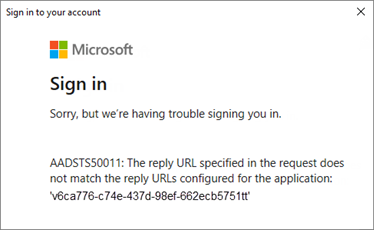
Microsoft Sign-in error message
Background
The above error occurs when a user logs in to a HaloCAD session using Microsoft Sign-In Assistant.
Probable Cause
As the Redirect URL specified in the request does not match the URL configured for the registered application, Microsoft Sign-in fails.
Corrective Action
-
Case 1: An incorrect Redirect URI was entered during the HaloCAD installation.
-
Reinstall the HaloCAD Add-on using the correct Redirect URI.
-
Launch the CAD application, click the pencil icon (Click to change label), and sign in using the Microsoft Sign-In Assistant.
-
-
Case 2: Redirect URIs use an improper scheme (such as
http://contoso.com)-
Log in to the Microsoft Azure portal.
-
On the home page, click the Show Portal Menu icon, then select Microsoft Entra ID.
-
Under the Manage section on your tenant’s Overview page, choose App registrations.
-
Click All Applications, and enter your application name in the search bar.
-
From the list, select your application.
-
Click the Redirect URIs link or select Authentication from the Manage section on the application overview page.
-
Verify that the reply URL begins with https://. If it does not, update it to https and save the changes.
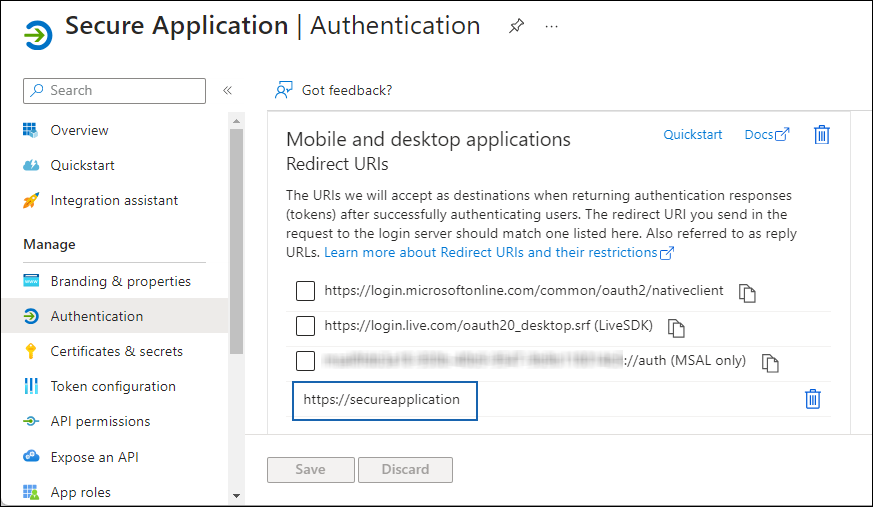
Incorrect Redirect URIs
-
Now, sign in using the Microsoft Sign-In Assistant.
-
-
Case 3: Tenant ID provided for multi-tenant application
-
Reinstall the HaloCAD Add-on without entering the Tenant ID.
-
Open the CAD application, click the pencil icon (Click to change label), and sign in using the Microsoft Sign-In Assistant.
-
Labels are not Getting Downloaded in the HaloCAD Session
Symptoms
The user could not download labels.
Background
The user logs in successfully in the HaloCAD session, but cannot download labels.
Probable Cause
Improper label configuration in the Microsoft Purview portal.
Corrective Action
-
Log in to the Microsoft Purview portal as a global administrator.
-
Ensure that the labels are configured to apply protection.
-
Verify that the user has the required policy to use the label.
-
For more details, refer to the Microsoft documentation.
Label not Found in the Policy
Symptoms
HaloCAD prompts the following message:
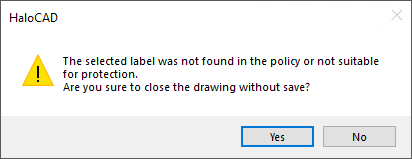
Label not found error message
Background
The above message is shown when you apply a label to a file and save it.
Probable Cause
Improper label configuration.
Corrective Action
Request your Microsoft Purview portal administrator to review the label and publish label policies.
Double Key Encryption Label could not be Applied
Symptoms
HaloCAD prompts the following message:
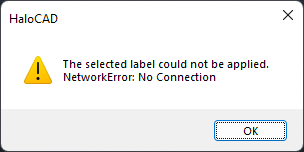
DKE label error message
Background
The above message is shown when you apply a Double Key Encryption (DKE) label to a file and save it.
Probable Cause
This issue occurs if the DKE service is stopped or unavailable.
Corrective Action
Make sure that the DKE service on the client's computer is active and accessible online.
Could not Connect to MPIP – Case 1
Symptoms
HaloCAD prompts the following message:
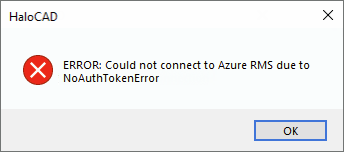
MPIP connection warning message #1
Background
The above error occurs when a user logs in to the HaloCAD session via Microsoft Sign-In Assistant.
Probable Cause
This issue occurs if one or more of the following conditions are true:
-
Case 1: You have entered the incorrect Application (client) ID, Directory (tenant) ID, and Redirect URI.
-
Case 2: You have closed the Microsoft Sign-In Assistant dialog unknowingly.
Corrective Action
-
Case 1: Make sure the correct values of Application (client) ID, Directory (tenant) ID, and Redirect URI are entered during the initialization.
-
Case 2: Relaunch the application and enter user credentials in the Microsoft Sign-In Assistant dialog.
Could not Connect to MPIP – Case 2
Symptoms
HaloCAD prompts the following message:
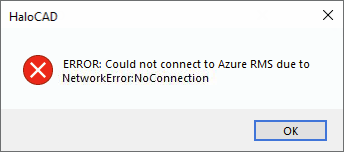
MPIP connection warning message #2
Background
The above error occurs when a user logs in to the HaloCAD session via Microsoft Sign-In Assistant.
Probable Cause
The most likely cause of this issue is that your network is preventing you from connecting to Microsoft Purview Information Protection.
Corrective Action
-
Review your firewalls or network infrastructure to establish a connection with Azure.
-
Check if your proxy limits the URL.
HaloCAD Activation Fails
Symptoms
HaloCAD prompts the following message:
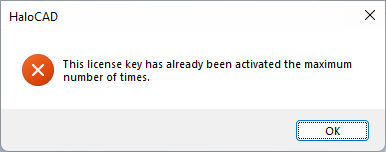
HaloCAD Activation warning message
Background
The above message is shown when you try to activate HaloCAD on a system.
Probable Cause
After a successful license activation, the license status changes to Active, and the Total activations count in Secude’s License Server Manager increases by one. The total activation count increments with each activation.
For example, if you purchased ten HaloCAD licenses, you can activate HaloCAD up to ten systems. After the tenth activation, attempting to activate HaloCAD on another system will fail, and the License Server Manager will display an error indicating that the maximum number of activations has been reached.
Corrective Action
-
Action 1: Uninstall one or more HaloCAD add-ons that were previously activated on a CAD system, and then activate the license on the required CAD system.
-
(Or) Action 2: Purchase an additional HaloCAD license.
-
After completing the action, activate the license.
Incorrect License Key Error Message
Symptoms
HaloCAD prompts the following message:
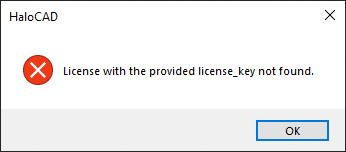
Incorrect license activation message
Background
The above message is shown when you try to activate HaloCAD on a system.
Probable Cause
There are various possible reasons, including a license key associated with another HaloCAD, an incorrect key, or an invalid key.
Corrective Action
Make sure to enter the correct licensing key, unique to this add-on, before activating it.
Why Am I Getting License Expiration Notifications?
Symptoms
HaloCAD prompts the following message:
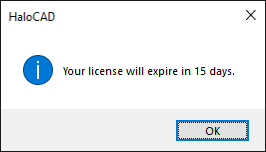
HaloCAD notification
Background
The above notification occurs once a day when a user logs into the HaloCAD session.
Probable Cause
When you run the CAD application and see a HaloCAD expiration alert, it means action is required to continue using the add-on.
Each license has an end date defined at the time of issue. When the license is within 30 days of expiry, the License Manager triggers daily notifications in HaloCAD. For example, if the license expires on September 30, 2028, notifications will begin appearing once per day starting September 1, 2028.
Corrective Action
-
Purchase a new HaloCAD license or renew the existing license.
-
Activate the license.
Other License-Related Error Messages
|
HaloCAD License Error Messages |
Root Cause |
Correction Action |
|---|---|---|
|
The license validity period has expired |
When your license had just expired. |
Please contact Secude's representative to receive a new license. |
|
The license is not enabled. |
When you try to activate a license key that is already disabled on the License portal. |
Please contact Secude's representative to enable the license. |
|
This device is blacklisted. |
When your device is blocked in the license portal for a specific reason. |
Please contact Secude's representative to enable the device. |
|
This license cannot be activated before the start date: yyyy-mm-dd. |
When attempting to activate a license before its start date. |
Please make sure the license is activated on the start date. |
|
Date header is not valid or set in past. |
When the date or time on the machine is incorrect. |
Please make sure that the machine installed with the HaloCAD add-on is synchronized with the current date and time. |
License-related error messages
Technical Support
Before contacting Technical Support, ensure that you have the following information available. Providing this information helps the support team investigate and resolve your issue more efficiently.
-
Full contact details
-
Product build version
-
Date, time, and description of the error (include screenshots, if possible)
-
Details of any third-party software used with the product
-
Any additional information required to reproduce the issue
Contact Technical Support
Secude provides technical support through email support@secude.com. When contacting Technical Support by email, include your company details, a detailed description of the issue, and the relevant log files (if available). A support representative will respond to your inquiry.
Additional Resources
Visit the Secude website https://secude.com to learn about upcoming events, press releases, and to download white papers.
Documentation Feedback
Secude values your feedback and continuously strives to improve product documentation. To provide feedback, send an email to: documentation@secude.com
Include the following details in your feedback:
-
Product name and version
-
Documentation topic
-
Description of the suggestion or error
The technical documentation team reviews all feedback and incorporates relevant updates in future documentation releases.