
This chapter describes how to install and configure the HaloCAD Add-on for Creo. This manual just briefly explains steps 1-3, which cover the prerequisites, obtaining the licensing key, and creating an encrypted JSON file; for more information, please refer to the Technical Reference Manual.
Step 1: Fulfill the Prerequisites
-
Review the Release Notes for the list of supported operating systems, CAD applications, and file types.
-
Ensure that all prerequisites described in the Technical Reference Manual are completed before installing the add-on.
Please refer to the section “Prerequisites”.
Step 2: Obtain the License Key
Obtain the license key and choose whether to activate it automatically or manually.
Please refer to the section “License Administration”.
Step 3: Create an Encrypted JSON File
To simplify installation and protect Microsoft Entra ID application details, create an encrypted JSON configuration file by using the administrator tool. Place the hc.conf.enc file in the same directory as the HaloCAD installer. During installation, HaloCAD automatically reads the Microsoft Entra ID application details, so you do not need to enter them manually.
Please refer to the section “Secure Installation (Recommended Method)”.
Step 4: Install the Add-on
You can install the add-on by using one of the following methods:
-
Graphical Mode
Provides an interactive, wizard-based installation through the graphical user interface (GUI).
-
Silent Mode
Installs the add-on from the command line without displaying a user interface or requiring user interaction.
-
Microsoft System Center Configuration Manager (SCCM)
Enables administrators to deploy the add-on to multiple computers across the enterprise by using Microsoft System Center Configuration Manager (SCCM).
Graphical Mode
Before you begin
The following prerequisites must be met:
-
The user installing the HaloCAD Add-on must have administrator privileges.
-
Ensure that all active and open CAD applications are closed. If not, HaloCAD prompts a warning message as “Please close all the CAD applications to proceed with the installation of HaloCAD Add-on for Creo.”
-
Ensure that the supported CAD applications are installed. If not, HaloCAD displays the following warning message: “No supported CAD applications are available in the system.”
-
Ensure that your Microsoft Entra tenant details are ready when the installation UI requests them. As an alternative, you can use
hc.conf.encfor a secure and automated installation.
Installation Procedure
Install the add-on by using the GUI-based setup program that is provided in the installation package.
-
Double-click the installer
HaloCAD_CREO_Setup.exefile. -
Depending on your Windows security settings, a prompt may appear stating, "Do you want to allow the following program to make changes to this computer?" If this warning appears, click Yes to continue with the installation.
-
When the installer starts, the Startup dialog appears, followed by the Welcome dialog.
Startup dialog
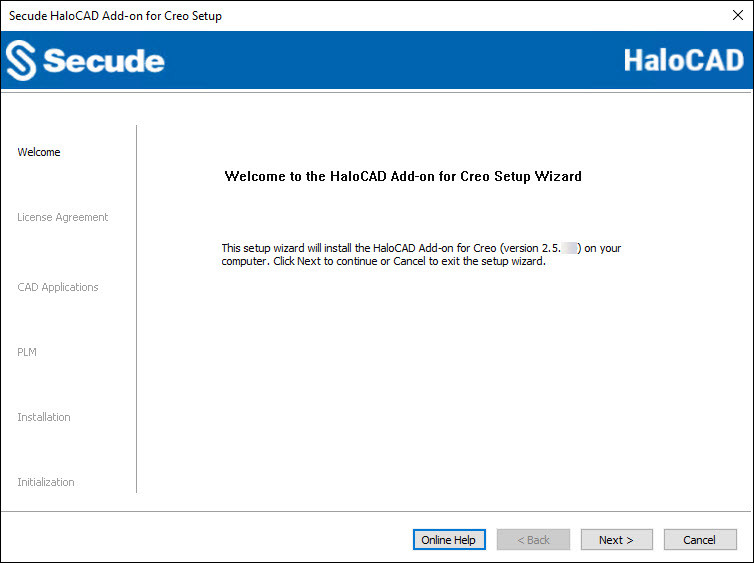
Welcome dialog
-
Click Next to continue the installation. The installer UI includes a link to the product’s online documentation. When you click Online Help, the installation help page opens in your browser.
-
The License Agreement dialog appears.
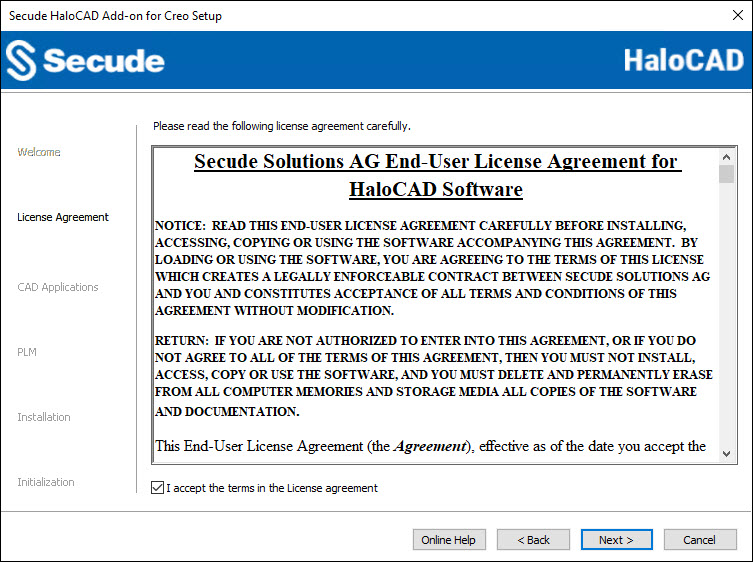
End-User License Agreement dialog
-
Read the End-User License Agreement. If you agree to the terms, select I accept the terms in the License Agreement and click Next to continue.
-
The CAD Applications dialog appears.
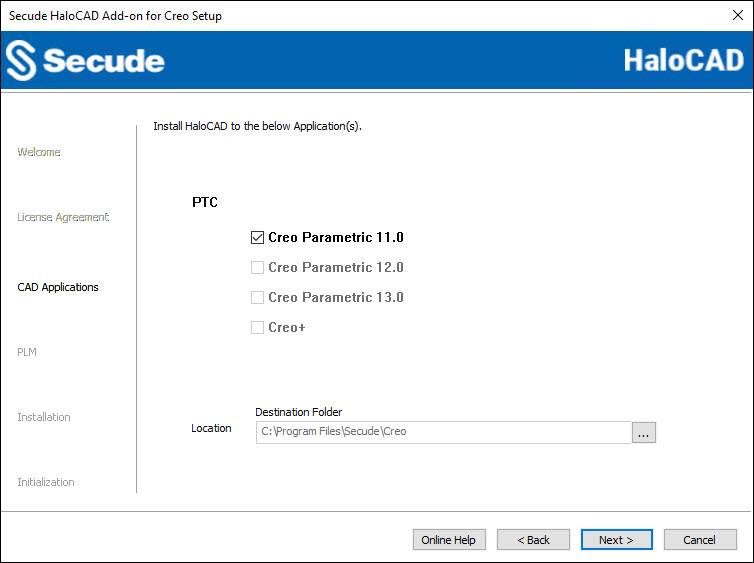
CAD applications dialog
-
Depending on your environment, select the checkboxes for the appropriate Creo Parametric versions.
-
By default, the application is installed in
C:\Program Files\Secude\Creo. To install it in a different location, click Browse, select the destination folder, and then click Next. -
The PLM selection dialog appears, displaying the PLM list.
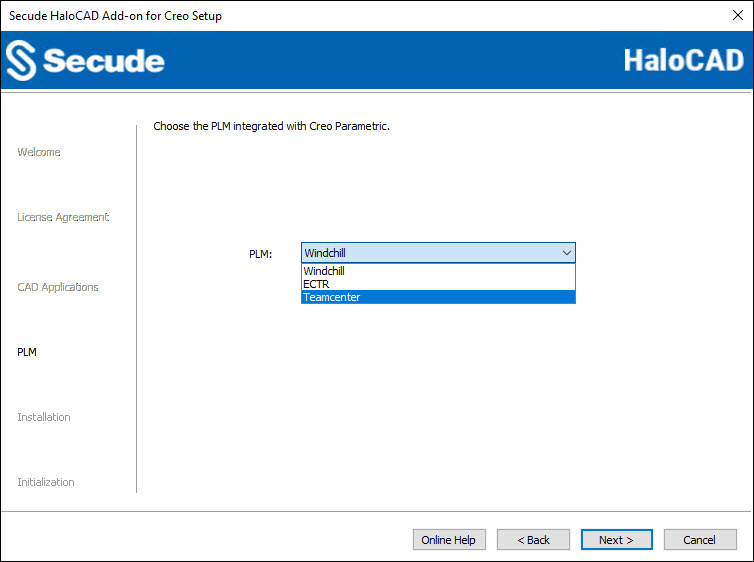
PLM selection dialog
-
Depending on your environment, select one of the following options:
-
With PLM: To integrate the HaloCAD Add-on with a PLM system, select the appropriate PLM from the list (Windchill, ECTR, or Teamcenter).
-
Without PLM: To install the HaloCAD Add-on as a standalone add-on, select Windchill from the list. Windchill is selected by default.
-
To review or modify the installation settings, click Back. When you are ready to continue, click Next to begin the installation.
-
-
The installation begins, and the progress is displayed.
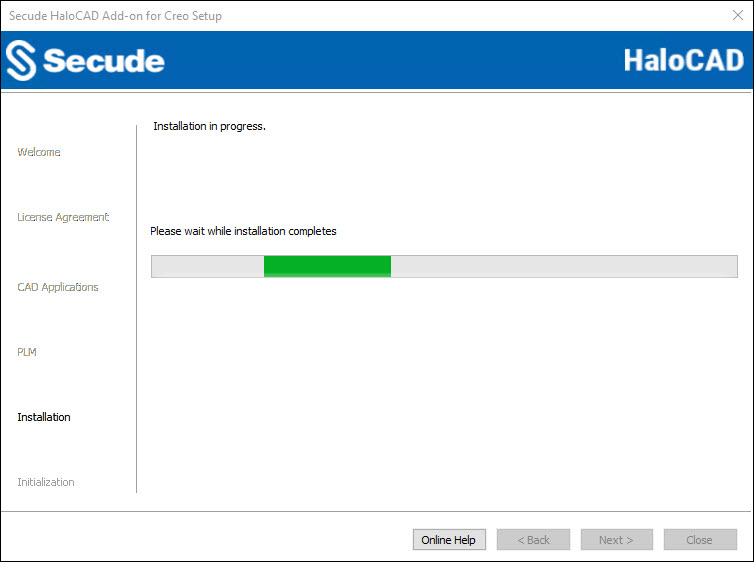
Installation progress dialog
-
When the installation is complete, a confirmation message appears.
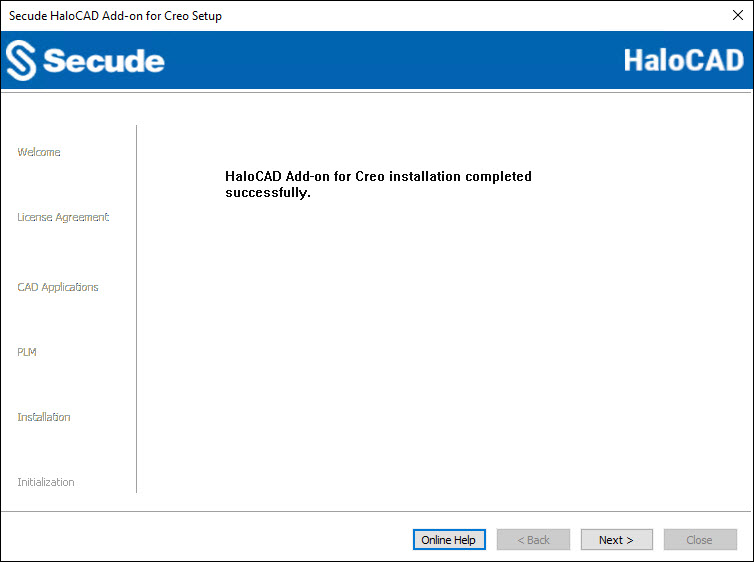
Installation completed dialog
-
Click Next to continue.
-
The Initialization dialog appears. To prevent connectivity issues, ensure that the correct Microsoft Entra ID application details are entered on the screen.
If the
hc.conf.encfile is not present. Enter the following Microsoft Entra ID application details: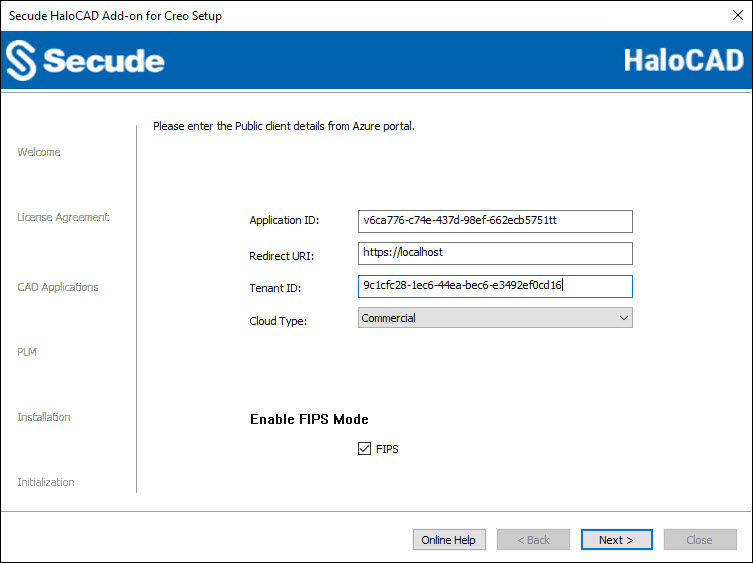
Initialization dialog with application details
-
Application ID: Enter the unique identifier (client ID) of the registered Microsoft Entra ID application. For example,
v6ca776-c74e-437d-98ef-662ecb5751tt. -
Redirect URI: Enter the redirect URI specified when registering the application. For example,
https://localhost. -
Tenant ID: If the application is registered as a Single tenant application, enter the tenant ID (GUID). Otherwise, leave this field blank. For example,
9c1cfc28-1ec6-44ea-bec6-e3492ef0cd16. -
Cloud Type: Commercial is selected by default. Depending on your Microsoft Entra ID cloud environment, select one of the following options: Commercial, Custom, Germany, US_DoD, US_GCC, US_GCC_High, US_Sec, US_Nat, or China_01. If you select Custom, specify the following:
-
Protection Cloud URL: For example,
https://api.aadrm.com -
Policy Cloud URL: For example,
https://dataservice.protection.outlook.com
-
-
Enable Federal Information Processing Standards (FIPS) Mode: Select this option to use FIPS-compliant encryption algorithms. When enabled, Microsoft Purview Information Protection (MPIP) uses only FIPS-compliant encryption algorithms. When disabled, MPIP uses standard encryption algorithms. If this option is not enabled during installation, you can enable it later by modifying the registry. For more information, refer to section “Step 5 Modify Registry Settings”.
If the
hc.conf.encfile is present.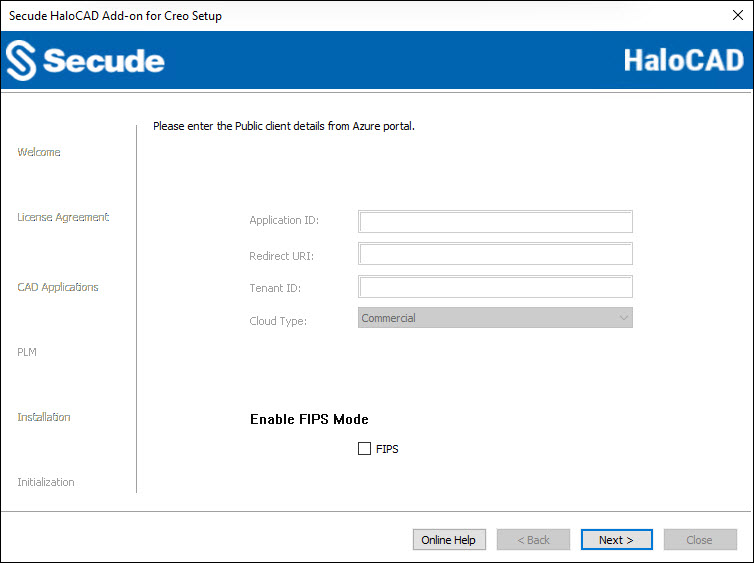
Initialization dialog without application details
The installer automatically reads the Microsoft Entra ID application details from the
hc.conf.encfile. As a result, the Microsoft Entra ID application fields are disabled and appear empty. Only FIPS Mode can be enabled or disabled. -
-
Click Next.
-
Once the initialization is complete, a success message appears as shown below.
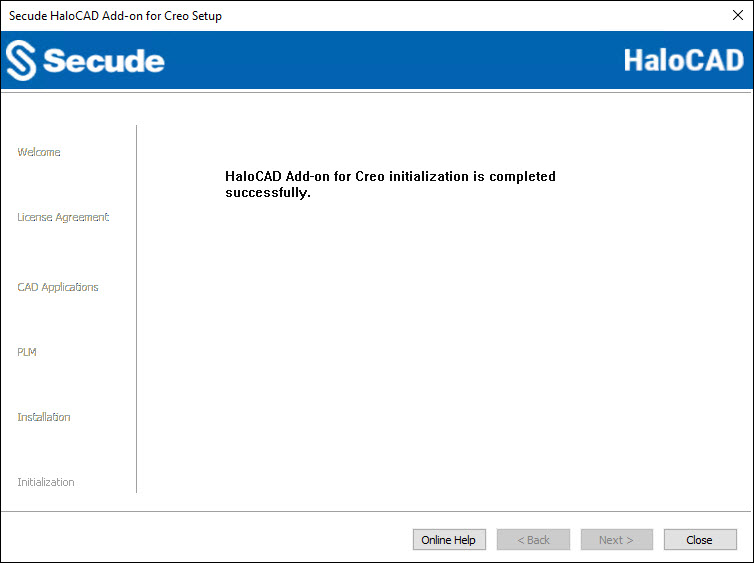
Initialization completed dialog
-
Click Close to close the installation wizard.
Post-installation checks
-
To view the add-on, open the Creo Application > HaloCAD tab.
-
Masking Personally Identifiable Information (PII): By default, the HaloCAD Add-on masks Personally Identifiable Information (PII) in logs, such as email names, file paths, and IP addresses in the MIP SDK logs. In HaloCAD logs, information such as the label name, label ID, engine ID, policy ID, and watermark text is masked with asterisks. To view PII in clear text, create the following registry entry in Path:
Computer\HKEY_CURRENT_USER\SOFTWARE\Secude\HaloCAD Add-on for CreoName:
mipallowpii, Type:REG_SZ, Value:trueThe log files are located at the following paths:
-
MIP SDK log:
%AppData%\Roaming\Secude\HaloCAD\creo\mip\logs\mip_sdk.miplog -
HaloCAD log:
%AppData%\Roaming\Secude\HaloCAD\creo\halocad.log
-
-
If your network infrastructure includes a proxy server that provides access to external websites. Then, to connect to the Secude License Manager URL, you need to manually add the Proxy settings in the add-on. To do so, create a registry entry in the root directory,
Computer\HKEY_LOCAL_MACHINE\SOFTWARE\Secude\HaloCAD Add-on for Creo
Name:proxyuri, Type:REG_SZ, Value: The format is,<URL>:<PORT>. For example,http://10.41.0.130:808 -
Creo configuration file: During the installation of the HaloCAD Add-on for Creo, the installer writes an entry in the configuration file, which is in the default installation directory of Creo. For example,
<installation path\Common Files\text\Config.pro>. Thus, at startup, Creo Parametric automatically reads the configuration file from this location and launches HaloCAD.However, some customers may prefer to access the configuration file from a mapped network drive or server location when running scripts. In such cases, request your administrator to add the following line with the necessary details to the server-side
Config.pro/Config.sup.
Note: Theconfig.profile overrides anyconfig.supentries.
protk.dat
For the default installer location, the file is saved at C:\Program Files\Secude\Creo\text\HaloCAD.dat
For a different location, the file is saved in the installation directory provided by the user (for example, D:\SampleFolder\Secude\Creo\text\HaloCAD.dat)
-
If Creo is installed in the default location, the file is saved at:
C:\Program Files\Secude\Creo\text\HaloCAD.dat -
If Creo is installed in a custom location, the file is saved in the user-specified installation directory. Example:
D:\SampleFolder\Secude\Creo\text\HaloCAD.dat
Silent Mode
Besides graphical mode, the add-on can be installed in silent mode, which does not require user involvement or display a user interface. It is a convenient way to streamline installation using the command at once.
Note: If you want to install the add-on as a standalone, make sure to use Windchill in the PLM parameter.
-
Open the Command Prompt with elevated rights (Run as Administrator).
-
Navigate to the add-on installer directory.
-
To view the list of options available in silent mode, follow these steps:
TypeHaloCAD_CREO_Setup.exe -help
Press Enter
Output
...
HaloCAD_CREO_Setup.exe -install -application < Creo Parametric 11.0 | Creo Parametric 12.0 | Creo Parametric 13.0 | Creo+ > -customdirlocation <default|custom> -PLM <Windchill | ECTR | Teamcenter > -applicationid <azure_application_id> -redirecturi <azure_redirect_url> -tenantid <azure_tenant_id for Single-tenant app|null for Multi-tenant app> [-cloudtype <Commercial|Custom|Germany|US_DoD|US_GCC|US_GCC_High|US_Sec|US_Nat|China> -protectioncloudurl <protection cloud url> -policycloudurl <policy cloud url>] -enablefipsmode <true|false>
[Default Parameters: cloudtype - Commercial and enablefipsmode - false]
HaloCAD_CREO_Setup.exe -uninstall
To delete HaloCAD cache through Silent Mode Uninstallation
HaloCAD_CREO_Setup.exe -uninstall -clearcache <yes>
For Silent Mode Installation if ENC file already exists in the same location
HaloCAD_CREO_Setup.exe -install -application < Creo Parametric 11.0 | Creo Parametric 12.0 | Creo Parametric 13.0 | Creo+ > -customdirlocation <default|custom> -enablefipsmode <true|false> -
The following example installs the add-on by using the Microsoft Entra ID application details.
HaloCAD_CREO_Setup.exe -install -application "Creo Parametric 12.0" -customdirlocation "C:\Program Files\Secude\Creo" -PLM "Windchill" -applicationid v6ca776-c74e-437d-98ef-662ecb5751tt -redirecturi https://localhost -tenantid 9c1cfc28-1ec6-44ea-bec6-e3492ef0cd16 -cloudtype Custom -protectioncloudurl https://api.aadrm.com -policycloudurl https://dataservice.protection.outlook.com -enablefipsmode true -
The following example installs the add-on by using the
hc.conf.encfile located in the same directory as the installer.
HaloCAD_CREO_Setup.exe -install -application "Creo Parametric 12.0" -customdirlocation "C:\Program Files\Secude\Creo" -enablefipsmode true -
Press Enter.
-
The installation is complete.
Via System Center Configuration Manager
Microsoft System Center Configuration Manager (SCCM) enables organizations to deploy operating systems and applications across enterprise-managed Windows devices.
Using SCCM, administrators can deploy the HaloCAD Add-on silently to multiple target computers across the enterprise.
Before You Begin
-
Review the prerequisites described in the Graphical Mode section.
-
Follow your organization's best practices when creating an SCCM deployment.
-
For information about configuring SCCM, refer to the Microsoft documentation.
Deployment Using SCCM
This procedure assumes that your SCCM environment is already configured. Use the Silent Mode command-line options described in the previous section to create and deploy the installation package through SCCM.
Step 5: Modify Registry Settings
Prerequisite: To modify the add-on registry entries, first launch the CAD application and sign in to Microsoft Purview Information Protection to ensure that an active HaloCAD session is established.
Note: Only the registry entries listed in the table below should be modified.
The HaloCAD registry entries are grouped into two sections: HKEY_CURRENT_USER and HKEY_LOCAL_MACHINE. Depending on your requirements, you can modify the following settings:
-
HKEY_CURRENT_USER\SOFTWARE\Secude\HaloCAD Add-on for Creo. Once you have logged into the HaloCAD Session, open Registry Editor, navigate to this path, and modify the desired registry key. For example, to change the log level, double-click loglevel, change the "Value data" using the values listed in the table below, and then click OK.-
loginterval
-
loglevel
-
logsize
-
-
HKEY_LOCAL_MACHINE\SOFTWARE\Secude\HaloCAD Add-on for Creo: enable_fips (This entry does not require an active HaloCAD session.)
|
Name |
Default Value |
Type |
Description |
|---|---|---|---|
|
loginterval |
|
REG_SZ |
It automatically removes log files that are older than the default retention period. By default, log files older than 30 days are deleted. |
|
loglevel |
|
REG_DWORD |
Log level information is logged in the
|
|
logsize |
|
REG_SZ |
The |
|
enable_fips |
|
REG_SZ |
Enable or Disable FIPS Mode
|
Configuration in the HaloCAD Registry
What to do next
-
If the encrypted configuration file was placed with the installer:
-
You can launch the CAD application and start using the HaloCAD features immediately.
-
The license is activated silently in the background.
-
For details on protecting CAD files, refer to the Operations Manual.
-
-
If the encrypted configuration file was not placed with the installer:
-
You must activate the license manually.
-
Follow the instructions in the “UI-based Manual License Activation” section of the Technical Reference Manual.
-