
This section provides supplemental information.
Installer Version Requirement
When uninstalling the HaloCAD add-on, use the installer for the currently installed version, whether you run it by double-clicking the installer or from the command line. Using a different installer version may result in errors.
Uninstalling the HaloCAD Add-on for Revit
When you no longer use the add-on, you may uninstall the application. Uninstalling removes all files and registry settings that were added to your computer during the initial installation.
Method #1
-
Click the Start menu > go to Control Panel > Programs > Programs and Features > Uninstall a Program > select HaloCAD Add-on for Revit application from the list > right-click and select the Uninstall option, or double-click the installer
HaloCAD_Revit_Setup.exefile. -
Depending on your Windows security settings, you may get a security warning as "Do you want to allow the following program to make changes to this computer?". If this warning appears, click the Yes button to confirm that you want to uninstall the add-on.
-
The HaloCAD installer checks the current user session for any supported CAD applications running in the background and, if any are detected, displays the following message prompting you to close them before continuing with the uninstallation.
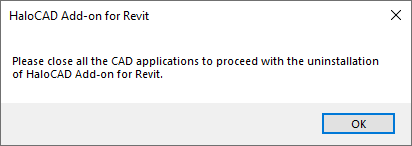
Uninstall message #1
-
Click OK and close all HaloCAD-supported CAD applications.
-
Repeat step 1, and the following confirmation message appears.
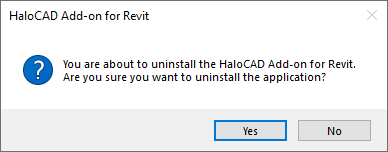
Uninstall Message #2
-
Click Yes to confirm the uninstallation of HaloCAD from your computer.
-
When prompted with the following message, click Yes to delete the identity of the currently logged-in user from the ongoing session (
%AppData%\Roaming\Secude\HaloCAD\revit), or No to proceed with the uninstallation without removing the identity. This prompt does not appear if no HaloCAD session has been initiated.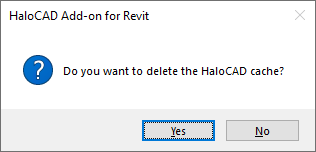
Uninstall message #3
-
The HaloCAD add-on has been uninstalled successfully. Click OK to close the dialog box.
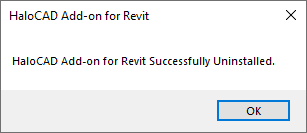
Uninstall message #4
Method #2
The add-on can be removed using the command line, as illustrated in the sample below.
-
Open Command Prompt.
-
Navigate to the add-on installer's directory.
-
Option 1: Uninstall without deleting the identity of the currently logged-in user:
HaloCAD_Revit_Setup.exe -uninstall -
Option 2: Uninstall and delete the identity of the currently logged-in user:
HaloCAD_Revit_Setup.exe -uninstall -clearcache <yes>
-
-
The uninstallation process is complete.